
Why Third-Party Apps Keep Breaking After macOS Updates (And Who’s to Blame)

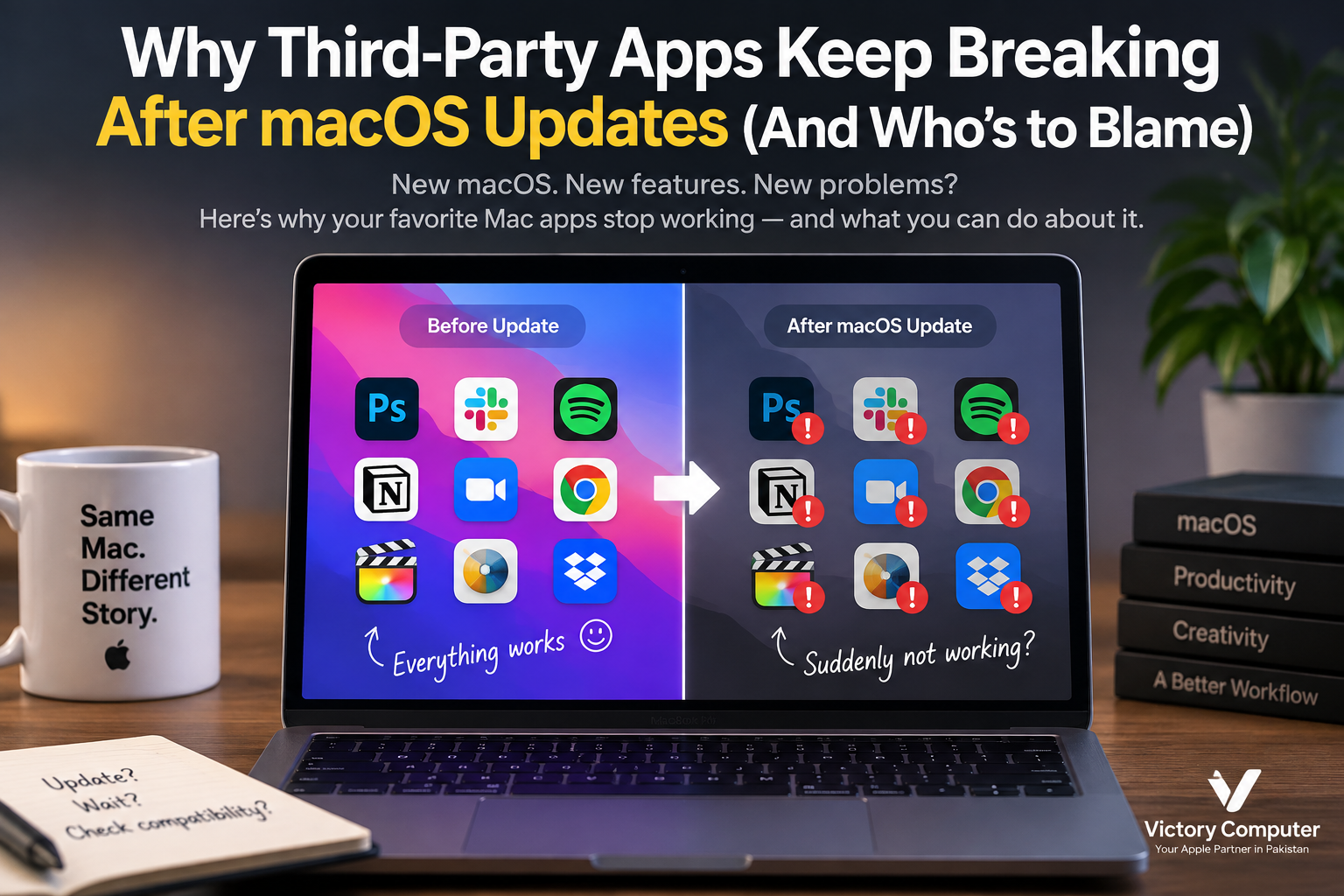
Why Third-Party Apps Keep Breaking After macOS Updates
Third-party apps breaking after macOS updates usually happens because a major macOS release changes APIs, security permissions, system extensions, hardware support or other components that software depends on. Apple controls those platform changes, but developers are responsible for testing and updating their apps. In many cases, responsibility is shared rather than belonging entirely to one side.
Why Do Third-Party Apps Break After macOS Updates?
Mac applications can stop working when a macOS update changes something the application relies on. A normal app that uses current Apple frameworks may continue working without difficulty, while software that depends on older APIs, drivers, plug-ins or low-level system access can require significant development work.
The problem is especially noticeable with utilities, security applications, hardware drivers, virtualization software, audio tools and applications that integrate deeply with macOS. Apple has progressively moved many low-level functions away from traditional kernel extensions toward newer technologies such as System Extensions and DriverKit.
Apple says system extensions run in user space rather than inside the kernel, which can improve security and system stability. That is useful for users, but developers relying on older technologies may have to redesign parts of their software rather than simply change a few lines of code.
This wider tension between stability and platform change is also discussed in our guide to problems introduced by major macOS updates.
7 Main Reasons Mac Apps Stop Working After an Update
1. Apple Deprecates Older APIs
Applications communicate with macOS through programming interfaces and frameworks. Apple can deprecate older technologies and encourage developers to move to newer alternatives. Deprecation does not always mean an app immediately stops working, but depending on obsolete technology increases its long-term compatibility risk.
2. Kernel Extensions Have Been Replaced for Many Tasks
Older security tools, network utilities and hardware software often relied on kernel extensions, commonly called kexts. Apple has deprecated kernel extensions for many uses and provides technologies such as System Extensions, Network Extension, Endpoint Security and DriverKit as modern alternatives.
This change can improve isolation and reliability because newer extensions operate outside the kernel, but software built around old kernel-level methods may require substantial redevelopment.
3. macOS Security Requirements Become Stricter
Modern macOS releases place tighter controls on software that wants sensitive access to files, networking, input, security events and background functionality. These restrictions can expose compatibility problems in applications designed around older assumptions.
Sometimes the application is technically compatible but requires new permissions or user approval. In other cases, the developer must change how the software interacts with macOS.
4. Apple Silicon Changed the Mac Architecture
Apple’s transition from Intel processors to Apple Silicon created another compatibility layer. Applications built natively for Apple Silicon generally provide the cleanest long-term path, while many Intel applications have continued to work through Apple’s Rosetta translation technology.
However, not every component can simply be translated. Low-level extensions, drivers and some plug-ins may need native architecture support. This is why an old application can appear to run while one of its essential add-ons fails.
5. Plug-ins Can Break Even When the Main App Works
Creative professionals often depend on an ecosystem rather than one application. A video editor, audio workstation or design application may launch correctly after an update while an older plug-in, driver, codec or extension does not.
For production systems, compatibility therefore needs to be checked across the complete workflow, not just the main application.
6. Developers May Be Slow to Release Updates
Apple is not responsible for every compatibility failure. Developers receive tools and documentation for preparing software for platform changes, but maintaining an application takes engineering resources.
A well-maintained app may receive compatibility updates quickly. Older, abandoned or low-revenue software may receive them much later—or never. Users can then face the hidden cost of losing access to older Mac apps.
7. Major Updates Can Introduce New Bugs
Even current software can encounter problems after a major operating-system release. An app developer may have followed Apple’s requirements correctly and still encounter a bug caused by an interaction that did not appear during earlier testing.
That is one reason professional users should distinguish between a security update that needs timely attention and a major macOS upgrade that changes more of the platform.
Who Is to Blame: Apple or Third-Party Developers?
Neither side is responsible in every case. The cause depends on what actually changed and whether the developer had a reasonable opportunity to adapt.
| Compatibility Problem | Main Responsibility | Why |
|---|---|---|
| Removal or deprecation of old system technology | Primarily Apple | Apple controls the macOS platform and technical direction. |
| Developer ignores documented platform changes | Primarily developer | The application has not been maintained for the current environment. |
| Apple Silicon migration | Shared | Apple changed the hardware platform while developers must adapt their software. |
| Old plug-in or driver stops working | Depends on component | The cause may be an OS restriction, architecture requirement or abandoned component. |
| New macOS bug affects a current app | Often Apple | The application may be affected by an operating-system regression. |
The most useful question is therefore not simply “Who is to blame?” but “Which layer changed?” Identifying whether the failure comes from macOS, the main app, a plug-in or a driver gives users a much better path to a solution.
Pros and Cons of Apple’s macOS Update Approach
Pros
- Stronger platform security: Moving sensitive functionality away from unrestricted kernel access can reduce the damage caused by faulty or malicious low-level software.
- Better system stability: Modern system extensions operate in user space, reducing the ability of extension failures to compromise the entire operating system.
- Modern development frameworks: Developers receive newer APIs and tools designed around current Mac hardware and security requirements.
- Better Apple Silicon optimization: Native applications can be designed specifically for Apple’s current processor architecture.
- Old dependencies are gradually removed: Platform modernization prevents macOS from having to support every obsolete technology indefinitely.
Cons
- Older applications can become unusable: Users may lose access to software that still meets their needs but is no longer maintained.
- Professional workflows face upgrade risk: One incompatible plug-in or hardware driver can prevent an entire workflow from moving to a new macOS release.
- Developers face recurring maintenance costs: Major platform changes can require substantial engineering work.
- Users may need paid software upgrades: Compatibility changes can indirectly force users to replace old software or hardware.
What Does This Mean for Mac Users?
Apple’s approach makes sense when security and long-term platform modernization are the priority, but users with specialized software should not treat every major macOS upgrade as an automatic day-one installation. Compatibility should be verified first.
How Can You Avoid App Problems Before Updating macOS?
The safest practical approach is to check your critical software before installing a major macOS upgrade. A few minutes of preparation can prevent days of troubleshooting.
- List the applications you cannot work without.
- Check each developer’s official compatibility information.
- Check important plug-ins, drivers and extensions separately.
- Confirm that printers, audio interfaces, storage tools and other specialized hardware have compatible drivers.
- Update critical applications before upgrading macOS where appropriate.
- Create a current backup before a major operating-system upgrade.
- For business or production Macs, wait until your essential workflow has been confirmed compatible.
If one critical application is unsupported, read our guide to unsupported Mac apps and whether you should delay upgrading before changing your production system.
What Does Apple Silicon Mean for Older Mac Apps?
Many Intel-based Mac applications can run on Apple Silicon through Rosetta, but native Apple Silicon software is the better long-term compatibility target.
Apple introduced Rosetta to translate Intel applications for Apple Silicon Macs. This helped users continue using a large amount of existing software during the processor transition. Apple nevertheless recommends updating applications for Apple Silicon for future compatibility.
Architecture compatibility becomes more complicated when an application relies on Intel-only plug-ins, extensions or other add-ons. Users should therefore check the complete application stack rather than assuming that successful launch of the main app proves full compatibility.
For a deeper explanation, see our guide to Apple Silicon and Intel app compatibility.
Should You Delay a Major macOS Update?
Delay a major macOS upgrade when your work depends on software or hardware that has not yet been confirmed compatible. This is particularly relevant to designers, developers, video editors, audio professionals and businesses running specialized tools.
For casual users whose important applications are current and officially supported, upgrading may be much simpler. Security updates should also be evaluated differently from optional major-version upgrades; delaying an unnecessary feature upgrade is not the same as ignoring security maintenance.
The best upgrade date is therefore not necessarily launch day. It is the point at which your important applications, plug-ins and peripherals are ready.
Buying a MacBook in Pakistan: Check Software Before Hardware
MacBook buyers in Pakistan should consider software compatibility alongside processor, memory and storage requirements. A newer Mac may offer significantly newer hardware, but that does not automatically mean every legacy application, plug-in or peripheral in an existing workflow will be supported.
Before purchasing, make a list of your essential applications and confirm whether they support the Mac model, Apple Silicon architecture and macOS version you plan to use.
Victory Computer in Lahore provides MacBook and computer options for customers in Pakistan. For current model availability, warranty information and pricing, confirm the details at the time of purchase rather than assuming that every configuration has identical coverage.
WhatsApp: 0300 9466881
Location: Lahore, Pakistan
Frequently Asked Questions
Why do third-party apps break after macOS updates?
Third-party apps can break because macOS changes APIs, permissions, extensions, hardware architecture or other system components the software relies on. Older and deeply integrated applications generally face greater compatibility risk.
Is Apple intentionally breaking third-party Mac apps?
There is no general basis for assuming that compatibility changes are intended to break third-party software. Many changes are connected to security, reliability, hardware transitions and platform modernization, although they can still create real costs for developers and users.
Is Apple or the app developer responsible when an app stops working?
Responsibility depends on the cause. Apple controls platform changes, while developers are responsible for maintaining their applications against supported technologies and current macOS versions.
Can Intel Mac applications run on Apple Silicon?
Many Intel applications can run through Apple’s Rosetta technology, but some plug-ins, extensions and low-level components may require native support. Native Apple Silicon versions are preferable for long-term compatibility.
Should I update macOS immediately after a major release?
Not necessarily. If your Mac is essential for professional work, verify your critical apps, plug-ins, drivers and peripherals before installing a major new macOS version.
What should I do if an important Mac app stops working?
Check the developer’s current compatibility information and updates first. If the application is no longer supported, consider a supported replacement or avoid the major OS upgrade until your workflow has a safe migration path.

About Victory Computer Editorial Team
Victory Computer Editorial Team The Victory Computer Editorial Team publishes informative, research-based content about laptops, computers, monitors, printers, hardware, and technology trends in Pakistan. Our goal is to help readers understand product specifications, compare available options, and make informed purchasing decisions.
View all posts by Victory Computer Editorial Team
11 thoughts on “Why Third-Party Apps Keep Breaking After macOS Updates (And Who’s to Blame)”