
The Hidden Cost of macOS Updates: Losing Access to Your Favorite Apps

The Hidden Cost of macOS Updates
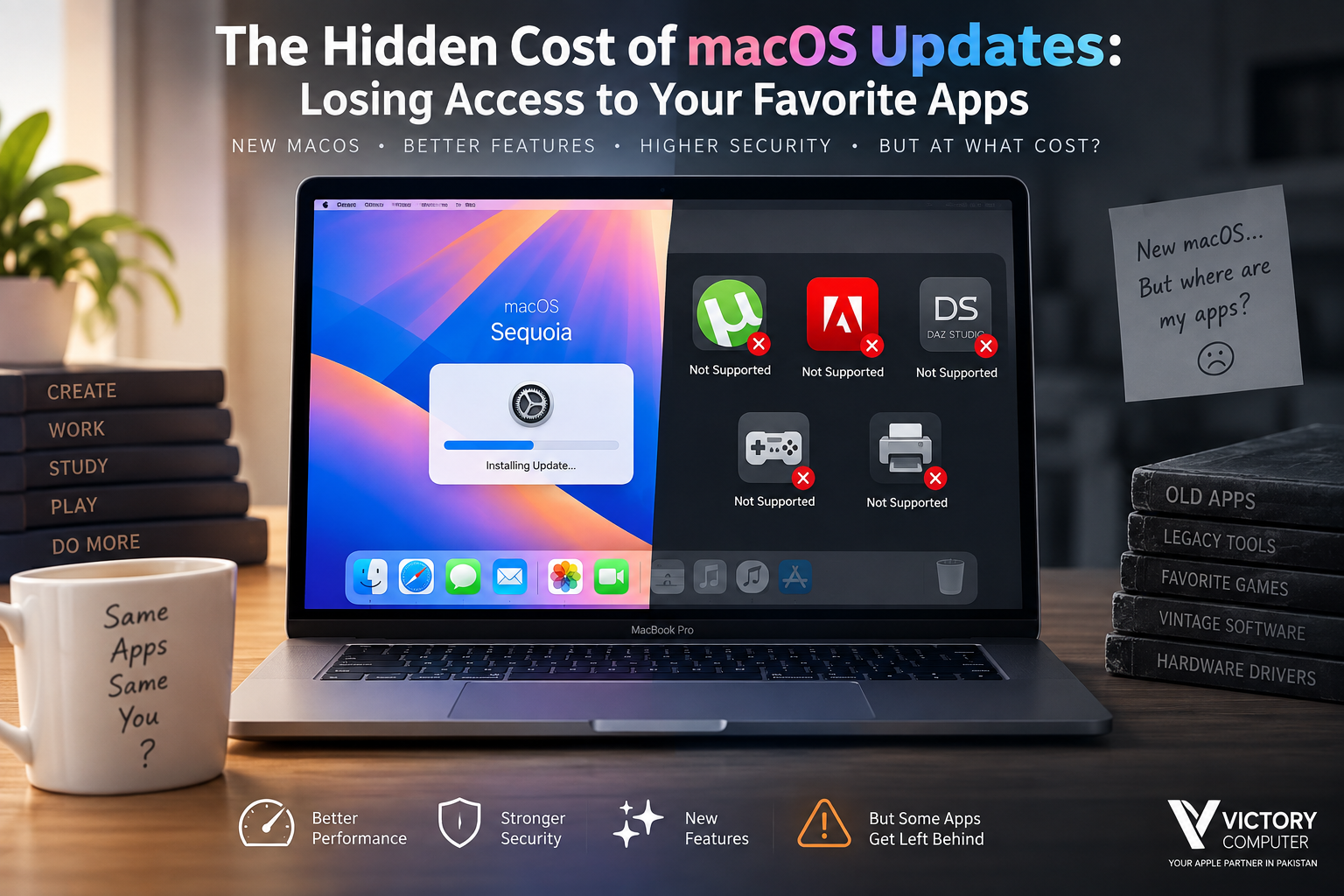
macOS updates app compatibility can become a problem when an upgrade removes support for older software technologies, changes security requirements, or exposes apps and plug-ins that developers no longer maintain. Updating macOS generally improves security, stability, and features, but users who depend on older professional software should check compatibility before installing a major upgrade.
Why Do Apps Stop Working After macOS Updates?
Mac apps can stop working after a major macOS upgrade because applications depend on operating-system frameworks, processor architecture, drivers, plug-ins, permissions, and security technologies. When one of those requirements changes, an application may need an update from its developer.
| Compatibility Issue | What It Can Mean for Users |
|---|---|
| Old software architecture | Very old applications may no longer be supported by modern macOS releases. |
| Processor transition | Intel-only software may depend on Rosetta when running on Apple Silicon. |
| Drivers and system extensions | Older hardware accessories may require updated manufacturer software. |
| Security changes | Outdated components may fail modern signing, permission, or security requirements. |
| Developer support ends | An abandoned application may never receive the update required for a newer macOS release. |
This is why checking Mac app compatibility is particularly important for video editors, designers, developers, musicians, engineers, and businesses that rely on specialist software or hardware.
How Catalina Changed Mac App Compatibility
One of the biggest compatibility breaks happened with macOS Catalina 10.15. Apple states that macOS Mojave 10.14 was the last macOS release capable of running 32-bit applications. Starting with Catalina, 32-bit applications are no longer compatible with macOS.
This means an application that exists only as a 32-bit Mac program cannot simply be launched normally on Catalina or a later macOS release. Users need a newer 64-bit version, a replacement application, or a separate legacy environment where appropriate.
For a deeper explanation, read Victory Computer’s 32-bit vs 64-bit Mac app guide.
Apple also provides its official 32-bit app compatibility guidance for users checking older Mac software.
Apple Silicon, Intel Apps and Rosetta
The transition from Intel processors to Apple Silicon did not automatically make every Intel Mac application unusable. Apple’s Rosetta technology allows many Intel-based Mac applications to run on Apple Silicon Macs by translating the application for the new processor architecture.
However, Rosetta should not be treated as a permanent substitute for native software. Apple currently advises users to update Intel-based applications for Apple Silicon and says general Rosetta support will change in future macOS releases. Plug-ins, extensions, drivers, and other low-level components can also have different compatibility requirements from the main application.
Users who depend on older software can read more about Apple Silicon compatibility and consult Apple’s Rosetta guidance.
Pros and Cons of macOS Updates
Major macOS upgrades offer meaningful benefits, but installing them immediately is not always the right choice for a Mac that depends on specialist applications, plug-ins, or hardware.
Pros of Updating macOS
- Security improvements: newer releases receive current security fixes and protections.
- Bug and stability fixes: updates can resolve operating-system problems and improve reliability.
- New features: major releases introduce new macOS and built-in application capabilities.
- Better support for current software: actively developed apps increasingly target newer operating systems.
- Support for newer Apple technologies: current macOS releases are designed around newer Mac hardware and platform features.
Cons of Updating macOS
- Older applications may stop working: abandoned or legacy software can lose compatibility.
- Plug-ins and drivers can lag behind: audio equipment, printers, specialist peripherals, extensions, and professional plug-ins may need updates.
- Workflow disruption: discovering incompatibility after upgrading can interrupt professional or business work.
- Replacement costs: moving away from unsupported software may require a newer paid version, subscription, replacement application, or updated hardware.
Why We Recommend Checking Before Upgrading
For a general-purpose Mac using current applications, keeping macOS updated is normally sensible. For a production Mac running specialist software, check every business-critical application, plug-in, and peripheral first. The safest upgrade is one where compatibility has been confirmed before the operating system changes.
What to Check Before Updating macOS
A short compatibility check can prevent most unpleasant surprises. Before installing a major macOS upgrade:
- List your essential applications. Identify software you cannot work without.
- Check each developer’s compatibility page. Confirm support for the exact macOS version you plan to install.
- Check plug-ins and extensions separately. A compatible main application does not guarantee that every third-party add-on is ready.
- Check external hardware. Audio interfaces, specialist printers, storage tools and other peripherals may depend on manufacturer software.
- Update important applications first. Install supported application versions before changing macOS where appropriate.
- Back up your Mac. Apple recommends making a backup before upgrading.
Apple’s current macOS update guidance recommends using the latest macOS compatible with your Mac for security, stability and compatibility, while also recommending a backup before installing new software.
What to Do If an App Stops Working After an Update
If an application stops launching after a macOS upgrade, first determine whether the problem is the application version, an Intel-only component, an obsolete 32-bit application, a plug-in, or another compatibility dependency.
- Check the developer’s website for a compatible update.
- Update related plug-ins, extensions and drivers.
- Check whether an Intel application can operate through Rosetta on Apple Silicon.
- Look for a maintained alternative if the original application has been abandoned.
- Avoid bypassing macOS security controls simply to force unknown or obsolete software to run.
Victory Computer has additional guidance on what to do when an app becomes unsupported on macOS and workarounds for unsupported apps on Apple Silicon Macs.
What MacBook Buyers in Pakistan Should Consider
MacBook buyers in Pakistan should consider software compatibility alongside processor, memory, storage, display and price. This is especially important for professionals buying a Mac for Adobe applications, development tools, engineering software, audio production, specialized business applications, or older peripherals.
Before changing from an Intel Mac to an Apple Silicon Mac, create a list of essential applications and confirm that current versions support your intended Mac and macOS release. The same check is useful when upgrading an existing Mac to a newer major macOS version.
You can browse computers and related technology at Victory Computer or contact Victory Computer in Lahore if you need help choosing hardware appropriate for your software requirements.
Frequently Asked Questions
Why do apps stop working after updating macOS?
Applications can become incompatible because macOS changes processor, security, driver, framework, or software requirements. Older applications whose developers no longer provide updates are particularly vulnerable.
Can 32-bit applications run on modern macOS?
Not natively. Apple ended macOS support for 32-bit applications with Catalina 10.15; Mojave 10.14 was the final macOS version that could run them.
Do Intel Mac apps work on Apple Silicon?
Many Intel-based Mac applications can currently run on Apple Silicon through Rosetta, but compatibility depends on the application and its components. Native Apple Silicon or Universal versions are preferable for long-term compatibility.
Should I update macOS as soon as a major version appears?
Not necessarily on a production machine. Security updates matter, but users who rely on specialist applications, drivers or plug-ins should confirm compatibility and make a backup before a major operating-system upgrade.
Can I fix an app that stopped working after a macOS update?
Sometimes. Updating the application, plug-in or driver may solve the problem; abandoned 32-bit software generally requires a newer replacement or an appropriate legacy environment.
How can I avoid losing important apps after the next macOS upgrade?
Check developer compatibility information for every essential application and peripheral, install compatible versions, and back up your Mac before upgrading.
Final Recommendation
macOS updates app compatibility should be checked before every major operating-system upgrade if your Mac is essential for work or study. Newer macOS versions provide important security, stability and feature improvements, but older applications, plug-ins and drivers may not make the transition.
The practical approach is simple: identify your critical software, verify support with its developer, update necessary components and back up your Mac before upgrading. If your current workflow depends on software that has been abandoned, plan a replacement before changing macOS rather than discovering the problem afterward.
For MacBook and computer buying guidance in Pakistan, visit Victory Computer or WhatsApp 0300 9466881.

About Victory Computer Editorial Team
Victory Computer Editorial Team The Victory Computer Editorial Team publishes informative, research-based content about laptops, computers, monitors, printers, hardware, and technology trends in Pakistan. Our goal is to help readers understand product specifications, compare available options, and make informed purchasing decisions.
View all posts by Victory Computer Editorial Team
2 thoughts on “The Hidden Cost of macOS Updates: Losing Access to Your Favorite Apps”