
Top Workarounds for Unsupported Apps on Apple Silicon Macs

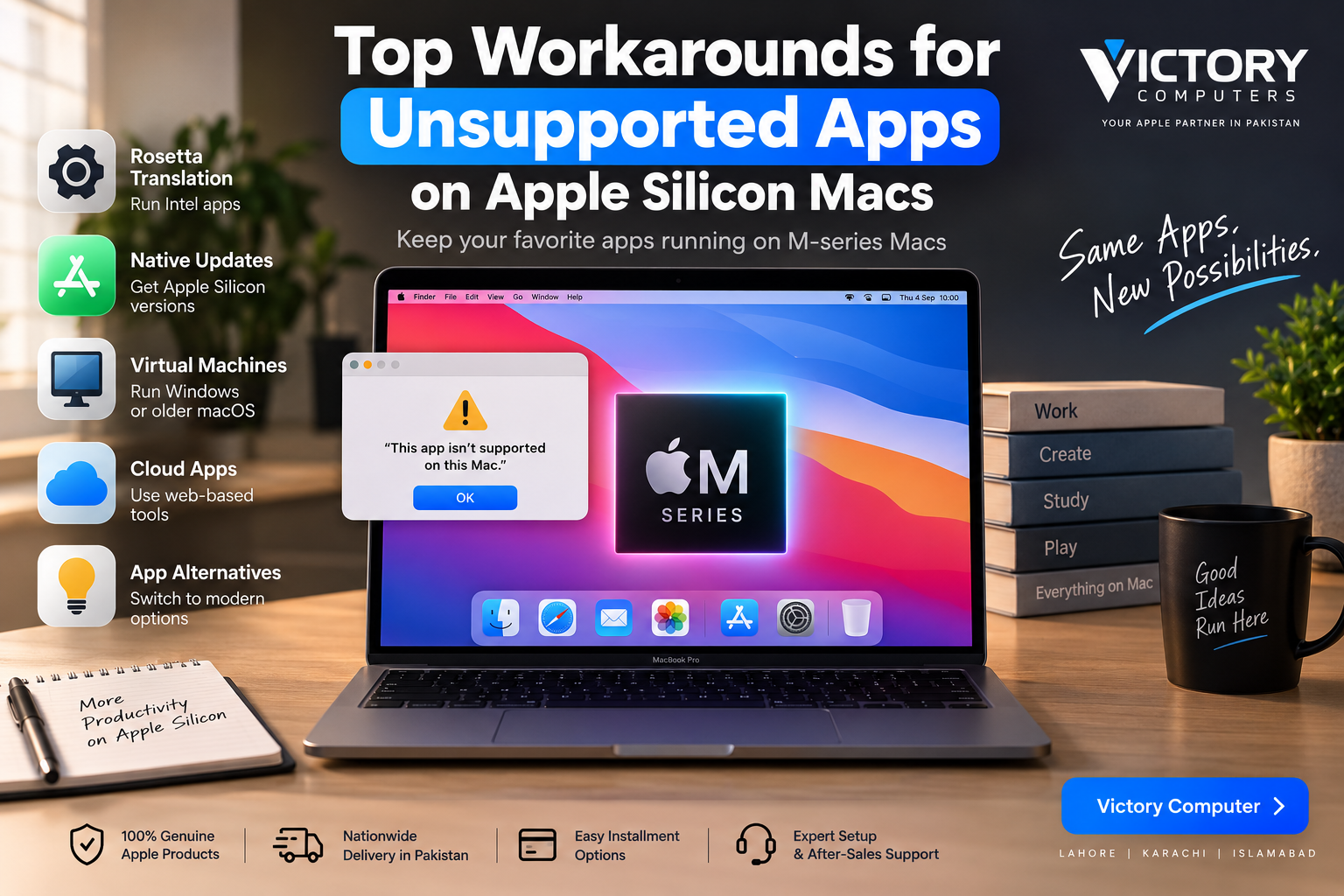
Top Workarounds for Unsupported Apps
Unsupported apps on Apple Silicon Macs can often be handled by using Rosetta for compatible Intel software, installing a native Apple Silicon update, running Windows software in a virtual machine, switching to a web app, or replacing the old application. The right solution depends on why the software is incompatible, because Rosetta cannot solve every legacy-app problem.
Why Do Apps Become Unsupported on Apple Silicon Macs?
The main compatibility issue is the change in processor architecture. Apple moved the Mac from Intel x86-64 processors to its own ARM-based Apple Silicon platform. Software built specifically around older Intel components, drivers, plug-ins, or low-level system extensions may therefore require updates before it works correctly.
Apple introduced Rosetta to translate many Intel-based Mac applications for Apple Silicon. However, Rosetta should be considered a transition technology rather than a permanent substitute for native software. Apple recommends moving Intel apps, plug-ins, extensions, and add-ons to Universal or Apple Silicon versions for better long-term compatibility.
Another separate problem affects much older software: Apple ended support for 32-bit Mac applications beginning with macOS Catalina 10.15. Rosetta does not restore general compatibility for obsolete 32-bit Mac software.
If you want more background on the processor transition, read our guide to Apple Silicon architecture and why it matters.
5 Best Workarounds for Unsupported Apps on Apple Silicon Macs
| Workaround | Best For | Main Trade-Off |
|---|---|---|
| Rosetta | Compatible Intel-based Mac apps | Not a permanent compatibility strategy |
| Native/Universal update | Long-term Mac use | An update may require a new license or subscription |
| Virtual machine | Windows and specialized legacy workflows | Uses more RAM, storage and processing resources |
| Web/cloud version | Office, collaboration and browser-based tools | May require internet access or lack desktop features |
| Modern alternative | Abandoned or permanently incompatible apps | Migration and retraining may be necessary |
1. Use Rosetta for Intel-Based Mac Apps
Rosetta is usually the first workaround to try when an Intel-based Mac application does not have a native Apple Silicon version. Rosetta works in the background and translates compatible Intel code so it can run on Apple Silicon.
According to Apple’s current Rosetta guidance, users can identify an app by selecting it in Finder, opening Get Info, and checking whether its Kind is listed as Intel, Universal, or Apple Silicon.
If Rosetta is required and has not already been installed, macOS can prompt you to install it when you open an Intel application.
Rosetta does have limits. Software that depends on obsolete components, incompatible extensions, drivers, or unsupported architectures may still fail. Apple has also announced that general Rosetta support will change after macOS 27, making native application updates increasingly important.
2. Update to a Universal or Apple Silicon Version
A native or Universal update is generally the best long-term fix for unsupported apps on Apple Silicon Macs. Universal applications contain support for both Intel and Apple Silicon, while Apple Silicon-native applications are designed specifically for Apple’s current processor architecture.
Check the Mac App Store, the application’s built-in updater, or the developer’s official website. Also check plug-ins, extensions and other add-ons separately because an updated main application can still experience problems when an older component remains Intel-only.
This approach avoids depending on a compatibility layer and is usually preferable for applications that form part of an important professional workflow.
3. Run Windows Software in a Virtual Machine
Virtualization can help when the software you need has a Windows version but no suitable modern Mac version. On an Apple Silicon Mac, applications such as Parallels Desktop can run Windows 11 on Arm in a virtual machine.
Windows 11 on Arm can run many traditional Windows applications through Microsoft’s compatibility technology, but compatibility is not universal. Some applications, games, hardware-dependent programs and virtualization features can still have limitations.
For example, Parallels documents current Windows 11 on Arm limitations, including restrictions affecting nested virtualization and some graphics-intensive applications.
A virtual machine also consumes RAM, storage and CPU resources. Users who regularly depend on virtualization should consider memory and storage capacity when selecting a MacBook.
4. Switch to a Web or Cloud Version
A browser-based version can be the simplest replacement when the native desktop application is no longer essential. Productivity, communication, document management and collaboration software increasingly offers web interfaces that are independent of the Mac’s processor architecture.
The main benefit is compatibility: browser-based software does not usually depend on the same local Intel-versus-ARM application architecture. The disadvantages can include internet dependency, subscription costs, limited offline operation and fewer advanced features than the desktop version.
5. Replace the Unsupported App With a Modern Alternative
Replacing an abandoned application is often better than repeatedly trying to keep obsolete software alive. This is especially true when the original developer has stopped maintaining the application or when critical plug-ins and drivers cannot support current macOS versions.
Before migrating, compare file-format support, export options, plug-in compatibility, licensing, cloud requirements and workflow differences. Keep a backup of important documents and application data before removing the old software.
If your compatibility problem started after a system update, our guide explaining why third-party apps can break after macOS updates provides additional troubleshooting context.
Pros and Cons of Apple Silicon App Workarounds
Pros
- Multiple compatibility options: Intel applications, Windows programs and browser tools each have possible migration paths.
- Rosetta is easy to use: Compatible Intel Mac applications can often run without complicated manual configuration.
- Virtualization expands software access: Windows 11 on Arm provides another route for applications unavailable on macOS.
- Native alternatives improve longevity: Moving to Universal or Apple Silicon software reduces reliance on transitional compatibility tools.
- Cloud applications reduce architecture problems: Browser-based workflows can work across Mac and Windows systems.
Cons
- Rosetta cannot solve every incompatibility: Old drivers, extensions and obsolete software may remain unusable.
- Rosetta is not a permanent strategy: Apple has announced changes to general Rosetta availability after macOS 27.
- Virtual machines use additional resources: Windows virtualization requires RAM, storage and processing capacity.
- Windows on Arm has limitations: Certain programs, games and low-level features may still be incompatible.
- Replacing software can disrupt workflows: Users may need to migrate files, buy new licenses or learn a different application.
Why We Recommend a Native Update First
For software you expect to use for several more years, choose an Apple Silicon-native or Universal version whenever one is available. Use Rosetta as a compatibility bridge and virtualization for specific Windows-dependent workflows rather than assuming either method will permanently support every legacy application.
Which Workaround Should You Choose?
Start by identifying exactly what kind of application you have. In Finder, select the application, choose File > Get Info, and check its architecture.
- Intel 64-bit Mac app: Try Rosetta, then look for a native update.
- Universal app: Run it natively unless an older Intel-only plug-in specifically requires Rosetta.
- Apple Silicon app: Investigate the app itself, plug-ins, permissions, drivers or macOS compatibility rather than assuming the processor is the problem.
- Old 32-bit Mac app: Look for an updated version or modern replacement.
- Windows-only application: Check Windows 11 on Arm compatibility before considering a virtual machine.
- Abandoned software: Plan migration to an actively maintained alternative.
Users considering a new computer primarily because of software compatibility should also compare MacBook vs Windows laptops for professional workloads before buying. The applications required for your work should influence the hardware decision.
Choosing an Apple Silicon Mac in Pakistan
For buyers in Pakistan, software requirements should be checked before choosing a Mac configuration. Creative professionals, developers and users running virtual machines may need more memory and storage than someone whose workload consists mainly of browser applications and native productivity software.
Do not choose a MacBook solely from the processor generation. Make a list of essential applications, plug-ins, external devices and Windows software first, then verify compatibility with the developers of those products.
You can browse more MacBook guides and technology articles or visit Victory Computer for available computers and buying information in Pakistan.
Frequently Asked Questions
Why don’t some apps run on Apple Silicon Macs?
Some applications were built for Intel processors or depend on older plug-ins, drivers and system components. Apple Silicon uses a different processor architecture, so unsupported software may require translation, an update or replacement.
Does Rosetta run all Intel Mac applications?
No. Rosetta enables many Intel-based applications to run on Apple Silicon, but it cannot guarantee compatibility with every application or legacy component.
Can Rosetta run old 32-bit Mac apps?
No. macOS Catalina 10.15 and later do not support 32-bit Mac applications. Users normally need an updated 64-bit version or a replacement.
Can Apple Silicon Macs run Windows applications?
Yes, many Windows applications can run through Windows 11 on Arm in virtualization software such as Parallels Desktop. Compatibility varies, so check the specific application before relying on this approach.
Is Rosetta a good long-term solution?
Rosetta remains useful for Intel applications, but native Apple Silicon or Universal software is the safer long-term choice. Apple has announced that general Rosetta functionality will become much more limited after macOS 27.
What should I do before buying an Apple Silicon Mac?
List your essential applications, plug-ins, peripherals and Windows-only programs. Verify each one for Apple Silicon or Windows on Arm compatibility before choosing the Mac model, RAM and storage configuration.
Final Recommendation
The best approach to unsupported apps on Apple Silicon Macs is to use the least complicated solution that preserves your workflow. Try a native or Universal update first, use Rosetta for compatible Intel software, consider virtualization for necessary Windows applications, and replace abandoned software when continued compatibility becomes impractical.
For users in Pakistan planning a MacBook purchase, Victory Computer provides current MacBook and laptop options in Lahore with nationwide purchasing information. Confirm the software requirements of your specific workflow before choosing a system.

About Victory Computer Editorial Team
Victory Computer Editorial Team The Victory Computer Editorial Team publishes informative, research-based content about laptops, computers, monitors, printers, hardware, and technology trends in Pakistan. Our goal is to help readers understand product specifications, compare available options, and make informed purchasing decisions.
View all posts by Victory Computer Editorial Team
10 thoughts on “Top Workarounds for Unsupported Apps on Apple Silicon Macs”