
Why Popular Mac Apps Like Reunion, SABnzbd, and SoftRAID Are Struggling on Sonoma | Expert Review

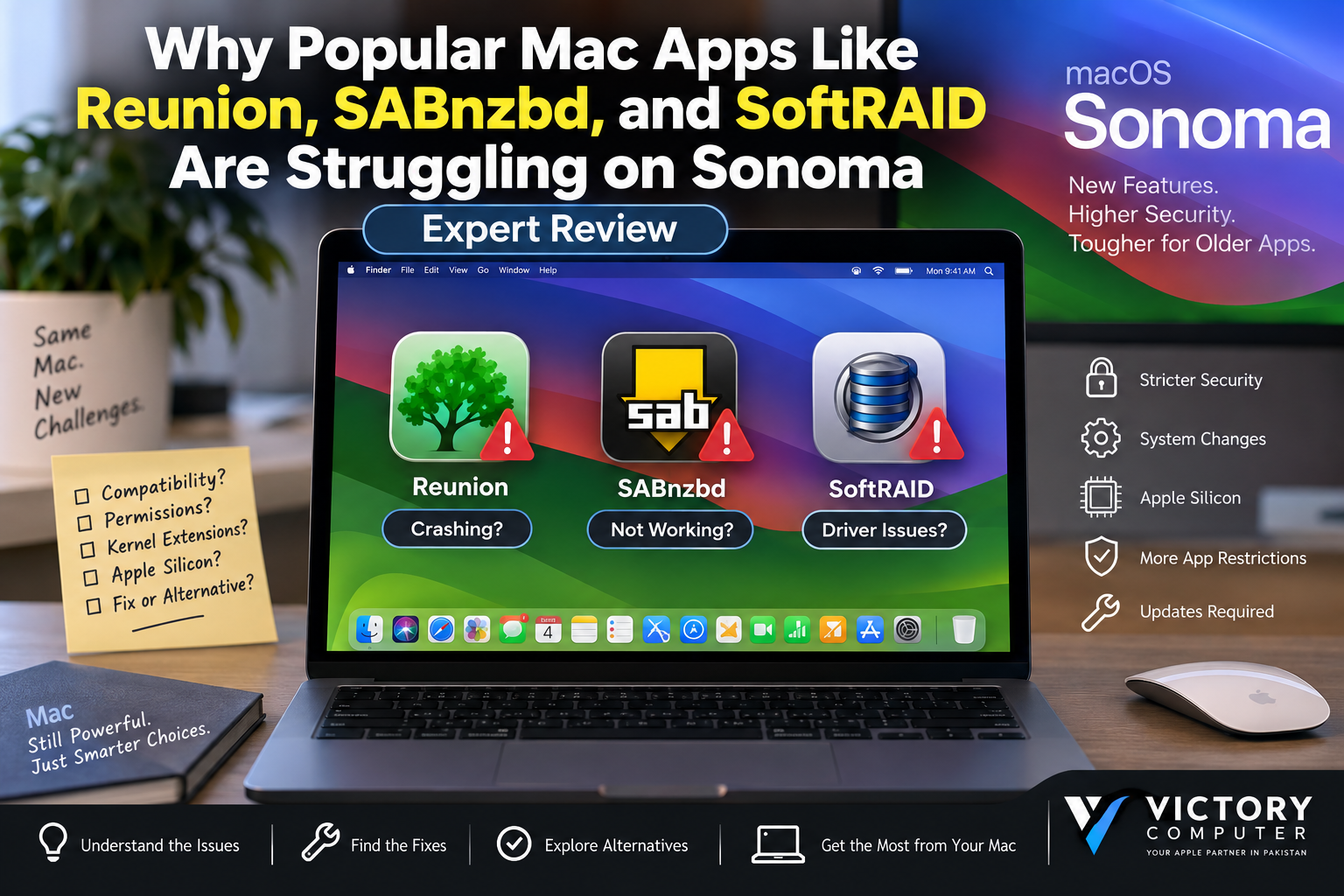
Why Popular Mac Apps
Mac apps struggling on Sonoma are usually affected by outdated app versions, changed security requirements, permissions, drivers, or system-extension behavior rather than a universal Sonoma incompatibility. Reunion, SABnzbd, and SoftRAID are good examples: older versions can cause trouble, while newer supported releases can work properly on modern macOS.
Are Reunion, SABnzbd, and SoftRAID Actually Broken on Sonoma?
No. It is more accurate to say that specific versions or configurations can experience macOS Sonoma compatibility problems. Current software should always be checked against the developer’s compatibility information instead of assuming the entire application is unsupported.
| App | Sonoma Situation | Recommended Action |
|---|---|---|
| Reunion | Reunion 12 has documented Sonoma compatibility problems; newer versions support newer macOS releases. | Upgrade an older Reunion installation before relying on it with Sonoma. |
| SABnzbd | Current SABnzbd releases provide official macOS packages, including Apple Silicon support. | Install a current supported build and verify folder/network permissions. |
| SoftRAID | Compatibility depends heavily on the SoftRAID and macOS version because storage drivers interact closely with the operating system. | Use the SoftRAID version appropriate for your macOS release and follow vendor guidance. |
This distinction matters. A user experiencing crashes after upgrading macOS may have an outdated build rather than an application that has permanently stopped supporting Mac computers.
Why Do Mac Apps Struggle After macOS Updates?
Major macOS releases can expose dependencies on older APIs, permissions, drivers and extension technologies. Apple has progressively moved developers away from legacy kernel extensions toward newer system-extension frameworks because kernel-level extensions carry greater security and reliability risks.
Apple also requires additional approval for some legacy system extensions. On Apple Silicon Macs, certain kernel-extension configurations can require changes to startup security settings. This particularly matters for utilities that operate close to storage, networking or other system-level functions.
That does not mean every app problem is caused by kernel extensions. Applications can also encounter problems because of outdated dependencies, changed permissions, file access, background processes or unsupported versions.
For a broader explanation, read our guide to why third-party apps break after macOS updates.
Reunion and macOS Sonoma: Is It Compatible?
Reunion compatibility depends on the version. Leister Productions specifically states that Reunion 12 has compatibility issues with macOS Sonoma and recommends upgrading rather than continuing to depend on that legacy version.
The situation is different for newer releases. Reunion 13’s latest build was reported by the developer as running on Sonoma, while Reunion 14 is the current generation and supports substantially newer macOS releases as well.
What should Reunion users do?
- Check which Reunion version is installed before upgrading macOS.
- Back up important genealogy files before changing the application or operating system.
- Upgrade a legacy Reunion installation when the developer lists it as incompatible.
- Confirm that converted family files open correctly before removing an older installation or backup.
The key lesson is that Reunion itself is not universally broken on Sonoma; older Reunion releases are the bigger compatibility concern.
Does SABnzbd Work on macOS Sonoma?
Current SABnzbd releases support macOS. The project’s official download page provides a macOS package for Intel and Apple Silicon Macs. Therefore, describing SABnzbd as generally incompatible with Sonoma would be misleading.
If SABnzbd stops functioning correctly after a macOS upgrade, check the installed version first. Folder locations, permissions, network configuration, scripts and third-party components should also be reviewed before blaming Sonoma itself.
Common areas worth checking
- Update SABnzbd to a supported current release.
- Confirm that configured download folders still exist and are writable.
- Check custom post-processing scripts.
- Review network and security settings if remote access stopped working.
- Check SABnzbd logs for the actual error instead of reinstalling blindly.
Users should download SABnzbd from its official source and avoid depending on an old package after a major macOS upgrade.
Why Can SoftRAID Have More Complicated Sonoma Issues?
SoftRAID is more sensitive to operating-system changes because storage functionality depends on close integration with macOS. SoftRAID’s support forum contains a dedicated Sonoma issues section, showing that specific hardware, sleep, driver and OS combinations have generated troubleshooting cases.
At the same time, that does not mean SoftRAID cannot run on Sonoma. SoftRAID support documentation and forum guidance show supported drivers and versions operating with Sonoma, while macOS itself can determine which compatible SoftRAID driver is loaded.
This is one reason storage utilities should be treated differently from a normal productivity app. A problem with a genealogy application may prevent the program from opening, while a storage-driver problem can affect access to important data.
Before updating a SoftRAID Mac
- Back up critical files independently of the RAID array.
- Check the SoftRAID version against the target macOS release.
- Update required SoftRAID components before changing macOS where the vendor recommends it.
- Do not make security or driver changes without understanding their purpose.
- Confirm that all important volumes mount correctly after the update.
Pros and Cons of Updating Older Mac Apps for Sonoma
Pros
- Better compatibility: Current releases are more likely to support modern macOS frameworks and Apple Silicon.
- Improved security: Updating reduces dependence on obsolete components and unsupported application versions.
- Better Apple Silicon support: Native or current builds can avoid compatibility limitations associated with older software.
- Continued developer support: Troubleshooting is easier when the installed release is still maintained.
- Access to bug fixes: Maintenance releases may address issues discovered after major macOS updates.
Cons
- Upgrade costs: Some commercial applications require a paid major-version upgrade.
- Workflow changes: Updated versions may alter interfaces, settings or file formats.
- Plugin or script compatibility: Updating the main application does not guarantee that every third-party extension will continue working.
- Storage-related risk: Driver-level software such as RAID utilities requires more careful planning than an ordinary application update.
Why We Recommend Updating Carefully
For most users, running a developer-supported application release is preferable to keeping an obsolete version solely to preserve an old workflow. Professionals who depend on specialist applications should verify compatibility and maintain a backup before updating macOS rather than upgrading the operating system first and troubleshooting afterward.
How to Fix Mac Apps Struggling on Sonoma
If an application stopped working after installing Sonoma, start with the simplest and safest checks instead of immediately replacing the Mac or modifying system security.
- Identify the exact app version. Compatibility often differs between major releases of the same application.
- Check the developer’s documentation. Look specifically for Sonoma or macOS 14 compatibility information.
- Install maintenance updates. Developers often address macOS compatibility through updated builds.
- Review permissions. Check file, folder, network and background access when those features are required.
- Back up important data. This is particularly important before modifying storage utilities or converting application databases.
- Inspect logs or error messages. The error can distinguish a permission problem from an unsupported component.
- Consider an alternative only when necessary. Replacing a working application should normally come after checking for a supported release.
For additional options, see our workarounds for unsupported Apple Silicon apps and our guide explaining what to do when a Mac app is unsupported.
Should You Avoid macOS Sonoma Because of Older Apps?
Do not upgrade a mission-critical Mac until the applications you depend on have been checked. The safest decision depends on your software stack rather than Sonoma alone.
If every essential application has a supported version, updating is much less risky. If a critical legacy application has no compatible release, staying temporarily on a supported existing configuration may be more practical until you have an upgrade or migration plan.
For software that cannot be replaced easily, another option may be a controlled legacy environment. Our guide to virtual machines for unsupported Mac apps explains where virtualization can help, although hardware- and driver-dependent applications require additional consideration.
Mac Buying Advice for Users in Pakistan
Software compatibility should be part of the buying decision if your work depends on genealogy tools, storage utilities, automation software or other specialist applications. Before moving from an older Intel Mac to Apple Silicon, verify that every mission-critical application supports both your intended macOS version and processor architecture.
Victory Computer provides laptops and computing products for customers in Pakistan. You can visit Victory Computer to explore available options and contact the team for current product information.
Frequently Asked Questions
Why are some Mac apps struggling on Sonoma?
Older application versions may rely on outdated components, permissions or system integrations that behave differently on newer macOS releases. Compatibility should be checked by exact app version.
Does Reunion work on macOS Sonoma?
Reunion 12 has documented compatibility problems with Sonoma. Newer Reunion versions have been released with support for newer macOS versions, so users should check and update their installed release.
Does SABnzbd work on macOS Sonoma?
Current SABnzbd releases provide official macOS packages, including support for Intel and Apple Silicon Macs. Problems with an older installation should be diagnosed rather than assuming SABnzbd is generally incompatible.
Does SoftRAID work on Sonoma?
Supported SoftRAID releases can operate with Sonoma, but compatibility depends on the SoftRAID version, macOS release and storage configuration. Check current vendor guidance before upgrading a production storage system.
Should I downgrade macOS if an app stops working?
Not immediately. Check for an application update, permissions issue or documented compatibility fix first. An OS downgrade is a more disruptive option and should require a clear reason and a reliable backup.
How can I prevent app problems before the next macOS upgrade?
List your mission-critical applications, verify each developer’s compatibility information, update backups and confirm storage or driver requirements before installing a major macOS release.

About Victory Computer Editorial Team
Victory Computer Editorial Team The Victory Computer Editorial Team publishes informative, research-based content about laptops, computers, monitors, printers, hardware, and technology trends in Pakistan. Our goal is to help readers understand product specifications, compare available options, and make informed purchasing decisions.
View all posts by Victory Computer Editorial Team