
Best Virtual Machines to Run Unsupported Apps on Mac

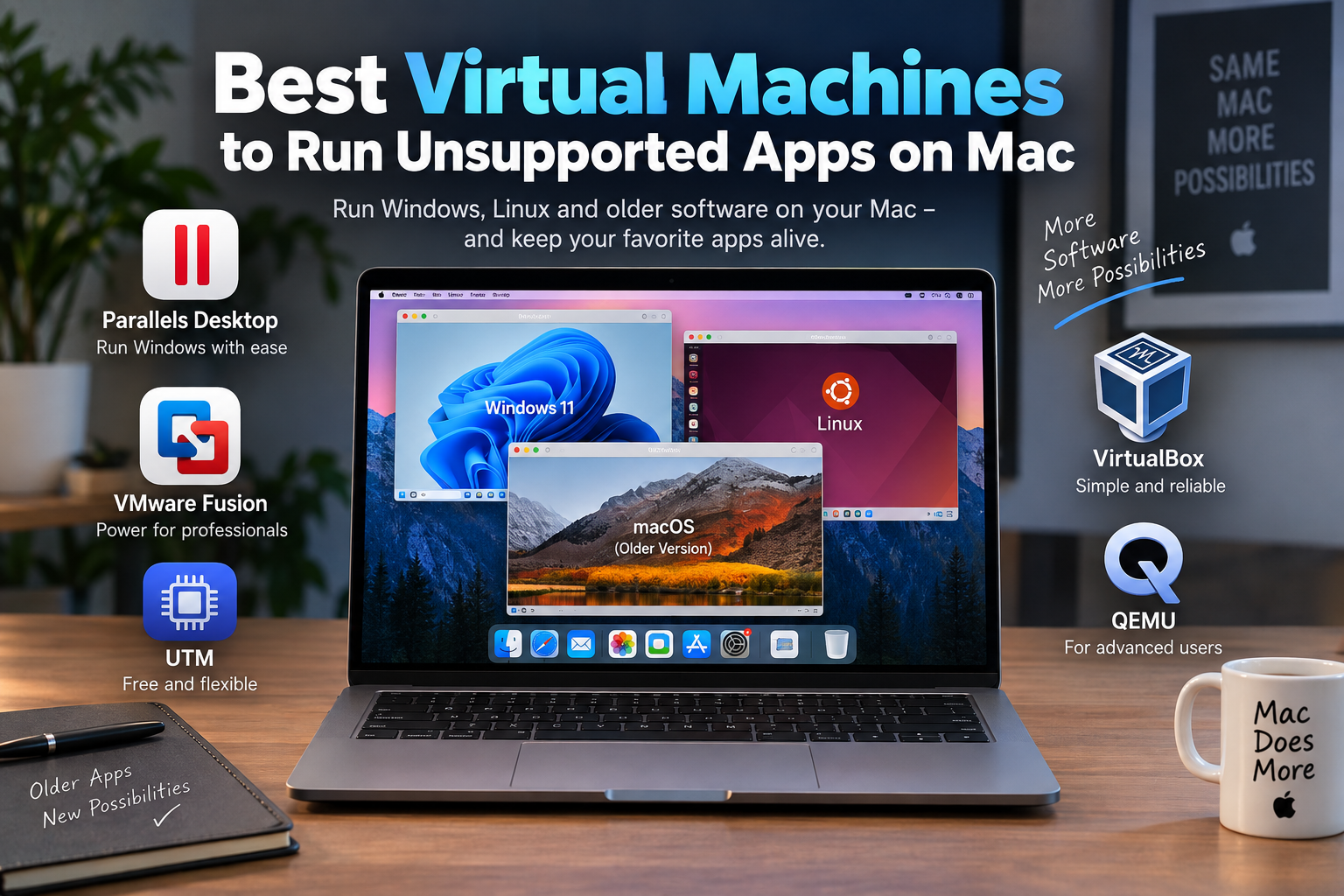
Best Virtual Machines to Run Unsupported Apps on Mac
The best virtual machines for Mac depend on what you need to run. Parallels Desktop is the strongest all-round choice for Windows 11 on Apple Silicon, VMware Fusion suits technical and development workflows, while UTM is particularly useful when free virtualization or CPU emulation is required. VirtualBox and QEMU also have important specialist uses.
The main limitation is architecture. Apple Silicon Macs use ARM processors, so a virtual machine cannot automatically make every old Intel, 32-bit, driver-dependent, or graphics-intensive application compatible. Choosing the correct VM therefore starts with identifying the operating system and processor architecture required by your software.
How Do Virtual Machines Run Unsupported Apps on Mac?
A virtual machine creates a separate operating-system environment inside macOS. For example, an Apple Silicon Mac can run Windows 11 ARM in a VM and Windows can then run many compatible Windows applications, including many x86 and x64 programs through Windows’ own application translation technology.
There is an important distinction between virtualization and emulation. Virtualization normally expects the guest operating system to use the same basic CPU architecture as the host. On an Apple Silicon Mac, that generally means ARM64 operating systems. Emulation can translate another processor architecture, such as x86, but normally has a substantial performance cost.
This means a VM is useful for many Windows-only programs, development environments and Linux applications, but it is not a universal fix for every unsupported Mac application. Before building a VM, it can also be worth checking other workarounds for unsupported apps on Apple Silicon.
Best Virtual Machines for Mac Compared
| Virtual Machine | Best For | Main Advantage | Main Trade-Off |
|---|---|---|---|
| Parallels Desktop | Windows apps and everyday professional use | Strong macOS integration and simple Windows setup | Commercial software |
| VMware Fusion | Developers and technical VM workflows | Mature virtualization tools | Apple Silicon has ARM-specific limitations |
| UTM | Free virtualization and emulation | Can virtualize ARM and emulate other architectures | Emulation can be much slower |
| VirtualBox | Free ARM VM experimentation | Free and familiar VM platform | More limitations on Apple Silicon than established x86 use |
| QEMU | Advanced emulation and custom environments | Highly flexible architecture support | More technical setup |
1. Parallels Desktop — Best Overall for Windows Apps
Parallels Desktop is the easiest recommendation for most people who need Windows applications on an Apple Silicon Mac. Current Parallels releases support ARM versions of Windows 11 and multiple ARM Linux distributions, along with supported macOS guests.
Windows 11 ARM can run many traditional x86 and x64 Windows applications through Microsoft’s application-emulation technology. That makes Parallels useful for business applications and other Windows software that does not have a suitable native macOS version.
However, compatibility is not universal. Programs requiring unsupported drivers, nested virtualization, particular graphics capabilities or other low-level x86 functionality can still fail. Users dependent on an older Office release should first understand why older Microsoft Office versions may not run on modern macOS before assuming virtualization is necessary.
Pros
- Excellent integration between Windows and macOS.
- Straightforward Windows 11 ARM installation.
- Well suited to productivity and business applications.
- Optimized specifically for modern Apple Silicon Macs.
- Strong file, clipboard and desktop integration.
Cons
- Requires a paid Parallels license for continued use.
- A Windows license may also be required separately.
- Not every x86/x64 Windows application or driver works on Windows ARM.
- Some advanced virtualization and graphics workloads remain limited.
Why We Recommend It
Choose Parallels Desktop if your priority is running compatible Windows software with minimal configuration. Users who depend on specialized hardware drivers, nested virtualization or demanding Windows games should verify the exact application requirements before purchasing.
2. VMware Fusion — Strong for Developers and Technical Users
VMware Fusion is a strong choice for developers, IT professionals and users already familiar with VMware environments. Fusion supports Apple Silicon Macs, but ARM guests are required on Apple Silicon. An ordinary x86 Windows virtual machine cannot simply be moved to an M-series Mac and expected to work.
Windows 11 ARM is supported as a guest environment, and modern Fusion releases provide features such as DirectX 11 graphics, snapshots, virtual networking and other VM management tools. Some capabilities still differ between Intel and Apple Silicon hosts.
Pros
- Good choice for development and technical testing.
- Supports Windows 11 ARM and ARM Linux environments.
- Useful snapshot and virtual-networking features.
- Familiar workflow for existing VMware users.
Cons
- Cannot run x86 operating systems directly on Apple Silicon.
- Some features available on Intel Macs remain unavailable or different on ARM.
- Older Windows versions such as Windows 7 cannot simply be virtualized on Apple Silicon.
- Less focused on effortless Mac/Windows integration than Parallels.
Why We Recommend It
VMware Fusion makes sense for technical users who need structured virtual environments rather than the most Mac-like Windows experience. For everyday Windows applications, Parallels is generally easier; for development, networking and VM experimentation, Fusion deserves consideration.
3. UTM — Best Free Choice for Virtualization and Emulation
UTM is one of the most flexible free virtual machine tools for Mac. On Apple Silicon, UTM can use Apple’s virtualization technologies for ARM64 operating systems and can also use QEMU-based emulation when another processor architecture is required.
That second capability is particularly important. Emulation can help enthusiasts experiment with older x86/x64 and other operating-system architectures that cannot be directly virtualized on Apple Silicon. The trade-off is speed: emulation is normally substantially slower than native ARM virtualization.
Pros
- Free and open source.
- Supports fast ARM64 virtualization on Apple Silicon.
- Can emulate x86/x64 and several other processor architectures.
- Useful for Linux, legacy environments, testing and experimentation.
- More approachable than configuring QEMU directly.
Cons
- Emulated x86 environments can be slow.
- Windows graphics acceleration is limited compared with Parallels.
- Less polished integration for everyday Windows applications.
- Configuration can require more technical knowledge.
Why We Recommend It
UTM is a good starting point if cost matters or if you specifically need emulation rather than ordinary virtualization. It is less suitable for users expecting high-performance Windows gaming or graphics-heavy professional applications.
4. VirtualBox — A Free ARM Virtualization Option
VirtualBox is no longer simply an Intel-Mac-only option. Oracle’s current VirtualBox 7.2 releases provide macOS ARM64 builds for Apple Silicon, with ARM64 guest support including supported Windows 11 and Linux configurations.
The major limitation remains architecture: x86 guest operating systems do not run as normal virtual machines on an Apple Silicon host. VirtualBox on ARM also has feature differences and limitations compared with the long-established x86 version.
Pros
- Free virtualization platform.
- Native macOS ARM64 versions are now available.
- Useful for ARM Linux and supported Windows 11 ARM environments.
- Familiar interface for existing VirtualBox users.
Cons
- No direct x86 guest virtualization on Apple Silicon.
- Some ARM host features remain less mature than the x86 platform.
- Not the strongest option for maximum Windows/macOS integration.
- Legacy Intel VM compatibility remains a major limitation.
Why We Recommend It
VirtualBox is worth considering for free ARM VM testing, particularly if you already know the platform. For the easiest Windows experience choose Parallels; for cross-architecture emulation, UTM is usually more practical.
5. QEMU — Best for Advanced Emulation
QEMU is best suited to advanced users who need maximum control over virtual hardware and processor emulation. QEMU is the underlying technology used for many emulation tasks and can support architectures beyond the host CPU.
The flexibility comes with complexity. Command-line configuration, virtual hardware choices, disk images and networking can make QEMU less convenient for someone who simply wants to launch a Windows business application.
Pros
- Free and open source.
- Extensive CPU architecture emulation capabilities.
- Highly configurable virtual hardware.
- Excellent for experimentation, development and legacy environments.
Cons
- Steeper learning curve than Parallels or UTM.
- Cross-architecture emulation carries a performance penalty.
- Less convenient for ordinary Mac users.
- Manual configuration may be required for advanced environments.
Why We Recommend It
Choose QEMU when flexibility matters more than simplicity. Most non-technical users who need QEMU’s emulation capabilities will find UTM easier because UTM provides a Mac-focused interface around QEMU technology.
Which Is the Best Virtual Machine for Mac?
The best virtual machines for Mac serve different purposes rather than producing one universal winner.
- Choose Parallels Desktop for the easiest Windows 11 ARM experience and strong macOS integration.
- Choose VMware Fusion for development, testing and VMware-oriented workflows.
- Choose UTM when you want a free VM or need cross-architecture emulation.
- Choose VirtualBox for free ARM virtualization and familiar VirtualBox workflows.
- Choose QEMU when advanced emulation and detailed configuration matter most.
If the software remains incompatible even inside an appropriate VM, forcing virtualization may create more problems than it solves. In that situation, finding an alternative Mac application may provide a more reliable long-term solution.
Can Virtual Machines Run Every Unsupported Mac App?
No. Virtual machines cannot guarantee compatibility with every unsupported application. This is particularly important on Apple Silicon because M-series processors use ARM architecture.
A Windows 11 ARM virtual machine can run many traditional Windows applications through Windows’ compatibility technology, but kernel drivers, anti-cheat systems, specialist peripherals, older operating systems and certain graphics applications may still fail.
Similarly, an old 32-bit Mac application does not automatically start working simply because a VM has been installed. Users facing a specific compatibility failure should first identify what to do when a favorite Mac app is no longer supported.
Choosing a MacBook for Running Virtual Machines
Virtual machines share the Mac’s processor, memory and storage with macOS. A Mac used regularly for virtualization should therefore have enough unified memory and SSD capacity for both the host system and guest operating system.
Light Windows productivity workloads need far fewer resources than development environments, multiple simultaneous VMs or demanding professional software. Instead of choosing a Mac solely by chip generation, check the VM software requirements and the requirements of the application you intend to run.
Buyers in Pakistan can browse current computers and available configurations through Victory Computer. Confirm the exact configuration, warranty terms, price and availability before ordering because those details can vary by model and stock.
Final Recommendation
For most people who primarily want to run compatible Windows applications, Parallels Desktop is our first choice among the best virtual machines for Mac because of its Windows 11 ARM support and close integration with macOS. VMware Fusion is attractive for more technical workflows, while UTM provides exceptional flexibility for a free application.
The most important step is checking the application itself before choosing a VM. If your required software depends on x86 drivers, old macOS frameworks, unsupported hardware, advanced 3D graphics or another low-level technology, changing virtual-machine software may not solve the underlying compatibility problem.
Frequently Asked Questions
What is the best virtual machine for Apple Silicon Macs?
Parallels Desktop is generally the strongest choice for users primarily running Windows 11 ARM and compatible Windows applications. UTM is a strong free alternative when virtualization or CPU emulation is required.
Can I run Windows 11 on an M-series Mac?
Yes. Apple Silicon Macs can run the ARM version of Windows 11 through compatible virtualization software such as Parallels Desktop, VMware Fusion, UTM and supported VirtualBox configurations.
Can Windows 11 ARM run normal x86 Windows apps?
Many x86 and x64 Windows applications can run through Windows 11 ARM’s application compatibility technology. Compatibility is not universal, especially for software dependent on particular drivers or low-level system components.
Is UTM better than Parallels Desktop?
UTM is better when you need a free solution or cross-architecture emulation. Parallels is generally better for users prioritizing easy Windows setup, performance and close macOS integration.
Can I run Windows 7 or Windows XP in a VM on Apple Silicon?
Not through ordinary ARM virtualization because those operating systems were built for x86 hardware. Emulation through tools such as QEMU or UTM may be possible for specialist use, but performance and compatibility differ substantially from normal virtualization.
How much RAM should a Mac have for virtual machines?
There is no single requirement for every workload. The Mac needs enough memory for macOS, the guest operating system and the applications running inside both environments, so heavier or simultaneous VM workloads benefit significantly from additional unified memory.

About Victory Computer Editorial Team
Victory Computer Editorial Team The Victory Computer Editorial Team publishes informative, research-based content about laptops, computers, monitors, printers, hardware, and technology trends in Pakistan. Our goal is to help readers understand product specifications, compare available options, and make informed purchasing decisions.
View all posts by Victory Computer Editorial Team
3 thoughts on “Best Virtual Machines to Run Unsupported Apps on Mac”