
Why Some Apps Can’t Run on MacBooks: The Truth About Compatibility Issues | Expert Review

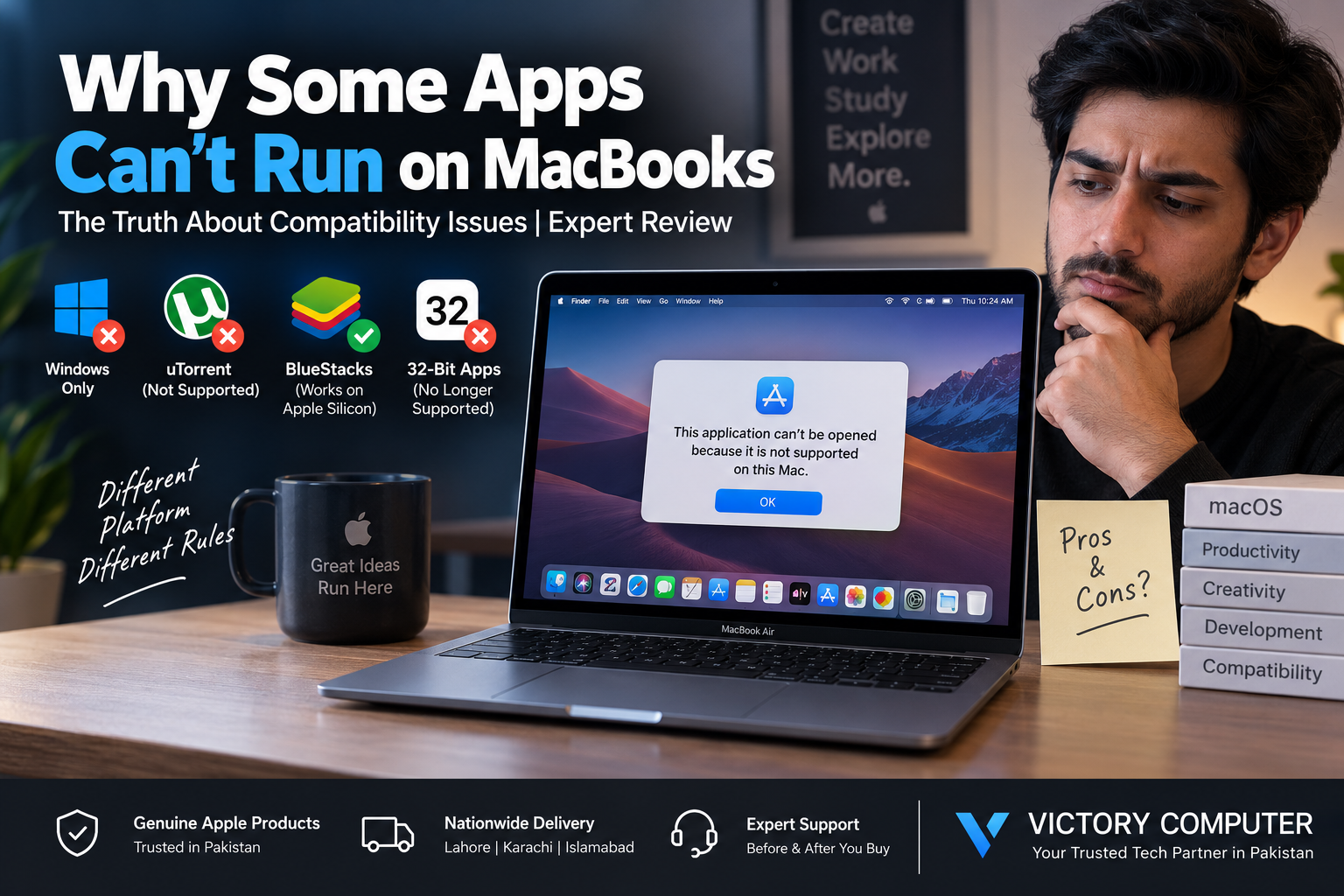
Why Some Apps Can’t Run on MacBooks
Some apps can’t run on MacBooks because modern macOS versions no longer support 32-bit software, Apple Silicon uses a different processor architecture from older Intel Macs, and some applications depend on outdated drivers, extensions or security permissions. The problem is usually software compatibility rather than insufficient MacBook performance.
Why Some Apps Don’t Work on macOS
MacBook app compatibility depends on more than processor speed or available RAM. An application must also support the Mac’s processor architecture, macOS version, security requirements and any plug-ins or system components it needs.
The most common reasons an application fails include:
- 32-bit software: Modern macOS versions cannot run old 32-bit Mac applications.
- Processor architecture: Older software may have been developed only for Intel-based Macs.
- Outdated plug-ins: The main application may work while an old extension or plug-in does not.
- Security requirements: macOS can warn about or block untrusted, modified or potentially malicious applications.
- Developer support: Applications that are no longer maintained may eventually become incompatible with newer macOS releases.
32-Bit Apps No Longer Work on Modern macOS
One of the clearest reasons apps can’t run on MacBooks is the end of 32-bit application support. Apple states that macOS Mojave 10.14 was the last macOS release capable of running 32-bit applications. Starting with macOS Catalina 10.15, 32-bit applications are no longer compatible.
This means an old application can fail even when a modern MacBook has more than enough processing power. In that situation, users normally need an updated 64-bit version, a modern alternative, or a suitable legacy environment.
Apple Silicon Changed Mac Software Compatibility
The transition from Intel processors to Apple Silicon created another important compatibility layer. Applications designed specifically for Apple Silicon can run natively, while Universal applications contain support for both Intel and Apple Silicon Macs.
Many Intel-based Mac applications can still operate through Apple’s Rosetta translation technology. However, Rosetta cannot solve every compatibility problem, particularly when software depends on outdated drivers, plug-ins or unsupported components.
Apple has also announced that Rosetta support will change in future macOS releases, making native Apple Silicon versions increasingly important for long-term compatibility. Users interested in the architecture difference can read our Apple Silicon vs Intel compatibility guide.
macOS Security Can Block Some Software
Not every blocked application is technically incompatible. Apple’s Gatekeeper checks downloaded software for developer identification, notarization and signs that an application has been modified. macOS may therefore display a security warning before allowing certain software to run.
This distinction matters. A security warning does not automatically mean the application is incompatible, while an application that genuinely depends on unsupported technology may not run even after security permission is granted.
Users should avoid disabling macOS protections simply to force unknown software to launch. If an application is legitimate but blocked, check the developer’s current installation instructions and Apple’s security guidance first.
Do Android Emulators Work on MacBooks?
Yes, some Android emulators now work on MacBooks. Older claims that Apple completely blocks Android emulators are no longer accurate.
For example, BlueStacks Air is currently available for Apple Silicon Macs. BlueStacks lists macOS 11 or later, an Apple Silicon processor and at least 8GB of RAM among its requirements. Compatibility can still vary by emulator, Mac model, macOS release and individual Android game or application.
The correct question is therefore not whether macOS supports emulators at all, but whether the specific emulator and application support your particular Mac configuration.
What to Do When an App Won’t Run on Your MacBook
If an application refuses to open, first determine whether the problem involves macOS version compatibility, processor architecture or security permissions.
- Check the developer’s official system requirements.
- Install the latest compatible version of the application.
- Check whether an Apple Silicon or Universal version is available.
- Update old plug-ins and extensions separately.
- Check macOS Privacy & Security if the application is from a trusted developer but produces a security warning.
- Look for a modern alternative if the original application is no longer maintained.
- Consider a suitable virtual machine when the required software belongs to another supported operating system.
For applications that require another operating environment, see our guide to virtual machines for unsupported Mac apps. Users experiencing problems immediately after an operating-system update can also read why third-party apps break after macOS updates.
MacBook App Compatibility: Pros and Cons
| Pros | Cons |
|---|---|
| Strong native software ecosystem for productivity and creative work | Some Windows-only applications have no native macOS version |
| Universal and Apple Silicon applications are optimized for modern Macs | 32-bit Mac applications cannot run on current macOS versions |
| Rosetta currently supports many Intel-based Mac applications | Older plug-ins, drivers and extensions may cause compatibility problems |
| Gatekeeper and notarization provide additional software security checks | Security requirements can complicate installation of older software |
| Virtualization can provide alternatives for certain workflows | Virtual machines cannot guarantee compatibility with every Windows application, peripheral or workload |
Why We Recommend Checking Compatibility Before Buying
MacBooks are a strong choice when the applications required for your work have native macOS or Apple Silicon support. Students, developers, office users and creative professionals can have an excellent experience when their workflow fits the platform.
Users dependent on specialist Windows-only applications, legacy hardware drivers or older business software should verify every critical program before switching platforms.
MacBook vs Windows Software Compatibility
The MacBook vs Windows software compatibility question depends on the applications you actually use. Windows generally offers broader compatibility with legacy PC software and remains important for many specialized business, engineering and gaming applications. macOS has a strong software ecosystem but does not provide native compatibility with every Windows application.
| Platform | Main Advantage | Main Trade-Off | Best Fit |
|---|---|---|---|
| MacBook | Strong integration of hardware and macOS | Some specialist and Windows-only software is unavailable | Creative, productivity, development and Apple-focused workflows |
| Windows Laptop | Broad PC software and hardware compatibility | Experience varies more between manufacturers and configurations | Gaming, specialist business software and broad legacy compatibility |
For a broader buying decision, see our MacBook vs Windows laptop comparison for professionals in Pakistan.
Should App Compatibility Stop You Buying a MacBook?
No—not if your essential applications support macOS. The safest approach is to make a list of the programs, plug-ins and peripherals you depend on and verify compatibility before buying.
For buyers in Pakistan, software requirements can be just as important as processor, memory and storage specifications. Someone using macOS-native creative applications may be well suited to a MacBook, while a professional dependent on Windows-only software may be better served by a Windows laptop.
You can explore computers and current options through Victory Computer or contact the team on WhatsApp at 0300 9466881 before purchasing if software compatibility is an important part of your buying decision.
Frequently Asked Questions
Why can’t some apps run on MacBooks?
Some apps can’t run on MacBooks because they use unsupported 32-bit code, require Windows, depend on outdated components, lack Apple Silicon support or conflict with current macOS requirements.
Can 32-bit applications run on modern macOS?
No. Apple ended support for 32-bit Mac applications beginning with macOS Catalina 10.15.
Can Intel apps run on an Apple Silicon MacBook?
Many can currently run through Apple’s Rosetta translation technology. However, compatibility is application-dependent, and Apple has announced changes to Rosetta availability in future macOS versions.
Does BlueStacks work on MacBook?
Yes. BlueStacks Air currently supports compatible Apple Silicon Macs, so older claims that BlueStacks cannot run on modern Macs are outdated.
Are MacBooks bad for software compatibility?
No. MacBooks have extensive native software support, but compatibility depends on the specific applications and peripherals required by the user.
Should I choose Windows if I use specialist software?
Choose the operating system supported by your essential applications. If a critical program is Windows-only and has no acceptable Mac alternative or virtualization option, a Windows laptop may be the safer choice.

About Victory Computer Editorial Team
Victory Computer Editorial Team The Victory Computer Editorial Team publishes informative, research-based content about laptops, computers, monitors, printers, hardware, and technology trends in Pakistan. Our goal is to help readers understand product specifications, compare available options, and make informed purchasing decisions.
View all posts by Victory Computer Editorial Team