
Why Old Microsoft Office Versions Don’t Run on New macOS Updates

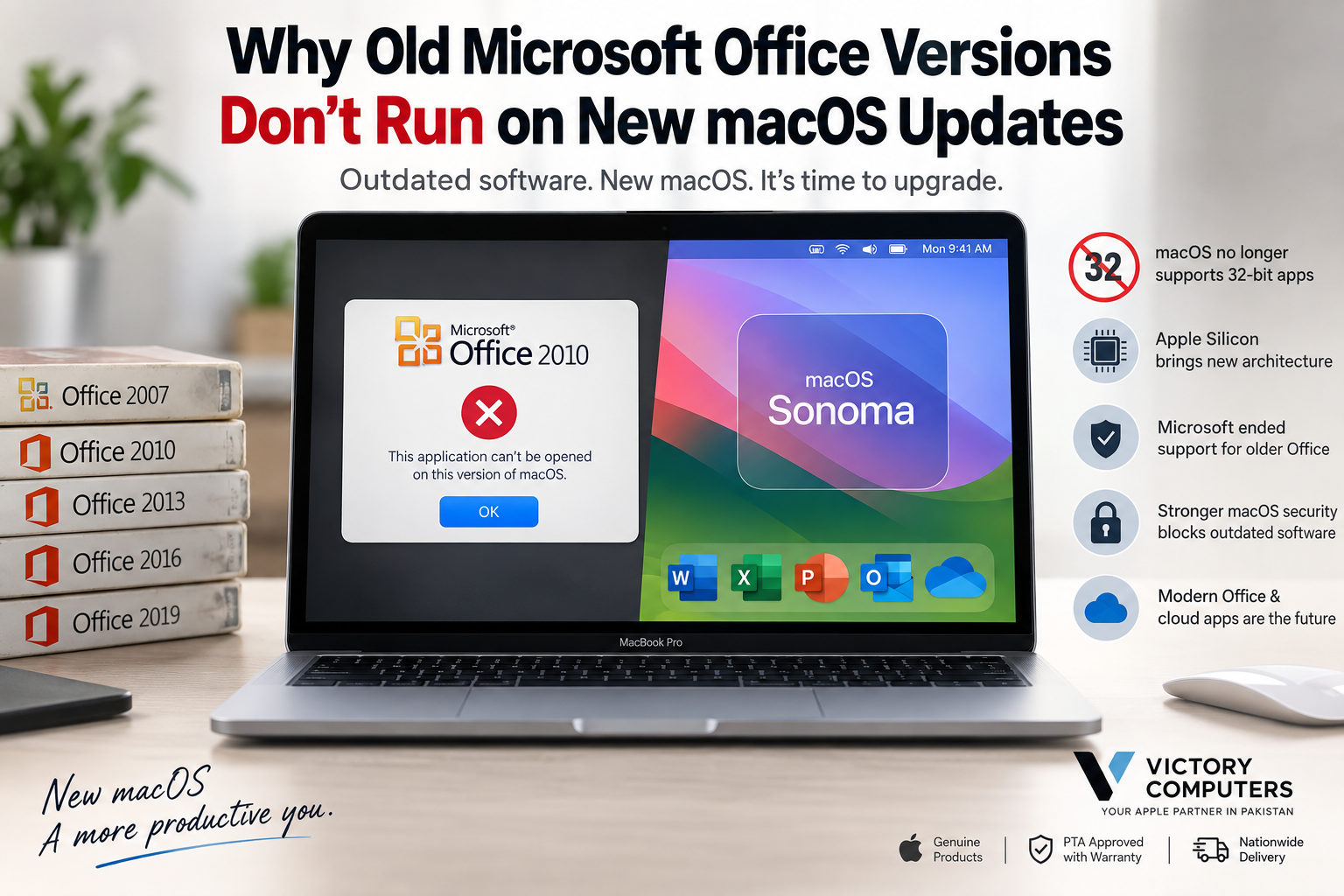
Why Old Microsoft Office Versions
Old Microsoft Office versions can stop working properly on newer macOS releases because of 32-bit incompatibility, expired Microsoft support, outdated components, and changing macOS requirements. However, not every older Office release is automatically blocked: compatibility depends on the exact Office version, build, and macOS version installed.
Why Old Microsoft Office Versions Stop Working on New macOS
The biggest compatibility break occurred with macOS Catalina 10.15. Apple ended support for 32-bit applications starting with Catalina, so software that depends entirely on 32-bit code can no longer launch. Apple identifies macOS Mojave 10.14 as the final macOS release capable of running 32-bit applications.
This matters especially for very old Office releases. Microsoft also retires Office versions through its product lifecycle, meaning older releases eventually stop receiving compatibility fixes, bug fixes, and security updates.
As a result, an Office installation that worked on an older Mac may become unreliable or completely unusable after a major macOS upgrade.
5 Main Reasons Old Microsoft Office Versions Can Fail
| Reason | What It Means | Possible Result |
|---|---|---|
| 32-bit software | macOS Catalina and later cannot run 32-bit applications. | Older applications may not open at all. |
| Microsoft support ended | Retired Office releases no longer receive normal compatibility and security updates. | New macOS changes may cause unresolved problems. |
| Outdated components | Old installers, add-ins, fonts, extensions, or supporting components may rely on obsolete technology. | Installation, startup, or feature failures can occur. |
| Changing macOS requirements | Microsoft supports current Office releases on a limited range of recent macOS versions. | An old Office/macOS combination can fall outside official support. |
| Apple Silicon transition | Modern Macs use Apple silicon rather than Intel processors. | Older Intel software may depend on Rosetta or require an updated build. |
Users experiencing broader software problems after upgrading should also review the guide to what to do when an app is not supported on macOS.
32-Bit vs 64-Bit Office: Why Catalina Was a Major Cutoff
Apple’s move to 64-bit-only applications is one of the clearest reasons some old Microsoft Office versions no longer work. According to Apple’s 32-bit app compatibility guidance, macOS Mojave was the final macOS release to support 32-bit applications, while Catalina removed that compatibility.
There is an important distinction, however: saying that every old Office version is a 32-bit application would be inaccurate. Microsoft’s Office for Mac update history states that Office releases after August 22, 2016 are 64-bit only, while releases before that date were 32-bit only.
Therefore, an old 64-bit Office build may pass the basic 64-bit requirement but still be unsupported or experience problems because Microsoft no longer maintains that release.
Does Apple Silicon Block Old Microsoft Office?
Not automatically. Apple Silicon Macs can run many applications originally built for Intel processors through Apple’s Rosetta translation technology. An Intel-only application is therefore not necessarily incompatible simply because the Mac uses an M-series processor.
The larger problem is whether the Office release and all of its components are still supported. Old add-ins, extensions, installers, and other dependencies can create compatibility problems even when the main application is 64-bit.
Apple also recommends moving from Intel-only applications to Universal or Apple-silicon-compatible versions for better long-term compatibility. Mac users dealing with several problematic applications can read the related guide covering macOS application compatibility problems.
Microsoft Support Matters as Much as macOS Compatibility
Software does not have to stop launching immediately when official support ends. The more important issue is that an unsupported release no longer receives the normal fixes needed to keep pace with operating-system and security changes.
For example, Microsoft ended support for Office 2016 for Mac on October 13, 2020 and Office 2019 for Mac on October 10, 2023. Office 2021 is also approaching the end of its support lifecycle in October 2026.
For users buying software today, Microsoft 365 or a currently supported perpetual Office release provides a more sensible long-term path than reinstalling an obsolete copy.
Pros and Cons of Upgrading from Old Microsoft Office Versions
Pros
- Better macOS compatibility: Current Office releases are maintained for recent macOS versions.
- Security updates: Supported software continues receiving relevant security fixes.
- Better Apple Silicon support: Current applications are designed for modern Mac hardware and software environments.
- Improved cloud integration: Current Microsoft Office applications work more effectively with services such as OneDrive and Microsoft 365.
- Current file-format support: Modern Office releases reduce compatibility problems when sharing documents with other current Office users.
Cons
- Upgrade cost: A current perpetual Office license requires another purchase, while Microsoft 365 uses a subscription model.
- Workflow changes: Interface and feature changes can require adjustment for users accustomed to much older Office releases.
- Old add-ins may still fail: Updating Office does not guarantee compatibility with abandoned third-party extensions or macros.
- Newer macOS may also be required: Current Office builds eventually stop receiving updates on older macOS releases.
Why We Recommend Upgrading
Upgrading is generally the better option if Microsoft Word, Excel, PowerPoint, or Outlook is important for work or study. Keeping unsupported Office software solely to avoid changing versions can create increasing compatibility and security limitations. Users with a specialized legacy workflow should first confirm that required macros, add-ins, and document formats work in the replacement version.
What Should You Do If Old Office Stops Working After a macOS Update?
First, identify the exact Office release rather than repeatedly reinstalling the same unsupported software. Then check whether the application is 32-bit or 64-bit and whether Microsoft still supports that release.
- Check your Office version from the application’s About menu.
- Check your macOS version from Apple menu > About This Mac.
- Update Office if a supported update is available.
- Check important add-ins separately because third-party extensions can have their own compatibility requirements.
- Upgrade Office when the installed release is no longer supported.
Microsoft currently states that Microsoft 365 for Mac, Office 2024 for Mac, and Office 2021 for Mac support the three most recent major macOS versions, with the supported range changing as Apple releases new major versions.
Mac owners should therefore check Microsoft’s current Office for Mac compatibility guidance before a major operating-system upgrade.
Best Alternatives to an Unsupported Office Version
If your old Microsoft Office versions are no longer practical, the most suitable replacement depends on how you work.
- Microsoft 365: Best suited to users who want continuously updated Word, Excel, PowerPoint, Outlook, cloud storage, and Microsoft services.
- Office 2024: A perpetual-license option for users who prefer a one-time purchase rather than a Microsoft 365 subscription.
- Apple Pages, Numbers and Keynote: Useful for users who mainly work within Apple’s ecosystem and do not depend on advanced Office-specific features.
- Web-based productivity tools: Suitable for lighter document, spreadsheet, presentation, and collaboration requirements.
You can also compare additional productivity apps for MacBook users before deciding which software combination fits your workflow.
Should You Avoid macOS Updates Just to Keep Old Office?
Keeping an outdated operating system indefinitely just to preserve obsolete Office software is usually a poor long-term solution. Operating-system and application security support eventually ends, while other current applications may begin requiring newer macOS releases.
A better approach is to identify critical legacy software before upgrading, verify replacements, back up important documents, and then move to supported software. For additional protection, review these MacBook security tips.
Buying a MacBook for Microsoft Office in Pakistan
If you are replacing an older Mac, focus on the software requirements first rather than assuming that a newer Mac automatically solves every compatibility problem. Current Apple Silicon MacBooks are well suited to modern productivity applications, but specialized legacy software and third-party add-ins should still be checked before migration.
Victory Computer offers laptops and computing products in Pakistan. Buyers can confirm the current configuration, warranty terms, and software requirements before purchasing rather than relying on compatibility assumptions.
WhatsApp: 0300 9466881
Frequently Asked Questions
Why don’t old Microsoft Office versions run on new macOS?
Some older Office releases contain 32-bit code that macOS Catalina and later cannot run. Other versions may be 64-bit but are no longer supported by Microsoft, creating compatibility and security concerns on newer macOS releases.
Does Office 2019 for Mac still work?
Office 2019 for Mac reached the end of Microsoft support in October 2023. An existing installation may still run in some configurations, but Microsoft no longer provides normal support or updates for the product.
Can Apple Silicon Macs run Intel versions of Microsoft Office?
Apple Silicon Macs can run many Intel-based applications through Rosetta. Intel architecture alone therefore does not mean an Office application cannot run, although outdated components and unsupported versions can still cause problems.
What is the best replacement for an old Office version on Mac?
Microsoft 365 is suitable for users who want continuously updated Office applications, while Office 2024 is an option for users who prefer a perpetual license. Apple’s productivity apps may be sufficient for lighter workflows.
Can a new Mac open documents created in an old Office version?
Modern Office applications can generally open common Word, Excel, and PowerPoint formats created by older releases. Specialized macros, add-ins, fonts, and legacy formats should be tested separately.
Should I update macOS if I depend on Microsoft Office?
Yes, but verify Office and any essential add-ins before a major macOS upgrade. Keeping both macOS and Office within their supported versions provides the safer long-term configuration.

About Victory Computer Editorial Team
Victory Computer Editorial Team The Victory Computer Editorial Team publishes informative, research-based content about laptops, computers, monitors, printers, hardware, and technology trends in Pakistan. Our goal is to help readers understand product specifications, compare available options, and make informed purchasing decisions.
View all posts by Victory Computer Editorial Team
2 thoughts on “Why Old Microsoft Office Versions Don’t Run on New macOS Updates”