
Top Security Tips Every MacBook User Should Know

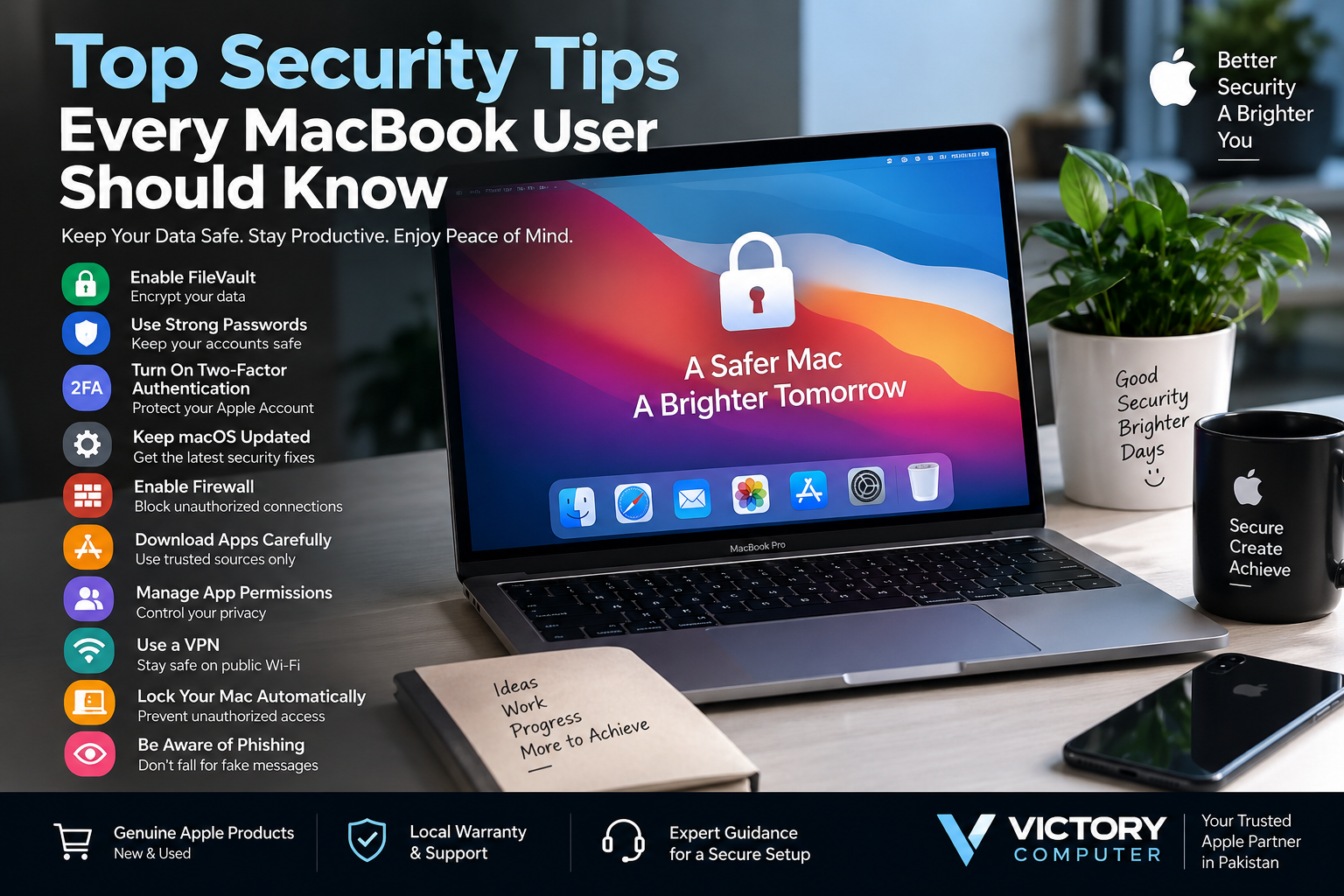
Top Security Tips Every MacBook
MacBook security tips start with a few essential steps: enable FileVault, protect your Apple Account with two-factor authentication, keep macOS updated, use trusted apps, review privacy permissions, and secure your login. macOS provides strong built-in protection, but phishing, malicious downloads, stolen credentials, and physical theft can still put your data at risk.
10 MacBook Security Tips You Should Follow
The most effective approach is to combine macOS security features with careful account and browsing habits. Use this checklist as a starting point:
| Security Tip | Why It Matters | Recommended Action |
|---|---|---|
| Enable FileVault | Protects data stored on your Mac | Turn it on under Privacy & Security |
| Use a Strong Login Password | Reduces unauthorized local access | Use a unique, difficult-to-guess password |
| Enable Two-Factor Authentication | Adds protection to your Apple Account | Enable it under Sign-In & Security |
| Update macOS | Installs security fixes | Check Software Update regularly |
| Enable Firewall | Controls unwanted incoming connections | Use Network > Firewall |
| Use Trusted Apps | Reduces malware exposure | Prefer the App Store and identified developers |
| Review App Permissions | Limits unnecessary access to sensitive data | Review Privacy & Security permissions |
| Enable Automatic Lock | Protects an unattended Mac | Require a password after the display locks |
| Secure Network Use | Reduces exposure on untrusted networks | Avoid sensitive activity on unknown public Wi-Fi |
| Watch for Phishing | Protects passwords and account credentials | Verify unexpected login links and messages |
1. Enable FileVault to Protect MacBook Data
One of the most important MacBook security tips is to use FileVault. Apple explains that Macs with Apple silicon or the Apple T2 Security Chip already encrypt data automatically, while FileVault adds another layer of protection by requiring valid login credentials before protected data can be accessed.
You can find FileVault under Apple menu > System Settings > Privacy & Security > FileVault. If you use a recovery key, store it somewhere secure and separate from the Mac.
For detailed setup instructions, see Apple’s FileVault documentation.
2. Protect Your Apple Account With Two-Factor Authentication
Your Apple Account can contain iCloud information, synced passwords, photos, device information, backups, and other personal data. Two-factor authentication adds another verification step even if someone discovers your password.
On a Mac, open System Settings > [Your Name] > Sign-In & Security and check that two-factor authentication is enabled. Apple supports two-factor authentication with Pakistani phone numbers.
Read Apple’s two-factor authentication guide for current setup information.
3. Keep macOS and Security Updates Current
Keeping macOS updated is one of the simplest MacBook security tips because Apple regularly releases fixes for vulnerabilities affecting macOS, Safari, WebKit, system components, and other software.
Go to System Settings > General > Software Update and install appropriate updates. Background security updates are also important because Apple uses mechanisms such as XProtect updates to help block or remove known malware.
4. Enable the macOS Firewall
The built-in firewall can block unwanted incoming connections from other computers and networks. This is especially useful for MacBook users who frequently connect to office, university, hotel, airport, or other shared networks.
Go to System Settings > Network > Firewall and turn the firewall on. Advanced users can review which apps and services are permitted to receive incoming connections.
Apple provides additional details in its Mac firewall documentation.
5. Download Apps Only From Sources You Trust
Macs can still be exposed to malicious software. A common attack method is disguising harmful software as a legitimate app, installer, attachment, or download.
macOS includes protections that restrict software to the App Store or identified developers depending on your settings. Avoid pirated software, unknown installers, unexpected email attachments, and websites asking you to bypass macOS security warnings without a clear reason.
Apple’s malware protection guidance recommends obtaining software from reliable sources.
6. Review Privacy and App Permissions
Good MacBook security is not only about malware. Apps may request access to your camera, microphone, location, files, screen recording, accessibility controls, contacts, and other information.
Open System Settings > Privacy & Security and review permissions periodically. Remove access when an application no longer needs a particular permission.
7. Use Strong, Unique Passwords
A strong Mac login password protects against unauthorized local access, while unique passwords reduce the damage caused when credentials from another website are compromised.
A password manager can help create and store unique credentials instead of reusing the same password across email, social media, banking, work, and Apple services.
8. Configure Automatic Screen Lock
Physical access matters. A MacBook left unlocked in an office, university, café, shop, or shared home environment may expose personal or business information even if the operating system itself is secure.
Configure your Mac to lock automatically and require authentication when you return. Touch ID can make frequent unlocking convenient on supported MacBook models without weakening the need for a strong login password.
9. Be Careful on Public Wi-Fi
Do not automatically trust a Wi-Fi network because its name resembles a café, hotel, airport, university, or company. Attackers can create misleading network names, and unsecured networks can expose users to additional risks.
Confirm the correct network before connecting, keep sharing services disabled when they are unnecessary, use HTTPS websites, and consider a reputable VPN when your situation requires additional network privacy.
10. Learn to Recognize Phishing Attempts
Some of the most important MacBook security tips have nothing to do with installing software. Phishing messages can imitate Apple, banks, delivery companies, social networks, cloud services, or employers to steal passwords and verification codes.
Be suspicious of unexpected requests to verify your Apple Account, download an attachment, install remote-access software, send a verification code, or enter payment information. Open the legitimate service yourself rather than relying on a suspicious message link.
MacBook Security Pros and Cons
Pros
- Strong built-in encryption: Apple silicon Macs encrypt stored data automatically, with FileVault providing additional login-based protection.
- Built-in malware defenses: macOS includes multiple mechanisms designed to restrict and respond to malicious software.
- Regular security updates: Apple publishes security fixes for macOS and related components.
- Detailed privacy controls: Users can manage access to the camera, microphone, location, files, screen recording, and other sensitive resources.
- Apple Account protection: Two-factor authentication significantly strengthens account security.
Cons
- Macs are not immune to malware: Trojans, malicious downloads, phishing, and credential theft can still affect Mac users.
- User decisions still matter: Overriding security warnings or installing untrusted software can weaken built-in protection.
- FileVault recovery requires care: Losing both the required credentials and recovery method can result in loss of access to encrypted data.
- Extra security can add inconvenience: Strong passwords, verification codes, permission prompts, and stricter network controls require additional user attention.
Why We Recommend Using the Built-In Security Features
For most MacBook users, the best starting point is to configure Apple’s built-in protections correctly before adding third-party security software. FileVault, two-factor authentication, trusted-app controls, regular updates, privacy permissions, and the firewall cover several important security risks without requiring a complicated setup.
MacBook Security Tips for Users in Pakistan
MacBook users in Pakistan should apply the same core security practices as users elsewhere, but buying decisions also matter. Before purchasing a new or used MacBook, verify the exact model, condition, warranty terms, activation status, and seller information instead of relying only on marketing claims.
If you’re considering a pre-owned machine, our used MacBook Pro buying guide for Pakistan covers additional buying considerations.
You can also browse Victory Computer’s current product selection, review the Victory Computer warranty policy, or visit the Victory Computer website for available products.
Important: Standard MacBooks do not require PTA approval in the way cellular devices using Pakistani mobile networks do. Buyers should instead focus on genuine product identity, warranty terms, condition, activation status, and seller reliability.
Do You Need Antivirus on a MacBook?
Not every MacBook user necessarily needs a separate antivirus product. macOS already includes security technologies intended to reduce malware risk, but no operating system can prevent every phishing attempt, malicious download, unsafe browser action, or stolen credential.
Third-party endpoint security may make more sense for businesses, managed fleets, users handling highly sensitive data, or organizations with specific compliance requirements. For typical personal use, start by configuring macOS security correctly and maintaining safe browsing and download habits.
Frequently Asked Questions
Are MacBooks secure compared with Windows laptops?
MacBooks include strong built-in security technologies, but security depends on configuration, software updates, account protection, and user behavior. No mainstream computer platform is immune to attack.
Can a MacBook get malware?
Yes. Macs can be targeted by malicious applications, trojans, phishing, spyware, and other threats, which is why trusted downloads and current security updates remain important.
Should I enable FileVault on my MacBook?
FileVault provides additional protection for data stored on a Mac, particularly if the computer is lost or stolen. Make sure you understand and safely store your chosen recovery method.
Should the firewall be enabled on a Mac?
The macOS firewall helps control unwanted incoming network connections. It is particularly useful when a MacBook regularly connects to shared or unfamiliar networks.
How do I protect my Apple Account from hackers?
Use a unique password, enable two-factor authentication, protect trusted devices, and never give verification codes to someone requesting them unexpectedly.
Where can I get help choosing a MacBook in Pakistan?
You can contact Victory Computer for current product information, configuration guidance, warranty details, and purchasing assistance.
Final MacBook Security Checklist
The best MacBook security tips are straightforward: keep macOS updated, enable FileVault and two-factor authentication, use a strong password, turn on the firewall, install trusted software, review permissions, lock your Mac automatically, and stay alert for phishing.
MacBooks provide a strong security foundation, but built-in protection works best when users maintain good account, software, network, and physical-security habits.
For current MacBook options and buying guidance in Pakistan, visit Victory Computer or WhatsApp 0300 9466881.

About Victory Computer Editorial Team
Victory Computer Editorial Team The Victory Computer Editorial Team publishes informative, research-based content about laptops, computers, monitors, printers, hardware, and technology trends in Pakistan. Our goal is to help readers understand product specifications, compare available options, and make informed purchasing decisions.
View all posts by Victory Computer Editorial Team
3 thoughts on “Top Security Tips Every MacBook User Should Know”