
Top 10 Hidden Features on macOS You Probably Didn’t Know

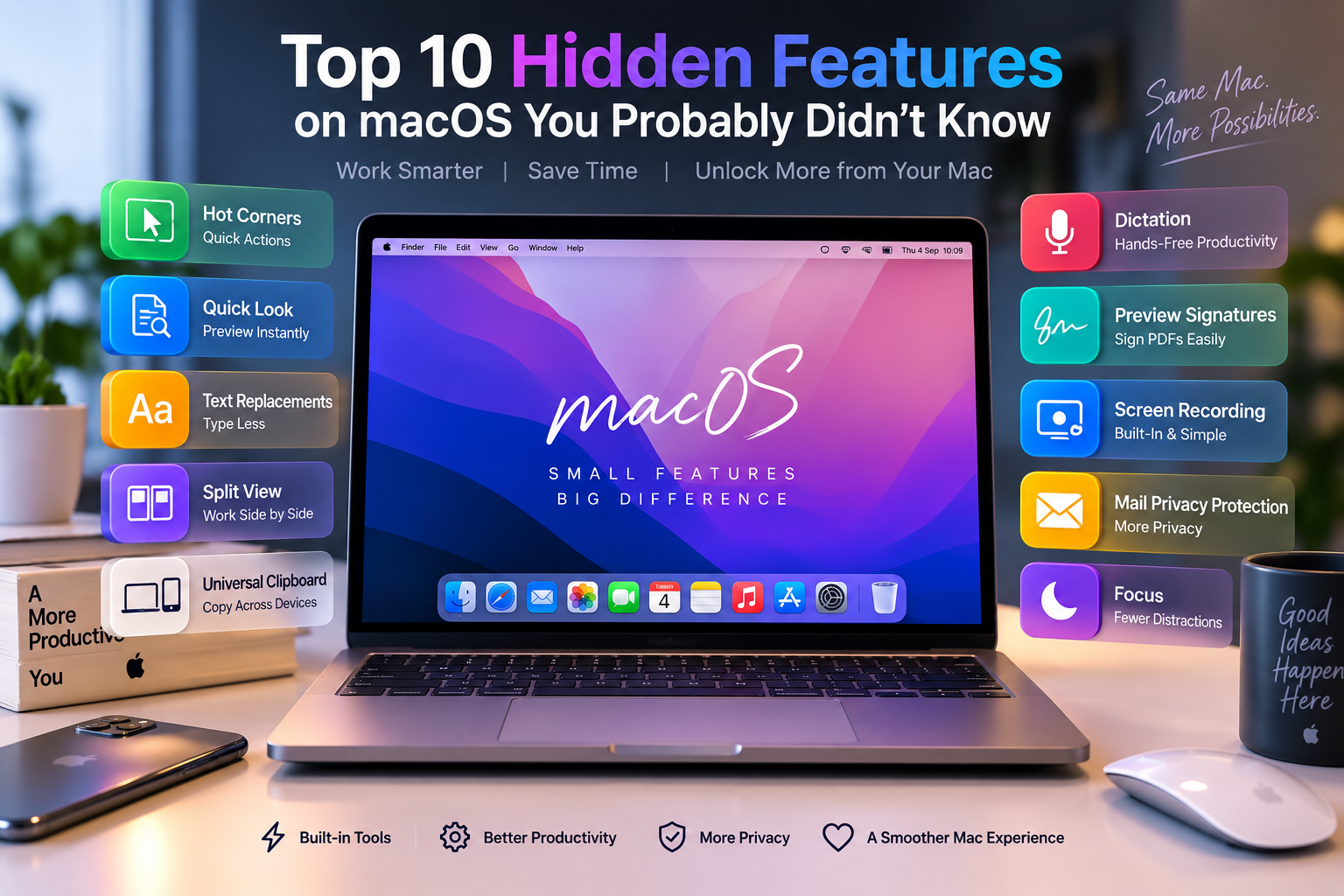
Top 10 Hidden Features on macOS
macOS hidden features can save time, reduce repetitive work, improve privacy, and make everyday MacBook tasks easier. Some of the most useful include Hot Corners, Quick Look, text replacements, Universal Clipboard, built-in screen recording, PDF signatures, and Focus. Most require no extra software and take only a few minutes to learn.
These tools are useful on both MacBook Air and MacBook Pro models. Availability and menu locations can vary depending on your Mac model and macOS version, so some settings may look slightly different.
10 macOS Hidden Features at a Glance
| Feature | Best For | Main Benefit |
|---|---|---|
| Hot Corners | Fast navigation | Trigger actions by moving the pointer |
| Quick Look | File management | Preview files without opening apps |
| Text Replacements | Frequent typing | Expand short phrases automatically |
| Split View | Multitasking | Use two windows side by side |
| Universal Clipboard | Apple ecosystem users | Copy between Apple devices |
| Dictation | Writing | Enter text by speaking |
| Preview Signatures | Documents | Sign PDFs without extra software |
| Screen Recording | Tutorials and support | Record your display natively |
| Mail Privacy Protection | Email privacy | Limits sender tracking |
| Focus | Concentration | Control notifications across devices |
1. Hot Corners Can Trigger Actions Instantly
Hot Corners turn the four corners of your display into shortcuts. Moving your pointer into a configured corner can trigger actions such as Lock Screen, Mission Control, Notification Centre, or Quick Note.
Open System Settings → Desktop & Dock → Hot Corners and assign an action to the corners you want to use. Modifier keys can also help prevent accidentally triggering a corner.
This is one of the simplest macOS hidden features for users who repeatedly lock their Mac, access Mission Control, or open Quick Note.
2. Quick Look Lets You Preview Files Without Opening Them
Select a file in Finder and press the Space bar. Quick Look displays a large preview without requiring you to fully open the file in its normal application.
Quick Look supports many common file types and can also provide options such as Markup or basic media controls. It is particularly useful when sorting through PDFs, photos, documents, and downloaded files.
For students and office users working with large folders, Quick Look is one of the most useful MacBook productivity tips to remember.
3. Text Replacements Reduce Repetitive Typing
macOS can automatically replace a short piece of text with a longer phrase. For example, you could configure “vaddr” to expand into a frequently used business address or create shortcuts for standard replies.
Go to System Settings → Keyboard → Text Replacements to create them. Text replacements can also stay updated across compatible Apple devices through iCloud.
This feature can be especially useful for customer service, email replies, addresses, common technical terms, and repetitive office work.
4. Split View Makes Two-App Multitasking Easier
Split View lets you position two application windows side by side. It is useful for writing while researching, comparing documents, taking notes during a video call, or working between a spreadsheet and browser.
Window-management options are available from the green window control. Depending on your current macOS version, you may also see additional tiling arrangements.
For more software ideas beyond built-in macOS tips and tricks, see our guide to productivity apps for MacBook users.
5. Universal Clipboard Copies Between Your Mac and iPhone
Universal Clipboard allows compatible Apple devices to share copied content. You can copy text, an image, or other supported content on one device and paste it on another nearby device.
The devices need to meet Apple’s Continuity requirements and normally need the same Apple Account, Bluetooth, Wi-Fi, and Handoff enabled.
For people who regularly move information between an iPhone, iPad, and Mac, Universal Clipboard can eliminate several unnecessary messaging or file-transfer steps.
6. Dictation and Voice Control Are More Powerful Than Many Users Realize
Dictation lets you enter text by speaking instead of typing. macOS supports spoken punctuation and formatting commands, making Dictation useful for notes, messages, drafts, and accessibility needs.
Voice Control goes further. It can be used to navigate apps, interact with on-screen controls, and edit or dictate text using spoken commands.
These are separate tools: Dictation is mainly designed for entering text, while Voice Control provides broader hands-free control of the Mac.
7. Preview Can Create and Insert PDF Signatures
You do not necessarily need a separate PDF application just to sign a document. Apple’s Preview app can create signatures using a trackpad, the Mac’s camera, or a compatible nearby iPhone or iPad.
Open a PDF in Preview, open the Markup Toolbar, select the Sign tool, and create or choose your signature.
This built-in feature is useful for forms, approvals, office documents, and other everyday PDF workflows.
8. macOS Has a Built-In Screen Recorder
Press Shift + Command + 5 to open the Screenshot interface. From there, macOS can capture the entire screen, a selected window or area, and record all or part of the screen.
The Options menu provides controls for settings such as the save location, timer, pointer, and microphone during screen recording.
For teachers, freelancers, support teams, and content creators, this is one of the most practical macOS hidden features because basic screen recording does not require another application.
9. Mail Privacy Protection Reduces Email Tracking
Apple Mail includes privacy controls designed to make it harder for email senders to collect information about your Mail activity. Protect Mail Activity can hide your IP address from senders and privately download remote content in the background.
You can review the feature under Mail → Settings → Privacy.
Mail Privacy Protection does not make email completely anonymous, but it is a useful built-in privacy control. For additional protection, read our MacBook security tips.
10. Focus Can Stay Synchronized Across Apple Devices
Focus helps reduce interruptions by controlling which notifications and people can reach you during activities such as work, study, gaming, or personal time.
With Share across devices enabled and compatible devices signed in to the same Apple Account, Focus settings can remain synchronized across your Apple devices.
This is particularly useful if you work on a MacBook while keeping an iPhone or iPad nearby. Instead of silencing each device separately, your Focus state can follow you across the ecosystem.
Pros and Cons of Using macOS Hidden Features
Pros
- No additional cost: Most of these tools are built directly into macOS.
- Better productivity: Quick Look, Hot Corners, Split View, and text replacements can reduce repetitive steps.
- Strong Apple-device integration: Universal Clipboard and synchronized Focus are particularly useful for people with multiple Apple devices.
- Useful built-in utilities: Preview and Screenshot can replace separate software for basic PDF signing and screen recording.
- Privacy controls: Mail includes settings that can reduce some forms of email tracking.
Cons
- Some features depend on the Apple ecosystem: Universal Clipboard and cross-device Focus provide their biggest benefits when you use multiple compatible Apple devices.
- Menu locations can change: Apple occasionally reorganizes System Settings between macOS releases.
- Built-in tools have limits: Screenshot and Preview are convenient, but professional video editing or advanced PDF workflows may still require specialist software.
- Compatibility varies: Certain Continuity features require compatible hardware, software versions, and account settings.
Which macOS Hidden Features Are Most Useful?
For everyday productivity, start with Quick Look, text replacements, Hot Corners, and Split View. These features require little setup and can improve common workflows without changing how you normally use your Mac.
If you own an iPhone or iPad as well, Universal Clipboard and Focus become more valuable because they connect your devices. Users handling documents should learn Preview signatures, while teachers, support staff, and creators can benefit from the built-in Screenshot and recording tools.
Do You Need an Apple Silicon Mac to Use These Features?
No. Many of these capabilities existed before Apple Silicon, although exact availability depends on the Mac model and macOS version. Apple Silicon is therefore not a requirement for every feature in this guide.
If you want to understand how Apple’s processors have developed, read our Apple Silicon guide.
Choosing a MacBook in Pakistan
Hidden software features should not be the only reason to choose a MacBook. Consider software compatibility, memory, storage, display size, battery requirements, ports, and the applications you actually use before buying.
Professionals deciding between platforms can also read our MacBook vs Windows laptop comparison.
You can visit Victory Computer to explore current computer options in Pakistan. Confirm the current product configuration, warranty terms, price, and availability before purchasing because these can vary by model and stock.
Frequently Asked Questions
What are the best macOS hidden features?
Quick Look, Hot Corners, text replacements, Universal Clipboard, built-in screen recording, Preview signatures, and Focus are among the most useful lesser-known macOS features for everyday users.
How do I preview a file quickly on a Mac?
Select the file in Finder and press the Space bar. Quick Look opens a preview without requiring you to launch the file’s normal application.
How do I record my Mac screen without installing software?
Press Shift + Command + 5. Choose whether to record the entire screen or a selected portion, configure the available options, and start recording.
Does Universal Clipboard work with Android or Windows?
Universal Clipboard is an Apple Continuity feature designed for compatible Apple devices. It is not a native cross-platform clipboard for Android or Windows PCs.
Can I sign a PDF on a Mac without Adobe Acrobat?
Yes. Preview can create and insert signatures into PDFs using a trackpad, camera, or compatible nearby iPhone or iPad.
Are these macOS hidden features only available on Apple Silicon Macs?
No. Many features also work on compatible Intel-based Macs. Availability depends on the specific feature, hardware, and macOS version rather than Apple Silicon alone.
Final Recommendation
The most valuable macOS hidden features are not complicated tricks—they are built-in tools that remove unnecessary steps from everyday work. Start with Quick Look, text replacements, Hot Corners, and screen recording, then add Universal Clipboard and synchronized Focus if you use other Apple devices.
Learning a few of these features can make macOS easier to navigate without installing more software or changing your entire workflow.

About Victory Computer Editorial Team
Victory Computer Editorial Team The Victory Computer Editorial Team publishes informative, research-based content about laptops, computers, monitors, printers, hardware, and technology trends in Pakistan. Our goal is to help readers understand product specifications, compare available options, and make informed purchasing decisions.
View all posts by Victory Computer Editorial Team
2 thoughts on “Top 10 Hidden Features on macOS You Probably Didn’t Know”