
AI in organizing and prioritizing Mac app notifications | Expert Review

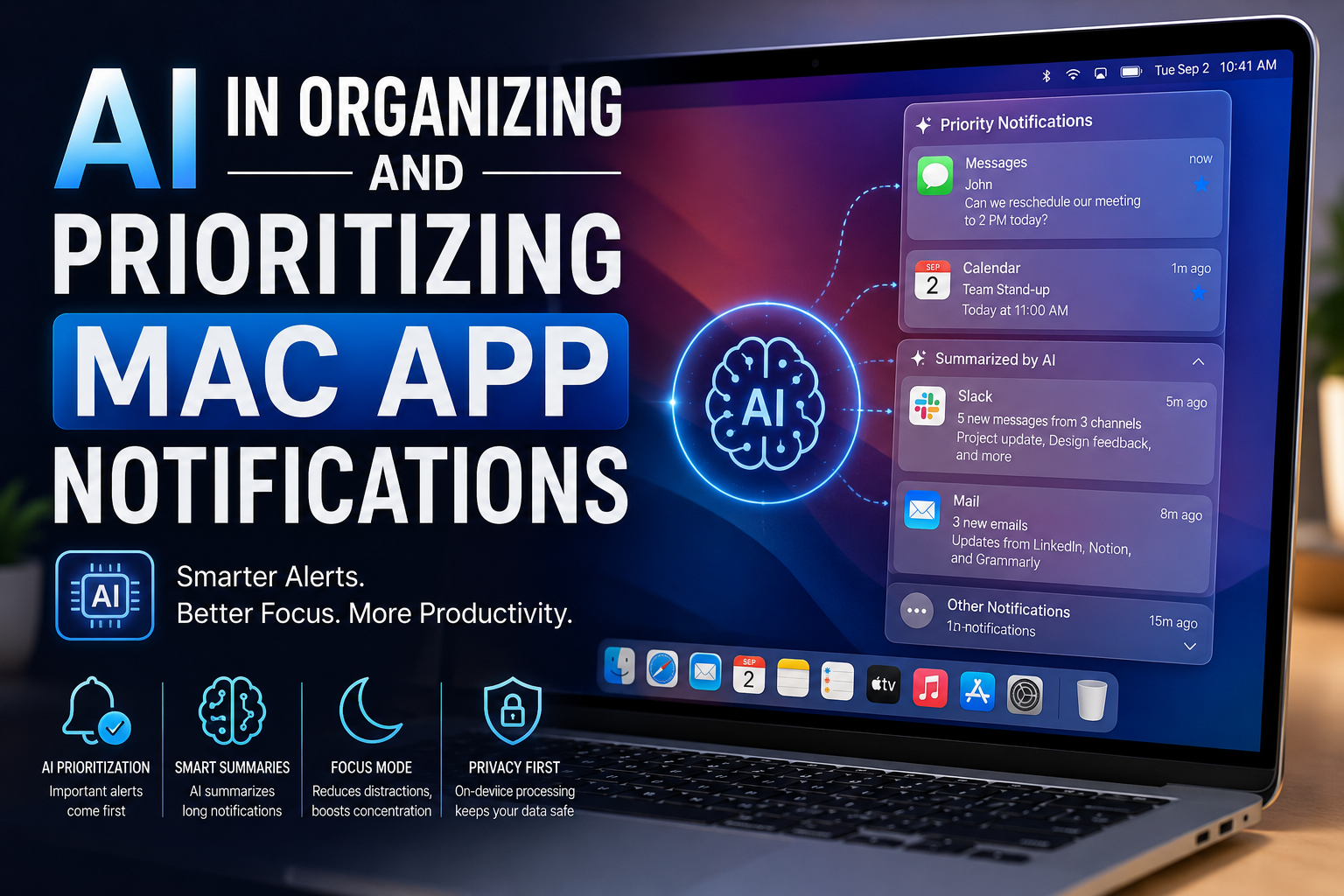
AI Notification Management on Mac: Organizing and Prioritizing App Notifications
AI notification management on Mac helps reduce overload from Mac app notifications by summarizing long or stacked alerts and allowing urgent messages to break through while lower-priority interruptions stay quiet. On compatible Macs, Apple Intelligence works with notification summaries and Focus controls, but users should still keep manual app permissions for anything that must always be allowed or blocked.
How Does AI Organize Mac App Notifications?
Apple Intelligence does not simply turn notifications on or off. Apple documents that it can summarize long or stacked notifications and use the Reduce Interruptions Focus to surface notifications that may need immediate attention. Apple also provides Intelligent Breakthrough & Silencing, which can let important alerts interrupt a Focus while silencing notifications judged less important.
For Mac app notifications, this means the system can help answer two practical questions: “What happened?” and “Do I need to look at this now?” Manual notification settings still control the rules you explicitly choose.
The Three Mac Features That Matter Most
1. Notification Summaries
Mac app notifications can be condensed into summaries when alerts are long or grouped, making the key information easier to understand without opening every notification. Apple lets you enable summaries globally and then choose which apps are allowed to use them.
This is most useful for apps that generate repeated updates, group conversations, project tools, news apps or services that send several related alerts. For a wider productivity setup, see productivity apps for MacBook users.
2. Reduce Interruptions Focus
Reduce Interruptions is the clearest example of AI notification management on Mac. Instead of blocking every notification, Reduce Interruptions can use Apple Intelligence to allow alerts that appear urgent while silencing less important interruptions. You can still specify people and apps that must always be allowed or silenced.
3. Intelligent Breakthrough & Silencing
Apple Intelligence can also be used inside supported Focus modes through Intelligent Breakthrough & Silencing. This adds AI-based priority decisions to a Focus while preserving the people, app and schedule rules you set manually.
If you want to explore more built-in macOS tools, Victory Computer also has a guide to useful macOS features.
How to Set Up AI Notification Management on Mac
For the best result, configure summaries first, then build a Focus around the notifications that genuinely matter.
- Turn on Apple Intelligence: Open System Settings > Apple Intelligence & Siri and enable Apple Intelligence.
- Enable notification summaries: Go to System Settings > Notifications > Summarise Notifications, then select the apps you want summarized.
- Configure Reduce Interruptions: Go to System Settings > Focus > Reduce Interruptions. If it is not listed, add it from the available Focus options.
- Set hard rules: Explicitly allow critical people and apps, and silence anything that should never interrupt you.
- Add schedules when useful: Activate Focus automatically during work, study, meetings or other recurring periods.
For most users, AI notification management on Mac works best as a selective layer rather than an all-or-nothing setting. Keep summaries on for high-volume apps, use direct alerts for security or account notifications, and use Focus rules for work periods.
Users who rely heavily on scheduling may also benefit from AI-assisted calendar and scheduling tools on Mac.
AI vs Manual Notification Management on Mac
| Area | AI-Assisted Management | Manual Management |
|---|---|---|
| Long notification stacks | Can summarize key information | You review alerts individually |
| Urgency | Can let important alerts break through a Focus | You decide fixed allowed and blocked rules |
| Consistency | Can make decisions based on notification content | More predictable because rules are static |
| Control | Useful for reducing routine interruptions | Best when an app must always be allowed or silenced |
For Mac app notifications, the strongest setup combines both approaches. Use AI notification management on Mac for summaries and interruption filtering, but keep manual rules for banking, authentication, security, client communication or any other alert where predictable delivery matters more than convenience.
Privacy, Compatibility and Important Limitations
Apple says Apple Intelligence is designed around on-device processing, with Private Cloud Compute available for more complex requests. Apple states that data sent to Private Cloud Compute is not stored and is used only to fulfil the request.
For a broader look at this subject, see Victory Computer’s guide to AI privacy controls on Mac.
Compatibility matters: Apple’s current Apple Intelligence requirements say it requires a Mac with Apple silicon. Apple also notes that feature availability can vary by language and region, and recommends running the latest available macOS version.
AI can still make imperfect priority decisions for Mac app notifications. A notification that looks routine to the system may be important to you. That is why Apple keeps explicit allow and silence controls available inside Focus settings. Treat AI prioritization as a filter, not as a replacement for your own notification rules.
Pros and Cons
Pros
- Summaries make high-volume notifications faster to scan.
- Reduce Interruptions can lower unnecessary distractions without blocking everything.
- Manual allow and silence rules remain available for critical contacts and apps.
- Focus schedules can automate notification control during recurring work periods.
Cons
- Apple Intelligence is limited to compatible Apple-silicon Macs.
- AI may not always judge urgency the same way you would.
- Feature availability can vary by software version, language and region.
Expert Verdict: Is AI Notification Management on Mac Useful?
Yes, if notification overload is the problem. For frequent Mac app notifications, the most useful part of AI notification management on Mac is not a completely automatic system controlling every alert. Its value comes from combining shorter notification summaries, AI-assisted interruption filtering and manual Focus rules.
For students, office users, developers and creators who receive frequent app alerts, these tools can reduce unnecessary context switching. Users who receive only a few Mac app notifications may gain more from normal Focus and app-level notification settings than from AI features.
If you are choosing a Mac specifically for Apple Intelligence features, confirm that the model uses Apple silicon. You can browse Victory Computer’s current shop listings or contact Victory Computer for current product availability in Pakistan. Availability should always be confirmed at the time of purchase.
Frequently Asked Questions
Can macOS summarize Mac app notifications with AI?
Yes. On compatible Macs with Apple Intelligence enabled, macOS can summarize long or stacked notifications so key information is easier to scan.
Can AI decide which Mac app notifications are urgent?
Apple Intelligence can help important notifications break through a Focus while silencing notifications considered less important. You can override this behaviour with explicit people and app rules.
What is Reduce Interruptions on Mac?
Reduce Interruptions is an Apple Intelligence-powered Focus designed to show notifications that may need immediate attention while silencing lower-priority interruptions.
Which Macs support AI notification management?
Apple Intelligence requires a Mac with Apple silicon. Availability also depends on supported software, language and region settings.
Should I use AI or manual notification settings?
Use both. AI notification management on Mac is useful for summarizing and filtering routine alerts, while manual settings are better for apps and contacts that must always follow a predictable rule.
Where can I control notification summaries?
To manage Mac app notifications, open System Settings > Notifications > Summarise Notifications. You can then choose which apps are allowed to have their notifications summarized.

About Victory Computer Editorial Team
Victory Computer Editorial Team The Victory Computer Editorial Team publishes informative, research-based content about laptops, computers, monitors, printers, hardware, and technology trends in Pakistan. Our goal is to help readers understand product specifications, compare available options, and make informed purchasing decisions.
View all posts by Victory Computer Editorial Team