
Which Apps Are Not Working on MacBook in 2025? | Expert Guide

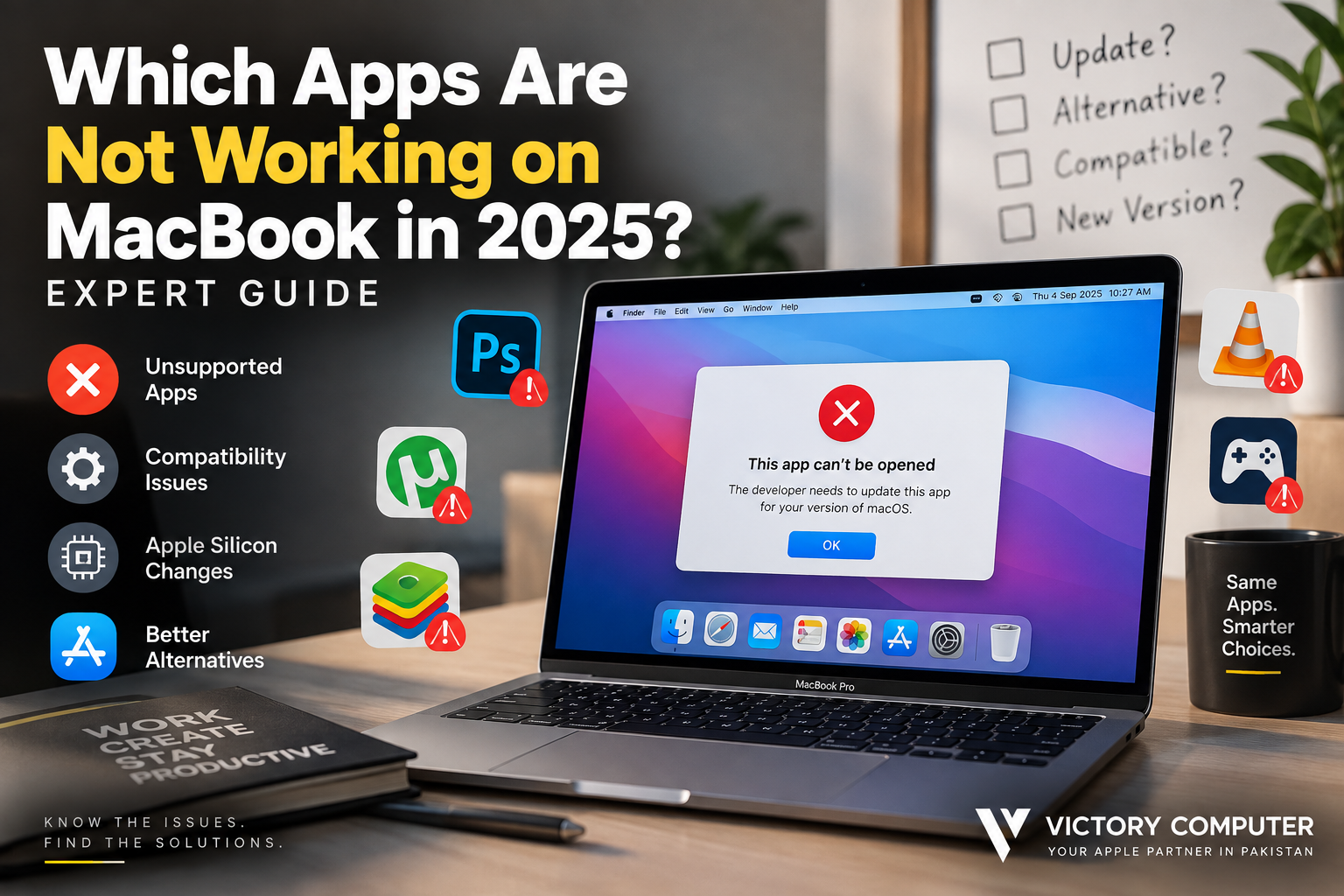
Which Apps Are Not Working on MacBook in 2025
Apps not working on MacBook are usually older 32-bit programs, abandoned software, incompatible drivers or plug-ins, or applications that have not kept pace with newer macOS requirements. Intel-only software is a different case: many Intel Mac apps can still run on Apple Silicon through Apple’s Rosetta technology, so an Intel app is not automatically incompatible.
Why Are Some Apps Not Working on MacBook?
The main reasons for apps not working on MacBook are architecture changes, discontinued 32-bit support, outdated system extensions, old drivers and applications that are no longer maintained by their developers.
Apple stopped supporting 32-bit applications beginning with macOS Catalina 10.15. Therefore, software that never received a 64-bit version cannot run natively on Catalina or newer versions of macOS.
The transition from Intel processors to Apple Silicon created another compatibility consideration. Modern MacBook models use Apple-designed chips, while many older Mac applications were originally compiled for Intel processors. Apple introduced Rosetta to translate compatible Intel applications, meaning Intel-only software should not automatically be classified as broken.
For more background on the processor transition, read our guide to Apple Silicon and why it matters.
Which Types of Mac Apps Are Most Likely to Fail?
Rather than assuming every older application has stopped working, check its architecture, developer support and required components. Compatibility can differ between individual versions of the same application.
| Software Type | Compatibility Risk | What to Do |
|---|---|---|
| 32-bit Mac applications | Very high | Replace with a supported 64-bit version or alternative |
| Older Intel-only applications | Increasing | Check for an Apple Silicon or Universal version |
| Legacy drivers | High | Install a current manufacturer-supported driver |
| Old audio/video plug-ins | Medium to high | Update both the host application and plug-ins |
| Old system utilities | Medium to high | Check developer support before updating macOS |
| Current Universal or Apple Silicon apps | Generally lower | Keep the application and macOS updated |
If a problem appeared immediately after a macOS upgrade, our guide explaining why third-party Mac apps break after macOS updates covers the common causes in more detail.
32-Bit Apps Are Permanently Incompatible With Modern macOS
Old 32-bit software is one of the clearest examples of unsupported Mac apps. macOS Mojave 10.14 was the final macOS release capable of running 32-bit applications. Starting with macOS Catalina 10.15, Apple removed 32-bit application compatibility.
This affects old games, utilities, creative applications, plug-ins and specialist business software that never received a 64-bit update. Reinstalling the same 32-bit version will not solve the problem on a current macOS installation.
The practical solution is to find a current 64-bit release, migrate to another supported application, or maintain an appropriate older environment when legacy software is genuinely essential.
Do Intel Apps Still Work on Apple Silicon?
Yes, many Intel Mac apps still work on Apple Silicon. Rosetta translates compatible Intel software so it can run on Macs using Apple-designed processors.
This distinction matters because an application shown as Application (Intel) in Finder is not necessarily an app that has stopped working. However, relying indefinitely on an Intel-only application is becoming a greater compatibility risk as Apple’s transition progresses.
You can check an application’s architecture by selecting it in Finder, choosing File > Get Info, and looking at the Kind field. It may show Application (Intel), Application (Universal), or Application (Apple silicon).
If you depend on Intel-only software, check the developer’s website for a Universal or Apple Silicon release rather than assuming the current Intel version will remain a long-term solution.
Pros and Cons of Modern Mac App Compatibility
Pros
- Modern 64-bit software: Current Mac applications are built around newer macOS technologies rather than obsolete 32-bit frameworks.
- Apple Silicon optimization: Native applications can be designed specifically for current Mac hardware.
- Rosetta provides a transition path: Many Intel applications can still operate while users move to native versions.
- Current software receives better support: Maintained applications are more likely to receive security, compatibility and bug-fix updates.
Cons
- 32-bit applications are gone: Old software that never received a 64-bit version cannot run natively on current macOS releases.
- Legacy plug-ins can break workflows: An updated main application may still depend on an incompatible extension or plug-in.
- Old hardware drivers can become unusable: Printers, audio hardware and specialist peripherals may require updated manufacturer software.
- Intel-only software has a limited future: Users who rely on old Intel applications should plan for native replacements.
Why We Recommend Updating Your Essential Apps
For most users, moving important applications to current Apple Silicon or Universal versions is the safest long-term approach. If your work depends on specialist legacy software, verify compatibility before installing a major macOS upgrade rather than discovering the problem after updating.
How to Fix Apps Not Working on MacBook
If you encounter apps not working on MacBook, identify the actual compatibility problem before deleting the application or downgrading macOS.
- Update the application. Check the Mac App Store or the developer’s official website for the newest compatible version.
- Check the app architecture. Use Finder’s Get Info window to determine whether the application is Intel, Universal or Apple Silicon.
- Update plug-ins separately. Audio, video, design and productivity applications may launch incorrectly because an older plug-in or extension is incompatible.
- Check hardware drivers. Older printers, scanners, audio interfaces and other peripherals may require new software from their manufacturers.
- Check macOS requirements. An application may require a newer macOS release, while older software may no longer support the operating system installed on your Mac.
- Find a maintained alternative. If development has ended, replacing the application is usually safer than depending on an abandoned version.
Users experiencing broader problems can also review our guide to macOS compatibility problems.
What About Microsoft Office on Mac?
Microsoft Office should not be described broadly as incompatible with modern MacBooks. Current supported versions of Microsoft 365 and Office for Mac support recent macOS releases, including Apple Silicon where applicable.
The bigger concern is older Office releases and unsupported operating-system combinations. Microsoft changes macOS support as Apple releases new major versions, so users should check the requirements for their specific Office release rather than assuming every old version will continue receiving updates.
Should You Upgrade or Replace an Unsupported Mac App?
Upgrade the existing application when the developer offers a current version that supports your Mac and required workflow. This is particularly useful when you need compatibility with existing project files, plug-ins or team workflows.
Consider replacing the application when development has ended, the software remains 32-bit, required extensions are abandoned, or maintaining it forces you to stay on an outdated operating system.
For business users, creative professionals and students, checking essential software before a major macOS upgrade can prevent avoidable downtime.
Buying a MacBook for Modern Apps in Pakistan
Software compatibility should be part of the buying decision when choosing a MacBook in Pakistan. Before changing computers, make a list of the applications, plug-ins and peripherals you use and confirm that current versions support the Mac and macOS release you intend to use.
For more Apple, laptop and software guidance, browse the Victory Computer laptop and technology guides or visit Victory Computer to explore available computing options in Pakistan.
For product information and buying assistance, you can contact Victory Computer on WhatsApp at 0300 9466881.
Frequently Asked Questions
Why are apps not working on my MacBook?
Common causes include 32-bit software, outdated applications, incompatible plug-ins or drivers, unsupported macOS versions, and older Intel components that need updating.
Can a MacBook still run 32-bit apps?
No. Starting with macOS Catalina 10.15, macOS no longer supports 32-bit applications. A current 64-bit version or alternative is required.
Can Intel apps run on Apple Silicon MacBooks?
Many can. Apple’s Rosetta technology allows compatible Intel applications to run on Apple Silicon, although moving to Universal or Apple Silicon versions is better for long-term compatibility.
How do I know if my Mac app is Intel-only?
Select the application in Finder, choose File > Get Info, and check the Kind field. An Intel-only application appears as Application (Intel).
Should I update macOS if I use old professional software?
Check every critical application, plug-in, driver and peripheral first. If essential software does not support the newer macOS release, plan the software upgrade or replacement before updating.
Where can I get help choosing a MacBook in Pakistan?
Victory Computer provides laptop and MacBook buying information for customers in Pakistan. Check current products and warranty information before purchasing because availability and warranty terms can vary by product.

About Victory Computer Editorial Team
Victory Computer Editorial Team The Victory Computer Editorial Team publishes informative, research-based content about laptops, computers, monitors, printers, hardware, and technology trends in Pakistan. Our goal is to help readers understand product specifications, compare available options, and make informed purchasing decisions.
View all posts by Victory Computer Editorial Team