
How to Find Alternatives When Your App Doesn’t Run on MacBook

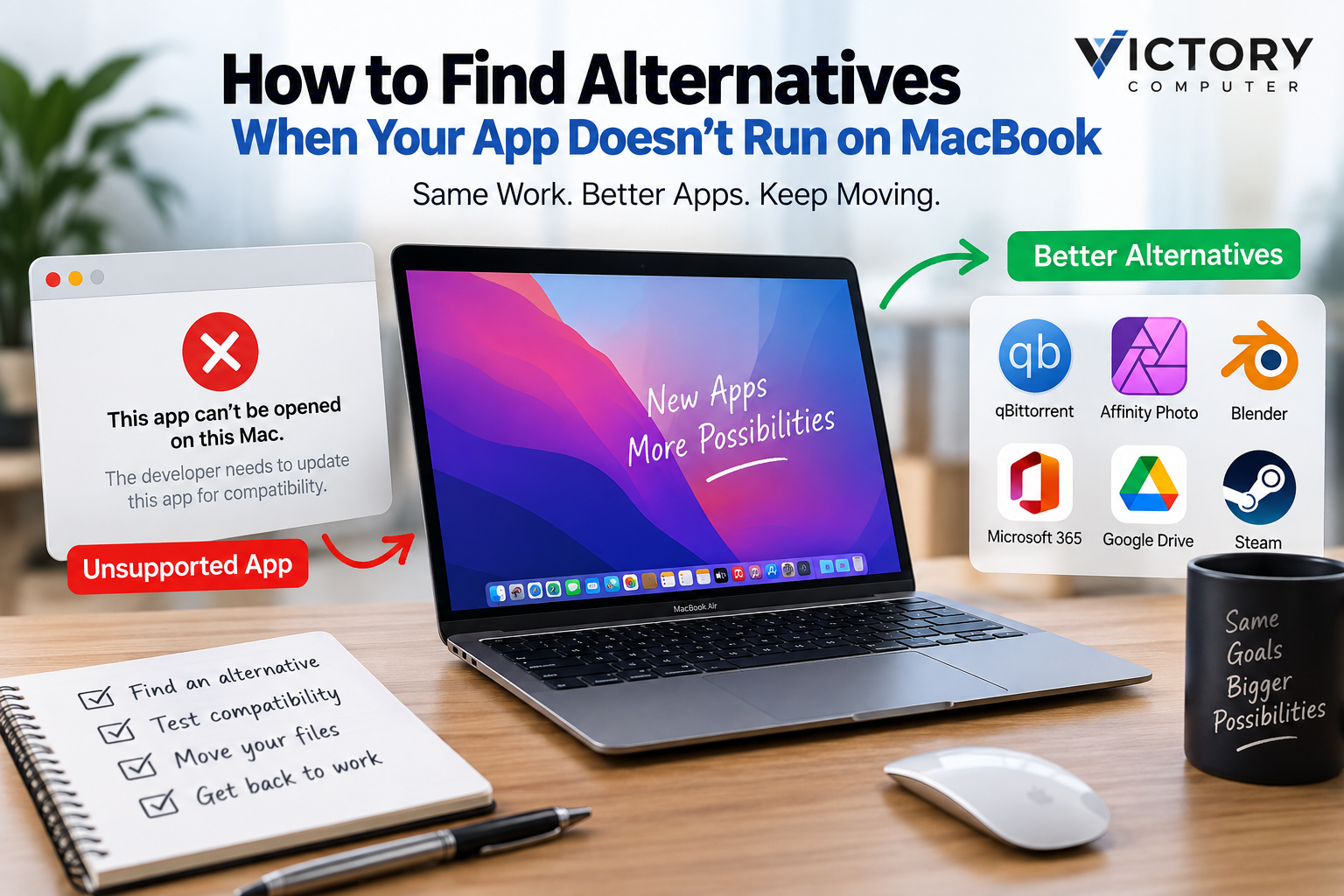
How to Find Alternatives
If an important Mac app no longer works, start by checking whether an updated Apple Silicon or Universal version exists. If not, the best app alternatives for MacBook include native replacement software, browser-based tools, Rosetta-compatible versions, and—when absolutely necessary—virtualization. The right choice depends on your files, plug-ins, workflow, and macOS version.
Why Does an App Stop Working on a MacBook?
An app can stop working because its architecture, plug-ins, drivers, security requirements, or required macOS frameworks are no longer compatible. One of the biggest historical changes occurred with macOS Catalina 10.15, which ended support for 32-bit Mac applications.
Apple Silicon created a different compatibility issue. Intel-only software is not automatically the same as obsolete 32-bit software. Many Intel-based 64-bit applications can still run on Apple Silicon through Apple’s Rosetta translation technology. However, native Universal or Apple Silicon versions are preferable for long-term compatibility.
If you are unsure what is causing the problem, first determine whether you are dealing with unsupported apps on macOS, an Intel-only application, an outdated plug-in, or a genuinely discontinued program. Victory Computer’s guide to unsupported Mac applications and its Apple Silicon vs Intel compatibility guide provide additional troubleshooting context.
How to Find App Alternatives for MacBook
The safest way to find app alternatives for MacBook is to identify what you actually need from the old application rather than searching only for a program with a similar name.
- Check for an official update. Visit the developer’s current support channel and see whether a Universal or Apple Silicon release is available.
- Identify your essential features. Write down the functions you use regularly instead of trying to replace every feature in the old software.
- Check file compatibility. Confirm that the replacement can open, edit, and export the file formats your workflow requires.
- Check plug-ins and peripherals. Audio interfaces, specialist printers, extensions, creative plug-ins, and other add-ons may have separate compatibility requirements.
- Look for a native Mac alternative. A maintained Apple Silicon version is usually a better long-term choice than depending on legacy translation.
- Consider a web application. Some productivity and collaboration workflows can move to browser-based software without depending heavily on macOS compatibility.
- Test before migrating completely. Keep your original files and verify the new workflow before removing the old application.
Which Replacement Option Is Best?
| Option | Best For | Main Advantage | Main Trade-off |
|---|---|---|---|
| Updated version | Existing users | Familiar workflow | May require a new license |
| Native alternative | Long-term Mac use | Better future compatibility | Learning curve |
| Web app | Office and collaboration work | Less dependence on Mac architecture | May depend on internet access |
| Rosetta | Compatible Intel-based apps | Can preserve an existing workflow temporarily | Not the best long-term migration strategy |
| Virtualization | Specialist legacy workflows | Can preserve access to certain older environments | More setup, storage and compatibility complexity |
For most users, the preferred order is official update → native alternative → web alternative → temporary compatibility workaround. Victory Computer’s guide to workarounds for unsupported Apple Silicon apps explains additional options when replacing the application immediately is difficult.
Pros and Cons of Switching to a Mac App Alternative
Pros
- Better compatibility: Maintained applications are more likely to support current macOS releases and Apple Silicon.
- Security updates: Actively maintained software can receive fixes for newly discovered problems.
- Native performance: Apple Silicon versions avoid relying on Intel translation for normal operation.
- Newer features: Modern replacements may support current cloud, collaboration, automation, and file-sharing workflows.
- Longer useful life: Moving away from abandoned software reduces dependence on an outdated operating environment.
Cons
- Learning curve: Menus, shortcuts, and workflows can differ substantially.
- File conversion risk: Complex projects may not transfer perfectly between applications.
- Additional cost: A replacement may require a new license or subscription.
- Plug-in compatibility: Specialist extensions and hardware integrations may not have equivalent replacements.
Why We Recommend Switching When a Good Alternative Exists
A maintained native application is generally the better choice when your old software has been permanently discontinued or no longer supports your Mac. Keep the legacy workflow only when a critical feature, project format, plug-in, or business requirement cannot yet be replaced. Migration should be tested before the old environment is removed.
What Should You Check Before Switching Apps?
Do not uninstall an incompatible application as your first step. Back up its projects, presets, templates, libraries, license information, and other important data first.
Open several representative files in the proposed replacement and check formatting, fonts, layers, effects, formulas, media links, metadata, and export quality. Creative and professional workflows deserve particular care because opening a file successfully does not necessarily mean every element transferred correctly.
For general productivity software, you can also compare current productivity apps for MacBook before choosing a replacement.
Should You Use Rosetta Instead of Replacing the App?
Rosetta can run many Intel-based applications on Apple Silicon Macs, so an Intel label does not automatically mean the software is unusable. Rosetta operates in the background and can provide a practical transition path for compatible Intel software.
However, Rosetta should not be confused with support for old 32-bit applications. macOS Catalina and later do not support 32-bit Mac apps. For long-term use, check for a Universal or Apple Silicon version from the developer instead of assuming an Intel-only application will remain a permanent solution.
What Should MacBook Users in Pakistan Consider?
Software compatibility should be checked before choosing a MacBook for professional work. Buyers who depend on accounting programs, engineering tools, specialist plug-ins, older creative software, or company-specific applications should confirm macOS and Apple Silicon support before changing computers.
If you are comparing a new computer for work or study, Victory Computer offers laptops and computers in Pakistan through its online store. Choose hardware around the applications your workflow actually requires rather than assuming every Windows or older Intel Mac application has an equivalent native Mac version.
Final Recommendation
The best app alternatives for MacBook are not necessarily applications with the longest feature lists. Choose the replacement that supports your essential files, works with your current Mac architecture, receives active updates, and fits your normal workflow.
Start with an official update from the original developer. If the software has been abandoned, compare native Apple Silicon replacements and web-based options. Use Rosetta for compatible Intel applications when needed, and reserve virtualization for workflows where replacing the legacy environment is genuinely difficult.
For MacBook and laptop buying guidance in Pakistan, Victory Computer can also help you compare hardware according to the software and workload you plan to use.
Frequently Asked Questions
Why doesn’t my old app run on a new MacBook?
The application may be 32-bit, dependent on obsolete components, incompatible with your macOS version, or missing an Apple Silicon-compatible update. Identify the exact compatibility issue before replacing it.
Can Intel apps still run on Apple Silicon Macs?
Many 64-bit Intel applications can run through Rosetta on Apple Silicon. A native Universal or Apple Silicon version is preferable when available.
Can Rosetta run old 32-bit Mac applications?
No. Rosetta’s Intel translation should not be confused with 32-bit app support. macOS Catalina 10.15 and later do not support 32-bit Mac applications.
How do I find the best replacement for an unsupported Mac app?
List the features and file formats you actually need, then compare actively maintained native Mac and browser-based applications. Test your existing files before fully migrating.
Are web apps a good alternative to Mac desktop software?
They can be excellent for productivity and collaboration tasks, especially when cross-platform access matters. Specialist creative, engineering, or offline workflows may still require desktop software.
Should I buy a new MacBook before checking my software?
No. If your work depends on specialist software, plug-ins, drivers, or peripherals, verify compatibility with your intended Mac and macOS version before buying.

About Victory Computer Editorial Team
Victory Computer Editorial Team The Victory Computer Editorial Team publishes informative, research-based content about laptops, computers, monitors, printers, hardware, and technology trends in Pakistan. Our goal is to help readers understand product specifications, compare available options, and make informed purchasing decisions.
View all posts by Victory Computer Editorial Team
2 thoughts on “How to Find Alternatives When Your App Doesn’t Run on MacBook”