
Unsupported Mac Apps in 2025: Should You Delay Upgrading to Sonoma?

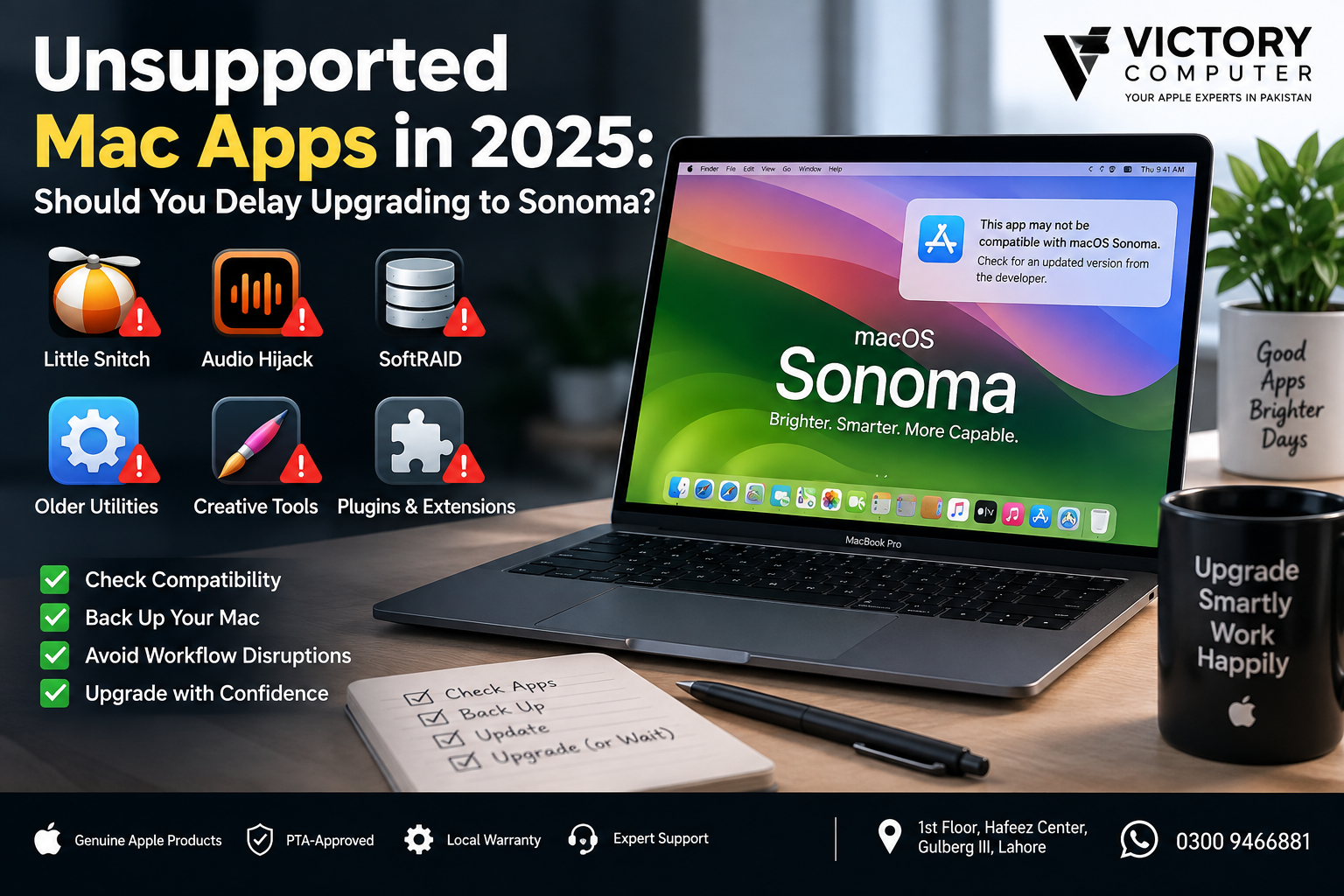
Unsupported Mac Apps in 2025
Unsupported Mac Apps in 2025 can be a good reason to delay a macOS Sonoma upgrade—but only if an application that is essential to your work is genuinely incompatible with the version you plan to install. For most users running current software, Sonoma compatibility is considerably better than it was around the operating system’s original release.
The safest approach is simple: check your Mac model, update your important applications, verify developer compatibility, create a backup, and only then upgrade. This matters especially for professionals who depend on audio software, storage utilities, security tools, plugins, drivers, or older business applications.
Why Can Mac Apps Stop Working After a macOS Upgrade?
A major macOS upgrade changes more than the appearance of your Mac. Apple can modify security requirements, permissions, frameworks, drivers and APIs that third-party developers rely on.
Older software is particularly vulnerable. Apple ended support for 32-bit applications beginning with macOS Catalina, meaning a genuinely 32-bit Mac application will not suddenly become compatible simply by moving to Sonoma. Users of very old software should therefore check the developer’s current version requirements before upgrading.
| Compatibility Risk | What It Can Mean | Recommended Check |
|---|---|---|
| Very old 32-bit software | Application cannot run on modern macOS | Look for a current 64-bit replacement |
| Legacy drivers or system extensions | Hardware or utilities may need newer software | Check the developer’s compatibility page |
| Intel-only applications on Apple Silicon | Some software may require Rosetta or an updated build | Check for an Apple Silicon-native version |
| Plugins and extensions | The main app may work while an older plugin fails | Verify every critical plugin separately |
| Abandoned applications | No compatibility update may ever arrive | Find an actively maintained alternative |
Are Little Snitch, Audio Hijack and SoftRAID Unsupported on Sonoma?
This is where older compatibility articles can become misleading. Software that had problems during Sonoma’s launch period may have received fixes later, so an old list of “broken Mac apps” should not automatically be treated as current.
For example, Objective Development currently lists compatible versions of Little Snitch for macOS Sonoma. Rogue Amoeba also lists current Audio Hijack releases as compatible with supported Sonoma versions. SoftRAID’s Sonoma support has likewise changed across application and driver releases.
The practical lesson is more useful than maintaining a static blacklist: check the exact application version against the developer’s current compatibility information.
Apple Silicon Makes Version Checking More Important
Apple Silicon changed the Mac software environment significantly. An application designed for Intel Macs is not automatically the same as an application built natively for Apple Silicon.
Rosetta 2 has helped many Intel applications run on Apple Silicon Macs, but it should not be treated as proof that every old application, driver, plugin or extension will work. System-level software deserves particular attention because compatibility can depend on much more than CPU architecture.
If you want more background on Apple’s processor transition, read our guide to Apple Silicon and why it matters.
Which Users Should Be Most Careful Before Upgrading?
For casual users who mainly browse the web, stream content and use actively maintained mainstream applications, the compatibility risk is generally easier to manage. Professionals with specialized workflows should be more cautious.
- Audio professionals: Check DAWs, audio-routing software, interfaces and plugins.
- Designers and editors: Verify creative applications, plugins, fonts and hardware integrations.
- Developers: Check development environments, command-line dependencies, virtualization tools and older SDK requirements.
- IT and storage users: Verify VPNs, security tools, RAID utilities, drivers and system extensions.
- Businesses: Test any older accounting, inventory or proprietary software before changing production Macs.
Pros of Upgrading to macOS Sonoma
- Newer macOS features: You gain the features and interface improvements included with Sonoma.
- Security improvements: Staying on supported software helps users receive relevant security fixes and platform protections.
- Better support from current apps: Actively maintained applications are generally designed around newer macOS releases.
- Better fit for newer Macs: Current software versions are increasingly optimized for Apple Silicon hardware.
- Longer-term software compatibility: Developers eventually drop support for older operating systems, making upgrades necessary over time.
Cons of Upgrading to macOS Sonoma
- Legacy apps may fail: Older or abandoned software can stop launching or lose functionality.
- Plugins can create hidden problems: Your main application may work while a critical extension or plugin does not.
- Older hardware accessories may need updated drivers: This is particularly important for specialized professional equipment.
- Workflow disruption: Discovering incompatibility after upgrading a production Mac can cost far more time than checking beforehand.
Should You Delay Upgrading to Sonoma?
Delay the upgrade if a critical application, plugin, driver or peripheral has not been confirmed compatible. There is little benefit in deliberately breaking a working production environment simply to install a newer operating system immediately.
On the other hand, there is usually no reason to delay solely because an application appeared on an old Sonoma incompatibility list. Compatibility changes as developers release updates.
A good rule is to separate essential software from software you rarely use. If your essential applications are confirmed compatible and your Mac supports Sonoma, the compatibility argument for delaying becomes much weaker.
5 Checks to Make Before Installing macOS Sonoma
- Confirm that your Mac supports Sonoma. Check Apple’s official compatibility list for your exact Mac model.
- List your essential applications. Concentrate on software required for work, study or business.
- Check developer compatibility pages. Do not rely solely on forum posts or old compatibility lists.
- Check plugins, drivers and accessories. These can fail even when the main application works.
- Back up your Mac. Keep a current backup before performing a major operating-system upgrade.
For additional troubleshooting context, see our guide to Mac apps with Sonoma compatibility problems and possible fixes.
What If One Important App Still Doesn’t Support Sonoma?
If one application is essential to your workflow, first check whether the developer offers a newer compatible release. If not, investigate a supported alternative before changing your operating system.
You can also keep a production Mac on its existing supported configuration while testing the newer setup separately. This is often more sensible for business, creative and technical workflows than upgrading first and troubleshooting later.
For a specific example of an older utility experiencing Sonoma problems, see our PopChar v9.5 and macOS Sonoma compatibility guide.
Buying a MacBook in Pakistan: Check Software Before Hardware
If you’re buying a newer MacBook in Pakistan to replace an Intel Mac, don’t evaluate the hardware alone. Make a list of the applications, plugins and peripherals you depend on and confirm their compatibility with Apple Silicon and the macOS version you intend to use.
This is particularly important for buyers moving older professional workflows to newer MacBook Air or MacBook Pro systems. A faster Mac does not help if a mission-critical application cannot support your workflow.
You can explore more laptop buying guides from Victory Computer or visit Victory Computer for current computer options in Pakistan.
Why We Recommend Checking Compatibility Before Upgrading
For most users, the best decision is not simply “upgrade” or “don’t upgrade.” It is verify first, then upgrade. Users with modern, actively maintained applications have much less reason to fear Sonoma than users dependent on legacy utilities, specialist plugins or unsupported hardware.
If your work depends on one irreplaceable application and its developer does not confirm compatibility, delaying the upgrade is reasonable. If your essential software is supported, an old list of unsupported applications should not prevent you from moving forward.
Frequently Asked Questions
Should I delay upgrading to macOS Sonoma?
Delay the upgrade if a critical application, plugin, driver or hardware device has not been confirmed compatible. Otherwise, an old incompatibility report alone is not a strong reason to avoid Sonoma.
Which Mac apps are most likely to have compatibility problems?
Legacy utilities, abandoned applications, old plugins, hardware drivers and system-level tools deserve the most careful checking before a major macOS upgrade.
Is Little Snitch unsupported on macOS Sonoma?
No—not as a general current claim. Objective Development lists compatible Little Snitch releases for macOS Sonoma, so check the required version rather than assuming the application is unsupported.
Does Audio Hijack work with macOS Sonoma?
Current Rogue Amoeba compatibility information lists Audio Hijack support for Sonoma with applicable version requirements. Always check the developer’s latest status page before upgrading.
Do 32-bit Mac applications work on Sonoma?
No. Apple ended support for 32-bit Mac applications beginning with macOS Catalina, well before Sonoma.
How should I prepare before upgrading my Mac?
Check your Mac model, verify every essential application and plugin, update software where necessary, confirm peripheral support and create a current backup before installing the new macOS version.
Final Verdict
Unsupported Mac Apps in 2025 are a valid reason to delay Sonoma only when the unsupported software is genuinely essential to your workflow. Compatibility information changes over time, so avoid making an upgrade decision from an old list alone.
Check the developer’s current compatibility documentation for every critical app, plugin and driver. If everything you rely on is supported, upgrading becomes a much lower-risk decision. If one mission-critical tool remains incompatible, keep your working configuration until you have a tested update or replacement.
Victory Computer
Lahore, Pakistan
WhatsApp: 0300 9466881

About Victory Computer Editorial Team
Victory Computer Editorial Team The Victory Computer Editorial Team publishes informative, research-based content about laptops, computers, monitors, printers, hardware, and technology trends in Pakistan. Our goal is to help readers understand product specifications, compare available options, and make informed purchasing decisions.
View all posts by Victory Computer Editorial Team
5 thoughts on “Unsupported Mac Apps in 2025: Should You Delay Upgrading to Sonoma?”