
10 Apple Mac Apps Broken on macOS Sonoma (And What You Can Do About It) | Full Guide

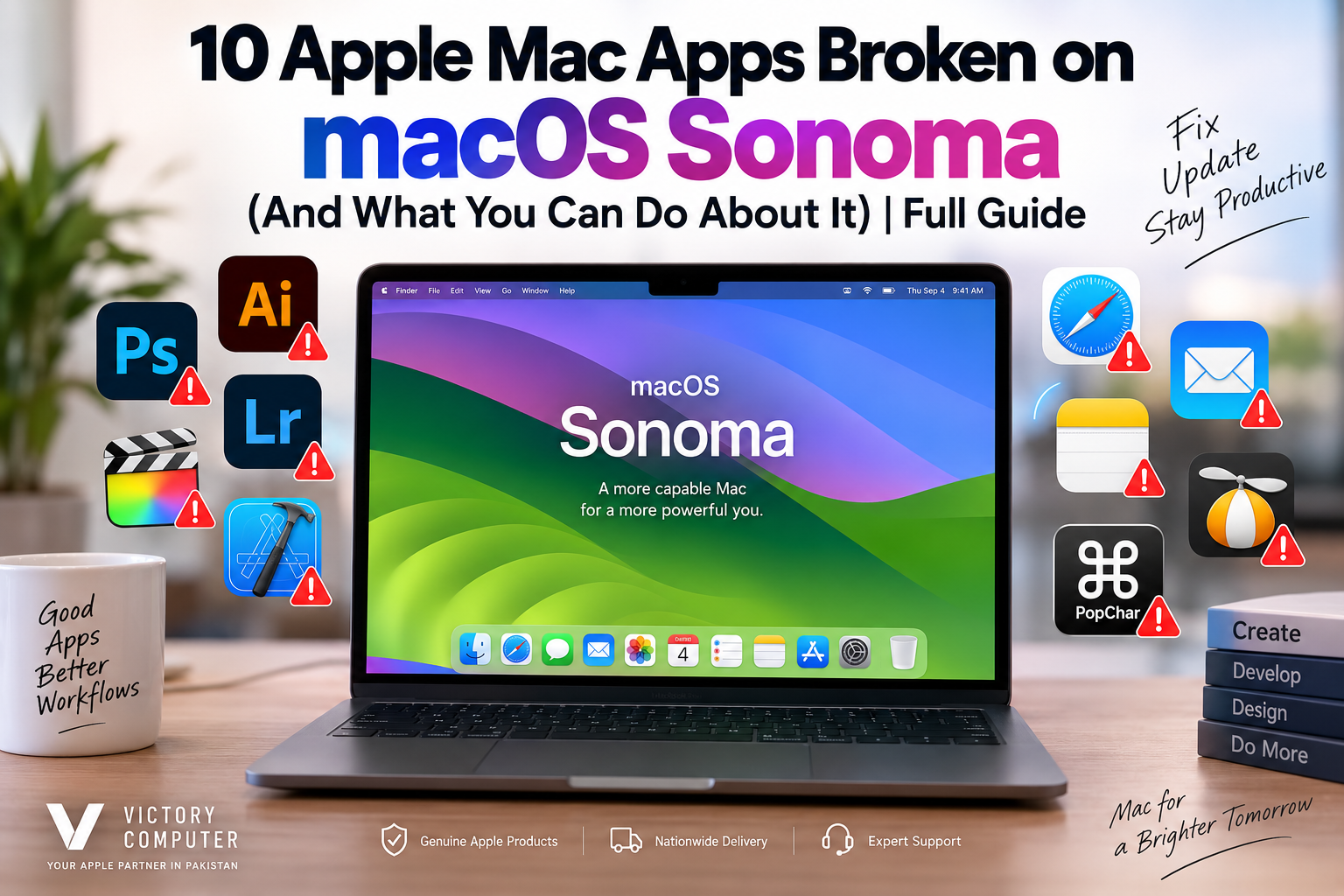
10 Apple Mac Apps Broken on macOS Sonoma
macOS Sonoma broken apps remain a concern for people who depend on older software, plugins, drivers, and system utilities. However, calling an entire app “broken on Sonoma” can be misleading. In many cases, the problem affects a particular app version, plugin, extension, or macOS point release rather than every current version of the software.
This matters because applications such as Adobe Photoshop, Lightroom and Little Snitch have Sonoma-compatible releases. The better question is therefore: which versions or components can cause trouble, and what should you do before upgrading?
Why Do Mac Apps Stop Working After a macOS Update?
A major macOS upgrade can expose software that depends on outdated components. Apple has gradually moved developers away from legacy kernel extensions, while newer Macs also introduced the transition from Intel processors to Apple Silicon.
There is an important distinction here: 32-bit applications stopped working beginning with macOS Catalina, not Sonoma. Intel-based 64-bit applications can still run on compatible Apple Silicon Macs through Rosetta, although moving to native Apple Silicon versions is preferable for long-term compatibility.
Other problems can come from outdated plugins, drivers, permissions, background extensions or software versions that were never validated for Sonoma. Our guide to why third-party Mac apps break after macOS updates explains these causes in more detail.
10 Mac Apps and App Types That Can Have Sonoma Compatibility Problems
| App / Software | Potential Problem | What You Should Do |
|---|---|---|
| Older Xcode versions | Older releases may not support Sonoma as a host OS or the SDK/simulator combination you need. | Use an Xcode release officially supported by your installed macOS version. |
| Adobe Photoshop | Older builds, plugins or extensions may cause compatibility problems. | Update Photoshop and third-party plugins before troubleshooting macOS itself. |
| Adobe Lightroom | Older Lightroom releases may not be validated for Sonoma. | Install a Sonoma-compatible Lightroom release and update plugins. |
| Adobe Bridge | Some Sonoma releases have had device-import or plugin-related compatibility issues. | Update both macOS and Bridge and check Adobe’s current known-issues documentation. |
| Little Snitch | Old releases may not support newer macOS networking and security requirements. | Use a Little Snitch version explicitly compatible with Sonoma. |
| PopChar | Older versions may crash or behave unpredictably after macOS changes. | Update first and check the developer’s compatibility information. See our PopChar Sonoma troubleshooting guide. |
| Legacy RAID utilities | Old storage drivers or kernel extensions may require updates. | Do not upgrade a production RAID Mac until the storage vendor confirms compatibility. |
| Old Mail extensions | Legacy plugin architectures may stop functioning after Mail or macOS changes. | Check for a modern extension or updated workflow from the developer. |
| Intel-only plugins | The main application may be native while an older plugin still depends on Intel code. | Update the plugin to a Universal or Apple Silicon release where available. |
| Legacy system utilities | Utilities relying on old kernel extensions or deep system modifications are more vulnerable to OS changes. | Check developer support before upgrading macOS. |
The key point is that compatibility depends heavily on the exact software version. A current version may work correctly even when a much older release of the same application does not.
Pros and Cons of macOS Sonoma
Pros
- Modern security architecture: Apple’s tighter controls reduce reliance on older, deeply integrated system components.
- Strong Apple Silicon support: Modern applications increasingly offer native versions designed for Apple’s processors.
- Continued app updates: Major developers have released Sonoma-compatible versions of many popular applications.
- Modern macOS features: Sonoma adds newer system functionality while maintaining access to a broad Mac software ecosystem.
- Rosetta compatibility: Many Intel-based 64-bit applications can continue running on Apple Silicon Macs through Rosetta.
Cons
- Legacy software can fail: Very old applications, plugins and drivers may no longer be compatible.
- Professional workflows require checking: Audio, video, development and storage environments often depend on multiple plugins or drivers.
- Old system extensions create problems: Utilities built around legacy kernel extensions may need replacement or significant updates.
- An app update may be necessary: Users running older perpetual-license software can sometimes face an upgrade cost to obtain a compatible version.
Why We Recommend Checking Compatibility Before Updating
Sonoma itself should not automatically be blamed whenever an application crashes. For a normal home user with current applications, compatibility may be straightforward. Professionals who rely on specific plugins, RAID hardware, audio interfaces, development environments or older software should verify every critical component before changing macOS versions.
Are Photoshop and Lightroom Broken on macOS Sonoma?
No—not as a blanket statement. Adobe lists Sonoma-compatible versions of Photoshop, Lightroom and other Creative Cloud applications. Adobe also documents known issues for particular applications and versions.
If Photoshop or Lightroom crashes after an upgrade, first check the installed Adobe version and any third-party plugins. Updating Creative Cloud applications and plugins is generally more sensible than assuming the entire application is incompatible with Sonoma.
Is Little Snitch Broken on Sonoma?
Current compatibility information from the developer shows that compatible Little Snitch versions are available for macOS Sonoma. Problems are therefore more likely when someone tries to keep an older Little Snitch release after upgrading macOS.
This distinction is important throughout this guide: an old release being incompatible does not mean the current application is broken.
What About Xcode on macOS Sonoma?
Xcode compatibility is highly version-dependent. Apple publishes a system-requirements table showing which macOS releases each Xcode version supports. For example, Xcode 15 releases were designed around the Sonoma generation, while older Xcode versions can have host-OS or simulator limitations.
Developers should therefore match the Xcode version, macOS version and required SDK rather than simply assuming that any Xcode installation will work after an operating-system upgrade.
Intel Apps Are Not Automatically Unsupported on Sonoma
One of the biggest misconceptions surrounding MacBook Sonoma compatibility is that Intel-only applications stopped working once Apple moved to Apple Silicon.
Apple’s Rosetta technology allows many Intel-based applications to run on Apple Silicon Macs. This is different from 32-bit software, which Apple stopped supporting beginning with macOS Catalina.
However, plugins and extensions can complicate the situation. A Universal application may work correctly while an old Intel-only add-on causes crashes or missing features. Updating the complete software chain is therefore important.
How to Fix Apps Not Working on macOS Sonoma
- Check for an app update. Install a version that the developer explicitly supports on Sonoma.
- Update macOS. Point releases can correct compatibility bugs introduced in earlier releases.
- Check plugins and extensions. An outdated add-on can break an otherwise compatible application.
- Check Apple Silicon compatibility. Look in Finder > Get Info to determine whether an app is Intel, Universal or Apple Silicon.
- Check permissions. Review Privacy & Security if an application cannot access files, storage devices, the microphone, camera or other protected resources.
- Contact the developer. For professional software, use the developer’s compatibility documentation rather than relying on random fixes.
- Back up before major changes. Do not uninstall essential production software or downgrade macOS without protecting your data first.
If several critical applications are still incompatible, read our guide on whether you should delay upgrading to macOS Sonoma before changing a production Mac.
Should You Downgrade macOS Because an App Is Broken?
Not immediately. First determine whether the problem is the application, a plugin, an extension, a driver or the particular Sonoma point release installed on the Mac.
A downgrade may make sense for a business-critical workflow when the software vendor explicitly does not support the newer operating system and no practical replacement exists. For most ordinary compatibility problems, updating the application is the safer first step.
Buying a MacBook for Professional Apps in Pakistan
If you’re purchasing a MacBook for Adobe Creative Cloud, development, music production, video editing or other specialist work, choose the machine based on your complete software workflow—not simply the newest macOS version.
Before buying, check whether your essential applications, plugins and peripherals support Apple Silicon and the macOS version you intend to use. This is particularly important for businesses and creators using older licensed software or specialist hardware.
You can explore MacBook and computing options through Victory Computer in Pakistan. For software-dependent professional workflows, confirm your application requirements before choosing or upgrading a Mac.
Frequently Asked Questions
Why are some apps broken on macOS Sonoma?
Problems can result from outdated app versions, plugins, drivers, permissions, legacy system extensions or unsupported components. The exact cause depends on the application and version.
Does macOS Sonoma support Intel apps?
Many Intel-based 64-bit applications can run on Apple Silicon Macs using Rosetta. Intel software should not be confused with 32-bit software, which has been unsupported since macOS Catalina.
Is Adobe Photoshop compatible with macOS Sonoma?
Yes, Adobe lists compatible Photoshop versions for Sonoma. Older releases and third-party plugins may still have compatibility problems.
Should I update all my apps before installing Sonoma?
Yes, especially applications that depend on plugins, drivers or system extensions. For a professional Mac, verify every business-critical application before upgrading.
Can updating macOS fix an app that crashes on Sonoma?
Sometimes. Point releases can resolve operating-system bugs, but you should also check for application and plugin updates.
Should I downgrade from Sonoma if one application stops working?
Usually not as the first response. Identify the incompatible component and check for an update or supported alternative before considering an operating-system downgrade.
Final Verdict
The phrase “macOS Sonoma broken apps” does not mean that ten major Mac applications are permanently unusable. In many cases, compatibility problems involve older releases, plugins, drivers or legacy extensions rather than the latest version of the application itself.
Before upgrading a work-critical Mac, make a list of the applications and peripherals you depend on, verify their supported macOS versions, update plugins and drivers, and create a backup. That approach is far safer than upgrading first and troubleshooting an essential workflow afterward.

About Victory Computer Editorial Team
Victory Computer Editorial Team The Victory Computer Editorial Team publishes informative, research-based content about laptops, computers, monitors, printers, hardware, and technology trends in Pakistan. Our goal is to help readers understand product specifications, compare available options, and make informed purchasing decisions.
View all posts by Victory Computer Editorial Team
3 thoughts on “10 Apple Mac Apps Broken on macOS Sonoma (And What You Can Do About It) | Full Guide”