
FOLX App Corrupting Video Files on macOS – Causes and Alternatives

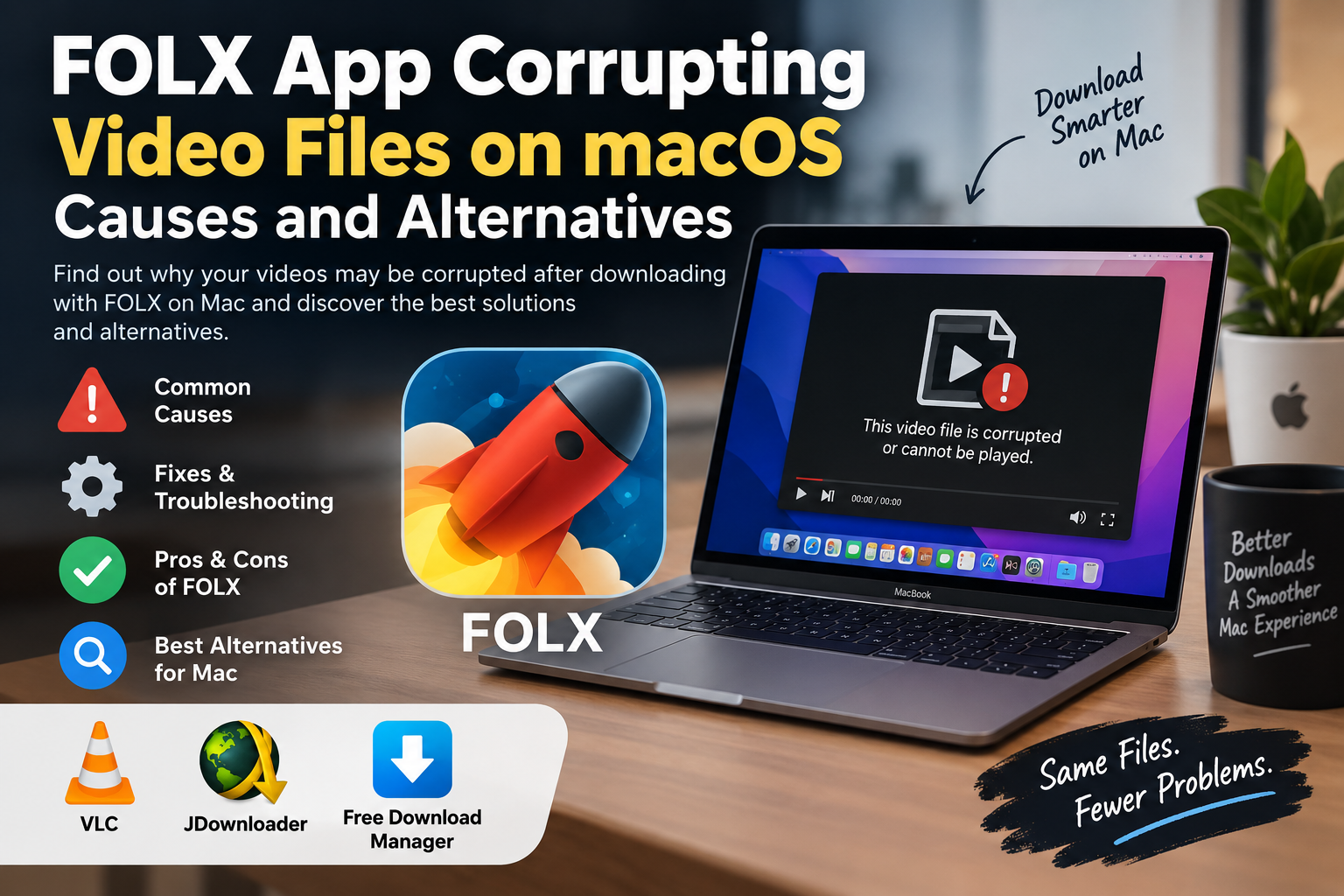
FOLX App Corrupting Video Files on macOS
If you are dealing with the FOLX App corrupting video files on macOS—or at least videos that appear corrupted, incomplete, or unplayable—the first step is to identify where the failure actually happened. A broken video after downloading does not automatically mean FOLX damaged the file. Interrupted transfers, source-server problems, failed resume operations, macOS file permissions, and unsupported media formats can produce similar symptoms.
There were community reports during the macOS Sonoma period of video files downloaded through FOLX becoming corrupted. However, the current FOLX developer documentation lists the application as compatible with current macOS versions. That makes troubleshooting more useful than assuming every failed video is caused by the download manager itself.
Is FOLX Really Corrupting Your Video Files?
A video that refuses to open can fail at several stages. The downloaded file may be incomplete, the remote server may have delivered unexpected data, the download may have resumed incorrectly, or the file itself may use a format or codec that your normal player cannot decode.
FOLX itself supports automatic download resuming and segmented downloads. Those features are useful, but any download manager still depends on the remote server correctly supporting the requested transfer. If you consistently get a broken file from one source but other downloads work normally, investigate the source and file before assuming the entire FOLX installation is faulty.
Compatibility can also change after operating-system updates. If problems appeared immediately after upgrading macOS, see our guide to macOS Sonoma app compatibility problems.
Common Causes of Corrupted or Unplayable FOLX Downloads
| Possible Cause | Typical Symptom | What to Try |
|---|---|---|
| Incomplete download | Video stops early or will not open | Compare expected file size and download again |
| Interrupted or failed resume | File downloads but playback fails partway through | Delete the partial file and perform a clean download |
| Source/server problem | The same file repeatedly fails | Test the same legal download in a browser |
| macOS file access | Saving or accessing downloads behaves unexpectedly | Review Files & Folders permissions |
| Codec or container incompatibility | File exists at the expected size but will not play | Test it with VLC |
| Outdated application | Problems begin after a macOS upgrade | Update FOLX before further troubleshooting |
7 Ways to Fix FOLX Video Download Problems on macOS
1. Confirm That the Download Actually Finished
Do not judge completion only by the presence of a file in your Downloads folder. Check whether FOLX reports the transfer as complete and, where the source provides the information, compare the downloaded file size with the expected size.
If a supposedly multi-gigabyte video is dramatically smaller than expected, the problem is likely an incomplete transfer rather than video decoding.
2. Re-download the File Without Resuming the Old Transfer
If a transfer was interrupted several times, remove the failed task and partial file and start a fresh download. This is particularly useful when playback always fails at approximately the same point.
FOLX officially supports automatic resume functionality, but a successful resume also depends on how the remote server handles resumed or ranged requests.
3. Test the Same File Through Your Browser
This is one of the simplest diagnostic tests. If the same legitimate direct-download URL works correctly through Safari, Chrome, or Firefox but repeatedly produces a damaged file through FOLX, the download-manager path deserves closer investigation.
If both the browser and FOLX produce the same bad file, the source itself becomes a stronger suspect.
4. Check macOS Files & Folders Permissions
Modern macOS versions control application access to protected locations such as Desktop, Documents, and Downloads. Apple allows users to review these permissions under System Settings > Privacy & Security.
If FOLX cannot reliably access the selected destination, review its relevant Files & Folders permissions. Do not grant Full Disk Access automatically unless the application genuinely requires it.
Operating-system permissions are one reason third-party Mac apps can behave differently after macOS updates.
5. Try Opening the File With VLC
An unplayable file is not necessarily corrupt. The default application may simply lack support for its codec or container.
VLC is available for both Intel and Apple Silicon Macs and supports a broad range of multimedia formats. If VLC plays the entire video correctly, the download itself may be fine and your original playback application may be the problem.
6. Update FOLX
Check your installed FOLX version against the current version offered by its developer. The official FOLX page currently lists version 5.34 and describes support for current macOS releases.
If you are running an old release that was installed before several major macOS upgrades, updating is preferable to troubleshooting behavior that may already have been corrected.
7. Test Another Download Manager
If large files repeatedly fail in FOLX while the same source works correctly elsewhere, test an alternative. This gives you a useful comparison without immediately changing unrelated macOS settings.
You can also review our broader guide on what to do when a Mac app stops working.
FOLX Pros and Cons
Pros
- Native Mac focus: FOLX is specifically designed as a download manager for macOS.
- Automatic resume: Interrupted transfers can be resumed when the source supports it correctly.
- Browser integration: FOLX can integrate with common browsers to capture downloads.
- Download organization: Tags and download-management features are useful when handling many files.
- Advanced controls: The Pro version adds features such as scheduling, additional download threads, and speed management.
Cons
- Some advanced features require Pro: The free edition does not provide every download-management feature.
- Third-party download managers add another failure point: Browser, extension, server, application, and macOS compatibility can all affect a transfer.
- Historical compatibility reports exist: FOLX was among the applications for which users reported video corruption during the macOS Sonoma transition.
- Not every video problem is easy to diagnose: A playback failure can look like download corruption even when the underlying issue is the media format or source.
Why We Recommend a Diagnostic Approach
FOLX still offers useful download-management features, so replacing it immediately is unnecessary if your downloads normally complete correctly. If corruption repeatedly occurs with large files or started after a macOS change, test the same source with a browser or another download manager. Consistent failures isolated to FOLX provide much stronger evidence than a single broken video.
Best Alternatives to FOLX for Mac
| Option | Best For | Main Advantage | Main Trade-off |
|---|---|---|---|
| JDownloader 2 | Advanced download management | Pause/resume, bandwidth controls and extensive download management | More complex interface than a basic browser download |
| Free Download Manager | General-purpose Mac downloads | macOS support, interrupted-download resume and browser integration | Some users may not need its additional features |
| Safari/Chrome/Firefox | Normal direct downloads | No separate download manager required | Fewer advanced management controls |
| VLC | Testing downloaded videos | Broad media-format playback support | It is a media player, not a replacement download manager |
JDownloader 2
JDownloader is a free download-management tool that supports macOS. Its official documentation lists features including starting, stopping and pausing downloads, bandwidth limits, and automatic archive extraction.
It is a useful FOLX alternative for users who regularly manage many downloads and want more control than a browser provides.
Free Download Manager
Free Download Manager is another current macOS option. The developer provides versions for Mac and advertises features including segmented downloading, browser integration, bandwidth management and resuming interrupted transfers.
For users primarily interested in downloading and organizing large files, it provides a practical comparison point when diagnosing recurring FOLX problems.
Browser Downloads
Do not overlook the simplest alternative. For ordinary direct files, your browser’s built-in downloader may be sufficient. More importantly, downloading the same file through a browser is a valuable troubleshooting test because it removes FOLX from the transfer path.
Which FOLX Alternative Should You Choose?
Stay with FOLX if it works reliably for your normal downloads and you value its Mac-focused interface and management tools.
Try JDownloader 2 if you manage many downloads and want extensive controls. Try Free Download Manager if you want a cross-platform alternative with browser integration and interrupted-download recovery.
Use your browser if your needs are simple. If the problem is only that a downloaded video will not open, test the file in VLC before assuming the downloader corrupted it.
How to Reduce the Risk of Broken Video Downloads
- Keep macOS and your download manager updated.
- Download only files you have permission to access.
- Make sure sufficient free storage is available before downloading large videos.
- Avoid repeatedly interrupting a large transfer when a clean uninterrupted download is possible.
- Check the expected file size when the source provides it.
- Use checksums when a legitimate software or media distributor provides them.
- Test suspicious files with another compatible media player before deleting them.
Mac Support and Buying Guidance in Pakistan
A new MacBook is generally not the first solution to a corrupted download. Diagnose the application, source file, permissions, storage and playback software first.
If you are already planning a hardware upgrade for professional work, you can compare MacBook vs Windows laptops for professionals in Pakistan before choosing a platform.
Victory Computer serves customers in Pakistan from Lahore and offers laptops and Apple products along with buying guidance. For current product availability, warranty terms and pricing, confirm the specific product details before purchasing.
Victory Computer
Lahore, Pakistan
WhatsApp: 0300 9466881
Frequently Asked Questions
Why are my FOLX video downloads corrupted on Mac?
A damaged or unplayable download can result from an incomplete transfer, a failed resume, a problem at the source, application compatibility, or a media format your player cannot decode. Test the same file through another download method before concluding that FOLX itself corrupted it.
Is FOLX compatible with current macOS versions?
The current FOLX developer page states that the application supports current macOS releases. If you are using an older FOLX version, update it before diagnosing persistent compatibility problems.
Can VLC fix a corrupted FOLX video?
VLC can help determine whether a video is actually damaged or simply unsupported by your normal player. It cannot reconstruct every genuinely incomplete or corrupted download, so re-downloading is often the cleaner solution when data is missing.
What is the best alternative to FOLX on Mac?
JDownloader 2 and Free Download Manager are two current alternatives with macOS support. The better choice depends on how much download management, browser integration and control you need.
Should I give FOLX Full Disk Access?
Do not grant broad access automatically. First check the specific Files & Folders permissions FOLX needs for your chosen download location and grant only the access necessary for the application to function.
Do I need a new MacBook if downloaded videos keep getting corrupted?
Usually not. First test the download source, internet transfer, available storage, FOLX version, macOS permissions and video player. Hardware replacement only makes sense if separate diagnostics indicate an actual storage or system problem.

About Victory Computer Editorial Team
Victory Computer Editorial Team The Victory Computer Editorial Team publishes informative, research-based content about laptops, computers, monitors, printers, hardware, and technology trends in Pakistan. Our goal is to help readers understand product specifications, compare available options, and make informed purchasing decisions.
View all posts by Victory Computer Editorial Team