
Why Apple’s Glossy Displays Hurt Creators Who Need True Color Accuracy | Expert Review

Why Apple’s Glossy Displays Accuracy
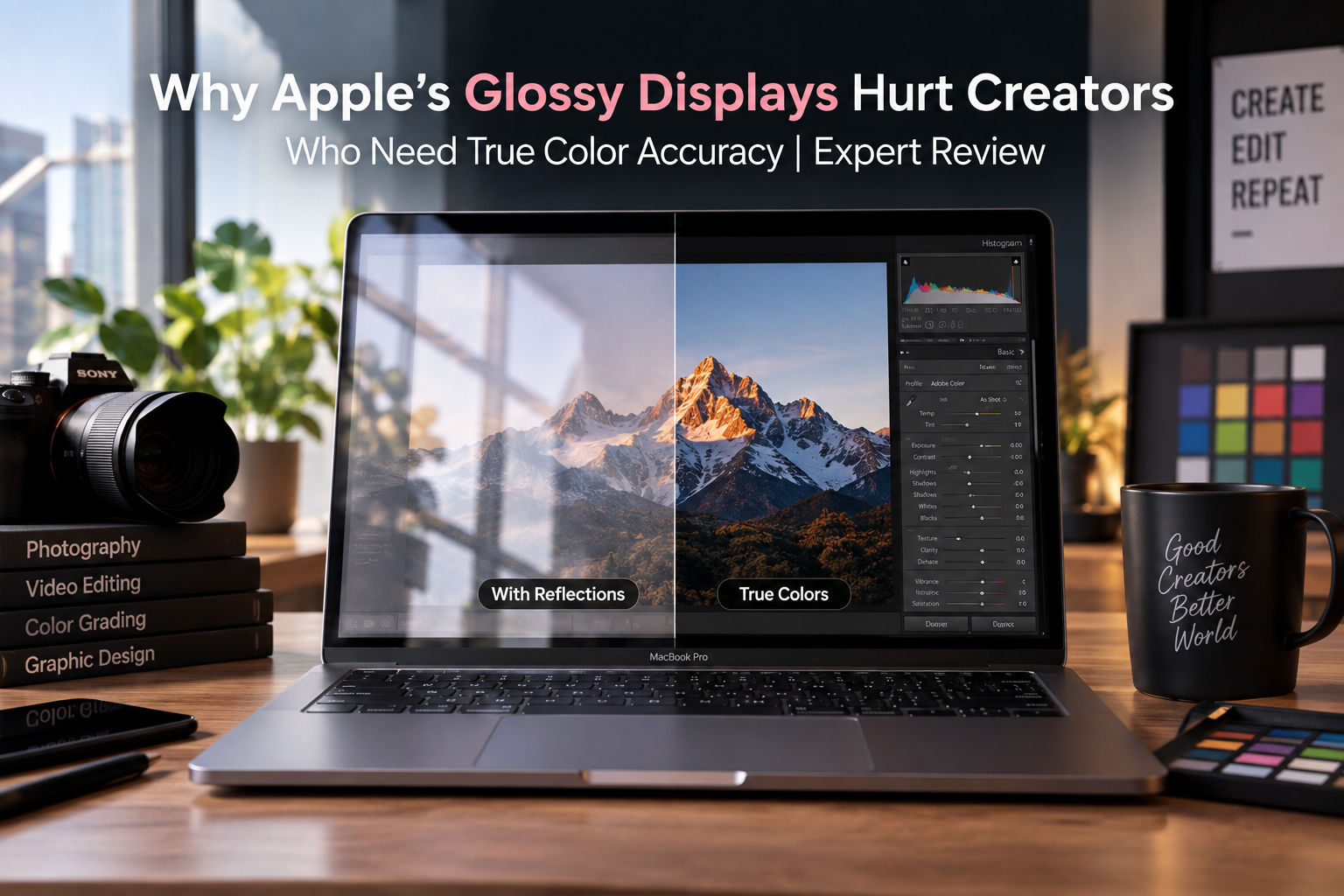
Apple glossy displays can be highly color-capable, but reflections and uncontrolled ambient light can make critical color decisions harder. The issue is not that a glossy MacBook panel automatically produces inaccurate colors. Instead, glare can alter perceived contrast, shadow detail and color, particularly for photographers, video editors and designers working outside a controlled environment.
Are Apple Glossy Displays Actually Color Accurate?
Yes. A glossy surface should not be confused with poor panel color accuracy. Current MacBook displays support wide color technologies intended for high-quality image reproduction, while MacBook Pro models provide considerably more advanced tools for professional workflows.
Apple’s current MacBook Air uses a Liquid Retina IPS display supporting wide color (P3), 1 billion colors and True Tone. Current MacBook Pro models use Liquid Retina XDR displays with wide color (P3), 1 billion colors and professional display capabilities.
MacBook Pro also supports reference modes designed around different production requirements. These modes can control characteristics such as color space, white point, gamma and brightness. That makes the MacBook Pro considerably more capable for color-sensitive work than the claim that its glossy screen is simply “inaccurate” would suggest.
The distinction is important: Apple glossy displays can reproduce color accurately while reflections can still interfere with how those colors are perceived by the person editing them.
Why Glossy Screens Can Cause Problems for Creators
The main weakness of a glossy display is environmental consistency. Light from windows, ceiling fixtures or bright objects behind the user can appear as reflections on the screen. Those reflections compete with the image being edited and can make visual judgments less reliable.
This matters during color-critical work because professional editing depends on more than having a technically capable panel. The viewing environment also needs to remain reasonably consistent.
- Reflections: Bright objects can become visible across dark areas of an image.
- Perceived contrast: Glare can make blacks and shadow detail appear different from how they look in controlled conditions.
- Changing ambient light: Working beside a window can create different viewing conditions throughout the day.
- Visual distraction: Reflections can make detailed retouching and long editing sessions less comfortable.
Apple itself recommends controlling ambient conditions when measuring and calibrating professional displays, including minimizing stray light reflecting onto the display. This reinforces an important point: the environment surrounding a display affects reliable color evaluation.
Creators interested in the wider evolution of screen technology can also review Victory Computer’s guide to laptop display technology, including the differences that matter in real-world laptop use.
MacBook Air vs MacBook Pro for Creative Work
The MacBook Air and MacBook Pro should not be treated as having identical displays. The current MacBook Air uses a Liquid Retina IPS panel, while the MacBook Pro uses the more advanced Liquid Retina XDR system.
| Display Factor | MacBook Air | MacBook Pro |
|---|---|---|
| Display family | Liquid Retina | Liquid Retina XDR |
| Wide color | P3 | P3 |
| True Tone | Yes | Yes |
| Professional reference modes | More limited workflow controls | Supported on compatible models |
| Nano-texture option | No current option | Available as a configuration option on current models |
| Best suited to | General photo, graphics and content work | More demanding HDR and color-critical workflows |
For photographers creating web content, social media graphics or general commercial photography, a MacBook Air can still be a capable editing machine. Its P3 support is valuable for wide-color workflows.
For professional video grading, HDR work and workflows requiring specific reference conditions, the MacBook Pro display is the stronger choice. Compatible MacBook Pro models offer reference modes that can target production standards instead of relying entirely on general display settings.
If an external Apple monitor is also under consideration, see the MacBook Pro vs Studio Display comparison for the practical differences between a laptop screen and a dedicated desktop display.
Pros and Cons of Apple Glossy Displays for Creators
Pros
- Strong color capability: Current MacBook Air and MacBook Pro displays support P3 wide color and 1 billion colors.
- Excellent visual clarity: Glossy surfaces can produce a clean, crisp appearance without the diffusion associated with some aggressive matte coatings.
- Advanced MacBook Pro controls: Compatible Pro models support professional reference modes for specific production workflows.
- Strong HDR capability on MacBook Pro: Liquid Retina XDR is designed for demanding HDR content workflows.
- Nano-texture option on current MacBook Pro: Buyers who regularly work in difficult lighting can choose a lower-reflection display configuration.
Cons
- Reflections: Standard glossy glass can reflect windows, lamps and surrounding objects.
- Environment affects perception: Reflections can interfere with perceived blacks, contrast and subtle tonal differences.
- MacBook Air lacks the Pro’s reference workflow: The Air is capable for creative work but is not equivalent to the MacBook Pro’s professional display controls.
- Controlled conditions may still be necessary: Serious grading and print work require attention to ambient lighting regardless of how good the laptop display is.
Why We Recommend It
Apple glossy displays remain a strong choice for photographers, designers and editors who can control their workspace. A MacBook Pro is particularly attractive for creators who need reference modes, HDR capability and advanced display controls. Creators who constantly work beside bright windows, under difficult studio lighting or in changing environments should consider the nano-texture MacBook Pro option or a suitable external display.
How to Improve MacBook Color Accuracy for Professional Work
Creators do not necessarily need to abandon Apple glossy displays. A better workflow can reduce most of the practical problems caused by reflections and changing light.
1. Control the Room Lighting
Avoid positioning the MacBook directly opposite a bright window or lamp. Stable lighting makes visual decisions more repeatable and reduces reflections across dark portions of photographs and video.
2. Use the Correct Reference Mode on MacBook Pro
Compatible MacBook Pro models provide reference modes for different production environments. Apple states that these modes can set parameters including color space, white point, gamma and brightness.
This is particularly useful for Rec.709, HDR and other standardized workflows. A creator should choose a mode that matches the content being produced rather than selecting whichever preset looks most visually impressive.
3. Be Careful With True Tone During Color-Critical Work
True Tone adjusts display color and intensity in response to ambient lighting. That can make normal viewing more natural, but creators performing tightly controlled color work should use the settings required by their reference workflow rather than allowing the viewing target to change with the room.
4. Consider Calibration for Demanding Work
Professional photographers, colorists and production teams may need a measured workflow rather than relying purely on visual judgment. Apple provides calibration and measurement guidance for supported professional displays and MacBook Pro models.
5. Consider an External Display
A dedicated monitor can be useful when a larger workspace, controlled viewing setup or different surface treatment is required. This does not mean every MacBook user needs an external monitor. It becomes more relevant as color tolerances become stricter.
Creators considering this setup can compare a MacBook Pro and Studio Display before deciding whether the additional screen is justified.
Does the MacBook Pro Nano-Texture Display Solve the Problem?
For buyers especially concerned about reflections, the situation has changed. Current MacBook Pro models can be configured with a nano-texture display, giving professional users an Apple laptop option specifically intended to reduce distracting reflections.
That means criticism of all MacBook Pro models as being permanently limited to a conventional glossy surface is now outdated. The standard display remains appropriate for many controlled environments, while nano-texture can make more sense for photographers, editors and other professionals regularly working around difficult light sources.
For more context on Apple’s display choices, Victory Computer also covers why MacBook displays still aren’t OLED and the broader trade-offs behind Apple’s current display technology.
Should Creators Avoid Apple Glossy Displays?
No. Creators should choose Apple glossy displays according to their working environment and required level of color control rather than avoiding them automatically.
Choose a MacBook Air if your work includes general photography, graphic design, web content and everyday video editing and you do not require advanced reference modes.
Choose a MacBook Pro if HDR production, professional video editing, reference modes and more sophisticated color workflows are important. Consider the nano-texture configuration if reflections are a recurring problem in your workspace.
For extremely demanding print, broadcast or grading environments, the best solution may still involve a calibrated external reference display and controlled room lighting.
Creators concerned about screen comfort as well as color perception can also read Victory Computer’s guide to MacBook Retina display comfort and eye strain.
Buying a MacBook for Creative Work in Pakistan
Before choosing a MacBook for photo or video editing, focus on the complete workflow rather than the processor alone. Display type, memory, storage, external-display requirements and the lighting conditions where the machine will normally be used can all affect the buying decision.
Buyers can explore current computers and MacBook options through Victory Computer or contact the Lahore team for guidance based on their editing software and workflow requirements.
WhatsApp: 0300 9466881
Frequently Asked Questions
Are MacBook displays color accurate?
MacBook displays support strong color capabilities, including P3 wide color on current Air and Pro models. MacBook Pro also offers professional reference modes on compatible models, but reliable color work still requires suitable viewing conditions.
Are Apple glossy displays bad for photo editing?
No. Apple glossy displays can be suitable for photo editing, but reflections may make critical tonal and color judgments harder in bright or uncontrolled environments.
Is MacBook Pro good for color grading?
Yes. Compatible MacBook Pro models provide Liquid Retina XDR technology and reference modes designed for professional production workflows, making the Pro substantially better suited to demanding grading than the MacBook Air.
Should True Tone be used when editing photos?
True Tone changes display color and intensity according to ambient lighting. For color-critical work, use the display settings or reference mode appropriate to the target workflow rather than relying on dynamically changing viewing conditions.
Is a matte monitor better than a glossy MacBook for creators?
A matte or low-reflection monitor can be easier to use in bright environments, but surface finish alone does not determine color accuracy. Calibration, color gamut, viewing environment, panel capability and workflow standards also matter.
Does MacBook Pro have an anti-glare display option?
Current MacBook Pro models can be configured with Apple’s nano-texture display option. It is particularly relevant for creators who regularly work where reflections are difficult to control.

About Victory Computer Editorial Team
Victory Computer Editorial Team The Victory Computer Editorial Team publishes informative, research-based content about laptops, computers, monitors, printers, hardware, and technology trends in Pakistan. Our goal is to help readers understand product specifications, compare available options, and make informed purchasing decisions.
View all posts by Victory Computer Editorial Team
3 thoughts on “Why Apple’s Glossy Displays Hurt Creators Who Need True Color Accuracy | Expert Review”