
Eye Strain Debate: Are MacBook Retina Displays Actually Bad for Your Eyes? | Expert Review

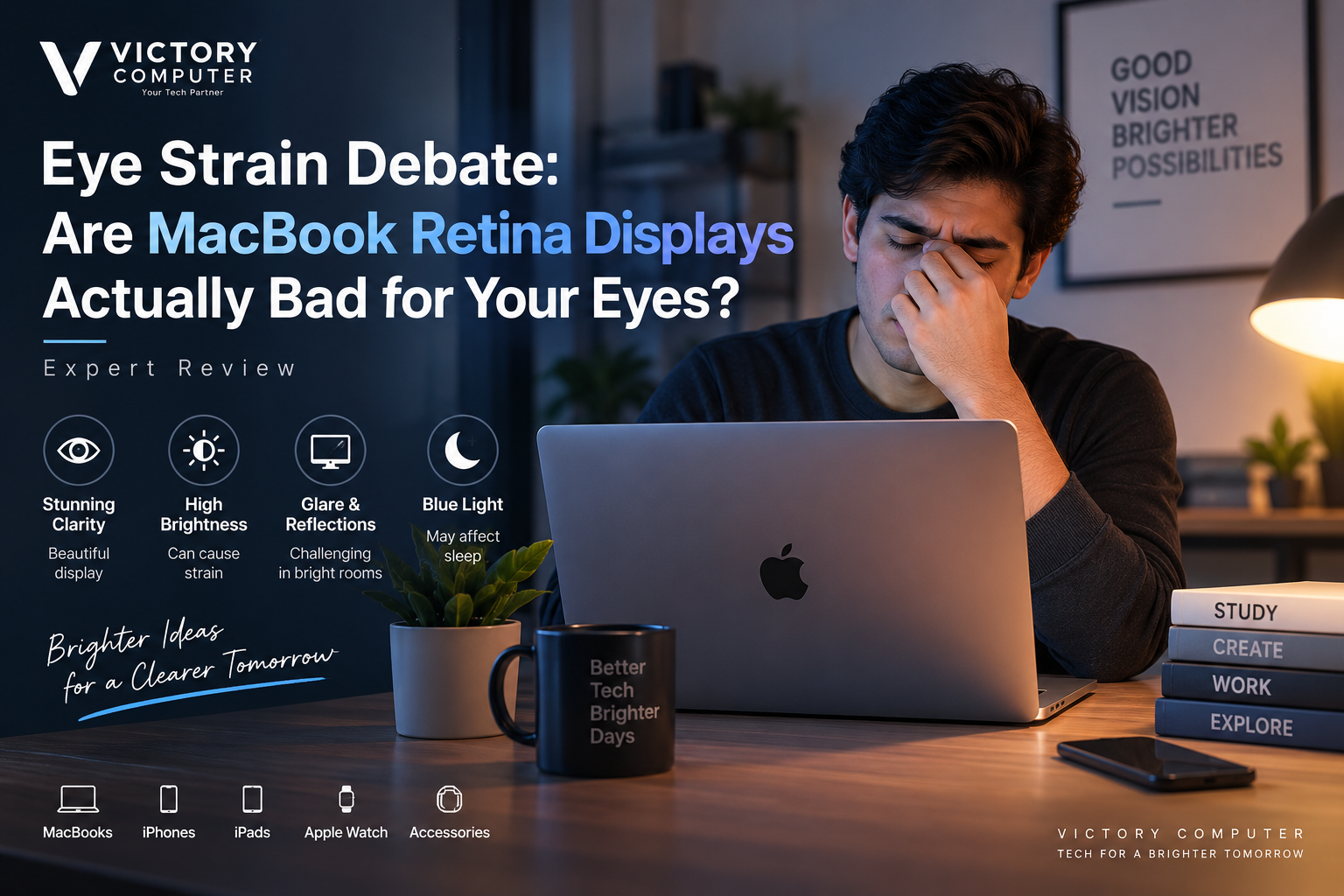
Eye Strain Debate
MacBook Retina display eye strain is possible during long periods of computer use, but that does not mean Retina displays are inherently damaging to your eyes. Digital eye strain is more commonly associated with prolonged near work, reduced blinking, glare, unsuitable brightness, viewing distance and an uncomfortable workstation. The display itself is only one part of the equation.
Are MacBook Retina Displays Actually Bad for Your Eyes?
No evidence shows that a MacBook Retina display is inherently harmful to healthy eyes during normal use. However, spending hours concentrating on any laptop screen can produce temporary symptoms commonly described as digital eye strain or computer vision syndrome.
The American Optometric Association describes digital eye strain as a group of eye and vision problems associated with prolonged use of computers, tablets, phones and other digital screens. Common complaints include tired eyes, dryness, headaches and blurred vision.
That distinction matters. Eye strain is not the same thing as permanent eye damage. If your eyes become uncomfortable after several hours on a MacBook, the problem may involve how long you are looking at the screen, your workspace, glare, brightness, viewing distance or an existing vision issue rather than the Retina branding itself.
Why Can a MacBook Still Cause Eye Strain?
A sharp display does not eliminate the basic causes of digital eye strain. MacBook users can still experience discomfort when the screen and working environment are poorly matched.
1. Long Uninterrupted Screen Sessions
Focusing at laptop distance for hours without adequate breaks places sustained demand on near vision. The American Optometric Association recommends the 20-20-20 approach: approximately every 20 minutes, look at something about 20 feet away for 20 seconds.
2. Reduced Blinking and Dryness
People tend to blink differently while concentrating on digital screens. Long periods of reading, editing, coding or gaming can therefore contribute to dry or irritated eyes.
3. Excessive Brightness
A display that is much brighter than the surrounding room can feel uncomfortable, particularly during evening use. Maximum brightness is useful outdoors or for certain visual work, but it is not necessarily the right setting for writing a document in a dim room.
4. Reflections and Glare
Reflections from windows and overhead lighting can make text harder to view comfortably. Repositioning the laptop or controlling nearby light can sometimes improve comfort more effectively than simply lowering brightness.
5. Viewing Distance and Text Size
If text is too small, users may lean toward the display or maintain an uncomfortable viewing position. macOS allows users to adjust display scaling and text presentation, so increasing apparent text size can be useful during long reading sessions.
These factors apply to other laptops too. Our guide to laptop display technology explains why panel characteristics should be considered alongside resolution and marketing terminology.
MacBook Air vs MacBook Pro: Which Display Is Easier on the Eyes?
Neither MacBook family is automatically better for every person’s eyes. Current MacBook Air and MacBook Pro models use different display systems, so buyers should not treat every Apple laptop as having the same screen.
| Feature | MacBook Air | MacBook Pro |
|---|---|---|
| Display family | Liquid Retina | Liquid Retina XDR |
| Current underlying approach | LED-backlit IPS | XDR display system |
| True Tone | Yes | Yes |
| Adaptive high refresh rate | No ProMotion | ProMotion up to 120Hz on current models |
| Best suited to | General work, study and portability | Professional visual work and users wanting advanced display capabilities |
Apple’s current MacBook Air uses a Liquid Retina LED-backlit IPS display. Current MacBook Pro models use Liquid Retina XDR and support ProMotion adaptive refresh rates up to 120Hz.
This also corrects a common misconception: MacBook Air does not use the same mini-LED/XDR display system as MacBook Pro.
MacBook Pro’s advanced HDR capability and brightness are useful for professional workflows, but maximum brightness does not need to be used continuously. Users concerned about reflections can also consider current MacBook Pro configurations that offer Apple’s nano-texture display option.
For a deeper discussion of Apple’s display choices, see our analysis of MacBook display technology and our explanation of MacBook display resolution.
MacBook Retina Display Pros and Cons for Eye Comfort
Pros
- Sharp text: High pixel density produces clean text and detailed interface elements.
- True Tone support: Compatible MacBooks can adapt display colour and intensity according to ambient lighting.
- Night Shift: macOS can shift the screen toward warmer colours at night.
- Flexible display settings: Users can adjust brightness, scaling and appearance for different environments.
- ProMotion on MacBook Pro: Current Pro models support adaptive refresh rates up to 120Hz for smoother motion.
Cons
- Reflections can still be distracting: Lighting and screen position matter in bright environments.
- High brightness can be uncomfortable: A bright screen in a dark room can increase perceived discomfort.
- Premium display technology does not prevent digital eye strain: Long uninterrupted sessions can still cause symptoms.
- Individual sensitivity varies: A display that feels comfortable to one user may not feel the same to another.
Why We Recommend It
MacBook displays remain strong choices for users who value sharp text, colour quality and macOS display controls. However, buyers who are particularly sensitive to glare should evaluate the actual screen finish and working environment instead of assuming the Retina name guarantees better eye comfort.
7 Ways to Reduce MacBook Retina Display Eye Strain
The most effective approach to MacBook Retina display eye strain is to improve both the display settings and your viewing habits. Start with these practical adjustments.
1. Match Brightness to Your Room
Avoid keeping the display unnecessarily bright indoors. Adjust brightness so the screen is comfortable relative to the surrounding light rather than automatically using maximum brightness.
2. Use True Tone When Appropriate
Apple’s True Tone technology uses sensors to adjust display colour and intensity according to ambient lighting. This can make the screen appear more natural as room lighting changes.
3. Schedule Night Shift
Apple’s Night Shift moves display colours toward the warmer end of the spectrum in the evening. Apple notes that bright blue light exposure in the evening can affect circadian rhythms and make falling asleep more difficult.
Night Shift should therefore be viewed mainly as an evening colour-temperature and comfort feature, not as proof that ordinary MacBook displays are damaging your eyes.
4. Follow the 20-20-20 Rule
During long study or office sessions, periodically look away from the laptop. The American Optometric Association’s digital eye strain guidance recommends looking about 20 feet away for 20 seconds every 20 minutes.
5. Reduce Reflections
Avoid placing a bright window directly behind you or directly opposite the screen. Changing your seating position, controlling room lighting or using curtains can reduce distracting reflections.
6. Increase Text Size Instead of Leaning Forward
If you constantly move closer to the display to read, adjust display scaling or application text size. Comfortable text size can help you maintain a more natural working position.
7. Remember to Blink and Take Longer Breaks
Short visual breaks are useful, but they do not replace normal rest. Stand up, move away from the computer periodically and consciously blink during concentration-heavy work.
MacBook vs Windows Laptops: Which Is Better for Eye Comfort?
Neither macOS nor Windows automatically wins for eye comfort. The physical display, coating, brightness, room lighting, text size and your individual sensitivity matter more than the operating-system logo.
Windows laptops provide a much wider selection of display designs. Buyers can find IPS, OLED, touch, non-touch, matte and glossy-style panels across different price ranges. MacBooks offer fewer panel choices but provide a consistent set of macOS features such as True Tone on supported hardware and Night Shift.
| Priority | MacBook | Windows Laptop |
|---|---|---|
| Consistent display quality | Strong | Varies by model |
| Matte/anti-glare choices | More limited | Very broad selection |
| Display technology choices | Limited lineup | IPS, OLED and other options widely available |
| Built-in colour adaptation | True Tone on supported Macs | Depends on manufacturer/model |
| Eye comfort | Depends on setup and user | Depends on setup and user |
If you are deciding between ecosystems rather than displays alone, read our MacBook vs Windows laptops comparison.
Should You Avoid a MacBook Because of Eye Strain?
No. Eye strain alone is not a reason for most buyers to automatically avoid a MacBook. Retina-class displays offer excellent sharpness, and macOS provides useful controls for brightness, colour temperature and display scaling.
However, someone who already experiences headaches, dry eyes or discomfort with certain screens should ideally spend time viewing the specific laptop before purchasing. Display comfort is subjective, and the most expensive panel is not automatically the most comfortable panel for every person.
For buyers in Pakistan, compare the MacBook’s display, memory, storage and performance against Windows alternatives based on your actual workload rather than buying on display branding alone. You can explore available computers through Victory Computer or contact Victory Computer for product information before choosing a model.
If eye discomfort continues despite improving brightness, breaks, viewing distance and workspace lighting, consider discussing the symptoms with a qualified eye-care professional rather than assuming the laptop itself is the underlying cause.
Frequently Asked Questions
Are MacBook Retina displays harmful to your eyes?
Normal use of a Retina display is not established as inherently damaging to healthy eyes. Long periods of screen use can still cause temporary digital eye strain, dryness, headaches or blurred vision.
Why do my eyes hurt after using my MacBook?
Possible contributors include long uninterrupted near work, reduced blinking, glare, excessive brightness, small text or an unsuitable viewing distance. Existing vision problems can also increase discomfort.
Does Night Shift reduce MacBook eye strain?
Night Shift changes the display to warmer colours and is particularly useful for reducing exposure to bright blue light in the evening. It should complement appropriate brightness, breaks and good workspace lighting rather than replace them.
Is True Tone good for your eyes?
True Tone adjusts display colour and intensity to match ambient light so the screen appears more natural. Individual comfort varies, so users can switch it on or off and compare.
Is MacBook Air or MacBook Pro better for eye comfort?
There is no universal winner. MacBook Air uses a Liquid Retina IPS display, while current MacBook Pro models use Liquid Retina XDR with ProMotion; brightness, reflections and individual sensitivity may matter more than the model name.
Should I choose a matte Windows laptop instead of a MacBook?
A matte or anti-glare Windows laptop can be worth considering if reflections are your main problem. Compare the actual displays in person where possible because panel quality and coatings vary considerably between Windows models.

About Victory Computer Editorial Team
Victory Computer Editorial Team The Victory Computer Editorial Team publishes informative, research-based content about laptops, computers, monitors, printers, hardware, and technology trends in Pakistan. Our goal is to help readers understand product specifications, compare available options, and make informed purchasing decisions.
View all posts by Victory Computer Editorial Team
One thought on “Eye Strain Debate: Are MacBook Retina Displays Actually Bad for Your Eyes? | Expert Review”