
Lickable Menu Bar v1.2.2 Not Working: Why Apple Keeps Breaking UI Tweaks

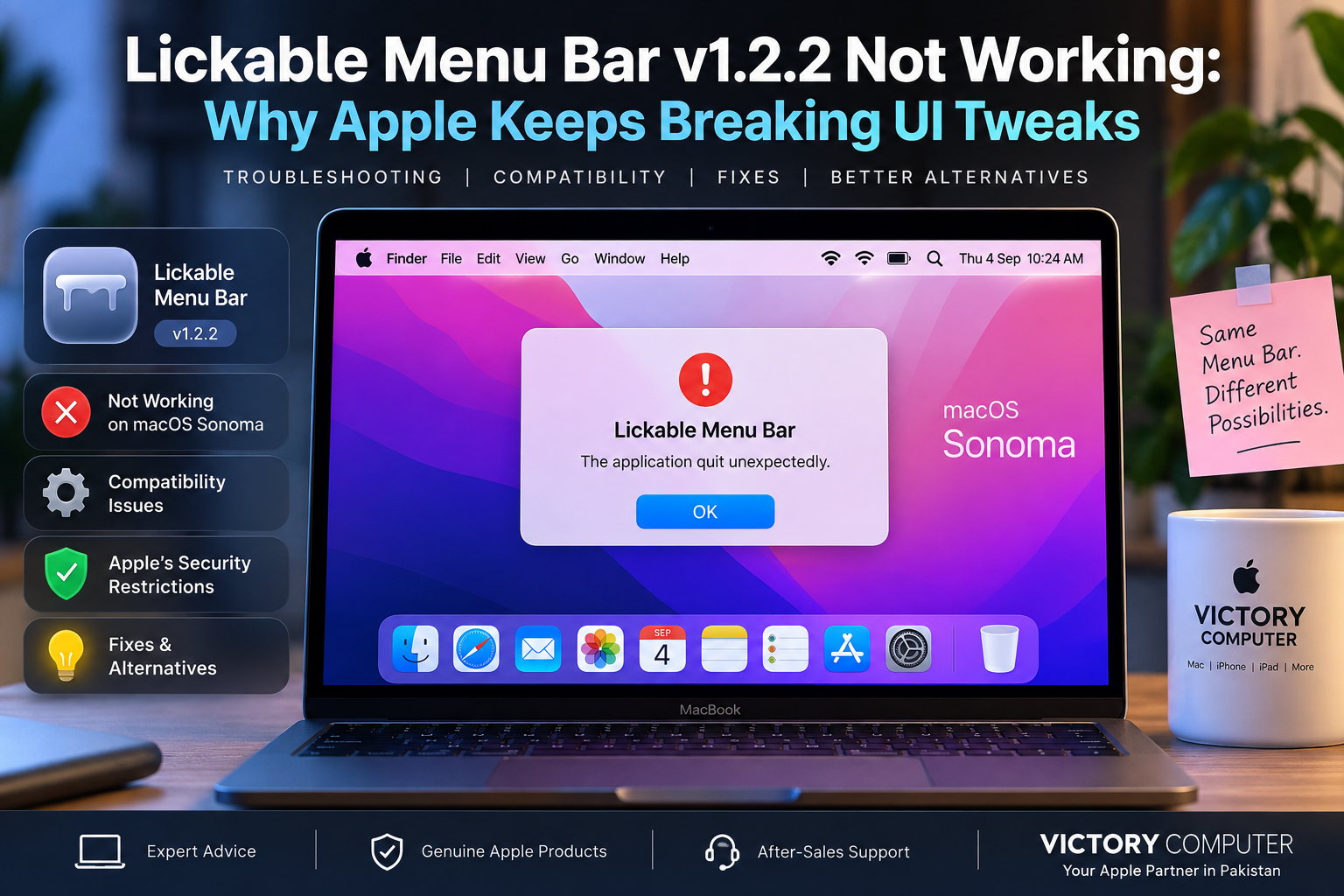
Lickable Menu Bar v1.2.2 Not Working
If Lickable Menu Bar v1.2.2 is not working properly on your Mac, the first thing to check is the version itself. Version 1.2.2 dates back to early 2023, and newer releases of Lickable Menu Bar were subsequently issued with compatibility and stability fixes.
That matters because menu-bar customization utilities interact closely with parts of macOS that can change between operating-system releases. A macOS update may alter system behavior, permissions, visual elements, APIs, or compatibility assumptions that an older customization utility depends on.
The practical answer is simple: update Lickable Menu Bar before attempting aggressive system modifications. If the current version still does not behave correctly, check permissions, Apple silicon compatibility, startup behavior, and whether the developer supports your installed macOS release.
Why Is Lickable Menu Bar v1.2.2 Not Working?
There is no single explanation that applies to every Mac. An outdated Lickable Menu Bar installation may fail because the application itself needs updating, because macOS behavior has changed, because required permissions are unavailable, or because another menu-bar utility is interfering with it.
This is a broader issue with software that changes the appearance or behavior of macOS. Applications that rely heavily on operating-system behavior can require maintenance whenever Apple changes the underlying platform.
Victory Computer has covered this broader problem in its guide to why third-party Mac apps break after macOS updates. The key point is that compatibility failures can involve both operating-system changes and applications that have not yet been updated for those changes.
Lickable Menu Bar v1.2.2 Is an Older Release
Before assuming that your Mac or macOS installation is faulty, check which version of Lickable Menu Bar you are actually running.
Version 1.2.2 was released in February 2023. Later releases included additional fixes, including a system-compatibility fix in version 1.2.4 and crash and performance fixes in version 1.2.5.
That makes updating the application the most sensible first troubleshooting step. Trying to force an old build to work through security changes or unsupported modifications can create unnecessary risk when a newer application build may already address the problem.
Why macOS Security Can Affect Deep UI Customization
Modern macOS includes several layers of security designed to prevent applications from modifying protected areas of the operating system.
System Integrity Protection (SIP) restricts modifications to protected system locations, even for processes with elevated privileges. macOS also uses technologies such as Gatekeeper, code signing, sandboxing in relevant contexts, and other runtime protections.
These protections do not mean that every menu-bar utility is automatically blocked. Many legitimate menu-bar applications work normally because they use supported macOS mechanisms. Problems are more likely when a customization method depends on behavior that Apple changes, undocumented techniques, older components, or access that modern macOS restricts.
Should You Disable SIP?
For ordinary menu-bar customization, disabling System Integrity Protection should not be your first troubleshooting step.
SIP exists to prevent potentially malicious software from modifying protected parts of macOS. Reducing system protections simply to restore a cosmetic modification creates a poor security trade-off for most users.
Instead, update the utility, confirm compatibility, check its permissions, and look for a supported alternative.
Does Apple Silicon Cause Lickable Menu Bar Problems?
Apple silicon itself does not automatically prevent menu-bar customization. The important question is whether the utility and any components it relies on have been maintained for modern Mac hardware and macOS releases.
Apple provides Rosetta for running many Intel-based applications on Apple silicon Macs, but native or Universal versions are generally the better long-term choice when developers provide them.
If another older Mac application is giving you trouble, see our guide to workarounds for unsupported apps on Apple silicon Macs.
7 Things to Try When Lickable Menu Bar Is Not Working
1. Check Your Installed Version
If you are still using v1.2.2, check whether a newer supported release is available. Later versions contain compatibility and stability changes, so updating should come before deeper troubleshooting.
2. Restart the App and Your Mac
Quit Lickable Menu Bar completely and reopen it. If the problem remains, restart macOS. This can clear temporary menu-bar or background-process problems without changing security settings.
3. Check the Developer’s Compatibility Information
Confirm that the release you are installing supports your macOS version. Do not assume that a utility designed around an older macOS release will behave identically after a major system update.
4. Check macOS Permissions
Open System Settings and review the privacy and security permissions requested by the application. Only grant permissions that the legitimate application actually requires.
5. Test for Conflicting Menu-Bar Utilities
If you run several applications that reorganize, hide, style, or otherwise control the menu bar, temporarily quit the other utilities and test again. Two applications attempting to influence the same interface element can produce unpredictable results.
6. Check Whether the App Is Intel or Universal
On an Apple silicon Mac, select the application in Finder and use Get Info to check whether it is an Intel, Universal, or Apple silicon application. If the developer offers a newer native or Universal release, prefer that version.
7. Avoid Disabling Security Features Just for Appearance
If a cosmetic utility requires substantial reductions in macOS security merely to function, consider whether the visual change is worth the trade-off. For most users, replacing an unsupported utility is a better long-term solution.
For more examples of compatibility problems, read our guide to Mac apps not working on macOS Sonoma.
Pros and Cons of Using Menu-Bar UI Tweaks
Pros
- More personalization: UI utilities can make macOS better match your preferred visual style.
- Useful menu-bar control: Some tools provide organization and appearance options beyond Apple’s built-in settings.
- Low hardware impact: Cosmetic customization normally does not require changing your Mac’s physical hardware.
- Easy experimentation: Well-designed utilities can often be enabled or removed without permanently altering your workflow.
Cons
- Compatibility can change: A major macOS update may alter behavior that an older utility expects.
- Maintenance matters: Abandoned applications become increasingly difficult to recommend as macOS evolves.
- Possible software conflicts: Multiple utilities controlling the same menu-bar behavior can interfere with each other.
- Security trade-offs: A tweak becomes much less attractive if it requires weakening important macOS protections.
Who Should Use These Tweaks?
Menu-bar customization makes the most sense for users who enjoy personalizing macOS and are comfortable checking application compatibility after major system updates. Users who prioritize stability, business-critical software, or minimum maintenance should stay closer to Apple’s built-in customization options and actively maintained utilities.
Why Does Apple Keep Changing Things That Break UI Tweaks?
The phrase “Apple keeps breaking UI tweaks” describes the user experience, but it does not always describe the technical cause accurately.
Apple regularly changes macOS to improve security, add features, modify interface behavior, and support newer hardware. A third-party application may depend on behavior that changes during that process. Sometimes Apple introduces the change; sometimes the third-party developer needs to update its software; sometimes both factors are involved.
This is why blaming every compatibility failure solely on Apple can be misleading. The more useful question is whether the application is actively maintained for the macOS version you plan to use.
System Integrity Protection vs UI Customization
| Factor | What It Means | Recommended Approach |
|---|---|---|
| Older app version | May lack later compatibility fixes | Update the application first |
| macOS update | System behavior or APIs may change | Check developer compatibility |
| System Integrity Protection | Protects critical macOS components | Keep SIP enabled for normal use |
| Apple silicon | Older Intel software may rely on translation | Prefer maintained Universal/native apps |
| Multiple menu-bar tools | Utilities may interfere with one another | Test them individually |
What If Lickable Menu Bar Still Doesn’t Work?
If updating and basic troubleshooting do not solve the issue, avoid repeatedly changing macOS security settings. First determine whether the developer officially supports your operating-system version.
If support has ended, consider a maintained menu-bar utility that accomplishes the specific task you need. Some applications focus on organizing menu-bar icons, while others provide system monitoring or smaller appearance adjustments. Choose according to functionality rather than installing several overlapping utilities.
For a wider view of software compatibility, Victory Computer also maintains a guide covering apps that may have compatibility problems on MacBook.
MacBook Software Compatibility and Buying Advice in Pakistan
Software compatibility should be part of your buying decision if your workflow depends on older utilities, plug-ins, extensions, or specialist applications. This is particularly relevant when moving from an older Intel Mac to an Apple silicon Mac.
Before changing machines, make a list of your essential applications and confirm that current versions support the Mac and macOS release you intend to use. Cosmetic utilities are easy to replace; business-critical applications may not be.
For MacBook purchasing and general compatibility guidance in Pakistan, visit Victory Computer. Customers in Lahore can also contact Victory Computer for current product information and assistance before choosing a MacBook.
Frequently Asked Questions
Why is Lickable Menu Bar v1.2.2 not working?
Version 1.2.2 is an older release, so update the application first. If problems remain, check macOS compatibility, required permissions, and conflicts with other menu-bar utilities.
Does Lickable Menu Bar work on macOS Sonoma?
Later releases after v1.2.2 included compatibility-related fixes. Use the latest developer-supported version rather than assuming the older v1.2.2 build is the correct version for Sonoma.
Should I disable SIP to make a menu-bar tweak work?
Not as a normal troubleshooting step. System Integrity Protection protects important parts of macOS, so weakening it for a cosmetic modification is generally a poor trade-off.
Does Apple silicon stop old Mac applications from working?
Not automatically. Rosetta can run many Intel applications on Apple silicon, but compatibility still depends on the individual app and its components. Maintained native or Universal software is preferable where available.
Why do Mac customization apps break after macOS updates?
Major macOS releases can change system behavior, APIs, security requirements, and interface components. Applications that depend on those elements may need updates from their developers.
What should I do before updating macOS?
Check compatibility for applications that are essential to your workflow, especially older plug-ins, system utilities, menu-bar tools, drivers, and specialist software. Update or replace unsupported software before relying on the new macOS version.
Final Verdict
If Lickable Menu Bar v1.2.2 is not working, do not start by disabling macOS protections. Version 1.2.2 is old enough that updating the application should be the first step.
More broadly, macOS UI customization comes with a trade-off: deeper customization can mean greater dependence on third-party developers keeping pace with Apple’s operating-system changes. Users who enjoy customization can still use these tools, but actively maintained software and supported macOS methods are the safer long-term choice.
For MacBook buying advice, software compatibility guidance, and current Apple computer options in Pakistan, visit Victory Computer or contact our Lahore team.

About Victory Computer Editorial Team
Victory Computer Editorial Team The Victory Computer Editorial Team publishes informative, research-based content about laptops, computers, monitors, printers, hardware, and technology trends in Pakistan. Our goal is to help readers understand product specifications, compare available options, and make informed purchasing decisions.
View all posts by Victory Computer Editorial Team