
Top 10 Apple Mac Apps Not Working on macOS Sonoma | Expert Review

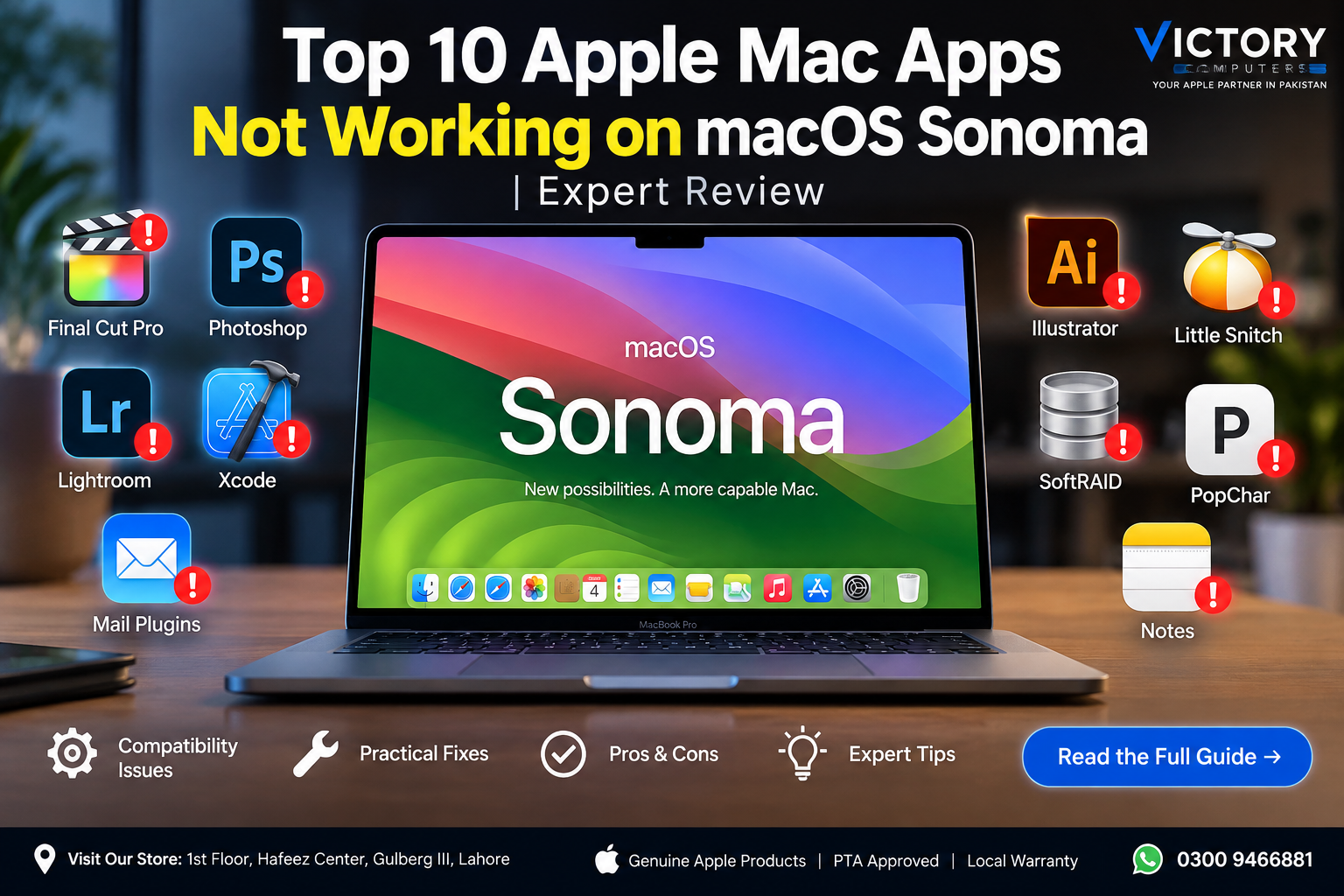
Top 10 Apple Mac Apps Not Working on macOS Sonoma
macOS Sonoma app compatibility can still be confusing for Mac users running older software, plug-ins, drivers, and utilities. While many major applications now support macOS Sonoma, older versions may crash, refuse to launch, lose certain features, or require an update after upgrading to macOS 14.
The important distinction is that an app listed as having a Sonoma compatibility problem is not necessarily broken in its latest version. In many cases, updating the application, plug-in, driver, or macOS point release solves the problem.
If your Mac contains business-critical, creative, storage, networking, or development software, checking compatibility before a major macOS upgrade remains the safest approach.
Why Do Some Mac Apps Stop Working on macOS Sonoma?
Major macOS releases can change security requirements, system extensions, APIs, permissions, drivers, and frameworks used by third-party software. Older applications may depend on technology that newer versions of macOS no longer support.
Another source of confusion is Apple Silicon. Intel-based applications can often continue running through Rosetta, but older plug-ins, extensions, drivers, or companion components may still require updates. Very old 32-bit Mac software is a separate issue: Apple ended support for 32-bit applications starting with macOS Catalina, years before Sonoma.
For this reason, the question is usually not simply “Does this app work on Sonoma?” The more useful question is: Which version works, and are all of its plug-ins and supporting components compatible?
Top 10 Apple Mac Apps With macOS Sonoma Compatibility Concerns
| App / Tool | Potential Sonoma Issue | Recommended Action |
|---|---|---|
| Xcode | Older Xcode releases may not provide the SDK and operating-system support required for newer macOS environments. | Install an Xcode version supported by your macOS and development requirements. |
| Final Cut Pro | Older releases, third-party effects, plug-ins, codecs, or workflow components may cause compatibility problems. | Update Final Cut Pro and verify important third-party plug-ins before upgrading. |
| Mail Plug-ins | Legacy Mail extensions may no longer function as expected as Apple moves developers toward newer extension technologies. | Check whether the developer provides a current Mail extension or updated version. |
| Adobe Lightroom | Older Lightroom releases are not supported for Sonoma, while supported versions may have version-specific known issues. | Use a Sonoma-compatible Lightroom release and install relevant macOS and Adobe updates. |
| Adobe Lightroom Classic | Older versions may be unsupported, and some Sonoma point releases have caused device-import or tethering issues. | Use a supported Lightroom Classic release and check Adobe’s current compatibility notes. |
| Adobe Photoshop | Current supported versions work with Sonoma, but older releases, plug-ins, panels, or extensions may introduce problems. | Update Photoshop and verify essential third-party plug-ins. |
| Adobe Illustrator | Supported releases are available for Sonoma, while outdated releases or workflows may encounter compatibility issues. | Update Illustrator and test critical files and plug-ins. |
| SoftRAID | Storage utilities depend heavily on operating-system and driver compatibility, making version checking especially important. | Confirm the exact SoftRAID release supports your Sonoma version before upgrading a production Mac. |
| Little Snitch | Older generations used technologies that are no longer appropriate for modern macOS releases, although current Little Snitch versions support Sonoma. | Upgrade to a Sonoma-compatible Little Snitch release rather than relying on an old installation. |
| PopChar | Older releases may experience crashes or unexpected behaviour following macOS changes. | Check the developer’s latest release and compatibility information before troubleshooting or replacing the app. |
Adobe Photoshop, Lightroom and Illustrator on Sonoma
One of the most important corrections to older Sonoma compatibility lists concerns Adobe software. Photoshop, Lightroom, Lightroom Classic, Illustrator and several other Creative Cloud applications have Sonoma-compatible releases.
That does not mean every historical Adobe version works properly. An older installation can still contain unsupported components, legacy installers or third-party plug-ins. Creative professionals should therefore check the exact application version instead of assuming that “Adobe does not work on Sonoma.”
This distinction matters for photographers, designers and video editors because upgrading macOS before checking the entire workflow can leave one essential plug-in or peripheral behind even when the main Adobe application itself is supported.
Is Little Snitch Broken on macOS Sonoma?
No—not if you are using a compatible current release. Modern Little Snitch versions support macOS Sonoma. Problems are more likely when users attempt to continue with significantly older releases designed around previous macOS networking technologies.
This is a good example of why Mac compatibility should be checked by application version rather than application name alone.
What About Intel Apps on Apple Silicon Macs?
An Intel application does not automatically become unusable because a Mac has Apple Silicon. Apple provides Rosetta to translate many Intel-based Mac applications on Apple Silicon hardware.
However, an application can rely on Intel-only plug-ins, extensions or add-ons. Those components may need separate updates. For long-term compatibility, users should prefer current Universal or Apple-Silicon-native releases whenever developers provide them.
Pros and Cons of Upgrading to macOS Sonoma
Pros
- Modern macOS environment: Sonoma includes newer security, privacy and operating-system technologies than older macOS releases.
- Strong support from major developers: Many widely used applications now have Sonoma-compatible releases.
- Better fit for modern Apple Silicon software: Current applications increasingly provide native support for Apple’s processors.
- Continued app updates: Staying on a reasonably current macOS release can make it easier to use newer versions of productivity and creative software.
- Reduced dependence on obsolete components: Updating encourages replacement of outdated drivers, extensions and plug-ins.
Cons
- Legacy software can become unusable: Older apps and unsupported components may fail after upgrading.
- Plug-in compatibility can lag: Your main application may work while an essential extension or workflow tool does not.
- Specialized hardware can require updated software: Storage, audio, camera and other professional devices may depend on compatible drivers or system extensions.
- Production workflows require testing: Businesses and creators should not assume that every dependency will continue working simply because the main app launches.
Should You Upgrade?
For general users running current applications, Sonoma compatibility is much better than it was around the operating system’s original release. For professionals using older Adobe software, specialist storage tools, Mail extensions, audio software, legacy utilities or uncommon hardware, checking each critical dependency first is still worthwhile.
If one irreplaceable application is unsupported, delaying the upgrade until you have an updated version or alternative may be more practical than dealing with downtime afterward.
How to Check App Compatibility Before Upgrading
- List your essential applications. Focus first on software required for work, study or business.
- Check the exact version. Compatibility often differs between old and current releases of the same application.
- Check plug-ins separately. Photoshop, Final Cut Pro, audio applications and development environments can depend on third-party components.
- Check hardware software and drivers. RAID systems, cameras, audio interfaces and other peripherals deserve special attention.
- Update important applications first. Install supported versions before changing macOS where practical.
- Back up important data. Maintain a reliable backup before any major operating-system upgrade.
- Test professional workflows. Confirm importing, exporting, printing, synchronization, external storage and other essential tasks rather than checking only whether an app opens.
macOS Sonoma App Compatibility for MacBook Users in Pakistan
For MacBook users in Pakistan, software compatibility can be particularly important when purchasing a used or imported Mac. The processor generation, macOS version and applications you depend on should all be considered together.
Students using common browsers, office applications and current productivity software generally have different compatibility requirements from photographers, developers, video editors or businesses maintaining older specialist software.
Before buying a MacBook, make a short list of your essential applications and confirm that the versions you need support both the Mac’s processor architecture and the macOS release you plan to use.
Buying a MacBook From Victory Computer
Victory Computer serves customers in Pakistan from Lahore and offers MacBook options for students, professionals, creators and business users. Rather than choosing a Mac solely by processor generation, consider the complete workflow: required applications, RAM, storage, display requirements and software compatibility.
This is especially important if you are moving from an older Intel Mac to Apple Silicon or replacing a Windows laptop with a MacBook. Checking software requirements before purchasing can prevent compatibility surprises later.
Final Verdict: Are Mac Apps Still Not Working on macOS Sonoma?
The situation is more nuanced than many older compatibility lists suggest. Most major actively maintained Mac applications have either gained Sonoma support or received newer compatible versions. The biggest risks now tend to involve outdated application releases, legacy plug-ins, old drivers, unsupported extensions and specialized hardware components.
Photoshop, Lightroom, Illustrator and Little Snitch should therefore not simply be described as “broken on Sonoma.” Their current compatible versions can run on Sonoma, while older releases or associated components may still cause problems.
If your Mac is essential for professional work, verify the exact versions of every critical application, plug-in and hardware driver before changing macOS. That simple compatibility check is far safer than discovering an unsupported workflow after the upgrade.
Frequently Asked Questions
Why are some Mac apps not working on macOS Sonoma?
Older apps may depend on outdated APIs, extensions, drivers or other technologies that changed across macOS releases. Updating the affected app or component often resolves the issue.
Does Adobe Photoshop work on macOS Sonoma?
Yes. Sonoma-compatible Photoshop versions are available. Problems are more likely with unsupported older releases or incompatible third-party plug-ins.
Does Adobe Lightroom work on Sonoma?
Yes, supported Lightroom and Lightroom Classic releases work with Sonoma, although Adobe has documented version-specific issues and minimum compatible releases.
Does Little Snitch work on macOS Sonoma?
Yes. Current compatible Little Snitch versions support Sonoma. Users running much older versions should upgrade to a supported release.
Do Intel Mac apps work on Apple Silicon?
Many Intel-based Mac applications can run through Apple’s Rosetta technology. Intel-only plug-ins or extensions may require separate updates, so the entire workflow should be checked.
Should I upgrade to macOS Sonoma if I depend on old software?
Check every essential application, plug-in and hardware driver first. If an important component has no compatible version or replacement, delaying the upgrade may be the better option.

About Victory Computer Editorial Team
Victory Computer Editorial Team The Victory Computer Editorial Team publishes informative, research-based content about laptops, computers, monitors, printers, hardware, and technology trends in Pakistan. Our goal is to help readers understand product specifications, compare available options, and make informed purchasing decisions.
View all posts by Victory Computer Editorial Team
One thought on “Top 10 Apple Mac Apps Not Working on macOS Sonoma | Expert Review”