
Why Apple Users Face Issues: 10 Popular Apps Not Working on macOS Sonoma

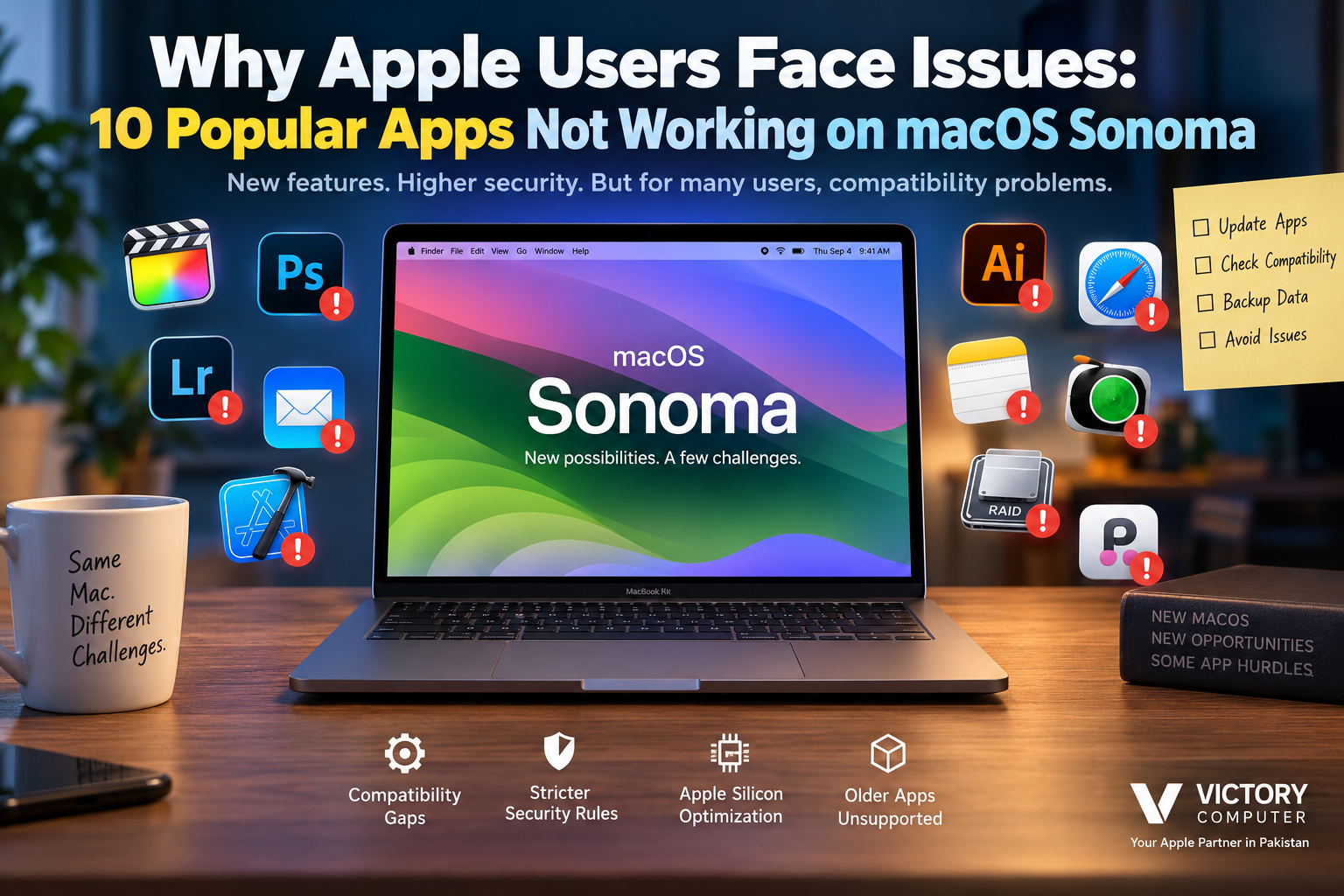
Why Apple Users Face Issues
macOS Sonoma app issues usually happen because an application, plugin, driver or system utility was designed for an older version of macOS and has not been updated for newer Apple security, extension or framework requirements. The problem is especially noticeable with older app versions, legacy plugins and utilities that interact deeply with macOS.
That does not mean every app listed below is currently broken on Sonoma. In many cases, developers have released compatible versions or fixes. The real risk is continuing to use an older build after upgrading macOS without first checking its compatibility.
Why Do Apps Have Problems After a macOS Sonoma Update?
A major macOS upgrade changes more than the appearance of the operating system. Apple regularly modifies APIs, permissions, security requirements, hardware support and the way third-party software can interact with macOS.
This is why apps not working on macOS Sonoma can affect very different types of users. A designer may encounter a problem with an old Adobe release, a developer may need a newer Xcode version, while a professional using specialized hardware may discover that its old driver or extension is no longer supported.
Apple has also continued moving software and hardware integrations toward modern system extensions. For example, starting with macOS Sonoma 14.1, Apple changed support for certain cameras and video output devices that still depended on older software instead of modern system extensions.
For a deeper explanation, read our guide to why third-party Mac apps can break after major macOS updates.
10 Popular Apps and Tools Associated With macOS Sonoma Compatibility Issues
The table below should be read as a compatibility checklist rather than a claim that every current version of each application is broken. In several cases, the solution is simply to install a Sonoma-compatible release.
| App / Tool | Potential Sonoma Issue | What to Check |
|---|---|---|
| Xcode 14.3.1 | Not a supported Xcode release for Sonoma | Install an Xcode version that officially supports your macOS release |
| Final Cut Pro | Older releases, plugins or workflows may develop compatibility problems | Update Final Cut Pro and third-party plugins |
| Safari Extensions | Older extensions may stop functioning correctly | Update or replace the affected extension |
| Mail Extensions / Plugins | Legacy integrations may require newer extension support | Check the developer’s current macOS requirements |
| Adobe Lightroom Classic | Older releases and certain workflows have had Sonoma-specific issues | Use a supported Lightroom Classic release and current macOS update |
| Adobe Photoshop | Older versions or third-party plugins may cause compatibility problems | Update Photoshop, Creative Cloud and plugins |
| Adobe Illustrator | Legacy releases or plugins may not behave correctly | Use a currently supported Illustrator version |
| SoftRAID | Storage utilities depend heavily on OS and driver compatibility | Verify your exact SoftRAID release before upgrading macOS |
| Little Snitch | Older network-monitoring components can be affected by macOS changes | Install a version certified for the macOS release you use |
| PopChar | Older releases may crash or behave incorrectly | Check for an updated release or alternative workflow |
Xcode Is a Good Example of Why Version Numbers Matter
Calling “Xcode” incompatible with Sonoma would be misleading because compatibility depends on the exact version. Apple’s compatibility information shows that Xcode 14.3.1 was designed for macOS Ventura, while Xcode 15.x releases added Sonoma support.
This is a useful rule for almost every item in this guide: check the app version, not just the app name. A current version can work normally even when a two- or three-year-old version of the same application does not.
What About Photoshop, Illustrator and Lightroom?
Adobe applications should not be described as universally broken on Sonoma. Current Adobe documentation lists supported Creative Cloud versions for modern macOS releases, including Sonoma. Adobe also documented specific Sonoma issues affecting Lightroom Classic, including problems associated with particular macOS and Lightroom versions.
If Photoshop, Illustrator or Lightroom is crashing on your Mac, first check the exact application version, Creative Cloud updates, plugins and macOS point release before assuming that Sonoma itself is incompatible.
How to Fix macOS Sonoma App Issues
If an important application crashes, freezes or refuses to open after a macOS update, avoid immediately reinstalling the entire operating system. Start with the application and its dependencies.
- Update macOS: Install the latest compatible Sonoma update available for your Mac.
- Update the affected application: Older releases are much more likely to have unresolved compatibility problems.
- Check the developer’s compatibility page: Confirm that your exact app version supports Sonoma.
- Update plugins and extensions: A compatible main application can still crash because of an outdated plugin.
- Check hardware drivers: RAID systems, cameras, audio interfaces and other peripherals may require updated software.
- Test without third-party extensions: This can help identify whether the application or an add-on is causing the failure.
- Back up before major changes: Protect important data before downgrading macOS, changing storage software or removing system-level components.
Pros and Cons of macOS Sonoma
Pros
- Strong security maintenance: Apple continued releasing security updates for Sonoma after newer macOS generations became available.
- Good support from major developers: Current versions of many mainstream applications have Sonoma-compatible releases.
- Modern Apple Silicon support: Sonoma works with a broad range of Apple Silicon Macs and supported Intel models.
- Improved modern extension model: Newer extension technologies can provide stronger privacy and security than older system-level integrations.
- Mature operating system: Numerous point updates have addressed issues discovered after Sonoma’s original release.
Cons
- Legacy software can be problematic: Older utilities, plugins and professional applications may require upgrades or replacements.
- Specialized hardware creates extra risk: RAID devices, cameras, audio equipment and other peripherals can depend on specific drivers.
- Old development tools may be incompatible: Developers cannot assume that an older Xcode release will work on a newer macOS version.
- Updating can create extra costs: Some professional users may need newer paid software, plugins or hardware to maintain their workflow.
Why We Recommend Checking Compatibility First
Sonoma can still be a practical operating system for a compatible Mac, but professional users should verify their essential software before changing macOS versions. If your work depends on a specific plugin, RAID setup, development environment, audio interface or legacy application, compatibility matters more than gaining a new operating-system feature.
Should You Delay a macOS Upgrade?
If your Mac is used mainly for web browsing, office applications and mainstream software that is fully updated, compatibility risk is generally easier to manage. Professional workflows deserve more caution.
Consider delaying a major macOS change when you rely on specialized software that has not been certified by its developer, an old plugin that is essential to your work, legacy hardware drivers, a specific Xcode toolchain, or storage software that interacts deeply with macOS.
Our guide on whether you should delay upgrading macOS provides additional guidance for users who depend on older applications.
Apple Silicon Is Not Automatically the Cause
Apple Silicon is sometimes blamed whenever an older Mac application stops working, but several different compatibility layers can be involved. An application may have a native Apple Silicon version, use Rosetta 2 for Intel code, depend on an incompatible plugin, or rely on an older system extension.
As a result, troubleshooting should identify the exact incompatible component rather than assuming the M-series processor is responsible.
MacBook Buyers in Pakistan: Check Software Before Choosing Hardware
For professionals in Pakistan, application compatibility should be part of the MacBook buying decision. Video editors, photographers, developers, designers, musicians and business users should list their essential applications and peripherals before moving from an older Intel Mac to an Apple Silicon MacBook.
Victory Computer in Lahore offers MacBook options for customers across Pakistan. Buyers can compare available MacBook models based on their workload, memory and storage requirements rather than choosing a machine solely because it is the newest generation.
For current MacBook availability and purchasing information, visit Victory Computer or contact the store through WhatsApp at 0300 9466881.
Final Recommendation
macOS Sonoma app issues are usually version-specific rather than proof that an entire application no longer works on Mac. Older Xcode releases, legacy plugins, outdated system extensions and specialized hardware integrations are more likely to cause trouble than properly maintained current applications.
Before upgrading or changing your Mac, make a short list of the applications, plugins and hardware your work depends on. Check each developer’s compatibility information, create a backup, update essential software and only then change macOS versions. This approach is much safer than discovering a critical incompatibility after the upgrade.
Frequently Asked Questions
Why are some apps not working on macOS Sonoma?
Older applications may rely on APIs, plugins, drivers or system extensions that changed in newer macOS releases. Updating the application or its extensions often resolves the problem.
Are Adobe Photoshop and Illustrator incompatible with Sonoma?
No. Current Adobe releases support modern macOS versions including Sonoma. Problems are more likely with older application versions, plugins or particular workflows.
Does Xcode 14.3.1 work on macOS Sonoma?
Apple’s Xcode compatibility information lists Xcode 14.3.1 for macOS Ventura rather than Sonoma. Developers using Sonoma should choose an Xcode release officially supported by their exact macOS version.
Should I downgrade macOS if an application stops working?
Not immediately. Update the application, plugins and macOS first and check the developer’s compatibility documentation. Downgrading should generally be considered only when an essential workflow has no compatible solution and your data is safely backed up.
Is Apple Silicon responsible for apps crashing?
Not necessarily. The problem can come from an old Intel application, plugin, driver, extension or macOS-specific incompatibility rather than the Apple Silicon processor itself.
Should professional users update macOS immediately?
Users who depend on specialized software or hardware should verify compatibility before a major operating-system upgrade. A stable production workflow is usually more important than installing a major macOS release immediately.

About Victory Computer Editorial Team
Victory Computer Editorial Team The Victory Computer Editorial Team publishes informative, research-based content about laptops, computers, monitors, printers, hardware, and technology trends in Pakistan. Our goal is to help readers understand product specifications, compare available options, and make informed purchasing decisions.
View all posts by Victory Computer Editorial Team
One thought on “Why Apple Users Face Issues: 10 Popular Apps Not Working on macOS Sonoma”