
Best Productivity Apps for MacBook Users in 2025

Best Productivity Apps for MacBook
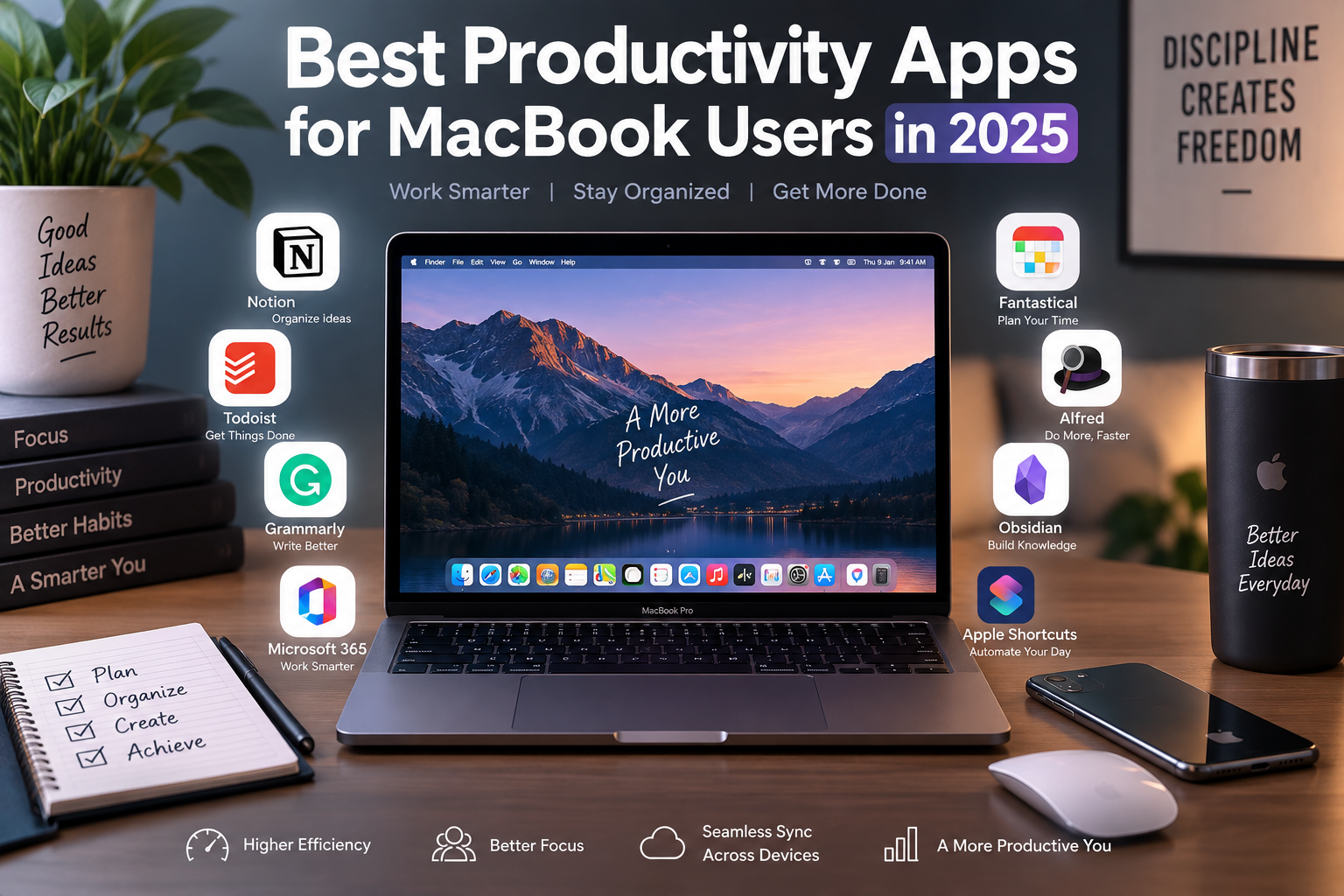
The best productivity apps for MacBook depend on what you need to accomplish. Notion is strong for project organization, Todoist handles tasks well, Microsoft 365 suits document-heavy work, Grammarly assists with writing, and Alfred speeds up repetitive Mac workflows. The right combination is usually better than installing every productivity app available.
Best MacBook Productivity Apps: Quick Comparison
There is no single productivity application that is best for every MacBook owner. Each option solves a different part of a productive workflow.
| App | Best For | Main Advantage | Main Trade-off |
|---|---|---|---|
| Notion | Projects and organization | Flexible all-in-one workspace | Can become complicated |
| Todoist | Task management | Simple daily planning | Advanced features may require a paid plan |
| Microsoft 365 | Office and academic work | Word, Excel and PowerPoint compatibility | Subscription may be required |
| Grammarly | Writing | Writing and tone assistance | Some advanced features are paid |
| Fantastical | Scheduling | Powerful calendar management | May be excessive for basic scheduling |
| Alfred | Mac shortcuts | Fast search and automation | Advanced workflows take time to learn |
| Obsidian | Knowledge management | Connected, local notes | Setup can feel technical |
| Apple Shortcuts | Automation | Built into the Apple ecosystem | Complex automations require learning |
1. Notion — Best for Projects and Organization
Notion is one of the most flexible MacBook productivity apps for combining notes, projects, databases, documents and team information. Notion provides a dedicated macOS application, including builds designed for Apple Silicon.
Students can use Notion for class notes and assignment planning, while freelancers and businesses can organize projects, documentation and collaborative workspaces.
Pros
- Combines notes, projects and databases.
- Suitable for individual and collaborative work.
- Dedicated Mac desktop application.
- Highly customizable workspace.
Cons
- Can become unnecessarily complicated for simple task lists.
- Setting up an organized workspace takes time.
- Some capabilities depend on the selected plan.
Why we recommend it: Choose Notion if you want one workspace for projects, notes and information. A simpler task manager may be better if you only need reminders and to-do lists.
2. Todoist — Best for Daily Task Management
Todoist focuses on tasks rather than trying to replace every productivity tool. It works well for deadlines, recurring responsibilities, personal projects and daily planning.
The Mac App Store lists Todoist among productivity applications for task management and reminders, making it a practical choice for users who prefer a straightforward system.
Pros
- Clean task-management approach.
- Good for recurring tasks and deadlines.
- Useful for both personal and professional planning.
- Less complicated than large project-management platforms.
Cons
- Not designed to replace a full knowledge-management platform.
- Some advanced functionality is tied to paid plans.
Why we recommend it: Todoist is a strong choice for users who primarily want to remember what needs to be done and when.
3. Microsoft 365 — Best for Office and Academic Work
Microsoft 365 remains an important productivity suite for MacBook owners who regularly exchange Word documents, Excel spreadsheets or PowerPoint presentations. Microsoft provides Word, Excel, PowerPoint, Outlook, OneNote and OneDrive for Mac.
Microsoft also documents native Apple Silicon support for its current Office applications, making the suite suitable for modern Apple Silicon MacBooks.
Pros
- Strong compatibility with common workplace document formats.
- Word, Excel and PowerPoint are available for Mac.
- Useful for offices, universities and professional collaboration.
- Native Apple Silicon support is available in current versions.
Cons
- Microsoft 365 features may require a subscription.
- Users who only need simple documents may not need the entire suite.
Why we recommend it: Microsoft 365 makes the most sense for corporate users, students and professionals who regularly work with Office files.
4. Grammarly — Best for Writing and Communication
Grammarly provides a dedicated Mac application that works across many places where users write, including desktop applications, browsers, documents and email clients.
It can help with grammar, spelling, clarity and tone, which makes it useful for emails, reports, academic drafts, proposals and other professional communication.
Pros
- Works across many writing environments.
- Useful for proofreading and clarity.
- Free version is available.
- Works with Microsoft Word on Mac.
Cons
- Advanced features require a paid plan.
- Automated suggestions still require human judgment.
- Users working with confidential material should review privacy requirements before using any cloud-based writing assistant.
Why we recommend it: Grammarly is useful for users who spend a large part of the day writing emails, reports or documents, but suggestions should be reviewed rather than accepted automatically.
5. Fantastical — Best for Calendar Management
Fantastical is designed for people whose productivity depends heavily on meetings, appointments and calendar management. Apple includes Fantastical among its highlighted productivity applications for Mac.
Pros
- Focused on calendar and schedule management.
- Useful for professionals managing busy schedules.
- Available as a Mac productivity application.
Cons
- May provide more functionality than casual calendar users need.
- Some users may be satisfied with Apple’s built-in Calendar and Reminders apps.
Why we recommend it: Fantastical is worth considering when scheduling itself is a major part of your workday.
6. Alfred — Best for Mac Shortcuts and Automation
Alfred is one of the most Mac-specific productivity tools on this list. It can launch applications, find files, search the web, expand text and perform custom actions through keyboard-driven workflows.
Advanced Alfred workflows can connect hotkeys, keywords and actions, helping experienced Mac users reduce repetitive steps.
Pros
- Fast application and file searching.
- Keyboard-focused workflow.
- Supports snippets and text expansion.
- Advanced automation through workflows.
Cons
- Advanced workflow features require learning.
- Some powerful capabilities require Alfred Powerpack.
- Casual users may be satisfied with built-in macOS search tools.
Why we recommend it: Alfred is particularly useful for experienced MacBook users who repeatedly perform the same searches, commands and actions.
7. Obsidian — Best for Knowledge Management
Obsidian is particularly useful for researchers, writers, developers and students who want to build a connected collection of notes. Obsidian provides a universal macOS application and is available across major desktop and mobile platforms.
Pros
- Strong for connected notes and research.
- Useful for long-term knowledge organization.
- Available on macOS and other major platforms.
- Suitable for users who prefer working with structured personal knowledge.
Cons
- Initial setup can feel technical.
- Plugins and customization can distract from actual work.
- Less suitable for users who only need a basic notes application.
Why we recommend it: Obsidian is best for users building a long-term research or knowledge system rather than a simple collection of quick notes.
8. Apple Shortcuts — Best Built-In Automation Tool
Apple Shortcuts deserves consideration before paying for another automation application. Shortcuts can automate repetitive actions and connect compatible applications into multi-step workflows.
For example, a workflow can open applications and documents needed for work, process repeated actions or reduce several manual steps to one command. You can also explore other hidden macOS features that may reduce the need for additional software.
Pros
- Integrated with Apple’s ecosystem.
- Useful for repetitive workflows.
- Can connect multiple compatible applications.
- Good starting point for Mac automation.
Cons
- Complex workflows have a learning curve.
- Not every third-party application offers the same level of integration.
Why we recommend it: Try Shortcuts before buying a dedicated automation application, particularly if most of your workflow already uses Apple apps.
Overall Pros and Cons of MacBook Productivity Apps
Pros
- Wide choice: Mac users can choose specialized tools for tasks, writing, calendars, notes and automation.
- Apple Silicon support: Major productivity applications increasingly provide native or compatible versions for modern Macs.
- Cross-device workflows: Many applications can synchronize work across Mac, iPhone, iPad, Windows or the web depending on the service.
- Automation options: Tools such as Alfred and Apple Shortcuts can reduce repetitive work.
- Flexible pricing: Several applications provide free versions or built-in functionality before users need a paid plan.
Cons
- Subscription costs: Using several premium productivity services can create significant recurring costs.
- Feature overlap: Installing multiple note, calendar and task applications can make a workflow more complicated rather than more productive.
- Learning curve: Notion, Obsidian, Alfred and advanced Shortcuts can require setup and practice.
- Cloud dependence: Some services depend heavily on online accounts and synchronization, which may not suit every privacy or offline-work requirement.
Which Productivity App Should You Choose for Your MacBook?
The best productivity apps for MacBook should solve specific problems rather than simply add more software to your Dock.
- Students: Consider Notion or Obsidian for notes and Microsoft 365 for assignments.
- Office professionals: Microsoft 365, Todoist and Fantastical cover documents, tasks and scheduling.
- Writers and marketers: Grammarly combined with Notion or Obsidian provides a practical writing workflow.
- Freelancers: Notion and Todoist can handle projects and deadlines without requiring a large enterprise platform.
- Power users: Alfred and Apple Shortcuts are useful for reducing repetitive actions.
If you are still deciding between Apple and Windows for professional work, our macOS vs Windows comparison explains the broader platform differences.
Do You Need Paid Productivity Apps?
No. A productive MacBook setup does not require paying for every application. macOS already includes useful applications and automation capabilities, while several third-party tools offer free versions.
Start with the tools that solve your biggest workflow problem. Paying for premium features makes more sense when those features save meaningful time or provide capabilities required for work or study.
Keep Productivity Apps Secure
Productivity applications often handle documents, emails, calendars, passwords or business information. Download applications from trusted sources, keep macOS and applications updated, review requested permissions, and use strong account security.
For additional practical guidance, read our MacBook security tips.
Choosing a MacBook for Productivity in Pakistan
Productivity software should be matched to the MacBook configuration and workload rather than choosing a computer based on app names alone. Basic office work, browsing, documents and study generally have different hardware requirements from professional video production, development or other demanding workloads.
Buyers considering a lower-cost Apple laptop can also read our guide to buying a refurbished MacBook before comparing new and pre-owned options.
Victory Computer in Lahore offers computers and laptops for customers in Pakistan. Current models, pricing, availability and warranty terms should always be confirmed at the time of purchase.
Frequently Asked Questions
What are the best productivity apps for MacBook?
Notion, Todoist, Microsoft 365, Grammarly, Fantastical, Alfred, Obsidian and Apple Shortcuts are useful choices. The best combination depends on whether you need project management, writing, scheduling, knowledge management or automation.
What is the best MacBook productivity app for students?
Notion and Obsidian are useful for organizing notes and research, while Microsoft 365 is valuable when coursework requires Word, Excel or PowerPoint files.
Are productivity apps for MacBook free?
Some are free, some provide free tiers, and others charge for premium functionality. Apple’s built-in applications and Shortcuts can also handle many everyday productivity tasks without an additional subscription.
Does Microsoft 365 work on Apple Silicon MacBooks?
Yes. Microsoft documents native Apple Silicon support for current Microsoft 365 applications for Mac.
Is Alfred better than Spotlight?
Alfred offers additional workflow, snippet and automation capabilities that can benefit power users. Users who only need basic app and file searching may find macOS’s built-in tools sufficient.
Should I install every recommended productivity app?
No. Too many overlapping tools can make work harder to organize. Start with one application for each genuine need and add another only when it solves a specific limitation.
Final Recommendation
The best productivity apps for MacBook are the ones that remove friction from your actual work. Notion is a strong organizational platform, Todoist keeps tasks simple, Microsoft 365 handles mainstream office files, Grammarly assists with writing, Fantastical focuses on scheduling, and Alfred or Apple Shortcuts can automate repetitive Mac workflows.
Choose two or three applications that address your main needs first. A smaller, consistent productivity system is usually more useful than a large collection of apps with overlapping features.

About Victory Computer Editorial Team
Victory Computer Editorial Team The Victory Computer Editorial Team publishes informative, research-based content about laptops, computers, monitors, printers, hardware, and technology trends in Pakistan. Our goal is to help readers understand product specifications, compare available options, and make informed purchasing decisions.
View all posts by Victory Computer Editorial Team
5 thoughts on “Best Productivity Apps for MacBook Users in 2025”