
What to Do If Your Favorite App Is Not Supported on macOS | Expert Review

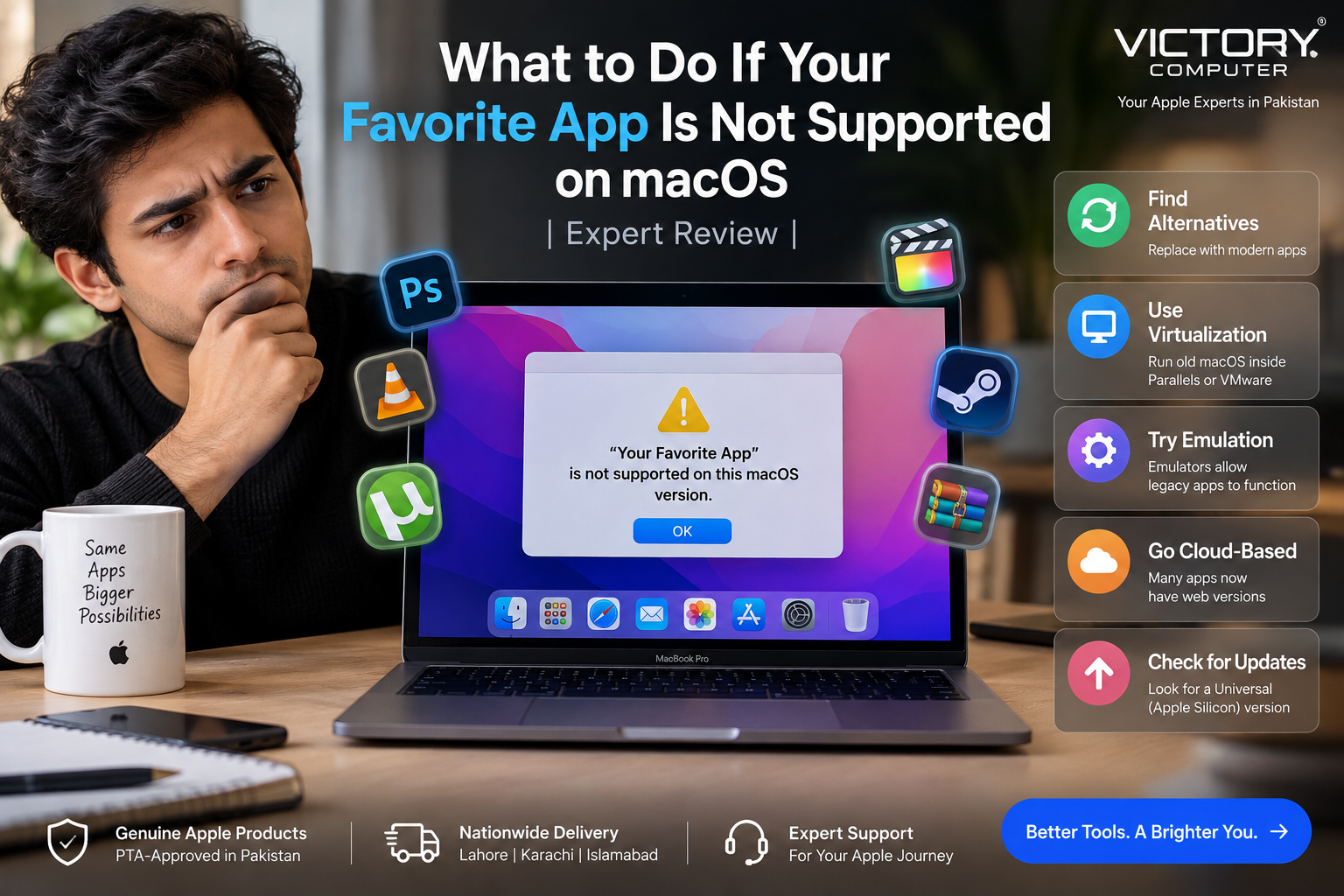
What to Do If Your Favorite App Is Not Supported on macOS
If your favorite app is not supported on macOS, first check whether the problem is an outdated app, 32-bit code, an Intel-only build, an incompatible plug-in, or a macOS security restriction. Updating the app is usually the best solution. Rosetta, a modern alternative, a web version, or virtualization may also keep your workflow running.
First, Find Out Why the App Is Not Supported on macOS
If your favorite app is not supported on macOS, identifying the reason is more useful than immediately installing an emulator or changing security settings. Different compatibility problems require different solutions.
One major dividing line is 32-bit versus 64-bit software. Apple made macOS Mojave 10.14 the final macOS release capable of running 32-bit applications. Starting with macOS Catalina 10.15, 32-bit Mac applications are no longer compatible. You can read our 32-bit vs 64-bit macOS compatibility guide for more background.
Apple silicon creates a different issue. An Intel application is not automatically unusable on an Apple silicon Mac. Apple’s Rosetta technology can translate many Intel-based applications so they can run on Apple silicon. However, plug-ins, extensions, drivers and other components can introduce additional compatibility problems.
For more detail on that transition, see our guide to Apple Silicon app compatibility.
7 Things to Do If Your Favorite App Is Not Supported on macOS
1. Check for the Latest Version
Start with the application’s developer. Check the App Store, the app’s built-in updater, or the developer’s official website. For an Apple silicon Mac, look for a version described as Universal or Apple silicon.
This is normally preferable to relying permanently on compatibility tools because an actively maintained native version is more likely to remain compatible with future macOS releases.
2. Check Whether the App Is Intel-Based
If your favorite app is not supported on macOS after moving to an Apple silicon Mac, check its architecture before assuming it cannot run.
Select the application in Finder, choose File > Get Info, and look at the Kind field. Apple identifies apps as Intel, Universal, or Apple silicon. A Universal application supports both Intel and Apple silicon Macs, while an Intel application may depend on Rosetta.
3. Try Rosetta for Compatible Intel Apps
Rosetta translates Intel-based Mac applications for Apple silicon. If Rosetta is required and is not installed, macOS can prompt you to install it when you open an Intel application.
Rosetta does not restore 32-bit application support. A 32-bit application that stopped working with Catalina cannot simply be made compatible by installing Rosetta.
There is also an important future consideration. Apple says general-purpose Rosetta compatibility will continue through macOS 27. Starting with macOS 28, Rosetta functionality is expected to become limited to certain older games that depend on Intel-based frameworks. Users who still depend on Intel-only professional software should therefore plan for native replacements rather than treating Rosetta as a permanent solution.
4. Check Plug-ins, Drivers and Extensions Separately
Sometimes the main application works but an old plug-in, extension, driver or updater does not. This is common in professional workflows where one application depends on software from several developers.
Update every critical component individually. An Apple silicon-compatible main application does not guarantee that an old Intel-only plug-in or legacy hardware driver will work correctly.
5. Find a Modern Alternative
If the developer has abandoned the application, replacing it is often the cleanest long-term solution. Look for software that supports your current macOS release and Apple silicon natively.
Before switching, compare file-format compatibility, export options, plug-in support, licensing and the features you actually use. Our guide on finding alternatives when an app doesn’t run on MacBook covers this approach in more detail.
6. Use a Web or Cloud Version
Some workflows no longer require a traditional desktop application. If the developer provides a browser-based version, it may avoid processor-architecture and operating-system compatibility problems.
The trade-off is that web applications can depend more heavily on internet access and may not provide every feature available in the desktop version.
7. Consider Virtualization Only When Necessary
Virtualization can be useful when a business or professional workflow depends on software that cannot easily be replaced. However, it should not be treated as a universal fix for every unsupported Mac application.
Compatibility depends on your Mac’s processor architecture, the guest operating system and the application itself. Apple silicon Macs also have different virtualization limitations from older Intel Macs. Review the requirements of both the virtualization platform and the legacy application before relying on this approach.
For additional options, see our guide to workarounds for unsupported apps on Apple Silicon Macs.
Pros and Cons of Fixing Unsupported Apps on macOS
Pros
- Updates can solve the problem cleanly: A current Universal or Apple silicon version removes many architecture-related compatibility issues.
- Rosetta extends the life of Intel software: Many Intel applications can still run on current Apple silicon Macs.
- Modern alternatives can improve long-term compatibility: Actively maintained applications are less dependent on obsolete frameworks.
- Web apps can reduce OS dependence: Browser-based tools can keep a workflow accessible across different computers.
- Virtualization can preserve specialized workflows: It may help when replacing important legacy software is impractical.
Cons
- 32-bit Mac apps cannot run natively on Catalina or later: Updating macOS cannot restore native 32-bit compatibility.
- Rosetta is not a permanent general-purpose solution: Apple has announced a major reduction in Rosetta functionality beginning with macOS 28.
- Legacy plug-ins and drivers can remain incompatible: Updating the main application may not fix every dependency.
- Virtualization adds complexity: Compatibility, licensing, storage and performance requirements must all be considered.
Why We Recommend Updating or Replacing the App First
If your favorite app is not supported on macOS, an actively maintained native version should normally be your first choice. Rosetta is useful for current Intel applications, while virtualization makes more sense for specialized legacy workflows that cannot yet be replaced. For permanently abandoned 32-bit software, moving to a supported alternative is usually the more sustainable approach.
Which Solution Should You Choose?
| Problem | Best First Step | Main Trade-off |
|---|---|---|
| Outdated app | Install the latest developer-supported version | May require a paid upgrade |
| Intel app on Apple silicon | Check for Universal/Apple silicon version, then Rosetta | Long-term Rosetta support is changing |
| 32-bit Mac app | Find a modern replacement or preserve a compatible legacy environment | No native support on Catalina or later |
| Old plug-in or driver | Update the individual component | Hardware or workflow changes may be necessary |
| Abandoned productivity app | Use a supported alternative or web app | Features and file formats may differ |
| Essential legacy software | Evaluate virtualization | More setup and compatibility limitations |
What If macOS Says the Developer Cannot Be Verified?
An app blocked by macOS security is not necessarily technically incompatible. Apple’s Gatekeeper checks software downloaded outside the App Store for developer signing and other security requirements.
Do not disable security protections simply because an application refuses to open. First obtain an updated version from the developer. Apple provides a controlled Open Anyway option in Privacy & Security for certain software when the user is confident that the application came from a trustworthy source.
That security override should not be confused with a compatibility fix. It cannot turn a 32-bit application into a 64-bit application or make an incompatible driver work with a newer macOS architecture.
Check App Compatibility Before Updating or Buying a Mac
The easiest way to deal with unsupported software is to identify critical applications before changing your Mac or installing a major macOS upgrade.
- List the applications required for work or study.
- Check each developer’s current macOS requirements.
- Confirm whether essential apps are Universal, Apple silicon, or Intel.
- Check important plug-ins, extensions and hardware drivers separately.
- Confirm that project files can be opened by a replacement application.
- Back up important data before changing a production workflow.
This matters especially for video editors, designers, developers, musicians and businesses that depend on specialist software or external hardware.
If you are comparing a new MacBook with other laptops for a specific workflow, review software requirements before choosing the hardware. You can also browse Victory Computer for current computer options in Pakistan and compare the machine against the requirements of the software you need.
Frequently Asked Questions
Why is my favorite app not supported on macOS anymore?
The app may be 32-bit, outdated, dependent on an incompatible plug-in or driver, designed only for Intel, or blocked by newer macOS security requirements. Identify the exact cause before choosing a workaround.
Can Rosetta run old Intel apps on an Apple silicon Mac?
Rosetta can currently translate many Intel-based Mac applications for Apple silicon. It does not make 32-bit Mac applications compatible with modern macOS.
Can 32-bit apps run on current macOS versions?
Not natively. Apple ended macOS support for 32-bit applications starting with macOS Catalina 10.15; Mojave 10.14 was the last macOS release to run them.
Will Rosetta always be available on Apple silicon Macs?
No. Apple says Rosetta remains a general-purpose compatibility technology through macOS 27. Starting with macOS 28, its functionality will be limited mainly to certain older games that depend on Intel frameworks.
Should I use virtualization for an unsupported Mac app?
Use virtualization when essential legacy software has no practical replacement and your Mac, guest operating system and application are compatible. For ordinary productivity software, an updated native version or modern alternative is usually simpler.
What should I check before buying a MacBook for professional software?
Check the software developer’s macOS and processor requirements, then verify plug-ins, extensions, drivers and external hardware. Do this before purchasing or upgrading a Mac used for critical work.

About Victory Computer Editorial Team
Victory Computer Editorial Team The Victory Computer Editorial Team publishes informative, research-based content about laptops, computers, monitors, printers, hardware, and technology trends in Pakistan. Our goal is to help readers understand product specifications, compare available options, and make informed purchasing decisions.
View all posts by Victory Computer Editorial Team
2 thoughts on “What to Do If Your Favorite App Is Not Supported on macOS | Expert Review”