
Best Docking Stations in Pakistan for Office Setup

Best Docking Stations in Pakistan
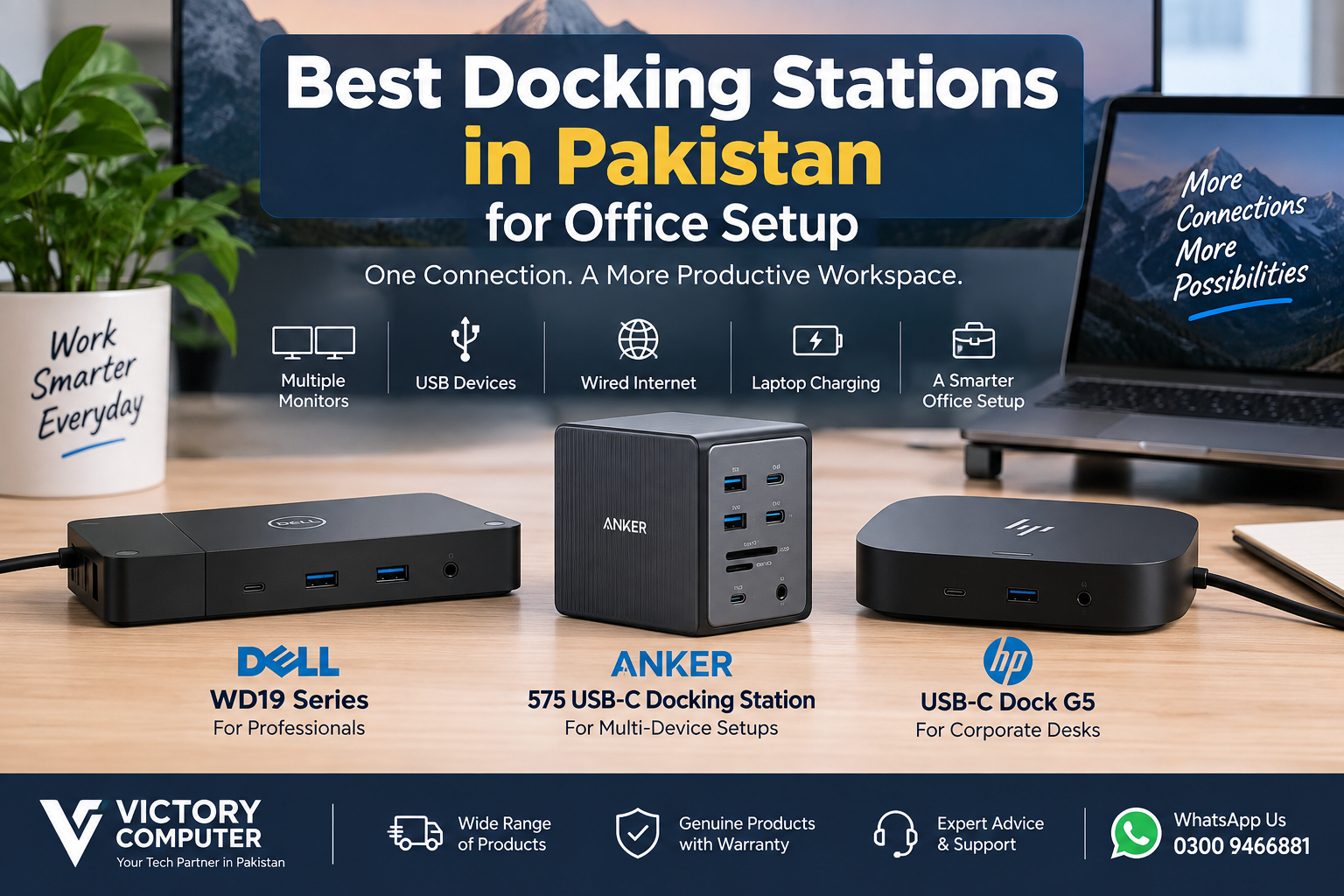
The best docking stations in Pakistan for office use are models that match your laptop’s USB-C capabilities while providing the display, USB, Ethernet and charging connections your desk actually needs. Dell WD19-series docks suit many professional setups, the HP USB-C Dock G5 is a strong corporate option, while the Anker 575 is useful when maximum port variety matters.
A docking station can turn a compatible laptop into a desktop-style workstation through a single host connection. Instead of reconnecting monitors, Ethernet, USB accessories and other devices every time you return to your desk, compatible equipment can remain connected to the dock.
What Are the Best Docking Stations in Pakistan?
For a typical office setup, the right dock depends more on laptop compatibility, monitor requirements and power delivery than brand alone. Three practical models to consider are the Dell WD19 series, Anker 575 USB-C Docking Station and HP USB-C Dock G5.
Before buying, check the exact dock model and your laptop’s USB-C or Thunderbolt capabilities. A USB-C connector alone does not guarantee video output or charging support.
Docking Station Comparison
| Docking Station | Best For | Key Advantage | Main Trade-Off |
|---|---|---|---|
| Dell WD19 Series | Business and Dell laptop setups | Strong display, USB and Ethernet connectivity | Capabilities vary by host laptop and exact WD19 configuration |
| Anker 575 USB-C 13-in-1 | Multi-device workstations | Large selection of ports including card readers | USB-C host must support the required display and charging features |
| HP USB-C Dock G5 | Corporate and professional desks | Compact design with broad connectivity and multi-display support | Maximum functionality depends on host compatibility |
1. Dell WD19 Series — Best for Professional Office Desks
The Dell WD19 series is a practical choice for offices that need monitors, wired networking and multiple USB accessories connected through one dock. Dell’s WD19 platform provides DisplayPort connectivity, HDMI, USB ports and Gigabit Ethernet, although exact capabilities depend on the specific WD19 variant and connected computer.
The WD19 series makes particular sense for organizations already using compatible Dell Latitude, Precision or other business laptops because some Dell-specific management and power features depend on the host system.
Pros
- Good selection of display and USB connections
- Gigabit Ethernet for stable wired office networking
- Well suited to permanent professional desk setups
- Useful choice for compatible Dell business laptops
Cons
- Different WD19 variants can have different capabilities
- Power delivery and advanced features can vary between Dell and non-Dell laptops
- Larger than simple portable USB-C hubs
Why We Recommend It
Choose a compatible Dell WD19-series dock if your office uses Dell business laptops and you want a permanent desk with monitors, Ethernet and USB peripherals. Buyers using another laptop brand should verify charging, video output and other host-specific features before purchasing.
2. Anker 575 USB-C Docking Station — Best for Port Variety
The Anker 575 USB-C Docking Station (13-in-1) is a useful option for professionals who connect many different devices. Its connectivity includes HDMI, DisplayPort, USB-A, USB-C, Gigabit Ethernet, SD, microSD and a 3.5mm audio connection.
Anker specifies up to 85W host charging and support for multiple displays, but your laptop’s USB-C port must provide the required DisplayPort Alt Mode and Power Delivery functionality. This compatibility check is especially important before buying a USB-C dock primarily for external monitors.
Pros
- 13-in-1 design provides a wide selection of connections
- HDMI and DisplayPort options for external displays
- SD and microSD slots are useful for photographers and content creators
- Gigabit Ethernet for wired networking
- USB-C host charging support on compatible laptops
Cons
- Full functionality depends on the capabilities of the laptop’s USB-C port
- More ports may be unnecessary for a simple one-monitor office setup
- Display capabilities can vary depending on the host computer and operating system
Why We Recommend It
The Anker 575 makes sense for users who regularly connect monitors, storage, memory cards, networking and USB accessories. A simpler USB-C hub may offer better value if you only need HDMI and a few USB ports.
3. HP USB-C Dock G5 — Best for Corporate Office Setups
The HP USB-C Dock G5 is designed for professional workstations where desk organization and broad connectivity matter. HP lists USB-C, USB-A, two DisplayPort connections, HDMI, RJ45 Ethernet and audio connectivity, with support for up to three displays under compatible configurations.
HP specifies up to 100W power to the system through USB-C, although actual charging and display capabilities depend on the host laptop. The connected computer must support the required USB-C Power Delivery and DisplayPort Alt Mode features for the relevant functions.
Pros
- Compact design suitable for clean office desks
- Multiple monitor connections
- Wired Ethernet and multiple USB ports
- USB-C power delivery on compatible systems
- Suitable for many HP and non-HP USB-C laptops when compatibility requirements are met
Cons
- Not every USB-C laptop will support every dock feature
- Maximum display configurations depend on the laptop’s graphics and USB-C implementation
- Users needing SD or microSD slots may prefer a dock such as the Anker 575
Why We Recommend It
The HP USB-C Dock G5 is a strong choice for corporate desks, especially where several monitors, Ethernet and standard office peripherals are required. Users should verify their exact laptop model before buying rather than assuming every USB-C notebook provides identical functionality.
How to Choose a Docking Station for Your Office
The best docking station is not necessarily the model with the most ports. Start by checking your laptop and then choose a dock that meets your actual workstation requirements.
1. Check USB-C Video Support
A laptop can have a USB-C connector without supporting external video through that port. If you need HDMI or DisplayPort output from the dock, confirm that your laptop supports the required video mode, such as DisplayPort Alt Mode, or the appropriate Thunderbolt standard.
2. Check Power Delivery
If you want one cable to connect accessories and charge the laptop, compare the dock’s power delivery with your notebook’s charging requirements. High-performance laptops may require more power than a standard USB-C dock can provide.
3. Decide How Many Monitors You Need
A basic office may need one external display, while accounting, development, design and productivity workstations may use two or three. Monitor resolution and refresh rate also matter because maximum display support varies with the dock and host laptop.
If you are building a complete workspace, you can also browse LED monitors in Pakistan or business laptops in Pakistan at Victory Computer.
4. Look at the Ports You Actually Use
Common office requirements include USB-A for keyboards and mice, USB-C for newer accessories, RJ45 Ethernet, HDMI or DisplayPort for monitors, and audio connectivity. Photographers and creators may also benefit from SD and microSD card readers.
5. Verify Compatibility Before Buying
Do not select a dock based only on the USB-C connector. Check the laptop manufacturer’s documentation and the docking station’s compatibility requirements, particularly for charging and multiple displays.
General Pros and Cons of Docking Stations
Pros
- Cleaner desk: monitors and peripherals can remain connected to one central device.
- Faster laptop setup: fewer cables need to be reconnected when moving between desk and mobile work.
- More connectivity: a dock can add Ethernet, display outputs, USB ports and card readers.
- Multi-monitor support: compatible docks and laptops can support productive multi-display workstations.
- Charging: compatible USB-C docks can power the laptop while it is connected.
Cons
- Compatibility can be confusing: two laptops with USB-C ports may support different functions.
- Additional cost: a full docking station costs more than a basic USB hub.
- Display limitations: resolution, refresh rate and number of displays depend on both the dock and host computer.
- Power limitations: some high-performance laptops still need their original high-wattage charger.
Which Docking Station Should You Buy?
Choose the Dell WD19 series for a Dell-focused professional environment where business connectivity is the priority. Choose the Anker 575 if you need a large number of ports, including SD and microSD. Choose the HP USB-C Dock G5 for a compact corporate workstation with multiple display and standard office connectivity options.
For Pakistani buyers, compatibility should come before price. Confirm your exact laptop model, USB-C capabilities, required monitor configuration and charging wattage before purchasing. Prices and availability can change, so check the current listing or contact the seller rather than relying on an old price range.
You can browse computers and accessories through Victory Computer or Victory Computer Shop. For product compatibility or current availability, contact Victory Computer on WhatsApp at 0300 9466881.
Frequently Asked Questions
What is a docking station used for?
A docking station connects a compatible laptop to multiple desk devices such as monitors, USB accessories, Ethernet and storage through a central connection.
Are docking stations worth buying for office use?
Yes, especially if you regularly use external monitors, Ethernet and several USB peripherals. A simple USB hub may be enough for users with only one or two accessories.
Can a docking station charge a laptop?
Many USB-C docking stations support Power Delivery, but charging depends on both the dock’s output and the laptop’s USB-C charging support and power requirements.
Will every USB-C docking station work with every USB-C laptop?
No. USB-C describes the connector, but supported features can differ. Check video output, Power Delivery, data capabilities and the dock manufacturer’s compatibility requirements.
Can I connect two or three monitors through a docking station?
Some docks support multiple displays, but the number, resolution and refresh rate depend on the docking station, laptop graphics capabilities, USB-C or Thunderbolt implementation and operating system.
Where can I buy a docking station in Pakistan?
Docking stations are available through computer retailers and online stores in Pakistan. Buyers should compare the exact model, included power adapter, compatibility and warranty terms before purchasing.

About Victory Computer Editorial Team
Victory Computer Editorial Team The Victory Computer Editorial Team publishes informative, research-based content about laptops, computers, monitors, printers, hardware, and technology trends in Pakistan. Our goal is to help readers understand product specifications, compare available options, and make informed purchasing decisions.
View all posts by Victory Computer Editorial Team
2 thoughts on “Best Docking Stations in Pakistan for Office Setup”