
Review of the Best Third-Party Accessories to Enhance MacBook Productivity and Portability | Expert Guide

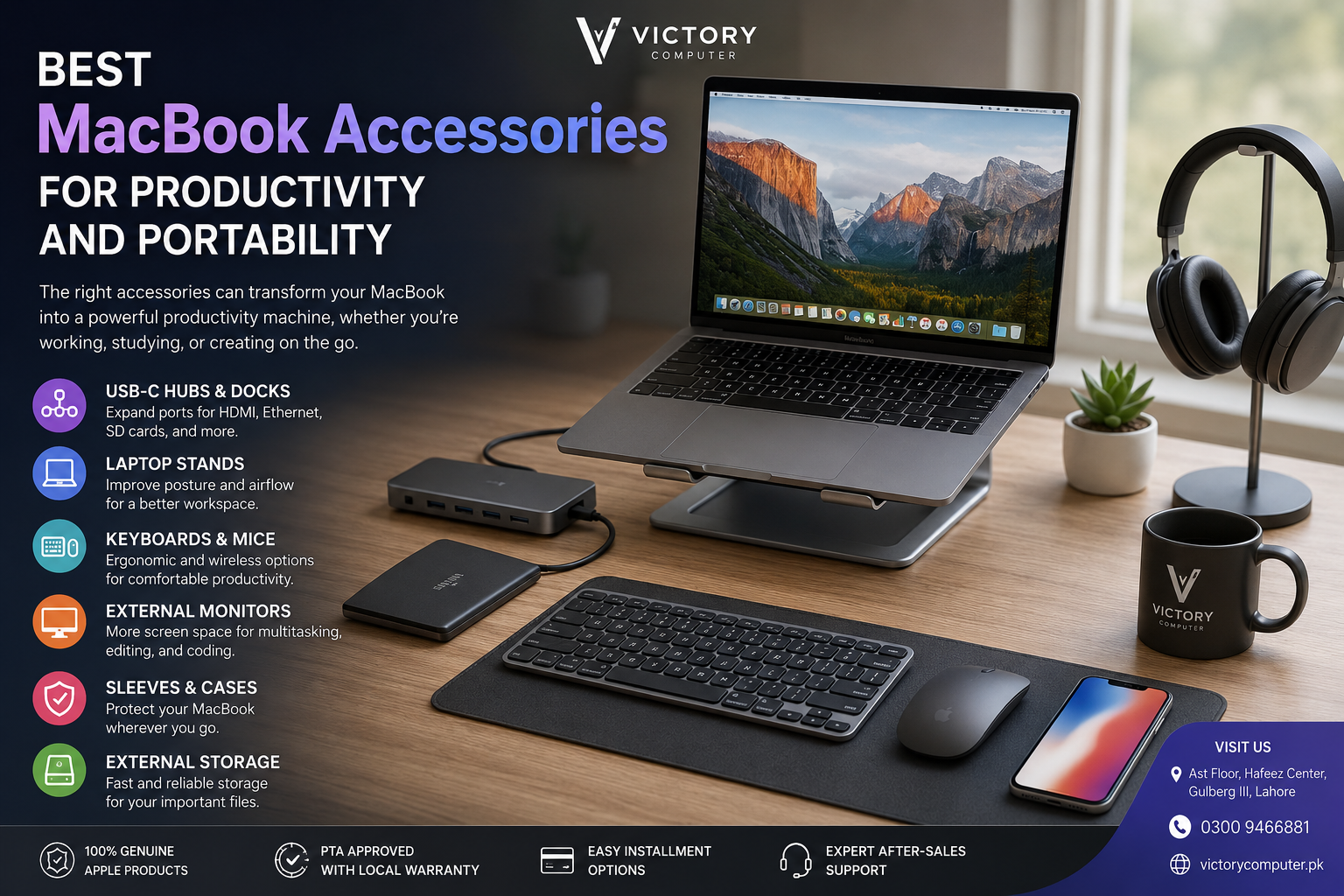
Best MacBook Accessories for Productivity and Portability
The best MacBook accessories are the ones that solve a real limitation in your workflow. For most users, a quality USB-C hub or dock, laptop stand, external monitor, keyboard and mouse, external SSD, protective sleeve, and suitable charger provide the biggest practical improvements. You do not need every accessory; choose according to how and where you use your MacBook.
7 Best MacBook Accessories Worth Considering
Most MacBook owners should start with accessories that improve connectivity, ergonomics, storage or protection. The right combination depends more on your workflow than on the number of accessories on your desk.
| Accessory | Best For | Main Benefit | Main Trade-Off |
|---|---|---|---|
| USB-C Hub / Dock | Office users and creators | Adds useful ports | Compatibility and bandwidth vary |
| Laptop Stand | Desk-based work | Improves screen positioning | External keyboard may be needed |
| External Monitor | Developers and multitaskers | More workspace | Reduces portability |
| Keyboard & Mouse | Long desk sessions | Desktop-style control | More devices to carry |
| External SSD | Creators and large-file users | Portable additional storage | Uses a USB-C or Thunderbolt port |
| Protective Sleeve | Students and travellers | Protects during transport | Adds some bulk |
| USB-C Charger | Mobile professionals | Convenient charging setup | Power requirements must match |
1. USB-C Hubs and Thunderbolt Docks
A USB-C hub or Thunderbolt dock is one of the best MacBook accessories for users who regularly connect monitors, external storage, memory cards, Ethernet or USB peripherals.
Current MacBook Air models use Thunderbolt USB-C connectivity alongside MagSafe charging and a headphone jack. MacBook Pro configurations can provide additional built-in connectivity such as HDMI and an SDXC card slot, while Thunderbolt capabilities depend on the specific model and chip. Because available connections vary between MacBook generations, check your exact model before purchasing a hub or dock.
A basic USB-C hub is generally enough for occasional HDMI, USB-A or card-reader access. A Thunderbolt dock makes more sense for a permanent workstation where displays, external storage, networking and several peripherals need to remain connected.
If you are unsure which type is appropriate, read our guide explaining whether you really need a USB-C dock. Users building a larger office workstation can also compare docking stations in Pakistan.
2. Laptop Stands
A laptop stand is a practical addition when a MacBook spends several hours each day on a desk. Raising the notebook can position the screen closer to eye level and create a more organized workstation, especially when the MacBook is paired with an external keyboard and mouse.
For portability, consider a lightweight foldable stand that fits inside a laptop bag. For a permanent workstation, a heavier adjustable stand can provide greater stability and more positioning options.
The stand should support the MacBook securely and should not place unnecessary pressure on the chassis. Avoid poorly designed accessories that obstruct areas needed for normal heat dissipation.
3. External Monitors
An external monitor can be one of the most valuable MacBook accessories for productivity. A larger workspace is useful for coding, spreadsheets, research, editing timelines, graphic design and other tasks where several windows need to remain visible.
External display support varies between MacBook generations and Apple silicon configurations. Before buying multiple monitors, a dock or an expensive high-resolution display, check the external-display specifications for your exact MacBook model.
The connection method also matters. Depending on the MacBook and monitor, you may use Thunderbolt, USB-C, HDMI or an appropriate adapter. The dock, cable and adapter must also support the resolution and refresh rate you intend to use.
If you are creating a workstation locally, compare available monitors in Pakistan and choose the screen size and resolution according to your workload rather than simply purchasing the largest display.
4. Wireless Keyboards and Mice
An external keyboard and mouse become particularly useful when the MacBook is elevated on a stand or connected to an external monitor. This arrangement lets you position the notebook display more comfortably without continuously reaching for the built-in keyboard and trackpad.
Before buying a third-party keyboard, check its macOS compatibility and key layout. Many Windows-oriented keyboards work with macOS, but modifier keys, shortcut labels and layouts may differ.
For a mouse, prioritize comfort, reliable connectivity and features that suit the applications you actually use. Designers, editors and developers may value programmable controls, while general office users may prefer a simpler wireless mouse with strong battery life.
5. External SSDs
An external SSD is particularly useful for photographers, video editors, designers and users working with large project libraries. It provides additional portable storage without requiring every archive, video project or media library to remain on the MacBook’s internal drive.
Connection speed matters when choosing external storage. A fast SSD cannot deliver its maximum performance if connected through a slower hub, cable or interface. Check the capabilities of the SSD, cable, dock and MacBook rather than focusing only on the advertised drive speed.
External storage can also help keep large working files separate from the notebook’s internal storage. However, an external SSD should not be treated as the only copy of important files. Valuable business, academic and creative files should have a proper backup strategy.
6. Sleeves and Protective Cases
A padded sleeve is one of the simplest MacBook Air accessories for students, commuters, professionals and frequent travellers. It provides protection while the MacBook is inside a backpack or briefcase without permanently adding significant bulk to the computer.
Choose a sleeve according to the exact dimensions of your MacBook rather than relying only on labels such as “13-inch,” “14-inch” or “15-inch.” A poor fit may allow the notebook to move around inside the sleeve or place unnecessary pressure on its edges.
If you regularly carry a charger, SSD, mouse, adapters, headphones and other accessories, a dedicated laptop bag may be more practical than a sleeve alone. See our guide to laptop bags for professionals in Pakistan for additional buying considerations.
7. Chargers and Power Accessories
A second charger can be surprisingly useful for MacBook owners who regularly move between home, university and the office. Keeping one charger at a permanent workstation can reduce the number of accessories that need to be packed every day.
USB-C Power Delivery also makes compatible third-party charging solutions possible for supported MacBook models. However, connector compatibility alone is not enough.
Before buying a charger, verify USB Power Delivery support, output wattage, cable rating and compatibility with your particular MacBook. MacBook Air and higher-performance MacBook Pro configurations can have different charging requirements.
A compact multi-port charger can be especially useful for travel because one adapter may be able to charge a MacBook, smartphone and other USB-C devices. Check how the charger distributes its available power when several devices are connected simultaneously.
Do MacBooks Need Cooling Pads?
A cooling pad should not automatically be treated as an essential MacBook accessory. MacBook Air models use a fanless thermal design, so a conventional fan-based cooling pad cannot increase internal fan airflow that does not exist.
A laptop stand can still be useful for screen positioning and maintaining a clear workspace around the notebook, but that is different from claiming that every MacBook Air requires additional cooling hardware.
MacBook Pro models intended for sustained professional workloads include their own thermal management systems. A cooling pad should therefore be purchased only when it addresses a specific practical requirement rather than because it appears on a generic MacBook accessory checklist.
How to Choose the Best MacBook Accessories
The easiest way to choose the best MacBook accessories is to identify the limitation you are trying to fix. Buying accessories simply because they appear on a “must-have” list can make a portable MacBook setup more complicated without providing a meaningful productivity benefit.
- Need more ports? Start with a USB-C hub or Thunderbolt dock.
- Need a better workstation? Consider a laptop stand, external monitor, keyboard and mouse.
- Work with large files? Prioritize a reliable external SSD.
- Travel frequently? Consider a fitted sleeve, compact charger and portable hub.
- Need multiple displays? Verify your exact MacBook’s supported external-display configuration first.
- Buying a dock? Check display resolution, refresh rate, charging power, ports and available bandwidth.
Your overall computer choice should follow the same principle: buy for the workflow rather than the marketing label. Our MacBook vs Windows laptop guide for professionals explains how different workloads can influence the better platform choice.
Pros and Cons of Third-Party MacBook Accessories
Pros
- Can provide additional ports and connection options.
- Can create a more comfortable desk setup.
- Third-party brands provide a wide range of designs and price points.
- External storage and monitors can expand a MacBook workstation considerably.
- Users can build a setup around their specific workflow.
Cons
- Quality and compatibility vary significantly between accessories.
- Some USB-C hubs share available bandwidth across multiple ports.
- Poor-quality chargers, adapters and cables should be avoided.
- Too many accessories can reduce the portability advantage of a MacBook.
Why We Recommend a Needs-Based Setup
The best setup depends on how the MacBook is actually used. A student who carries a MacBook Air every day may need little more than a sleeve, charger and compact hub. A developer working primarily at a desk may benefit more from a Thunderbolt dock, external monitor, keyboard and mouse.
A photographer or video editor may place an external SSD near the top of the list, while a business user who frequently gives presentations may care more about reliable HDMI connectivity. There is no single accessory bundle that is ideal for every MacBook owner.
Best MacBook Accessories for Students
Students should generally prioritize portability and protection rather than building a large desktop setup. A protective sleeve, compact charger and small USB-C hub can cover many everyday requirements without filling a backpack with unnecessary equipment.
An external SSD may also be useful for students working with large media, engineering, architecture or creative project files. Users who primarily work with documents and cloud storage may not need one immediately.
Best MacBook Accessories for Developers and Professionals
Developers and office professionals can benefit from a more permanent workstation. An external display provides additional space for code, documentation, communication tools and browser windows, while a keyboard and mouse allow the MacBook to remain positioned on a stand.
A dock can simplify this setup by connecting displays, Ethernet, storage and peripherals through a central connection. Before purchasing a dock, confirm that its display capabilities match the exact MacBook configuration.
Professionals deciding between Apple hardware and other business notebooks can also read our MacBook vs Windows laptop comparison for professionals in Pakistan.
Best MacBook Accessories for Content Creators
Content creators should prioritize storage, display quality and connectivity. An external SSD can help manage large video and photo libraries, while an external monitor provides more workspace for editing timelines, preview windows and creative applications.
A USB-C hub or Thunderbolt dock can also simplify connections to cameras, memory cards, external drives and displays. Before purchasing a hub for creative work, check the actual transfer speeds of its USB and card-reader interfaces.
For creators who work from several locations, portability remains important. A compact hub and portable SSD may be more practical than carrying a full-size desktop dock.
Buying MacBook Accessories in Pakistan
For buyers in Pakistan, compatibility should come before price. Confirm your exact MacBook model, required ports, external-display configuration, charging requirements and accessory interface before placing an order.
Be particularly careful with USB-C products because identical-looking connectors do not necessarily provide identical data speeds, display capabilities or charging performance.
You can browse the Victory Computer shop for currently listed computers and technology products. Availability can change, so check the current product listing and applicable warranty information at the time of purchase rather than relying on an older article.
Frequently Asked Questions
What are the best MacBook accessories for productivity?
A USB-C hub or dock, laptop stand, external monitor, keyboard and mouse are among the most useful accessories for a desk-based MacBook productivity setup. External storage can also be valuable for users working with large files.
Do I need a USB-C hub for a MacBook Air?
A USB-C hub is useful if you need HDMI, Ethernet, USB-A, memory-card or other connections that your MacBook does not provide directly. Users who rely mainly on wireless devices and USB-C peripherals may not need one.
Are third-party MacBook accessories safe?
Reputable third-party accessories designed for the appropriate USB-C, Thunderbolt or charging standards can be suitable. Always check compatibility, power specifications and manufacturer information before purchase.
Can I connect multiple monitors to a MacBook?
External-display support depends on the exact MacBook model and Apple silicon configuration. Check Apple’s specifications for your particular MacBook before purchasing multiple monitors or a multi-display dock.
Does a MacBook Air need a cooling pad?
A cooling pad is generally not an essential MacBook Air accessory. MacBook Air uses a fanless design, so a laptop stand is usually more relevant for positioning than a fan-based cooling pad.
What should I check before buying a MacBook dock?
Check your MacBook model, USB-C or Thunderbolt capabilities, required ports, external-display resolution and refresh rate, data bandwidth and charging requirements. These factors determine whether a dock can support your complete setup.
Final Recommendation
The best MacBook accessories are not necessarily the most expensive or the most numerous. Start with connectivity if ports limit your workflow, ergonomics if you spend hours at a desk, external storage if you handle large files, and protection if your MacBook travels regularly.
A good MacBook setup should make work easier without sacrificing the portability that makes the notebook useful in the first place. Verify compatibility before buying, especially for USB-C hubs, Thunderbolt docks, external monitors and charging accessories.
For buyers in Pakistan, visit Victory Computer to explore currently listed laptops, computers and technology products or contact the team for product-specific information.
Victory Computer
Lahore, Pakistan
WhatsApp: 0300 9466881

About Victory Computer Editorial Team
Victory Computer Editorial Team The Victory Computer Editorial Team publishes informative, research-based content about laptops, computers, monitors, printers, hardware, and technology trends in Pakistan. Our goal is to help readers understand product specifications, compare available options, and make informed purchasing decisions.
View all posts by Victory Computer Editorial Team