
Apps Broken on macOS Sonoma: A Complete List of What Doesn’t Work Yet

Apps Broken on macOS Sonoma
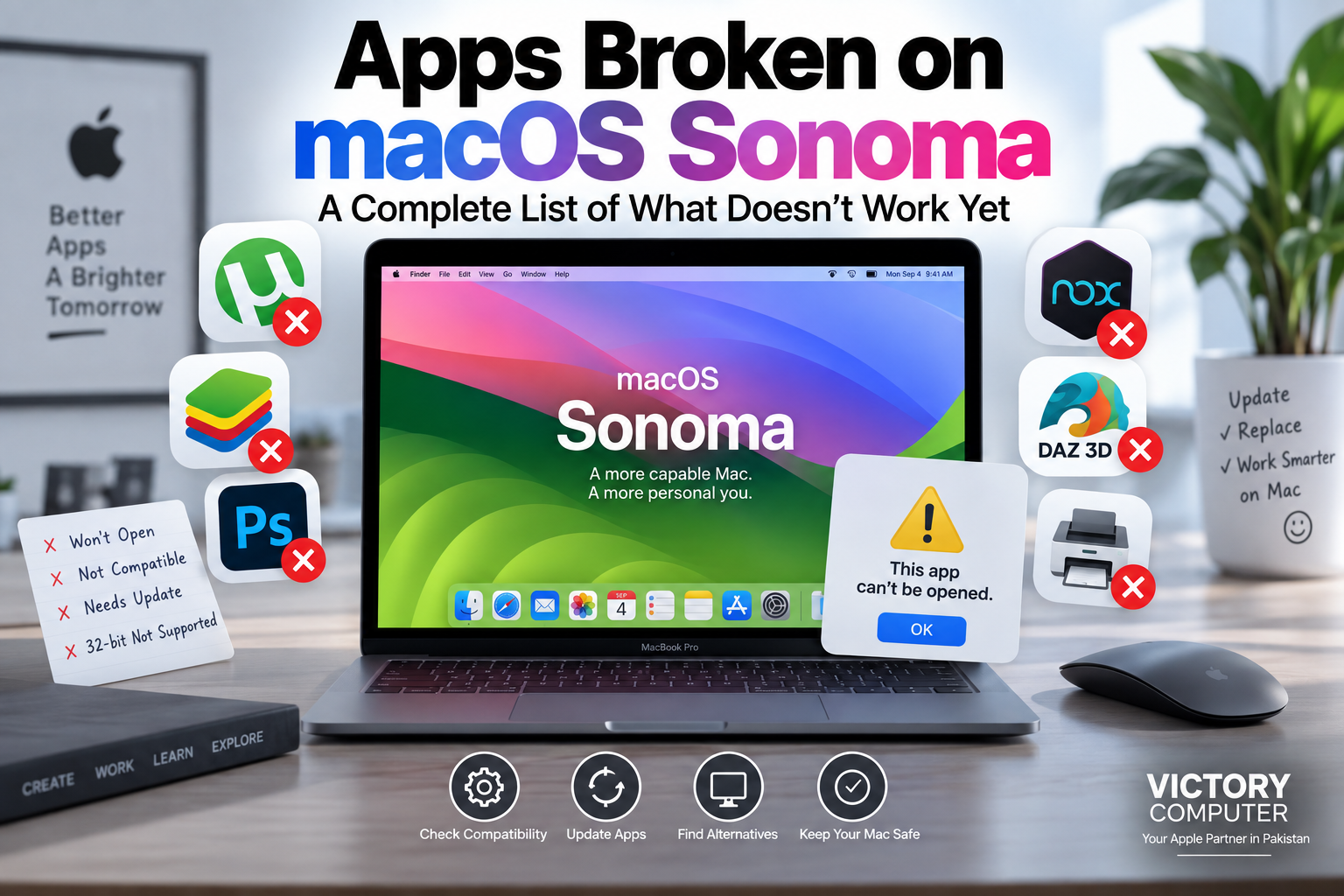
Apps broken on macOS Sonoma are mainly older 32-bit applications, obsolete utilities, legacy drivers, outdated plug-ins and software that depends on unsupported system components. However, many apps previously reported as incompatible with Sonoma have since been updated, so compatibility now depends heavily on the exact app version and whether your Mac uses Intel or Apple silicon.
Why Apps Break on macOS Sonoma
macOS Sonoma does not suddenly make all older Mac software unusable. Compatibility problems usually appear because an application depends on technology that Apple has already deprecated, because the developer has stopped maintaining it, or because a specific version has not been updated for modern macOS security and Apple silicon.
One common misconception is that Sonoma itself removed support for 32-bit applications. Apple actually stopped supporting 32-bit Mac apps starting with macOS Catalina 10.15. Therefore, any 32-bit application already incompatible with Catalina will also remain incompatible with Sonoma.
Apple silicon creates another compatibility consideration. Many Intel applications can still operate through Apple’s Rosetta translation technology, but older plug-ins, extensions and hardware utilities can cause problems even when the main application launches normally.
Users who want more background on the processor transition can read our guide to Apple Silicon compatibility and why it matters.
Apps and Software With Compatibility Problems on macOS Sonoma
There is no permanent universal list of every application broken on Sonoma because developers continuously release updates. The following categories contain some of the clearest compatibility cases.
| App or Software Type | Sonoma Status | Main Issue |
|---|---|---|
| µTorrent Classic for Mac | Incompatible | 32-bit application |
| 32-bit Mac apps and games | Incompatible | 32-bit support ended with Catalina |
| Old Adobe Creative Suite releases | Version dependent / obsolete | Legacy components and unsupported versions |
| Current Adobe Creative Cloud | Supported | Current releases support Sonoma |
| Older BlueStacks releases | Version dependent | Use the current Mac-compatible release |
| BlueStacks Air | Supported on compatible Apple silicon Macs | Requires supported hardware and macOS |
| Legacy printer/scanner drivers | Device dependent | Old drivers or extensions may be unsupported |
| Older plug-ins and system extensions | Version dependent | Security and extension architecture changes |
µTorrent Classic
µTorrent Classic for Mac does not work on macOS Sonoma. The Mac version is a 32-bit application, and the developer states that it is incompatible with macOS Catalina 10.15 and later. Sonoma users therefore need a supported alternative or a newer compatible torrent client.
32-Bit Games and Applications
Any Mac game or application that exists only as a 32-bit executable cannot run natively on Sonoma. This limitation applies regardless of how powerful the MacBook is because the operating system no longer provides 32-bit application support.
Adobe Creative Suite vs Creative Cloud
Older Adobe Creative Suite releases should not be confused with current Adobe Creative Cloud applications. Legacy versions can have major compatibility problems, but current Adobe documentation lists macOS 14 Sonoma as supported for current Creative Cloud desktop applications.
That means users experiencing Photoshop, Illustrator, Premiere Pro or another current Adobe application problem should check the exact application version before assuming Sonoma itself is incompatible.
BlueStacks
Old advice claiming that BlueStacks simply does not work on modern Macs is now outdated. BlueStacks Air supports Apple silicon Macs and requires macOS 11 or later according to its current system requirements.
Users still running an obsolete release should upgrade rather than assume Android emulation is completely unavailable on Sonoma. See our related guide covering BlueStacks problems on macOS and possible fixes.
Legacy Drivers, Plug-ins and System Extensions
Printers, scanners, audio interfaces, VPN software, storage utilities and security tools can depend on extensions that require developer updates. Apple has progressively moved developers away from older kernel-extension technology, and outdated extensions may be blocked or require additional approval.
For professional workflows, check the manufacturer’s Sonoma compatibility information for every essential peripheral before upgrading.
Pros and Cons of macOS Sonoma for App Compatibility
Pros
- Strong modern app support: actively maintained applications generally provide modern macOS versions.
- Apple silicon support: modern software increasingly runs natively on M-series Macs.
- Improved security: Gatekeeper, signing and notarization requirements reduce the risk from untrusted software.
- Rosetta compatibility: many Intel-only 64-bit applications can still run on Apple silicon Macs.
Cons
- No 32-bit software: very old Mac applications and games cannot run.
- Legacy hardware problems: old printers, scanners and specialist devices may lack compatible drivers.
- Plug-in dependencies: an updated main application can still fail because an older plug-in is incompatible.
- Professional upgrade risk: upgrading before checking specialist software can interrupt an established workflow.
Why We Recommend Checking Compatibility First
Sonoma itself should not be avoided simply because some legacy applications are incompatible. The safer approach is to audit the software, plug-ins and peripherals you actually use. Users dependent on abandoned software or specialist hardware should verify every critical component before changing macOS versions.
How to Fix Apps Not Working on macOS Sonoma
If an application fails after installing Sonoma, start with the developer rather than immediately changing macOS security settings.
- Update the application. Install the newest version directly from the App Store or official developer.
- Check whether the app is 32-bit. A 32-bit-only application requires a modern replacement because Sonoma cannot run it.
- Check Apple silicon compatibility. Intel applications may use Rosetta, while Universal or Apple-silicon versions are preferable.
- Update plug-ins separately. Audio, video, design and development applications can fail because of one incompatible add-on.
- Check hardware drivers. Download current printer, scanner, audio-interface or storage drivers from the manufacturer.
- Investigate security warnings carefully. Do not bypass Gatekeeper simply to make unknown or untrusted software launch.
For additional options, see our guide to workarounds for unsupported apps on Apple silicon Macs and our broader explanation of what to do when a Mac app becomes unsupported.
Should You Use macOS Sonoma If You Depend on Older Apps?
Sonoma is reasonable for users whose important applications and peripherals have confirmed support. The biggest risk is not ordinary current software but legacy applications, abandoned plug-ins, old drivers and specialist hardware.
Before upgrading a work Mac, make a list of every essential application, plug-in and peripheral and verify compatibility with its developer. Creative professionals and businesses should be especially cautious when a single unsupported tool could interrupt production.
If you are replacing an older Mac rather than maintaining a legacy software environment, you can browse current computer options through Victory Computer in Pakistan. Hardware selection should be based on the applications you actually need rather than assuming every old Mac application will work on a new Apple-silicon system.
Frequently Asked Questions
Why are some apps broken on macOS Sonoma?
Most compatibility problems involve obsolete software, unsupported 32-bit applications, outdated drivers, old plug-ins or system components that have not been updated for modern macOS.
Can macOS Sonoma run 32-bit apps?
No. Apple ended support for 32-bit Mac applications starting with macOS Catalina 10.15, so 32-bit-only applications cannot run normally on Sonoma.
Does Adobe Creative Cloud work on macOS Sonoma?
Yes. Adobe currently lists macOS 14 Sonoma among the supported operating systems for current Creative Cloud desktop applications. Individual application and version requirements should still be checked.
Does BlueStacks work on macOS Sonoma?
Current BlueStacks Air supports compatible Apple-silicon Macs running macOS 11 or later. Older BlueStacks releases should not be used as evidence that the current version is incompatible.
Why does my printer or scanner stop working after a macOS update?
The device may depend on an outdated driver or system extension. Check the manufacturer’s support page for a driver or software release compatible with your exact macOS version.
Should I bypass macOS security to open an old app?
Not automatically. Apple recommends obtaining an updated version or trusted alternative when an app cannot be verified. Only override security protections when you understand and accept the associated risk.

About Victory Computer Editorial Team
Victory Computer Editorial Team The Victory Computer Editorial Team publishes informative, research-based content about laptops, computers, monitors, printers, hardware, and technology trends in Pakistan. Our goal is to help readers understand product specifications, compare available options, and make informed purchasing decisions.
View all posts by Victory Computer Editorial Team