
How to Optimize macOS for Creative Professionals Using MacBook Pro | Expert Guide

How to Optimize macOS for Creative Professionals Using MacBook Pro
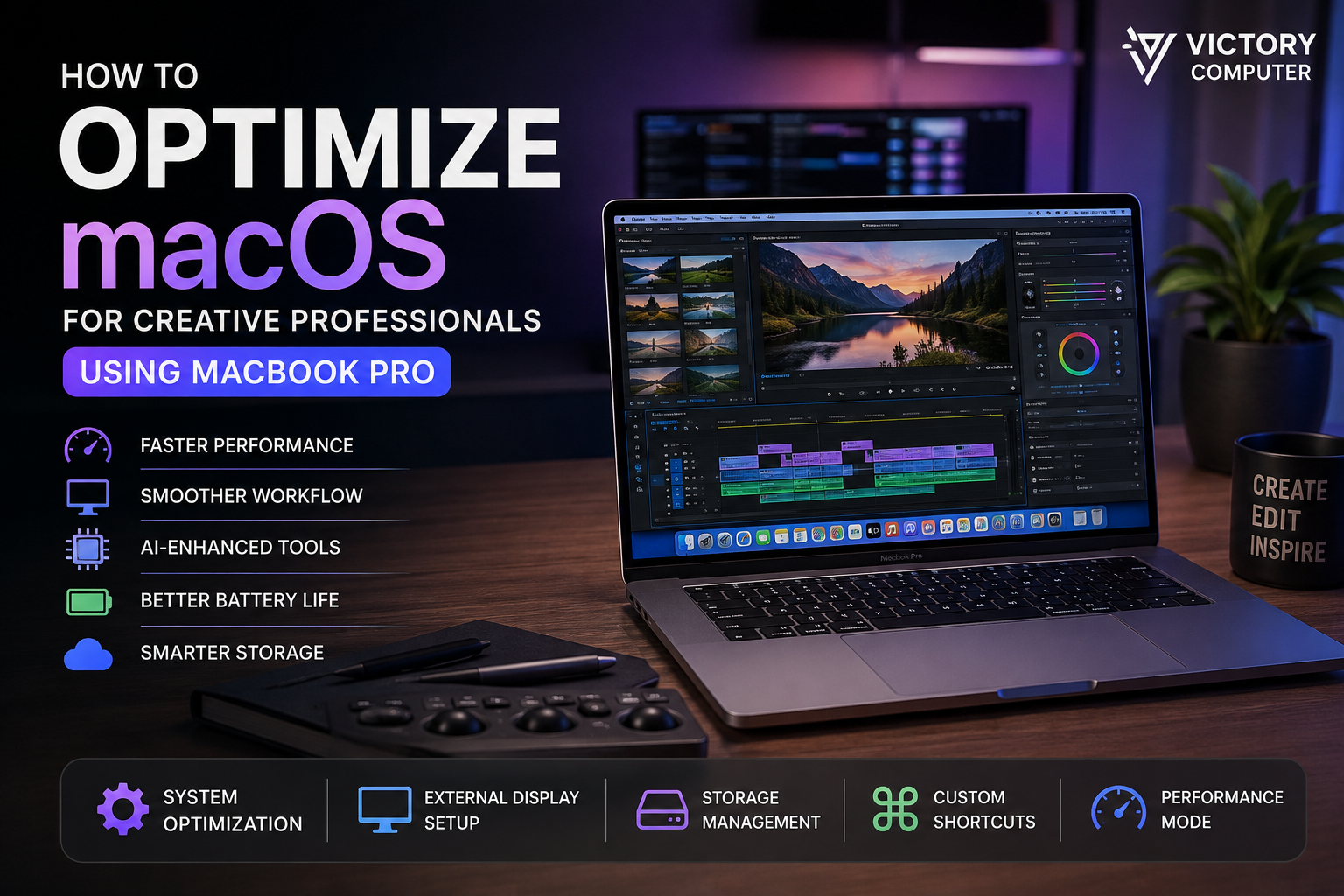
To optimize macOS for creative professionals, focus on performance mode, available storage, external displays, keyboard shortcuts and resource management. A well-configured MacBook Pro can make demanding video, photo, audio and design workflows easier to manage, but the best settings depend on your MacBook Pro model and the applications you actually use.
Start With the Right Performance Settings
The best way to optimize macOS for creative professionals is to match system behavior to the workload rather than keeping every performance option enabled permanently. Video exports, 3D rendering and complex effects processing have different requirements from writing, browsing or basic photo management.
Start by keeping macOS and your critical creative applications current after confirming that the versions you plan to install are compatible with your plugins, extensions and project workflow. Professional users should avoid installing a major operating-system update immediately before an important project deadline without first checking application compatibility.
Close applications and browser tabs that are consuming significant resources when performing demanding exports or renders. This is particularly useful when several memory-intensive creative applications are running simultaneously.
Use High Power Mode When Supported
High Power Mode can help with sustained, intensive creative workloads, but it is not available on every MacBook Pro. Apple states that High Power Mode allows supported Macs to run their fans at higher speeds, providing additional cooling that may improve performance during intensive workloads.
Apple specifically identifies graphics-intensive tasks such as high-resolution video color grading as examples where High Power Mode can provide smoother playback or faster exports. Check Apple’s High Power Mode documentation to confirm whether your MacBook Pro supports the feature.
For lighter work, Automatic Mode is normally more sensible. High Power Mode can increase fan noise, so there is little reason to enable it for email, browsing, writing or other low-intensity tasks.
High Power Mode makes the most sense for:
- Long video exports
- High-resolution color grading
- Complex motion graphics
- 3D rendering
- Other sustained CPU- or GPU-intensive creative workloads
Manage Storage for Large Creative Projects
Creative professionals should actively manage internal storage because video, RAW photography, audio libraries and project caches can consume space quickly. Apple provides built-in Storage settings that show which file categories are using space and offer storage-management recommendations.
Go to System Settings → General → Storage to review storage usage. Apple’s macOS storage optimization guide also explains options for managing local and iCloud-based files.
For large creative projects, consider separating active files, archives and backups. A fast external SSD can be useful for large video footage, photography libraries or completed projects, depending on the performance requirements of your software.
A practical creative storage structure
- Internal SSD: macOS, applications and active project files that benefit from fast access.
- External SSD: large media libraries, footage and portable project storage.
- Backup: maintain a separate backup rather than treating the working external drive as the only copy.
Storage management matters because Apple notes that insufficient startup-disk space can contribute to a Mac running slowly.
Optimize External Displays for Creative Work
An external display can provide substantially more working space for timelines, tool panels, reference material and preview windows. MacBook Pro supports external displays through supported Thunderbolt and HDMI connections, but the number and resolution of displays supported depends on the exact Mac model and chip.
Apple recommends checking the specifications of your Mac rather than assuming every MacBook Pro supports the same multi-monitor configuration. The Apple external display guide explains connection and configuration options.
After connecting a display, open System Settings → Displays to configure resolution, arrangement and other available display options. Designers, photographers and video editors should also pay attention to the appropriate color profile for their workflow.
Customize Shortcuts and Your Workspace
Workflow optimization can save more time than chasing small performance gains. Repetitive actions performed hundreds of times during editing or design work are good candidates for keyboard shortcuts and workspace customization.
macOS allows users to customize keyboard shortcuts through System Settings → Keyboard → Keyboard Shortcuts. Creative applications such as video editors, image editors and digital audio workstations also provide their own shortcut systems.
Useful workflow improvements include:
- Create shortcuts for frequently repeated commands.
- Keep the Dock limited to applications used regularly.
- Use separate desktops or workspaces for different projects.
- Organize project folders consistently.
- Create reusable application presets and templates where supported.
- Keep frequently used assets in predictable locations.
A consistent MacBook Pro creative workflow reduces unnecessary navigation and makes switching between editing, design and communication tasks easier.
Monitor Resource Usage With Activity Monitor
Activity Monitor is one of the simplest ways to diagnose unexpected performance problems on macOS. It can help identify applications consuming unusually high CPU or memory resources.
If your MacBook Pro becomes slow during a creative project, check which applications are active before assuming that the hardware itself is the problem. Apple specifically recommends reviewing memory usage in Activity Monitor when an application may require more memory than the Mac can readily provide.
Also review background utilities you no longer need. Menu-bar tools, synchronization software, browser processes and creative plugins can all add to overall resource usage.
Pros and Cons of Using MacBook Pro for Creative Work
Pros
- Strong sustained performance: Supported MacBook Pro configurations are designed for demanding professional workflows.
- Efficient integrated workflow: macOS provides built-in tools for storage, displays, shortcuts and resource monitoring.
- Professional creative software: Major video, audio, photography and design applications are available for macOS.
- External display support: Supported models can drive one or more external displays for larger creative workspaces.
- Flexible performance modes: Compatible models provide power modes suited to different performance and energy requirements.
Cons
- Upgrades are limited after purchase: Memory and internal storage configuration should be chosen carefully when buying the machine.
- High Power Mode is model-dependent: The feature is not available on every MacBook Pro.
- External storage may become necessary: Large video and photography libraries can consume internal SSD capacity quickly.
- Software compatibility requires attention: Creative professionals should verify important apps and plugins before major macOS upgrades.
Why We Recommend It
A MacBook Pro is a strong choice for creators whose applications and plugins are well supported on macOS and who need portable performance for video, design, photography, audio or development work. Buyers should prioritize the right memory, storage and chip configuration at purchase rather than assuming those components can be upgraded later.
Is MacBook Pro a Good Choice for Creative Professionals?
MacBook Pro is well suited to many professional creative workflows, but the correct configuration depends on the workload. A photographer working primarily with still images may have very different memory and storage requirements from a professional working with high-resolution video, 3D rendering or complex motion graphics.
For heavier creative workloads, users can compare configurations such as the Apple MacBook Pro 16-inch M4 Max. Users looking for a newer professional configuration can also review the Apple MacBook Pro 14-inch M5 Pro.
Buyers considering an older machine should review our used MacBook Pro buying guide for Pakistan before choosing a model.
The most important buying decision is not simply choosing “Pro” or “Max.” Match the processor, unified memory, storage capacity, display requirements and ports to the applications and project sizes you actually use.
Buying a MacBook Pro in Pakistan
Creative professionals in Pakistan should compare the exact model number, memory, SSD capacity, chip configuration, condition and applicable warranty before purchasing. Avoid choosing a MacBook solely from a shortened product title because configurations within the same MacBook Pro generation can differ significantly.
You can browse current computer products and additional technology guides through Victory Computer. Current pricing and availability should always be confirmed from the relevant product page or directly with the store before purchasing.
Frequently Asked Questions
How do I optimize macOS for creative professionals?
Start with storage management, resource monitoring, appropriate power settings, external-display configuration and customized keyboard shortcuts. The ideal setup depends on the creative applications and MacBook Pro model you use.
Should I enable High Power Mode for video editing?
High Power Mode can benefit sustained intensive workloads on supported Mac models. Apple notes potential improvements for demanding video and graphics workflows, but the mode can produce more fan noise.
Does every MacBook Pro support High Power Mode?
No. High Power Mode is limited to specific Mac models and configurations, so check Apple’s current compatibility list for your exact model.
Can I use an external monitor with MacBook Pro?
Yes. MacBook Pro supports external displays, but the number of displays and supported resolutions depend on the exact Mac model and chip.
Is an external SSD useful for creative professionals?
Yes. External SSD storage can be useful for large video files, photo libraries, project archives and other media, while helping preserve internal storage for applications and active files.
Is MacBook Pro suitable for professional creative work?
Yes, provided the selected configuration meets the requirements of your applications. Video editors, designers, photographers, musicians and other creators should choose memory, storage and processor configuration according to workload rather than buying solely by model name.
Final Recommendation
To optimize macOS for creative professionals, prioritize the settings that materially affect daily work: keep sufficient storage available, monitor demanding applications, configure displays correctly, customize repetitive actions and use High Power Mode only when the Mac supports it and the workload benefits from sustained performance.
A properly configured MacBook Pro for creative professionals should be built around the software and projects you actually use. For purchasing guidance or current MacBook options in Pakistan, visit Victory Computer or contact the store on WhatsApp at 0300 9466881.

About Victory Computer Editorial Team
Victory Computer Editorial Team The Victory Computer Editorial Team publishes informative, research-based content about laptops, computers, monitors, printers, hardware, and technology trends in Pakistan. Our goal is to help readers understand product specifications, compare available options, and make informed purchasing decisions.
View all posts by Victory Computer Editorial Team
One thought on “How to Optimize macOS for Creative Professionals Using MacBook Pro | Expert Guide”