
Apple macOS Sonoma Update: The Biggest App Failures You Need to Know

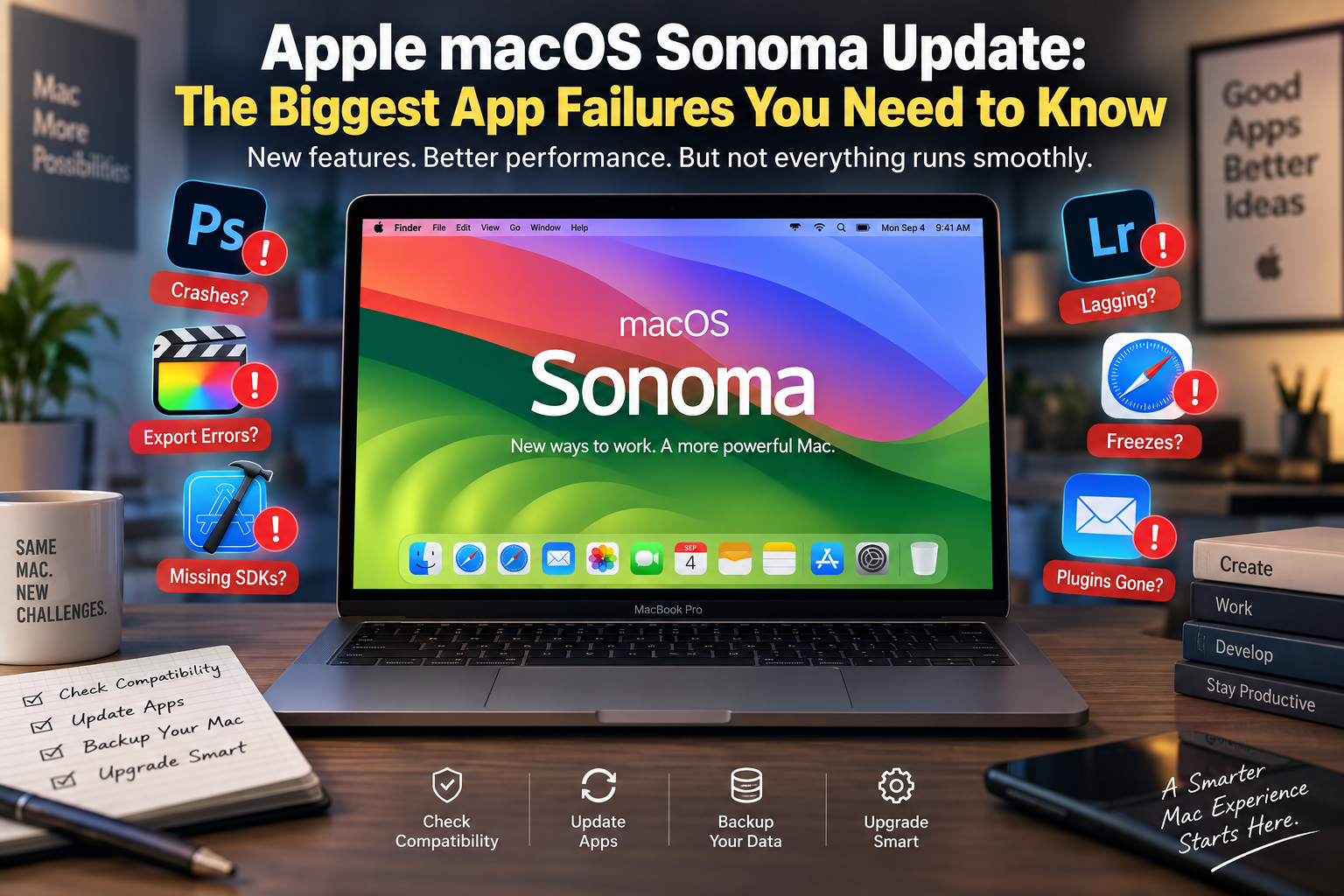
Apple macOS Sonoma Update
macOS Sonoma app failures are most likely to affect outdated applications, older plug-ins, legacy drivers and utilities that interact deeply with macOS. Sonoma itself does not make every major Mac application unusable, but upgrading without checking your essential software can still create compatibility problems.
If your Mac is used for professional work, video editing, development, photography, storage management or business applications, checking compatibility before a major macOS upgrade is safer than assuming every existing tool will continue working exactly as before.
What Causes macOS Sonoma App Failures?
Major macOS releases can introduce API changes, tighter security requirements and changes to the way applications interact with system services. Software that has not been maintained for newer versions of macOS is therefore more likely to experience problems.
The risk is particularly important with older utilities, plug-ins, drivers and applications that depend on deprecated technologies. Modern applications that are actively maintained are generally in a much stronger position.
Common warning signs after an upgrade include:
- Apps closing unexpectedly during launch or normal use
- Older plug-ins disappearing or becoming unavailable
- Hardware utilities losing access to required drivers
- Background utilities requesting new permissions
- Older development tools becoming incompatible with newer SDK requirements
- Legacy Intel applications requiring additional compatibility consideration on Apple Silicon Macs
Biggest macOS Sonoma Compatibility Problems to Watch
| Software Type | Possible Problem | Recommended Action |
|---|---|---|
| Older Xcode versions | SDK, simulator or development compatibility limitations | Use an Xcode release officially supported for your macOS version |
| Creative applications | Older releases may crash or behave incorrectly | Update the application before upgrading macOS |
| Mail extensions | Legacy plug-in workflows may no longer operate as expected | Check whether the developer provides a supported extension |
| RAID and storage utilities | Older low-level drivers may be incompatible | Confirm the exact software and driver version first |
| Network utilities | Older releases may require updated system integration | Install a Sonoma-compatible release |
| Legacy Intel software | Old or abandoned applications may have compatibility limitations | Check developer support and Apple Silicon compatibility |
| Specialist plug-ins | Host application may work while a plug-in does not | Verify every essential plug-in separately |
Are Adobe Photoshop, Lightroom and Illustrator Broken on Sonoma?
No. It is misleading to describe Adobe’s major creative applications as universally broken on macOS Sonoma. Current supported versions of Photoshop, Lightroom, Lightroom Classic and Illustrator have macOS compatibility support.
The greater risk comes from running an older Adobe release, an outdated third-party plug-in or a workflow dependent on software that has not been updated. Creative professionals should therefore check the exact application and plug-in versions they use rather than judging compatibility only by the application name.
What About Xcode on macOS Sonoma?
Developers should pay particularly close attention to Xcode versions. Apple publishes specific macOS requirements for each Xcode release, and newer releases of Xcode include SDKs corresponding to newer Apple operating systems.
This means an old development environment should not automatically be expected to provide the same SDK, simulator and debugging support after an operating-system upgrade. If Xcode is essential to your work, verify Apple’s compatibility table before updating macOS.
Does Little Snitch Work on macOS Sonoma?
Yes, supported versions of Little Snitch are available for macOS Sonoma. This is a good example of why compatibility should be checked by software version rather than simply labeling an entire application as broken.
Low-level networking, security and storage utilities can require significant changes when Apple changes system-level technologies. Users running an old version should therefore check the developer’s compatibility information and update the utility before upgrading macOS.
Pros and Cons of Upgrading to macOS Sonoma
Pros
- Newer macOS features: Sonoma introduced additional productivity, communication and desktop features for supported Macs.
- Security improvements: Keeping macOS and applications updated helps users receive newer security fixes and platform protections.
- Better support from current software: Actively maintained applications are generally designed around newer macOS releases.
- Modern Apple Silicon environment: Current Mac software increasingly targets Apple’s newer hardware and operating-system architecture.
Cons
- Legacy software risk: Abandoned or infrequently updated applications may stop working correctly.
- Plug-in compatibility: An application may support Sonoma while an essential third-party extension does not.
- Driver-dependent hardware: Specialist audio, storage, networking or peripheral hardware can depend on updated software.
- Professional workflow disruption: Updating a production Mac before verifying compatibility can interrupt important work.
Why We Recommend Checking Before Upgrading
For general users running current applications, Sonoma compatibility is much less concerning than it was around the operating system’s original release. Professionals using specialist software, however, should verify every critical application, plug-in and hardware utility before changing their operating system.
If one unsupported application is essential to your income or workflow, delaying the upgrade until a compatible version is available can be more sensible than troubleshooting after installation.
How to Avoid App Problems Before Updating Your Mac
- List your critical applications. Focus first on software you need for work, study or business.
- Check the developer’s compatibility page. Verify your exact application version against macOS Sonoma.
- Check plug-ins separately. Photoshop, audio, video and development plug-ins may have their own requirements.
- Update applications first. Installing current supported releases can reduce compatibility problems.
- Check hardware utilities. RAID systems, printers, audio interfaces and other specialist devices may depend on compatible drivers.
- Create a current backup. Keep important files protected before making a major operating-system change.
Intel Apps and Apple Silicon Macs
Another source of confusion is the difference between macOS compatibility and processor compatibility. An application may have been designed for Intel-based Macs while the computer itself uses Apple Silicon.
Many applications have moved to native Apple Silicon support, while some older software may depend on Apple’s compatibility technologies. For long-term reliability, applications that continue receiving native support from their developers are generally preferable to abandoned legacy software.
For a broader explanation of this transition, read our Apple Silicon guide.
Should You Delay a macOS Upgrade?
Delay the upgrade if an essential application, plug-in or hardware driver has not been confirmed compatible. This is especially relevant for production systems used for professional editing, development, music production, business operations or specialist hardware.
You can also read our guide on whether you should delay upgrading to Sonoma when using unsupported Mac apps.
If you are troubleshooting one specific application, our guide explaining why third-party apps can break after macOS updates provides additional context.
Buying a MacBook in Pakistan for Professional Software
If you’re choosing a MacBook for professional software, do not select the machine based only on the newest macOS version. Start with your applications and determine their processor, memory, storage, display and operating-system requirements.
This is particularly important for video editors, photographers, developers and business users whose workflow depends on specific applications or plug-ins.
Victory Computer serves customers from Lahore and across Pakistan. For current MacBook options and purchasing guidance, visit Victory Computer or contact us on WhatsApp at 0300 9466881.
Frequently Asked Questions
Why do apps stop working after a macOS Sonoma update?
Problems usually involve an outdated application, plug-in, driver or system-level component that has not been updated for the newer macOS environment. The exact cause depends on the application and version.
Are Adobe apps broken on macOS Sonoma?
No. Supported versions of major Adobe applications are compatible with Sonoma. Older Adobe releases and third-party plug-ins should be checked individually before upgrading.
Does Little Snitch work with macOS Sonoma?
Yes. Sonoma-compatible Little Snitch releases are available. Users running an older version should check the developer’s compatibility requirements before updating macOS.
Should professionals upgrade to Sonoma immediately?
Only after verifying critical applications, plug-ins and hardware drivers. A production Mac should not be upgraded solely because a newer operating system is available.
Can Intel Mac applications work on Apple Silicon?
Compatibility depends on the application and its requirements. For long-term use, check whether the developer offers a current Apple Silicon-compatible version.
What should I do if an app stops working after upgrading?
Check for an application update first, then review the developer’s compatibility documentation. If the problem involves a plug-in or peripheral, verify that component separately rather than assuming macOS itself is the only cause.
Final Recommendation
macOS Sonoma app failures should now be viewed primarily as a version and legacy-software compatibility issue rather than evidence that popular Mac applications simply do not work on Sonoma. Current applications from actively maintained developers are much better positioned for compatibility, while old plug-ins, drivers and abandoned utilities remain the areas requiring the most caution.
Before changing macOS on a work-critical Mac, verify the exact versions of every application and extension you depend on, update them where necessary and keep a current backup. That simple compatibility check can prevent a routine operating-system update from becoming a serious workflow problem.

About Victory Computer Editorial Team
Victory Computer Editorial Team The Victory Computer Editorial Team publishes informative, research-based content about laptops, computers, monitors, printers, hardware, and technology trends in Pakistan. Our goal is to help readers understand product specifications, compare available options, and make informed purchasing decisions.
View all posts by Victory Computer Editorial Team
5 thoughts on “Apple macOS Sonoma Update: The Biggest App Failures You Need to Know”