
Why Audio Hijack v4.2.0 Isn’t Working on macOS Sonoma (And Fixes You Can Try)

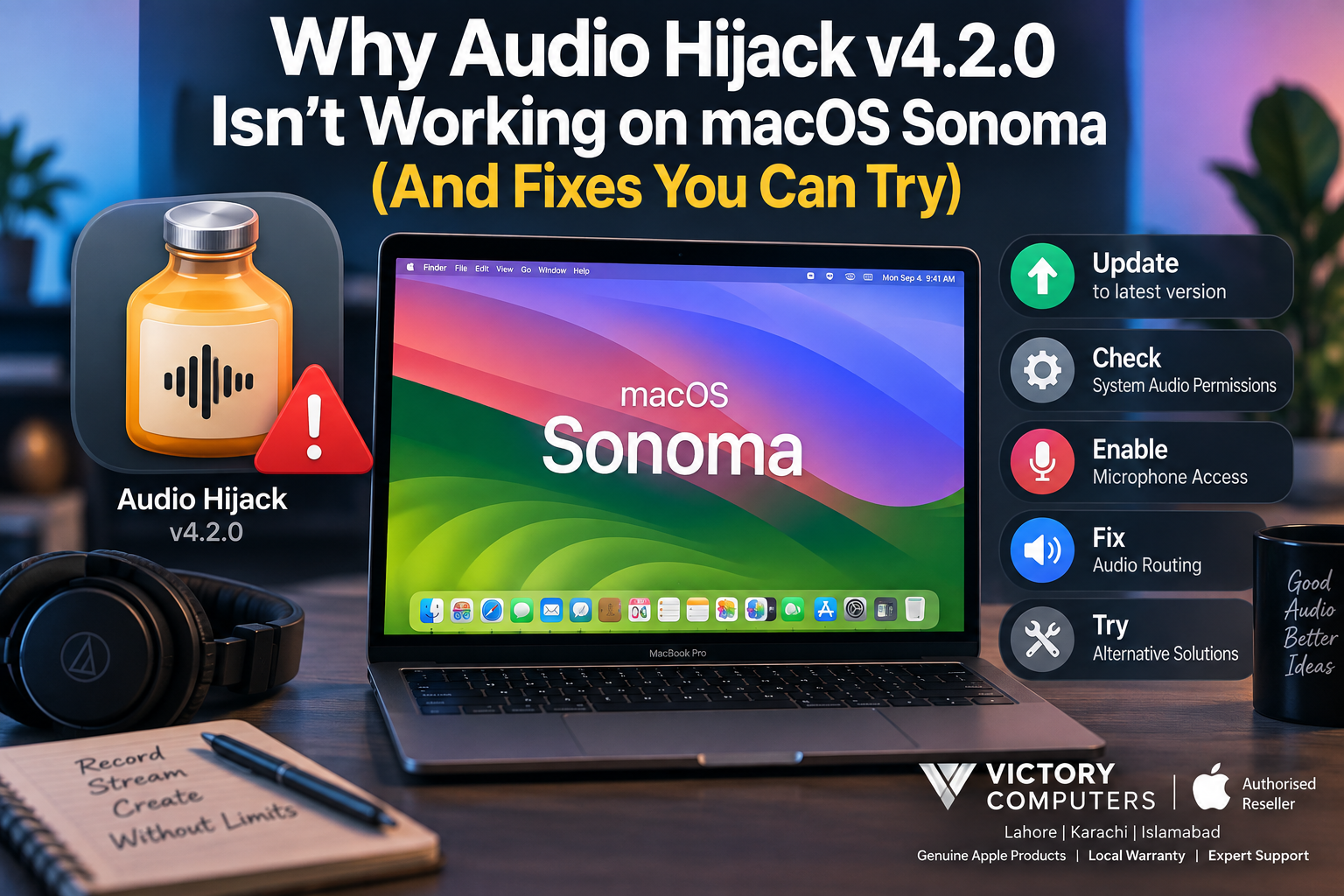
Audio Hijack v4.2.0 macOS Sonoma
If Audio Hijack v4.2.0 isn’t working on macOS Sonoma, the version of Audio Hijack you are running should be the first thing you check. Audio Hijack 4.2.0 was released before Rogue Amoeba added official support for macOS 14 Sonoma. Initial Sonoma compatibility arrived with Audio Hijack 4.2.3, followed by full Sonoma support in version 4.2.4.
That means crashes, failed audio capture, permission problems, or other unexpected behaviour on Sonoma may not be something you can permanently solve by repeatedly changing macOS settings while continuing to use version 4.2.0. Updating Audio Hijack should generally be your first troubleshooting step.
Below, we explain why the problem occurs, what you can safely try, and when upgrading is the better solution.
Why Audio Hijack v4.2.0 Can Have Problems on macOS Sonoma
Audio Hijack does more than play or edit ordinary audio files. It needs access to audio produced by other applications and, depending on your workflow, microphones and other input devices. These functions interact closely with macOS audio and privacy systems.
The important issue with version 4.2.0 is its age. Rogue Amoeba introduced initial macOS 14 support in Audio Hijack 4.2.3 and described Audio Hijack 4.2.4 as providing full support for macOS 14 Sonoma.
| Possible Issue | What You May Notice | Recommended Action |
|---|---|---|
| Old Audio Hijack version | Crashes, capture problems or unexpected behaviour | Update to a Sonoma-compatible release |
| Missing audio permission | Audio from applications is not captured | Review macOS Privacy & Security permissions |
| Microphone permission denied | External or built-in microphone cannot be captured | Enable Microphone access for Audio Hijack |
| Legacy ACE installation issue | Audio capture component does not operate correctly | Update or troubleshoot the appropriate capture component |
| Incorrect session routing | Audio appears to be captured but cannot be heard | Check source and Output Device blocks |
Fix 1: Update Audio Hijack First
If you are still running Audio Hijack 4.2.0 on Sonoma, updating is the most sensible first step. Rogue Amoeba added initial Sonoma support with version 4.2.3 in September 2023 and full macOS 14 support with Audio Hijack 4.2.4 in October 2023.
Using a supported version removes an unnecessary compatibility variable before you start changing permissions or troubleshooting individual sessions.
If your Mac is used for professional recording, streaming, podcasting or music production, test important sessions after updating before relying on them for production work.
Fix 2: Check System Audio Permissions
Recent macOS versions control which applications are permitted to capture system audio. If the required permission is disabled, Audio Hijack may open normally while failing to capture audio from another application.
- Open System Settings.
- Select Privacy & Security.
- Open the section controlling Screen & System Audio Recording.
- Check whether Audio Hijack has the required audio-recording access.
- If you change a permission, quit and reopen Audio Hijack before testing again.
The wording and exact options can differ depending on the macOS version installed, so avoid changing unrelated security settings simply because Audio Hijack is not capturing audio.
Fix 3: Check Microphone Access
System audio access and microphone access are not the same permission. If your session needs a microphone, audio interface or another input device, check Audio Hijack’s microphone permission separately.
Open System Settings → Privacy & Security → Microphone and make sure Audio Hijack is permitted to access the microphone when your workflow requires it.
If system audio works but your microphone does not, this permission is one of the first settings worth checking.
Fix 4: Understand ACE and Newer Audio Capture
Older Audio Hijack releases relied on Rogue Amoeba’s Audio Capture Engine, commonly called ACE. This matters when troubleshooting an older installation because problems with the capture component can prevent application audio from being routed correctly.
Rogue Amoeba has since moved newer releases toward its Audio Routing Kit (ARK). On supported newer configurations of macOS 14, ARK simplifies audio capture and avoids some of the installation requirements associated with legacy ACE.
This is another reason an old Audio Hijack installation should not automatically be treated as equivalent to the current version.
Fix 5: Check Your Audio Hijack Session
Not every “Audio Hijack is broken” problem is a Sonoma compatibility problem. Sometimes the application is successfully capturing audio, but the session does not send that audio to the expected destination.
For example, if you can see audio activity inside Audio Hijack but hear nothing through your Mac, inspect the session and confirm that an appropriate Output Device block is present and configured for the speakers, headphones or audio interface you intend to use.
Also check the selected application source. Testing with a simple session can help determine whether the problem affects Audio Hijack itself or only one complicated routing setup.
Fix 6: Create a Simple Test Session
Before rebuilding your complete audio workflow, create a basic test. Select one application as the source, use a straightforward output, and remove unnecessary effects and Audio Unit plug-ins temporarily.
If the simple session works, add your normal components back one at a time. This can identify an outdated plug-in, unusual routing configuration or individual application as the source of the failure.
If even the simple session fails while using Audio Hijack 4.2.0, update the application before spending more time troubleshooting that old release.
Audio Hijack on macOS Sonoma: Pros and Cons
Pros
- Flexible audio routing: Audio Hijack can capture audio from individual applications, microphones and other sources for recording and processing.
- Modular sessions: Its block-based workflow makes it possible to create different recording and routing configurations.
- Useful for professional workflows: Podcasters, streamers, musicians and other creators can build more specialized audio chains than standard macOS recording tools provide.
- Sonoma-compatible versions are available: You do not need to remain on Audio Hijack 4.2.0 simply because your Mac runs Sonoma.
Cons
- Old releases can cause compatibility problems: Audio Hijack 4.2.0 predates official Sonoma support.
- Permissions can be confusing: System audio and microphone access are controlled separately by macOS.
- Complex sessions require troubleshooting: An incorrect source, output or third-party plug-in can make a session appear broken even when Audio Hijack itself is functioning.
- Legacy installations may involve ACE: Older capture technology adds another component that may need troubleshooting.
Should You Keep Audio Hijack v4.2.0 on Sonoma?
For a Mac running macOS Sonoma, there is little reason to treat Audio Hijack 4.2.0 as the preferred version unless you have a specific legacy requirement. It predates official Sonoma compatibility, while later releases were explicitly updated for macOS 14.
If you depend on Audio Hijack for paid production work, streaming, podcast recording or music workflows, keeping both macOS and your audio software within supported configurations also makes troubleshooting much easier.
If you maintain older software because a particular Audio Unit or workflow depends on it, test an updated Audio Hijack installation with your complete setup before changing a production machine.
Audio Hijack Problems on Apple Silicon Macs
Apple Silicon is not automatically the cause of every Audio Hijack problem. The more useful troubleshooting approach is to check the exact Audio Hijack release, macOS version, required permissions, capture technology and session configuration.
This is especially important after major macOS updates. Other third-party Mac applications can also require compatibility updates when Apple changes security, permissions or system frameworks.
Using a MacBook for Audio Production in Pakistan
For buyers in Pakistan choosing a MacBook for recording, podcasting, music production or professional audio work, software compatibility should be considered alongside processor performance, memory and storage.
Before changing Macs specifically because one audio application is failing, confirm whether the real problem is simply an outdated application version. Replacing hardware will not fix software that is incompatible with the installed operating system.
Victory Computer in Lahore provides MacBook options for users comparing systems for creative and professional workflows. Buyers should verify the exact configuration, warranty and current availability before purchasing.
Frequently Asked Questions
Why isn’t Audio Hijack v4.2.0 working on macOS Sonoma?
Audio Hijack 4.2.0 predates official Sonoma compatibility. Rogue Amoeba introduced initial macOS 14 support in version 4.2.3 and full Sonoma support in 4.2.4.
What is the first fix I should try?
Update Audio Hijack to a version that officially supports your version of macOS, then test your session again before changing advanced system settings.
Why does Audio Hijack open but capture no system audio?
Check the required system-audio permission in macOS Privacy & Security. Without appropriate permission, an audio-routing application may be unable to capture audio from other apps.
Why isn’t my microphone working in Audio Hijack?
Check System Settings → Privacy & Security → Microphone and confirm that Audio Hijack has microphone access. Microphone permission is separate from system-audio capture.
Do I need ACE for Audio Hijack on Sonoma?
That depends on the Audio Hijack and Sonoma versions involved. Older Audio Hijack installations used ACE, while newer releases use Rogue Amoeba’s newer ARK audio-routing technology on supported versions of macOS 14 and later.
Should I replace my Mac if Audio Hijack stops working?
Not necessarily. Check software compatibility, permissions and your Audio Hijack session first. A software-version problem does not by itself indicate that your Mac needs to be replaced.
Final Verdict
If Audio Hijack v4.2.0 isn’t working on macOS Sonoma, start with the version mismatch rather than assuming the Mac itself is faulty. Version 4.2.0 predates official Sonoma support, while Audio Hijack 4.2.3 introduced initial compatibility and 4.2.4 provided full macOS 14 support.
Update Audio Hijack, verify system-audio and microphone permissions, and test a simple session. If basic capture works, troubleshoot your normal routing chain and third-party plug-ins individually. This approach is safer and more useful than changing unrelated macOS security settings or replacing hardware unnecessarily.

About Victory Computer Editorial Team
Victory Computer Editorial Team The Victory Computer Editorial Team publishes informative, research-based content about laptops, computers, monitors, printers, hardware, and technology trends in Pakistan. Our goal is to help readers understand product specifications, compare available options, and make informed purchasing decisions.
View all posts by Victory Computer Editorial Team