
How to Know If Your Laptop Needs New Thermal Paste: 7 Warning Signs

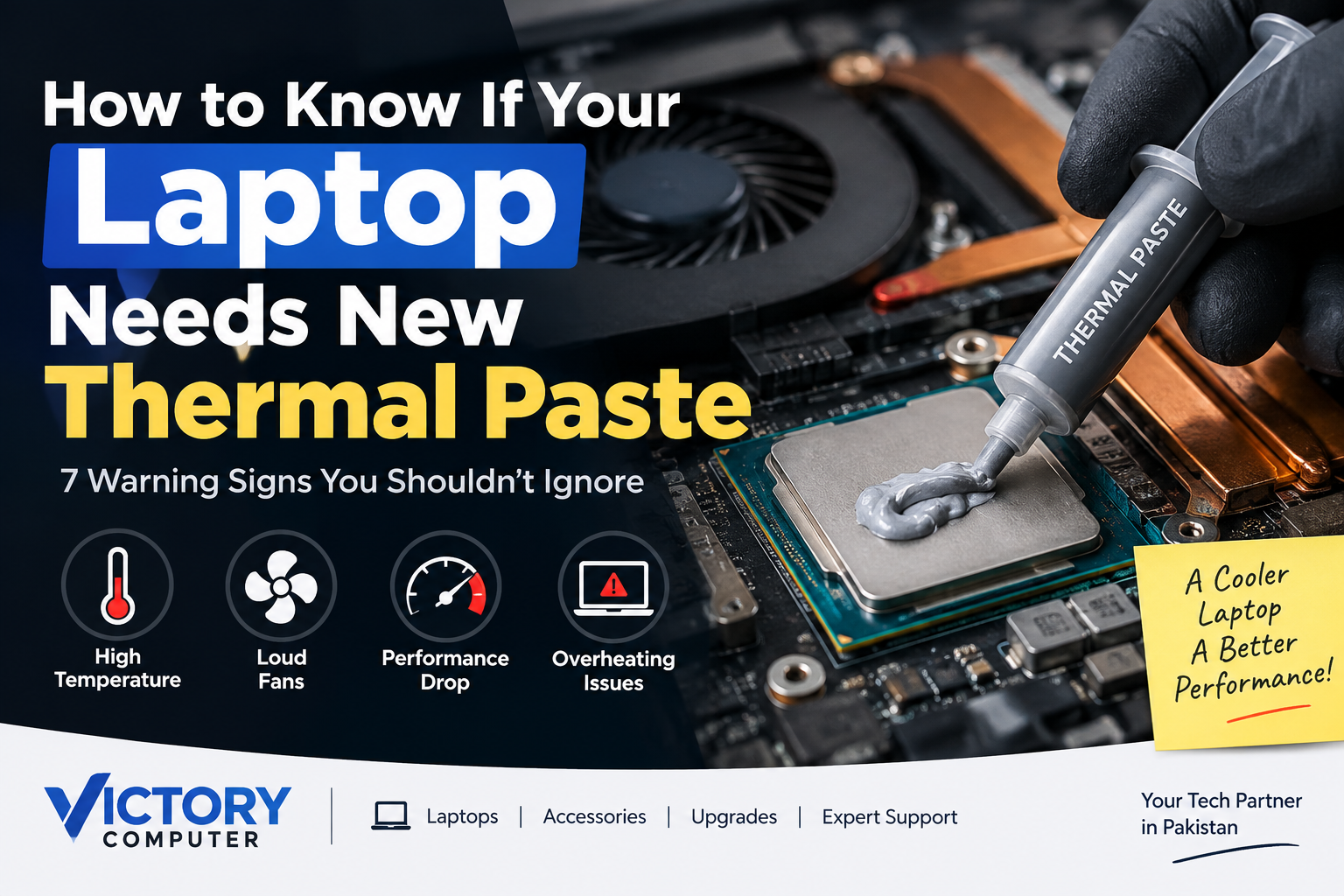
How to Know If Your Laptop Needs New Thermal Paste
Your laptop may need new thermal paste if temperatures are consistently higher than they used to be, performance drops under sustained load, fans stay unusually loud, or the system shuts down from heat even after dust and airflow problems are ruled out. One temperature spike is not enough; diagnose the cooling system before opening the laptop.
What Does Laptop Thermal Paste Actually Do?
Laptop thermal paste fills microscopic gaps between a processor and its heatsink so heat can move efficiently into the cooling assembly. The heatsink and fans then carry that heat away. If the thermal interface is poorly applied, disturbed during repair, or no longer making good contact, CPU or GPU temperatures can rise more quickly under load.
Thermal paste is only one part of the cooling system. Blocked vents, dust-packed heatsink fins, a failing fan, loose heatsink screws, high ambient temperature, background CPU usage, or an aggressive performance mode can produce similar symptoms. That is why replacing paste should be a diagnosis-based decision rather than routine guesswork.
7 Signs Your Laptop May Need New Thermal Paste
1. Temperatures Are Consistently Higher Than Your Previous Baseline
The strongest clue is a clear change over time. If the same laptop, same workload, similar room conditions, and same power mode now produce noticeably higher sustained temperatures, the cooling path deserves inspection. Rising temperatures do not automatically prove the laptop thermal paste is the problem, but they are a useful starting signal.
2. Performance Drops During Longer Workloads
If a laptop starts fast but loses performance after several minutes of gaming, rendering, compiling, or other sustained work, heat may be forcing the processor to reduce power or clock speed. Intel describes thermal throttling as a protection mechanism that reduces processor speed when temperatures reach the system's thermal limit. For more detail, see Intel's official explanation of processor throttling.
3. The Fans Run Hard During Modest Work
Fans that frequently jump to high speed during light browsing, office work, or other modest tasks can indicate that the cooling system is struggling to remove heat. Before blaming laptop thermal paste, check Task Manager for unexpected CPU load and make sure the air intakes and exhaust vents are not blocked.
4. The Laptop Shuts Down or Restarts Under Heavy Load
Unexpected shutdowns during demanding workloads can be a serious thermal warning, especially when they are accompanied by high temperatures and maximum fan speed. Modern processors include thermal protection, but repeated heat-related shutdowns should be investigated instead of treated as normal behavior.
5. Cleaning the Vents and Fans Does Not Fix the Heat Problem
Dust is often the easier problem to solve first. If temperatures remain unusually high after the cooling vents, fans, and heatsink fins are properly cleaned, the thermal interface becomes a more reasonable suspect. Victory Computer's guide on cleaning a laptop for better performance can help you separate airflow problems from a possible repaste issue.
6. The Heatsink Has Been Removed During a Previous Repair
If a technician or owner removed the heatsink, the existing interface material may need to be cleaned and reapplied according to the laptop's service procedure. Dell's service documentation, for example, specifies cleaning and reapplying thermal gel or grease when required during heatsink or board work. Different laptops may use different materials, so follow the exact service manual for your model.
7. Several Cooling Symptoms Appear Together on an Older or Heavily Used Laptop
Age by itself is not proof that laptop thermal paste needs replacement. A better reason to repaste is a combination of evidence: temperatures have risen compared with the laptop's earlier behavior, fan noise has increased, sustained performance has fallen, airflow has been checked, and the cooling assembly has no obvious mechanical fault. There is no single replacement interval that fits every laptop design and usage pattern.
| Symptom | How Strong Is the Evidence? | What to Check First |
|---|---|---|
| Higher sustained temperatures than before | Moderate to strong | Same workload, room temperature, power mode, dust |
| Thermal throttling during long workloads | Strong when paired with high temperature | Fan operation, vents, heatsink contact |
| Loud fans | Weak by itself | CPU/GPU load, dust, fan condition |
| Heat-related shutdowns | Strong thermal warning | Stop heavy use and inspect cooling |
| Heatsink previously removed | Strong service-related reason | OEM service procedure and correct interface material |
A High Temperature Reading Alone Does Not Mean You Need New Paste
Do not decide to replace laptop thermal paste from one hot reading. Intel notes that temperature behavior depends heavily on system design and workload, and brief temperature spikes can occur during normal boosting. Laptop manufacturers also set their own cooling and power behavior, so a temperature that is normal for one model may be unusual for another. See Intel's processor temperature guidance for the reason fixed universal temperature rules can be misleading.
The useful comparison is your laptop against its own earlier behavior. Look for sustained change: higher temperature under the same workload, new throttling, louder fans, or reduced performance that was not present before.
What Should You Check Before Replacing Laptop Thermal Paste?
Rule out simpler cooling problems first. Replacing paste requires opening the laptop and removing the heatsink, so it should not be the first response to every warm laptop.
- Check workload: close unnecessary programs and confirm the CPU or GPU is not being heavily used by background processes.
- Use a hard, flat surface: beds, cushions, and soft fabric can obstruct bottom air intakes.
- Inspect the vents: make sure exhaust and intake areas are open.
- Clean dust: accumulated dust can reduce airflow through fans and heatsink fins. If you need suitable tools, see the laptop cleaning kit guide for Pakistan.
- Confirm fan operation: a damaged or weak fan can mimic a paste problem.
- Compare temperatures under the same conditions: use the same game, render, benchmark, or repeatable workload rather than comparing unrelated tasks.
- Check your model's service manual: confirm the heatsink removal sequence and the thermal interface material used by that exact laptop.
If airflow is already good but the laptop still runs hotter than its previous baseline, repasting becomes more reasonable. A cooling pad may help airflow in some setups, but it will not repair poor contact between the processor and heatsink. If you want to improve external airflow, compare laptop cooling pads in Pakistan.
When Should You Replace Laptop Thermal Paste?
Replace laptop thermal paste when multiple symptoms point to poor heat transfer and easier causes have been eliminated. The decision is especially reasonable after heatsink removal, after a cooling-system repair that requires fresh interface material, or when sustained temperatures and throttling have worsened without a clear airflow problem.
Do not repaste solely because a laptop has reached a certain age. Some machines may operate normally for years, while others may need cooling service sooner because of workload, environment, prior repair quality, or the original thermal material. If you decide replacement is justified, choose a material appropriate for the laptop rather than assuming every thermal compound is interchangeable. Victory Computer's thermal paste guide for laptops in Pakistan can help you compare common options.
Pros and Cons of Replacing Laptop Thermal Paste
Pros
- Can restore better heat transfer if the existing interface is genuinely the problem.
- May reduce sustained temperatures and thermal throttling when poor heatsink contact is the cause.
- Provides a chance to inspect and clean the cooling assembly during service.
Cons
- Requires disassembly and heatsink removal on most laptops.
- Incorrect paste amount, wrong materials, damaged connectors, or uneven heatsink mounting can make cooling worse.
- Some laptops use multiple interface materials such as pads, gels, or grease in different locations.
Why We Recommend Diagnosing First
Repasting is useful when evidence points to the thermal interface, but it is not a universal fix for overheating. Checking workload, dust, fan operation, vents, and the service manual first reduces the risk of opening a laptop unnecessarily.
How to Replace Laptop Thermal Paste Safely
If the diagnosis supports repasting, follow the exact service procedure for your model. Shut the laptop down, disconnect power, follow the manufacturer's battery-disconnection instructions, remove the heatsink in the specified screw order, clean the old interface material using a method compatible with the device, apply the correct replacement material, and reinstall the heatsink evenly.
Do not assume a generic amount or pattern is correct for every laptop. Dell documentation shows that some systems use different thermal materials and application areas, which is why the model-specific service manual matters. For the complete workflow, use Victory Computer's DIY guide to replacing thermal paste in a laptop.
If your laptop is under warranty, uses an unfamiliar cooling assembly, or you are not comfortable disconnecting internal components, professional service is the safer option. You can contact Victory Computer for help before opening the device.
Final Recommendation
The best way to decide whether your laptop thermal paste needs replacement is to look for a pattern, not one number. Consistently higher temperatures than before, thermal throttling, louder fans, reduced sustained performance, or heat-related shutdowns become more meaningful after dust, blocked airflow, software load, and fan problems are ruled out. If several signs agree, inspect the cooling assembly and follow the laptop manufacturer's service procedure.
Frequently Asked Questions
How often should laptop thermal paste be replaced?
There is no universal replacement schedule for every laptop. Replace it based on symptoms, cooling performance, service history, and the manufacturer's maintenance procedure rather than automatically after a fixed number of years.
Can old thermal paste make a laptop slow?
It can contribute if poor heat transfer causes sustained high temperatures and thermal throttling. However, slow performance can also come from software load, power settings, dust, fan problems, storage, memory, or other hardware issues.
Does a hot laptop always need new thermal paste?
No. High temperature can be normal under heavy workloads, and laptop designs differ. Check the workload, fans, vents, dust, and your model's cooling behavior before deciding to repaste.
Will replacing thermal paste stop loud fan noise?
Only if poor heat transfer is causing the fans to work harder. Dust, blocked vents, a worn fan, aggressive performance settings, or high background CPU usage can also cause loud fans.
Should I replace thermal paste after removing the heatsink?
Follow the service manual for the exact laptop. Many service procedures require the old interface material to be cleaned and the correct thermal material reapplied when the heatsink or system board is removed or replaced.
Can I replace laptop thermal paste myself?
Yes, if you are comfortable with laptop disassembly and have the correct service instructions and materials. If the cooling assembly is unfamiliar or the laptop is under warranty, professional service is the lower-risk choice.

About Victory Computer Editorial Team
Victory Computer Editorial Team The Victory Computer Editorial Team publishes informative, research-based content about laptops, computers, monitors, printers, hardware, and technology trends in Pakistan. Our goal is to help readers understand product specifications, compare available options, and make informed purchasing decisions.
View all posts by Victory Computer Editorial Team