
Laptop Overheating? 7 Signs Your Thermal Paste Might Be the Reason

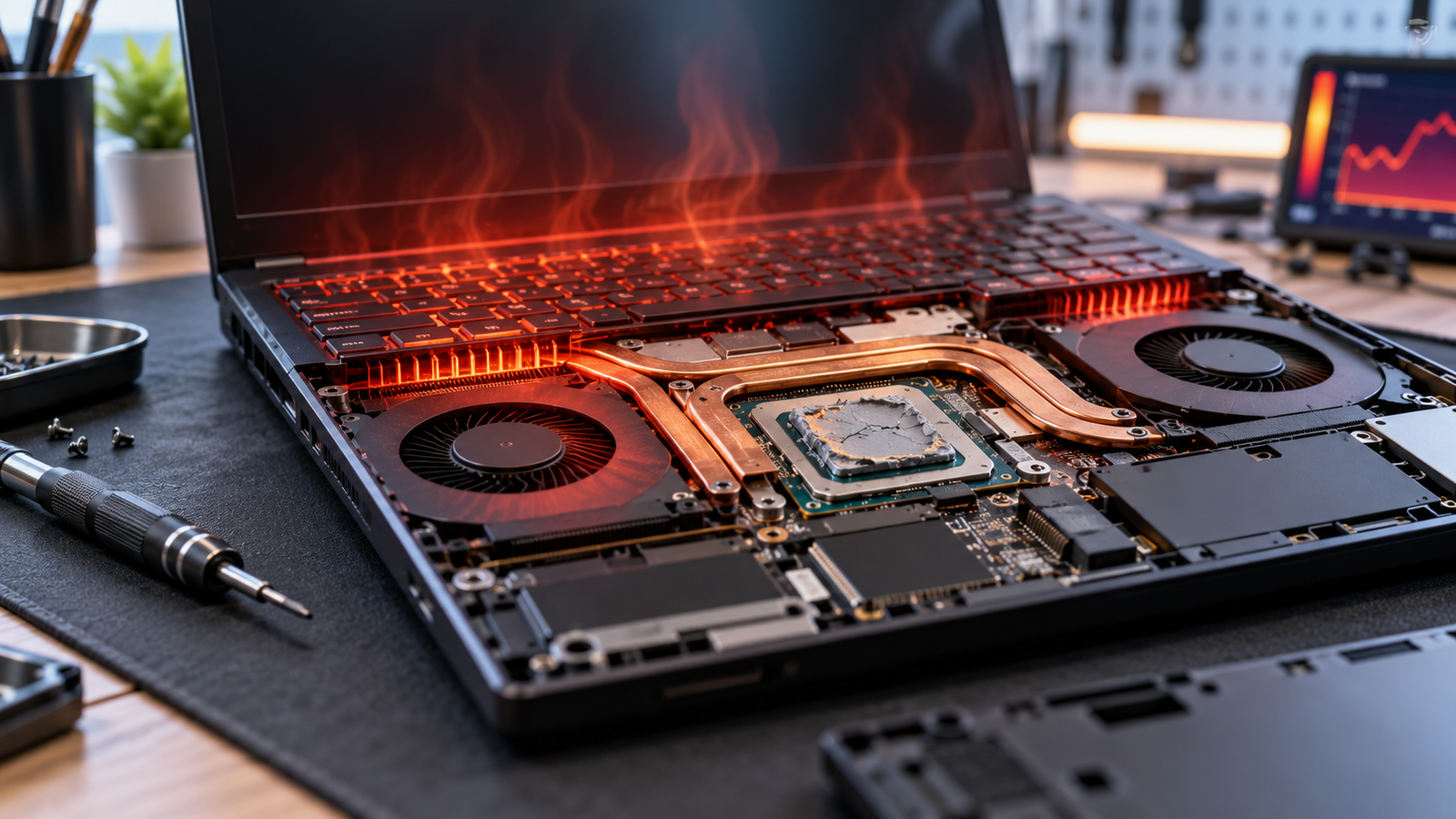
Laptop Thermal Paste: Could It Be Causing Your Overheating?
Yes, worn or poorly applied laptop thermal paste can contribute to overheating because it sits between the processor and heat sink and helps transfer heat into the cooling system. But thermal paste is only one possible cause. Dust, blocked vents, a weak fan, heavy workloads, power settings, or cooling-system faults can produce similar symptoms.
What Does Laptop Thermal Paste Actually Do?
Laptop thermal paste is a thermal interface material placed between a heat-producing chip, usually the CPU or GPU, and the metal heat sink. The surfaces may look smooth, but microscopic gaps can trap air. Thermal compound helps fill those gaps so heat can move more efficiently from the chip into the heat sink and heat pipes, where the fan can carry it away.
If contact becomes poor, the heat sink can remove less heat even when the fan is working correctly. The processor may then reach its thermal limit faster. Modern processors can reduce frequency and power when thermal limits are reached, a protection behavior commonly called thermal throttling. This can show up as lower performance during gaming, rendering, compiling, or other sustained workloads.
However, replacing laptop thermal paste should not be the first reaction to every warm laptop. Modern laptops can run hot under load by design, and normal temperature behavior varies by model, processor, cooling design, room temperature, and workload.
7 Signs Laptop Thermal Paste May Be Contributing to Overheating
No single symptom proves that the paste has failed. The strongest clue is a pattern: the cooling system is clean and functioning, but temperatures and throttling remain unusually high.
1. Temperatures Rise Very Quickly Under Moderate Load
If the CPU temperature jumps rapidly when a relatively ordinary workload begins, poor heat transfer between the chip and heat sink can be one possible cause. A clogged vent or fan problem can create the same behavior, so airflow should be checked first.
2. Performance Drops After a Few Minutes
A laptop may start a game or rendering job normally, then lose performance as heat builds. This can happen when the processor reduces power or clock speed to control temperature. For a wider troubleshooting process, see our guide to fixing laptop overheating issues.
3. Fans Run Hard but the Laptop Still Throttles
Loud fans do not automatically mean the cooling system is effective. If vents are clear, fans are spinning properly, and the laptop still reaches thermal limits quickly, degraded or poorly seated laptop thermal paste becomes a more reasonable suspect.
4. The Problem Started After the Heat Sink Was Removed
If a laptop was opened for motherboard work, fan replacement, or deep cleaning and the heat sink was removed, the existing thermal interface should be treated according to the manufacturer's service procedure. Reusing disturbed compound can leave uneven coverage or poor contact.
5. An Older Laptop Is Clean but Still Runs Much Hotter Than Before
Age alone does not prove the compound needs replacement, and there is no universal repaste interval for every laptop. Still, if an older machine has clean airflow, a healthy fan, unchanged workloads, and noticeably worse thermal behavior than it previously had, inspecting the heat-sink interface can be justified.
6. CPU or GPU Temperatures Are High While Exhaust Airflow Feels Weak
This symptom needs careful interpretation. Weak exhaust can indicate a fan or dust problem, while poor heat transfer can mean the heat pipes and exhaust are not receiving heat efficiently from the chip. Diagnose the airflow system before blaming laptop thermal paste.
7. A Previous Repaste Made Temperatures Worse
Too much compound, too little compound, uneven heat-sink pressure, incorrect assembly, or using the wrong interface material for the laptop can reduce cooling performance. If overheating began immediately after a repaste, installation should be rechecked before changing software settings.
Thermal Paste vs Other Common Laptop Overheating Causes
Thermal paste is only one part of the cooling path. In many cases, the actual cause is easier to fix.
| Possible Cause | Typical Clue | Best First Check |
|---|---|---|
| Dust or blocked vents | Reduced airflow, fan working hard | Inspect and clean vents safely |
| Soft surface blocking intake | Heat rises on a bed, sofa, or lap | Use a hard, flat surface |
| Heavy CPU/GPU load | Heat appears mainly during demanding apps | Check Task Manager and workload |
| Fan problem | Grinding, no airflow, or unusual fan behavior | Run OEM diagnostics or inspect fan operation |
| Firmware or power profile | Heat changes after an update or performance mode | Check OEM BIOS, drivers, and power mode |
| Laptop thermal paste or heat-sink contact | Clean system still throttles quickly | Inspect service history and heat-sink interface |
Start with airflow because it is safer and easier to verify. Laptop manufacturers commonly recommend keeping ventilation openings clear and operating notebooks on hard, level surfaces. If you are cleaning the device, our laptop cleaning kit guide explains the basic tools commonly used for routine maintenance.
How to Diagnose Whether Thermal Paste Is Really the Reason
The best diagnosis is based on repeatable behavior, not one temperature number. Different processors and laptop designs have different thermal limits, so avoid using a random internet temperature target as proof that your machine is defective.
- Check the workload. Open Task Manager and confirm whether the CPU or GPU is heavily loaded when the laptop gets hot.
- Check the surface and vents. Place the laptop on a hard desk and make sure intake and exhaust vents are unobstructed.
- Listen to the fan. A fan that does not spin, makes grinding noises, or changes speed abnormally should be investigated before repasting.
- Clean external airflow paths. Power the laptop off before cleaning and follow the manufacturer's maintenance guidance.
- Update OEM firmware and drivers where appropriate. Thermal and fan behavior can depend on BIOS, firmware, and vendor power profiles.
- Retest the same workload. If overheating and throttling remain after basic causes are ruled out, laptop thermal paste or heat-sink mounting becomes a more credible possibility.
Gaming laptops deserve special attention because sustained CPU and GPU loads produce more heat. See our gaming laptop overheating prevention guide for broader airflow and usage tips.
When Does Repasting a Laptop Make Sense?
Repasting makes the most sense when there is evidence that the thermal interface has been disturbed, degraded, incorrectly applied, or is no longer making proper contact. It can also be appropriate after removing the heat sink if the manufacturer's service procedure calls for cleaning and reapplying the thermal material.
Do not repaste only because the laptop feels warm. First rule out dust, blocked vents, failed fans, unusually high background load, and power-profile issues. A successful repaste cannot compensate for a broken fan or blocked exhaust.
If replacement is justified, use a material appropriate for the exact model. Some laptop cooling assemblies use more than one type of thermal interface material. Certain systems, for example, use different thermal grease, gel, or pad arrangements. Follow the service manual rather than assuming every cooling surface should receive ordinary thermal paste.
If you want to understand the procedure before deciding, read our DIY guide to replacing thermal paste in a laptop. If you are choosing a compound, our thermal paste options for laptops in Pakistan provides a separate product-focused overview.
Should You Replace Laptop Thermal Paste Yourself?
Only attempt the job if you are comfortable opening the exact laptop model, disconnecting the battery, removing the cooling assembly, cleaning the old interface material, and reinstalling the heat sink with the correct screw order and pressure. Thin heat pipes, fan cables, battery connectors, thermal pads, and motherboard components can be damaged by careless disassembly.
Before opening a laptop that is still under warranty, check the brand's warranty and service terms. For unfamiliar models, a qualified technician is usually the safer choice, especially when the cooling assembly covers both CPU and GPU or uses model-specific pads, gel, or other interface materials.
How to Reduce the Chance of Future Overheating
- Use the laptop on a hard, flat surface so the intake vents can breathe.
- Keep vents free of dust and lint.
- Do not ignore a fan that becomes unusually loud, weak, or erratic.
- Use Balanced or an appropriate vendor power mode when maximum performance is unnecessary.
- Monitor repeated throttling rather than reacting to one short temperature spike.
- After any cooling-system service, verify temperatures and performance under the same workload used before the repair.
For gaming systems, a cooling pad can improve external airflow in some setups, but it should not be used to hide an internal cooling fault. If you are comparing accessories, see our guide to laptop cooling pads under PKR 5,000.
What Should You Do If Your Laptop Is Still Overheating?
If basic cleaning, proper ventilation, normal power settings, and fan checks do not solve the problem, the next step is a model-specific cooling-system inspection. Laptop thermal paste may be part of the problem, but the heat sink, fan, thermal pads, firmware, or workload can also be responsible.
For replacement systems and current laptop options, you can browse gaming laptops in Pakistan or visit Victory Computer. For an overheating laptop that is otherwise worth keeping, diagnose the cooling system before assuming the machine needs replacement.
Frequently Asked Questions
Can bad thermal paste cause laptop overheating?
Yes. Poor or degraded laptop thermal paste can reduce heat transfer between the processor and heat sink, which may contribute to higher temperatures and thermal throttling. Dust, fan faults, and blocked airflow should also be checked.
How often should laptop thermal paste be replaced?
There is no universal replacement interval that fits every laptop. Replace or inspect it when symptoms, service history, or manufacturer guidance indicate a thermal-interface problem, and whenever required after heat-sink removal.
Does replacing thermal paste always lower laptop temperatures?
No. Repasting helps only when the thermal interface or heat-sink contact is part of the problem. It will not fix a failed fan, blocked vent, damaged heat pipe, or excessive workload.
Can I use desktop CPU thermal paste in a laptop?
Some thermal compounds can be used in both desktops and laptops, but the correct material depends on the laptop design. Check the service manual because some systems use pads, gel, or other model-specific materials.
Why is my laptop still overheating after a repaste?
Possible causes include incorrect heat-sink mounting, too much or too little compound, a fan problem, blocked airflow, damaged thermal hardware, or a workload that is pushing the system to its designed thermal limit.
Is thermal throttling dangerous?
Thermal throttling is a protective behavior that reduces processor performance to control temperature. Frequent throttling can still signal that the cooling system, workload, or laptop thermal paste should be investigated.

About Victory Computer Editorial Team
Victory Computer Editorial Team The Victory Computer Editorial Team publishes informative, research-based content about laptops, computers, monitors, printers, hardware, and technology trends in Pakistan. Our goal is to help readers understand product specifications, compare available options, and make informed purchasing decisions.
View all posts by Victory Computer Editorial Team