
Laptop Security Tips for Pakistani Users

Laptop Security Tips for Pakistani Users
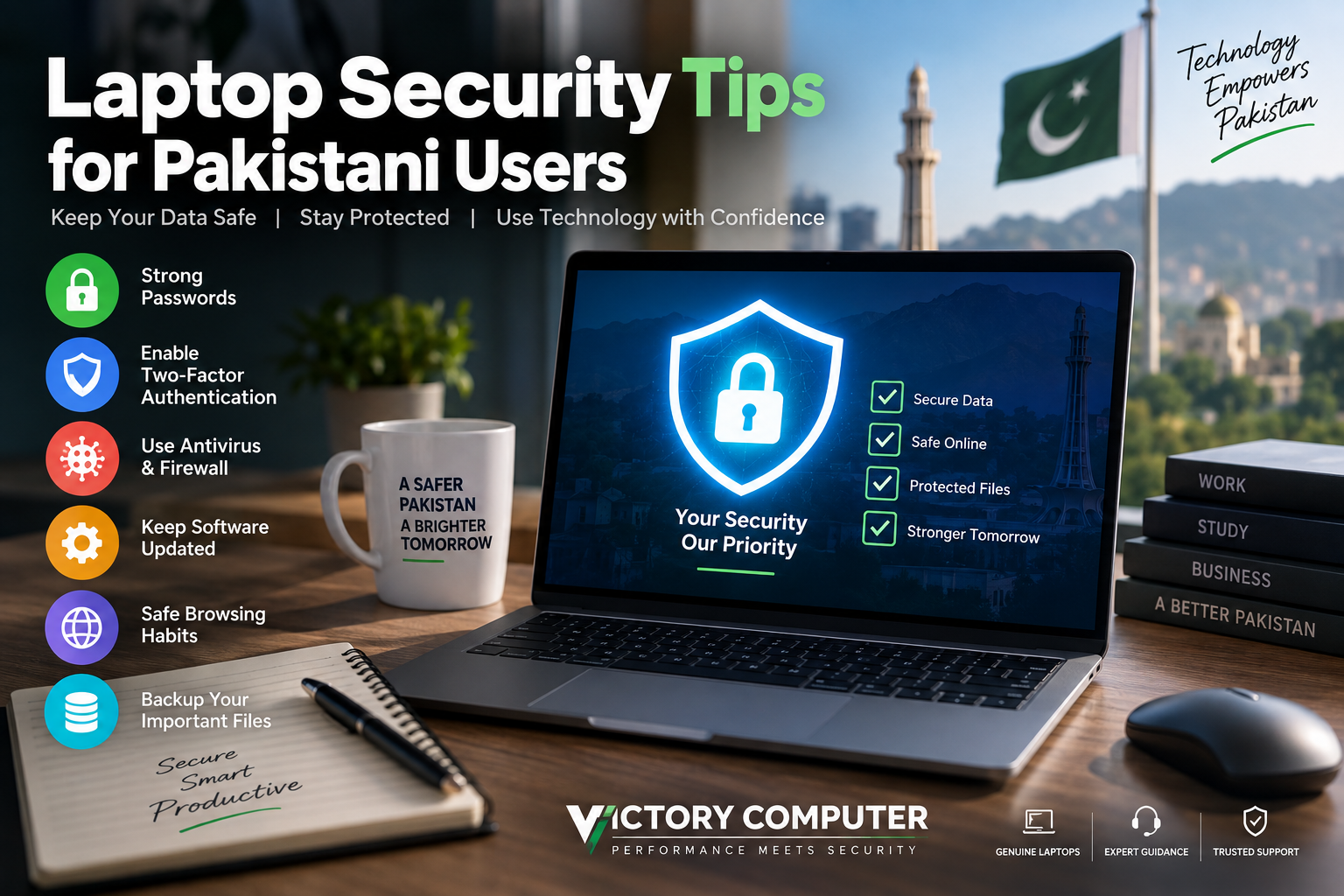
Laptop security is essential for Pakistani users who store banking details, work documents, photos, passwords, and business data on their devices. Strong protection comes from combining updated software, secure sign-ins, phishing awareness, encryption, backups, and safe network habits. No single antivirus or security app can protect a laptop from every threat.
Why Laptop Security Matters in Pakistan
Good laptop security protects more than the device itself. A compromised laptop can expose email accounts, cloud files, browser passwords, online banking sessions, social-media accounts, personal documents, and workplace information.
Pakistan’s National Cyber Emergency Response Team regularly publishes cybersecurity advisories covering threats such as phishing, malicious links, malware, account compromise, and other security risks. The safest approach for ordinary users is therefore layered security: several protections working together instead of depending on one program.
9 Essential Laptop Security Tips for Pakistani Users
1. Use a Strong and Unique Password or PIN
The foundation of laptop security is a strong login. Avoid reusing the same password for your laptop, email, social media, cloud storage, and financial accounts.
A longer unique password is generally safer than a short password based on your name, mobile number, city, birthday, or other easily guessed information. A trusted password manager can also make it easier to maintain different passwords for different accounts.
2. Enable Two-Factor or Multi-Factor Authentication
Enable two-factor authentication or MFA on your main email account, Microsoft or Apple account, cloud storage, social media, financial services, and other important accounts whenever the option is available.
A stolen password alone may then be insufficient to access the account. For setup guidance, read our guide on setting up two-factor authentication on your laptop.
3. Keep Windows, macOS, Browsers and Apps Updated
Security updates correct known vulnerabilities and should not be postponed indefinitely. Keep your operating system, browser, office software, PDF reader, communication applications, and other frequently used programs current.
Windows users can check Settings > Windows Update regularly. Microsoft also recommends keeping Windows updated so supported devices receive current fixes and security updates.
4. Keep Antivirus and Firewall Protection Active
Windows 11 includes Windows Security, including Microsoft Defender Antivirus and Windows Firewall. Check that real-time antivirus protection and the firewall remain active.
A third-party antivirus package is not automatically necessary for every user. Paid security suites may provide additional features, but the right choice depends on how you use your laptop. Read our guide on choosing the right antivirus for a PC in Pakistan for more detail.
5. Download Software Only from Trusted Sources
One of the most practical laptop security habits is avoiding cracked software, unofficial activation tools, unknown installers, suspicious browser extensions, and files received through unverified links.
Malicious or modified software can contain unwanted programs or malware. Prefer the software developer’s official website, Microsoft Store, Mac App Store, or another source whose authenticity you can verify.
6. Encrypt Important Data
Encryption can protect files when a laptop is lost or stolen. Supported Windows systems provide Device Encryption, while certain Windows editions and configurations also provide BitLocker Drive Encryption. macOS users can use FileVault.
Keep the encryption recovery key somewhere safe and separate from the laptop. Losing the recovery key can make legitimate recovery of encrypted data difficult.
7. Back Up Important Files Regularly
Backups are a major part of laptop security because protection is also about recovery. Hardware failure, accidental deletion, theft, malware, or ransomware can make local files unavailable even when other security controls are enabled.
Keep at least one additional copy of important documents, photos, accounts data, and business files on a reputable cloud service, external SSD, or external hard drive. Follow our guide on how to back up your laptop data in Pakistan for practical options.
8. Lock Your Laptop and Use Separate Accounts
Set the laptop to lock automatically after a reasonable period of inactivity. Use Windows Hello, Touch ID, a secure PIN, fingerprint authentication, or a strong password where supported.
If several people use one laptop, create separate user accounts. Family members, staff, or guests generally do not need administrator-level access just to browse the web, open documents, or use normal applications.
9. Protect the Physical Laptop
Good laptop security also includes physical protection. Do not leave an unlocked laptop unattended in an office, university, cafe, shop, car, or other public location.
Use a physical laptop lock where appropriate, avoid exposing passwords in public, keep valuable devices out of sight when travelling, and consider device-location features when their privacy trade-offs are acceptable to you.
How to Protect Yourself from Phishing and Fake Messages
Phishing attempts can arrive through email, WhatsApp, SMS, social-media messages, QR codes, or fake login pages. Attackers may pretend to represent a bank, courier company, government organization, employer, online marketplace, or another familiar service.
Pakistan’s National CERT phishing guidance highlights warning signs such as suspicious links, misleading identities, unexpected attachments, and messages designed to pressure users into acting quickly.
Before entering a password or financial information, examine the website address carefully. Do not trust a message simply because it contains a familiar logo. If an email or message claims that immediate action is required, open the organization’s official website or app yourself instead of automatically following the supplied link.
Our guide on recognizing phishing emails covers common warning signs in greater detail.
Should You Use a VPN on Public Wi-Fi?
A VPN can provide additional privacy between your laptop and the VPN provider, but a VPN is not a replacement for broader laptop security. It cannot make phishing websites, malicious downloads, outdated software, or weak passwords safe.
When connecting to Wi-Fi in cafes, airports, universities, hotels, or other public locations, use the appropriate public-network profile, disable unnecessary file sharing, avoid networks that look suspicious, and use your phone’s mobile hotspot when that is the safer practical option.
For more precautions, read our guide to securing a laptop on public Wi-Fi.
Pros and Cons of Strong Laptop Security Practices
| Pros | Cons / Trade-offs |
|---|---|
| Reduces the risk of unauthorized account access | MFA adds an extra step when signing in |
| Helps protect personal, banking, work and business information | Backups may require paid cloud storage or an external drive |
| Can limit data exposure if a laptop is stolen | Encryption requires careful recovery-key management |
| Reduces exposure to malware and unsafe downloads | Security updates may occasionally require restarts |
| Provides better recovery options after failure or ransomware | No combination of security measures eliminates every possible risk |
The main benefit is reducing preventable security problems. The trade-off is a small increase in setup time, login friction, storage requirements, and maintenance. A sensible security configuration should protect valuable accounts and files without making the laptop unnecessarily difficult to use.
Quick Laptop Security Checklist
- Use a unique password or secure PIN.
- Enable MFA on important accounts.
- Install operating-system and application updates.
- Keep antivirus and firewall protection active.
- Avoid cracked software and unknown downloads.
- Use device encryption where supported.
- Back up important files regularly.
- Lock your laptop whenever you leave it unattended.
- Verify suspicious messages and links before opening them.
Laptop Security Guidance from Victory Computer
These laptop security practices are relevant to students, freelancers, office users, business owners, and home users across Pakistan. Security should also be considered when purchasing a laptop.
Depending on the model and operating system, useful security features can include a fingerprint reader, Windows Hello support, TPM, Secure Boot, drive encryption support, and an operating system that continues receiving security updates.
Victory Computer provides laptops and practical buying guidance in Lahore and across Pakistan. For help choosing a laptop for study, business, freelancing, professional work, gaming, or everyday use, contact Victory Computer on WhatsApp at 0300 9466881.
Frequently Asked Questions
Do I need antivirus on a Windows 11 laptop?
Yes, active antivirus protection is recommended. Windows 11 already includes Microsoft Defender Antivirus through Windows Security, so many users can begin with the built-in protection and consider third-party software only when they need additional features.
Is free antivirus enough for normal laptop use?
Built-in or reputable free protection can cover basic malware protection for many home users. Paid products may add features such as multi-device management, identity tools, parental controls, or additional security services.
What is the most important laptop security step?
No single step provides complete protection. Effective laptop security combines updates, unique passwords, MFA, malware protection, safe downloads, encryption, backups, and phishing awareness.
How can I protect my data if my laptop is stolen?
Use a strong login, enable drive encryption, maintain separate backups, and configure supported device-location features if appropriate. Drive encryption is especially useful because it makes offline access to stored files more difficult.
Is a VPN necessary for every Pakistani laptop user?
No. A VPN may be useful on untrusted networks or for particular privacy requirements, but it does not replace HTTPS, updates, antivirus, MFA, secure passwords, or safe browsing.
Where can Pakistani users check official cybersecurity alerts?
Pakistan’s National Cyber Emergency Response Team publishes official cybersecurity advisories and awareness resources at pkcert.gov.pk. Official sources are preferable to unverified forwarded messages and social-media claims.

About Victory Computer Editorial Team
Victory Computer Editorial Team The Victory Computer Editorial Team publishes informative, research-based content about laptops, computers, monitors, printers, hardware, and technology trends in Pakistan. Our goal is to help readers understand product specifications, compare available options, and make informed purchasing decisions.
View all posts by Victory Computer Editorial Team