
How to Upgrade Your Laptop’s Storage (SSD vs HDD)

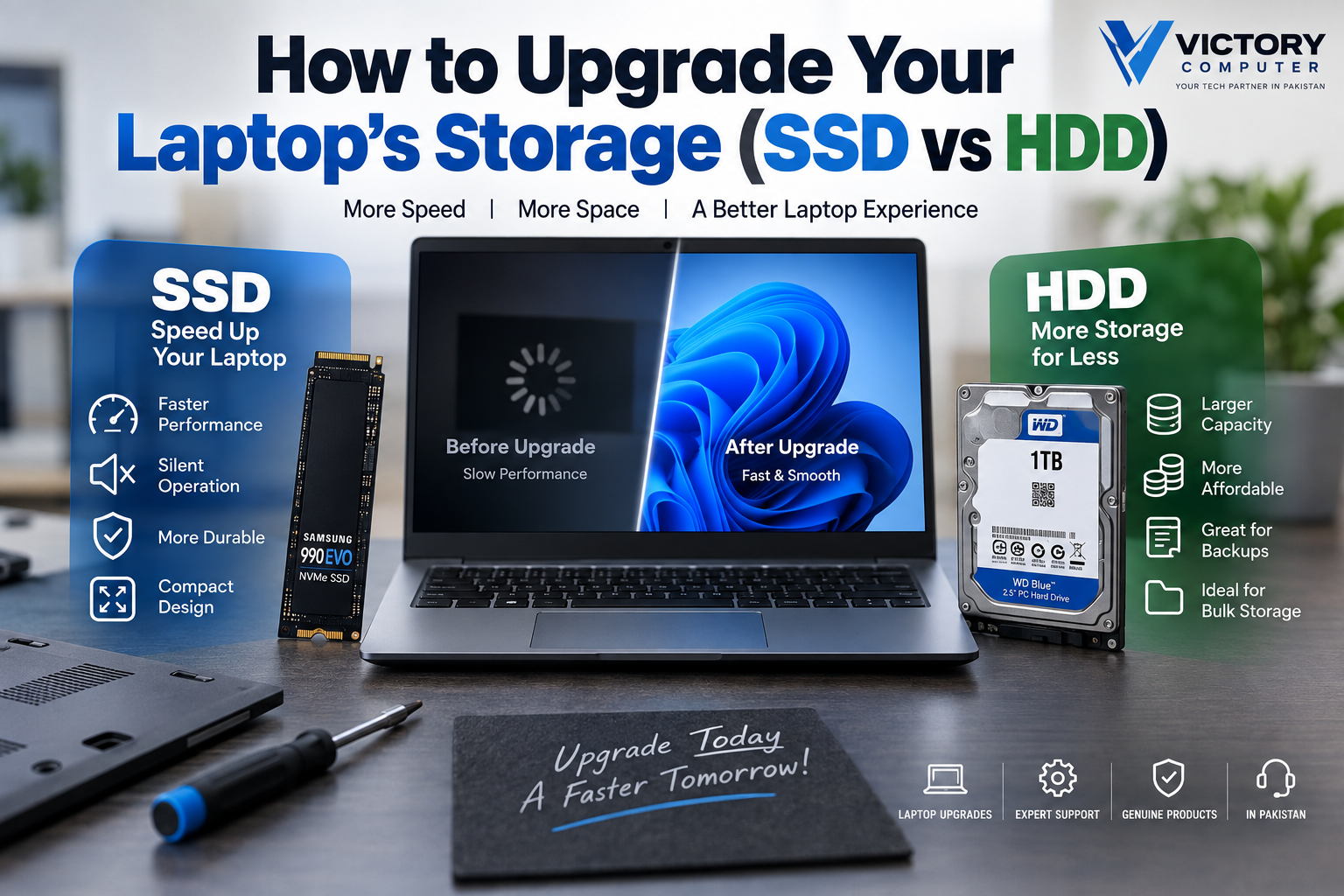
How to Upgrade Your Laptop’s Storage
If you want to upgrade laptop storage, an SSD is usually the better choice for Windows, applications, gaming, and everyday responsiveness, while an HDD remains useful when affordable high-capacity storage is the priority. Before buying either drive, check your laptop’s supported drive type, physical size, interface, available slots, and upgrade limitations.
SSD vs HDD: Which Should You Choose?
Choose an SSD if speed and responsiveness matter most. Choose an HDD when you need a large amount of storage at a lower cost and your laptop actually supports a 2.5-inch hard drive.
Microsoft notes that SSDs are smaller, faster and quieter than traditional HDDs, while hard disk drives remain more common in older PCs. For most modern laptop users, an SSD is therefore the more practical primary storage option.
If you want a deeper performance-focused comparison, read our SSD vs HDD laptops comparison.
SSD vs HDD Comparison
| Feature | SSD | HDD |
|---|---|---|
| Performance | Faster | Slower |
| Moving Parts | No | Yes |
| Noise | Silent | Mechanical noise may be noticeable |
| Shock Resistance | Generally better | More vulnerable to physical shock |
| Cost per GB | Usually higher | Usually lower |
| Best Use | Windows, applications, gaming and editing | Large files, archives and bulk storage |
| Laptop Compatibility | SATA or M.2 depending on laptop | Primarily laptops supporting 2.5-inch drives |
The biggest real-world difference is responsiveness. An SSD can reduce the time spent waiting for Windows, programs and files to load because solid-state storage does not rely on the mechanical components used by an HDD.
SSD Pros and Cons
Pros of an SSD
- Faster performance: SSDs provide much faster data access than traditional mechanical hard drives.
- Silent operation: SSDs have no spinning disks or mechanical read/write heads.
- Better resistance to movement: The lack of moving components makes SSDs better suited to portable computers.
- Compact options: M.2 SSDs provide fast storage in a very small physical format.
- Better primary-drive choice: An SSD is well suited to Windows, applications, games and frequently accessed files.
Cons of an SSD
- SSDs generally cost more per gigabyte than HDDs.
- Not every laptop supports every M.2 or NVMe SSD.
- A faster PCIe-generation SSD may operate below its maximum capability when installed in an older compatible interface.
HDD Pros and Cons
Pros of an HDD
- Affordable capacity: HDDs can provide substantial storage at a comparatively low cost per gigabyte.
- Good for archives: Large collections of photos, videos, backups and other files can be stored economically.
- Useful in older laptops: Some older notebooks provide a standard 2.5-inch SATA drive bay.
Cons of an HDD
- Mechanical drives are considerably slower than modern SSD storage.
- Moving components make HDDs more vulnerable to physical shocks.
- Mechanical operation can produce noise and vibration.
- Many thin modern laptops no longer provide a 2.5-inch HDD bay.
How Do You Know Which SSD Your Laptop Supports?
Check the exact laptop model and manufacturer documentation before purchasing a storage drive. A laptop may use a 2.5-inch SATA drive, an M.2 SATA SSD, an M.2 NVMe SSD, or storage that is not intended to be user-replaceable.
Do not assume that every M.2 SSD will work simply because the connector appears similar. Check the supported interface, physical M.2 length, PCIe generation, available slot count and any manufacturer-specific restrictions.
Crucial also recommends checking the computer or motherboard documentation before installing an NVMe SSD. A newer-generation NVMe SSD can sometimes operate in an older compatible PCIe generation, but performance will be limited by the older interface.
How to Upgrade Your Laptop’s Storage
A laptop storage upgrade should start with compatibility and data protection rather than immediately opening the laptop.
- Identify your exact laptop model. Check the model or product number rather than relying only on the brand or series.
- Check storage compatibility. Determine whether the laptop supports 2.5-inch SATA, M.2 SATA, NVMe PCIe storage, or another configuration.
- Choose the required capacity. Consider your current storage usage and how much additional space you are likely to need.
- Back up important files. Keep a separate copy of valuable data before removing or replacing the existing drive.
- Decide between cloning and a clean installation. Cloning can transfer an existing installation to a new drive, while a clean installation starts with a fresh operating-system setup.
- Install the compatible drive. Follow the laptop manufacturer’s service instructions and appropriate anti-static precautions.
- Verify the new storage. After installation, confirm that the drive is detected correctly and that Windows boots and recognizes the expected capacity.
If you are uncomfortable opening the laptop or the manufacturer specifies service restrictions, professional installation is the safer approach.
Can You Use an SSD and HDD Together?
Yes, but only if the laptop provides connections and physical space for both drives. Some laptops can use an M.2 SSD alongside a 2.5-inch SATA HDD, allowing the SSD to handle Windows and applications while the HDD stores larger files.
Many thin laptops, however, provide only one internal storage slot. Some systems may offer multiple M.2 slots instead of an HDD bay. Always verify the exact laptop configuration before planning a dual-drive setup.
What Storage Capacity Should You Choose?
The right capacity depends on how the laptop is used rather than simply buying the largest drive available.
- 256GB: Suitable for light computing and cloud-focused use, but space can become limited quickly.
- 512GB: A practical starting point for everyday work, study and general applications.
- 1TB: Better for larger software libraries, games, professional work and users keeping many files locally.
- 2TB or more: Useful for large game libraries, video projects, media collections and other storage-heavy workloads.
Windows also needs sufficient free storage for updates, temporary files and normal system operations, so avoid choosing a capacity that will remain almost full.
SSD or HDD: Which Storage Upgrade Do We Recommend?
For most laptop users, we recommend an SSD as the primary storage upgrade. The improvement in responsiveness, silent operation and suitability for portable computers makes an SSD the stronger choice for Windows, office applications, gaming and creative workloads.
An HDD still makes sense when maximum affordable capacity matters more than performance. If your laptop supports two drives, combining an SSD for the operating system with an HDD for bulk files can also be practical.
For more laptop performance improvements, you can also read our guide to upgrading laptop RAM.
Upgrading Laptop Storage in Pakistan
For buyers in Pakistan, compatibility should come before price. Two SSDs with the same advertised capacity may use different interfaces or form factors, so choosing solely on capacity can result in purchasing an incompatible drive.
Victory Computer can help you identify suitable computer hardware and laptop upgrade options. Visit Victory Computer or contact Victory Computer for current product and compatibility information.
WhatsApp: 0300 9466881
Frequently Asked Questions
Is an SSD better than an HDD for a laptop?
For most users, yes. An SSD provides faster storage performance, silent operation and no mechanical moving parts, making it a better primary drive for modern laptops.
Can I replace my laptop HDD with an SSD?
Many laptops with a 2.5-inch SATA HDD can use a compatible 2.5-inch SATA SSD, but you should verify the exact laptop model before purchasing a replacement.
Can I install an NVMe SSD in any laptop?
No. The laptop needs a compatible M.2 slot and support for the required interface and drive format. Check the manufacturer’s documentation for your exact model.
Can I use an SSD and HDD together?
Yes, if the laptop has the required slots and physical space. A common arrangement is an SSD for Windows and applications with an HDD for larger files.
Will upgrading from HDD to SSD make my laptop faster?
An SSD can significantly improve storage-dependent tasks such as booting Windows, launching applications and opening files. It does not, however, upgrade the laptop’s CPU or GPU performance.
Should I clone my old drive or reinstall Windows?
Cloning is useful when you want to retain the existing Windows installation, applications and files. A clean installation can be preferable when you want a fresh system setup. Back up important data before either process.

About Victory Computer Editorial Team
Victory Computer Editorial Team The Victory Computer Editorial Team publishes informative, research-based content about laptops, computers, monitors, printers, hardware, and technology trends in Pakistan. Our goal is to help readers understand product specifications, compare available options, and make informed purchasing decisions.
View all posts by Victory Computer Editorial Team
2 thoughts on “How to Upgrade Your Laptop’s Storage (SSD vs HDD)”