
How to Increase Laptop RAM in Pakistan | Expert Guide

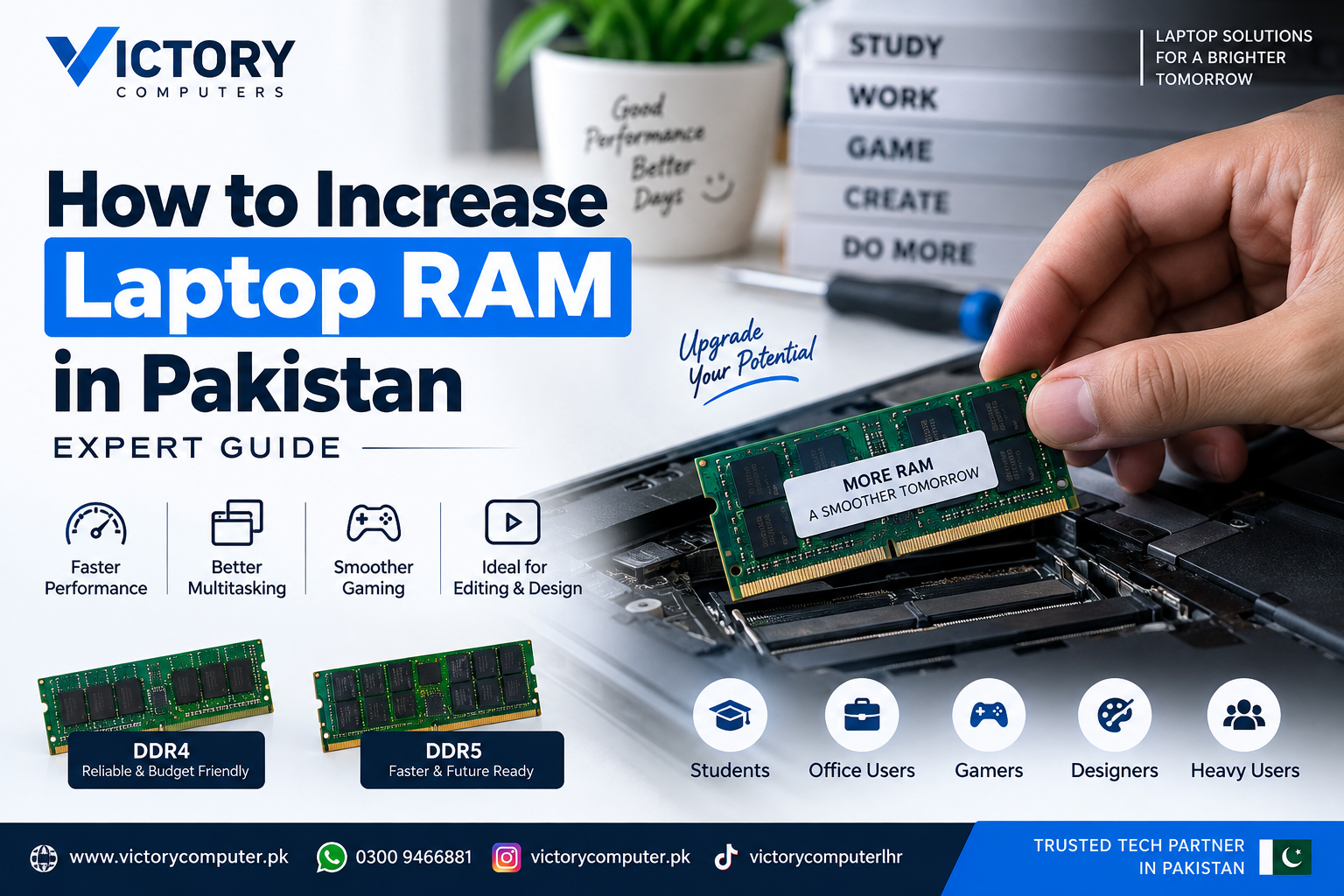
How to Increase Laptop RAM
If your laptop becomes slow while running multiple browser tabs, office applications, games, editing software, or other demanding programs, insufficient memory may be part of the problem. Learning how to increase laptop RAM can be one of the most practical ways to improve multitasking performance without replacing the entire laptop.
Before buying memory, however, you need to check your laptop carefully. Some modern laptops have upgradeable SO-DIMM slots, while others use memory soldered directly to the motherboard. RAM generation, capacity limits and available slots also vary by model. This guide explains how to make the right decision before spending money on a laptop RAM upgrade in Pakistan.
What Does Increasing Laptop RAM Actually Do?
RAM is the short-term working memory used by Windows and your applications. When you open programs, browser tabs, documents or games, active data is kept in RAM so the processor can access it quickly.
If available memory becomes limited, the operating system has to rely more heavily on storage and memory-management techniques. This can contribute to slower application switching and reduced responsiveness under heavy multitasking.
Adding RAM can therefore make a noticeable difference when insufficient memory is the actual bottleneck. If your whole computer feels slow, you should also consider other causes. Our guide on how to increase laptop speed covers several other areas worth checking.
Check These Things Before You Increase Laptop RAM
Do not buy a RAM module based only on its capacity. Two 16GB modules can look similar while being completely incompatible with the same laptop.
Before purchasing memory, verify the following:
- Upgradeable or soldered: Determine whether the laptop has replaceable SO-DIMM memory, soldered memory, or a combination of both.
- RAM generation: Check whether the system uses DDR4, DDR5 or another memory standard.
- Maximum supported capacity: Confirm the laptop’s supported memory configuration from reliable model-specific documentation.
- Available slots: Find out how many memory slots are installed and whether any are free.
- Existing configuration: A laptop advertised with 16GB could use one 16GB module, two 8GB modules, or soldered memory depending on the model.
- Memory specifications: Check the supported module type and speed before purchasing.
The exact laptop model number matters. Do not assume that every laptop in the same product family has the same memory layout.
How Much Laptop RAM Do You Need in 2026?
| User Type | Recommended RAM | Typical Workload |
|---|---|---|
| Basic users | 8GB | Browsing, documents, email and basic study |
| Students and office users | 16GB | Multitasking, Office applications, meetings and many browser tabs |
| Gamers and creators | 16GB–32GB | Gaming, Photoshop, development and content creation |
| Heavy professional users | 32GB–64GB+ | Large creative projects, virtual machines, engineering and demanding professional workloads |
For many mainstream buyers, 16GB is a practical target in 2026. However, there is no single capacity that is correct for every laptop or workload. A light-use machine may operate adequately with 8GB, while demanding creative and professional applications can benefit from 32GB or more.
DDR4 vs DDR5 Laptop RAM: Which Should You Buy?
You generally do not choose between DDR4 and DDR5 after purchasing a laptop. You need the memory generation supported by that particular system.
| Feature | DDR4 | DDR5 |
|---|---|---|
| Common in | Many older and budget/mainstream laptops | Many newer laptop platforms |
| Performance potential | Suitable for many everyday workloads | Higher bandwidth potential |
| Compatibility | DDR4 systems | DDR5 systems |
| Should you upgrade from one to the other? | Not as a simple RAM-module swap; use the memory technology supported by your laptop. | |
DDR4 and DDR5 SO-DIMMs are not interchangeable. If your laptop is designed for DDR4 memory, buying a DDR5 SO-DIMM is not a normal upgrade path. Check the exact model before ordering.
How to Increase Laptop RAM Step by Step
1. Find Your Exact Laptop Model
Check the model label on the laptop, its original packaging, system information or the manufacturer’s support information. A precise model or product number is more useful than simply knowing that you own an HP, Dell, Lenovo, ASUS or Acer laptop.
2. Check the Current Memory Configuration
On Windows, open Task Manager → Performance → Memory for useful information about installed memory. Depending on the hardware and Windows configuration, you may also see information about memory speed and slots.
3. Verify Upgradeability
Confirm whether your system has accessible SO-DIMM slots. Some thin-and-light laptops use entirely soldered memory, which means the RAM cannot be upgraded through conventional replaceable modules.
4. Choose Compatible Memory
Match the memory generation and supported configuration. If you are uncertain, check the laptop manufacturer’s documentation or have the exact model inspected by a qualified technician before buying RAM.
5. Shut Down and Disconnect the Laptop
Completely shut down the computer and disconnect its charger and external accessories before opening it. Follow the manufacturer’s service procedure for the battery and bottom cover. Use appropriate electrostatic-discharge precautions when handling internal components.
6. Install the SO-DIMM Correctly
If the laptop has an upgradeable slot, align the module with the slot notch, insert it at the appropriate angle and secure it according to the laptop’s service instructions. Never force a memory module into a slot.
7. Verify the New RAM
After reassembling and starting the laptop, check Task Manager or system information to confirm that the expected amount of memory is detected. If the system fails to boot or reports an incorrect capacity, power it down and have the installation and compatibility checked.
Pros and Cons of Increasing Laptop RAM
Pros
- Better multitasking: More memory allows you to keep more applications and browser tabs active without running into memory pressure as quickly.
- Useful for demanding software: Editing, development, gaming and professional applications can benefit when existing RAM is insufficient.
- Can extend a laptop’s useful life: An appropriate RAM upgrade may postpone the need to replace an otherwise capable machine.
- Relatively simple on upgradeable models: Laptops with accessible SO-DIMM slots can often be upgraded without replacing other major components.
- Potential dual-channel benefits: Compatible memory configurations can improve memory bandwidth on supported systems.
Cons
- Not every laptop is upgradeable: Soldered-memory designs may offer no conventional RAM upgrade path.
- Compatibility can be confusing: DDR generation, module type, supported capacity and configuration must match the laptop.
- More RAM does not fix every slow laptop: A weak processor, slow or failing storage, thermal problems, malware or software issues can cause poor performance even when sufficient RAM is installed.
- Opening the laptop carries risk: Incorrect disassembly or installation can damage components and may affect warranty or service coverage depending on the manufacturer and applicable terms.
Why We Recommend a RAM Upgrade
A RAM upgrade makes sense when monitoring shows that your workload regularly approaches or exhausts the laptop’s available memory and the machine supports additional RAM. It is especially useful for users moving from limited memory configurations to a capacity better suited to modern multitasking.
If your laptop already has sufficient memory and remains slow, diagnose the actual bottleneck before spending money on more RAM.
When Increasing RAM Will Not Fix Your Laptop
More RAM should not be treated as a universal performance fix. For example, a laptop may still perform poorly because of an old mechanical hard drive, insufficient SSD space, background software, an underpowered processor or thermal throttling.
High temperatures deserve separate attention. If the laptop becomes unusually hot, slows down during sustained work or its fans constantly run at high speed, read our guide on how to fix laptop overheating before assuming RAM is the cause.
Battery problems are also separate from RAM capacity. For portable-use issues, see our guide to increase laptop battery life.
Buying Laptop RAM in Pakistan: What Should You Check?
If you are purchasing laptop RAM in Pakistan, compatibility should come before price. Do not choose a module simply because it says 8GB, 16GB or 32GB.
Before paying, provide the seller with your laptop’s exact model number and current memory configuration. Confirm the RAM type, capacity and compatibility, and ask about applicable warranty or replacement terms.
RAM prices in Pakistan change according to capacity, generation, brand, availability and market conditions, so a fixed price range can quickly become outdated. Check the current price before purchasing rather than relying on an old estimate.
Should You Install Laptop RAM Yourself?
If your laptop has an accessible SO-DIMM compartment and you are comfortable working with computer hardware, installation may be straightforward. However, modern laptops vary considerably in internal design.
If the battery must be disconnected internally, the bottom cover is difficult to remove, memory compatibility is uncertain, or the laptop is under warranty, professional installation is the safer option.
Get Laptop RAM Upgrade Help in Pakistan
Before purchasing memory, you can contact Victory Computer with your exact laptop model and desired RAM capacity to check suitable upgrade options. Compatibility should always be confirmed for the specific model rather than assumed from the laptop brand or series.
WhatsApp: 0300 9466881
Frequently Asked Questions
Can I increase RAM on any laptop?
No. Some laptops have replaceable SO-DIMM slots, while others have partially or fully soldered memory. Check your exact laptop model before purchasing an upgrade.
Is 8GB laptop RAM enough in 2026?
8GB can still handle basic browsing, study and office tasks, but 16GB provides more headroom for heavier multitasking. Gaming, editing and professional workloads may justify 16GB–32GB or more.
Can I upgrade my laptop from 8GB to 16GB RAM?
Yes, if the laptop supports at least 16GB and has an appropriate upgradeable memory configuration. Check whether the existing 8GB is removable, soldered, or installed alongside a free SO-DIMM slot.
Can I put DDR5 RAM in a DDR4 laptop?
No. DDR4 and DDR5 laptop memory are different standards and are not interchangeable SO-DIMM upgrades. Buy the memory generation supported by your laptop.
Will increasing RAM make my laptop faster?
It can significantly improve responsiveness if insufficient RAM is causing memory pressure. It will provide little benefit when another component or software issue is the real performance bottleneck.
How much does a laptop RAM upgrade cost in Pakistan?
The cost varies by capacity, DDR generation, brand and current market availability. Check current pricing for a compatible module rather than relying on an old fixed price range.

About Victory Computer Editorial Team
Victory Computer Editorial Team The Victory Computer Editorial Team publishes informative, research-based content about laptops, computers, monitors, printers, hardware, and technology trends in Pakistan. Our goal is to help readers understand product specifications, compare available options, and make informed purchasing decisions.
View all posts by Victory Computer Editorial Team
2 thoughts on “How to Increase Laptop RAM in Pakistan | Expert Guide”