
How to Speed Up a Slow Laptop in Pakistan | Expert review

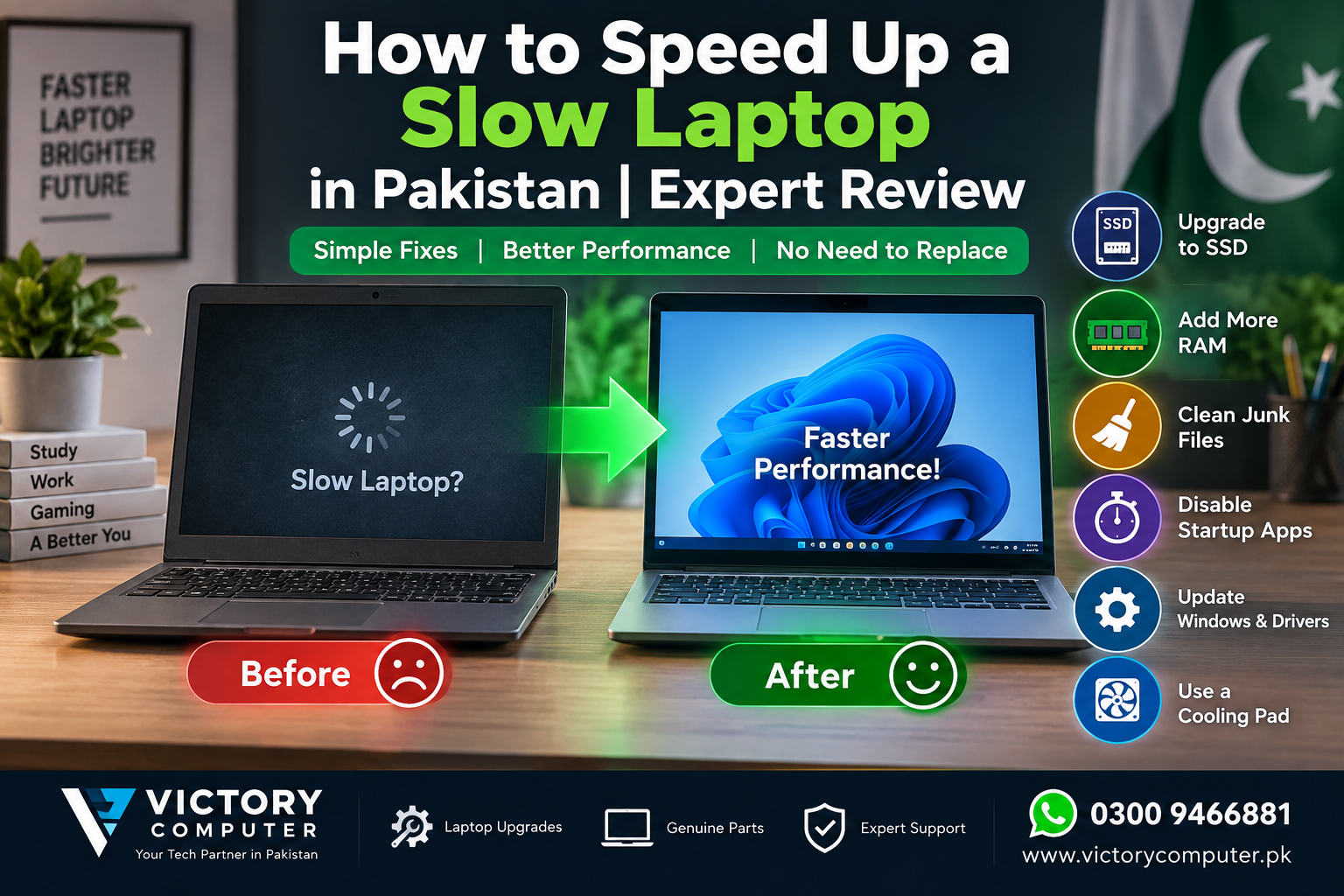
How to Speed Up a Slow Laptop
If your laptop is running slow, start by identifying what is actually limiting it. Disable unnecessary startup apps, free storage, update Windows and drivers, scan for malware, and check Task Manager for heavy CPU, memory, or disk usage. If the slow laptop still feels unresponsive, an SSD or RAM upgrade may deliver a bigger improvement than software cleanup alone.
Why Is Your Slow Laptop Running Slowly?
A slow laptop usually has one or more bottlenecks: too many background programs, insufficient free storage, limited RAM, an old mechanical hard drive, malware, outdated software, overheating, or hardware that is no longer suitable for the workload.
Open Task Manager with Ctrl + Shift + Esc and check the Processes and Performance tabs. If memory stays close to full during normal use, RAM may be the problem. If the disk is constantly busy and the laptop still uses an HDD, storage may be the main bottleneck. If CPU usage is high, identify the app or background process responsible before buying hardware.
9 Practical Ways to Speed Up a Slow Laptop
| Method | Best For | Cost | Main Benefit |
|---|---|---|---|
| Disable unnecessary startup apps | Slow boot and login | Free | Reduces background load |
| Free storage space | Nearly full system drive | Free | Improves storage headroom |
| Update Windows and drivers | Stability and software issues | Free | Applies fixes and compatibility updates |
| Scan for malware | Unexpected slowdowns | Free with Windows Security | Removes malicious background activity |
| Close unused apps and browser tabs | Low-memory systems | Free | Reduces RAM and CPU use |
| Clean vents and cooling system | Hot or noisy laptops | Varies | Helps maintain normal thermal performance |
| Upgrade to an SSD | Laptops still using an HDD | Varies | Faster storage responsiveness |
| Add compatible RAM | Heavy multitasking | Varies | Reduces memory pressure |
| Replace the laptop | Very old or non-upgradeable hardware | Highest | Improves the entire platform |
1. Disable Unnecessary Startup Apps
On a slow laptop, too many applications launching with Windows can increase boot time and keep using resources after login. Microsoft recommends managing startup applications through Settings > Apps > Startup or Task Manager.
Disable applications you do not need immediately after signing in, but keep security software, hardware-control utilities, and essential business tools enabled.
Microsoft’s official guide: Configure startup applications in Windows.
2. Free Up Storage Space
A slow laptop with very little free storage can struggle with normal Windows maintenance and updates. Open Settings > System > Storage to review what is consuming space.
Windows Storage Sense can remove temporary files automatically, while Cleanup recommendations can help identify unused files and applications. Before deleting large folders, back up important documents.
Avoid random registry cleaners or one-click optimizer applications that promise dramatic improvements without clearly explaining what they modify.
3. Update Windows and Essential Drivers
Windows updates can include bug fixes, security improvements, and driver updates. Install normal updates first, restart the laptop, and then check whether the slowdown remains.
For graphics, chipset, BIOS, or firmware updates, prefer your laptop manufacturer’s official support page when model-specific software is available.
4. Scan for Malware
Unexpected CPU, memory, network, or disk activity can be caused by unwanted software. Windows Security can run quick, full, or offline scans.
If your slow laptop suddenly became noticeably worse after installing unknown software or opening suspicious files, a security scan should be part of the diagnosis.
5. Close Heavy Apps and Browser Tabs
On a slow laptop, modern browsers, video calls, editing software, cloud-sync applications, and multiple background programs can consume large amounts of memory.
Closing unused tabs and applications is especially useful on laptops with limited RAM. If performance improves immediately after closing applications, upgrading memory may be worth considering.
6. Check Heat, Dust and Airflow
Overheating can reduce sustained performance. Modern processors can reduce their operating frequency when thermal limits are reached, protecting the processor but lowering performance.
Keep air vents clear, use the laptop on a hard surface, and clean dust carefully. If the fans are unusually loud, the laptop shuts down, or performance falls sharply during demanding tasks, professional inspection may be safer than opening a sealed laptop yourself.
For maintenance steps, see our guide on how to clean your laptop for better performance.
7. Upgrade from an HDD to an SSD
If a slow laptop still uses a mechanical hard drive, moving Windows and applications to a compatible SSD can significantly improve responsiveness, boot behavior, application loading, and file access.
The exact upgrade type depends on the laptop. Some systems use 2.5-inch SATA drives, while newer models may support M.2 SATA or NVMe storage.
Do not buy an SSD until you confirm the laptop’s supported drive type, physical size, interface, and available slot. Back up important data before cloning or reinstalling Windows.
8. Add More RAM When Memory Is the Bottleneck
More RAM can help a slow laptop when it regularly runs out of memory during multitasking, browser-heavy work, office applications, software development, editing, or gaming.
RAM will not fix a weak processor or failing storage drive, so check memory usage before spending money.
Before purchasing memory, verify the laptop model, RAM type, speed, number of slots, soldered memory, and maximum supported capacity. Our laptop RAM upgrade guide for Pakistan explains the compatibility checks in more detail.
9. Reduce the Workload or Replace Hardware That Is Too Old
Software cleanup cannot turn a slow laptop with an entry-level or very old processor into a modern high-performance machine.
If the laptop cannot support enough RAM, has non-upgradeable storage, suffers repeated hardware faults, or struggles with the applications you actually need, replacement may be more sensible than repeated repairs.
If you are comparing replacement options, browse budget laptops in Pakistan for general-purpose systems or gaming laptops in Pakistan for heavier graphics workloads.
SSD or RAM: Which Upgrade Should You Do First?
Choose an SSD first if the laptop still runs Windows from an HDD and disk activity is the main bottleneck. Choose a RAM upgrade first if the laptop already has an SSD but memory usage regularly reaches very high levels during normal work.
| Situation | Better First Upgrade | Why |
|---|---|---|
| Windows installed on an HDD | SSD | Storage latency affects booting, apps and files |
| SSD already installed, memory constantly full | RAM | More memory helps multitasking and reduces paging |
| Laptop becomes slow mainly when hot | Cooling diagnosis | Thermal throttling may be reducing performance |
| CPU is too weak for required software | Replacement | RAM or SSD cannot replace CPU capability |
Pros and Cons of Upgrading a Slow Laptop Instead of Replacing It
Pros
- Lower total cost: a targeted RAM, SSD, or maintenance upgrade can cost less than purchasing a complete laptop.
- Less disruption: you can keep the same keyboard, display, software setup, and familiar workflow.
- Good value for suitable older systems: laptops with adequate processors but weak storage or limited RAM can remain useful.
- More sustainable: extending the useful life of working hardware reduces unnecessary replacement.
Cons
- Upgrade limits: many thin laptops have soldered RAM or restricted storage options.
- Old processors remain old: SSD and RAM upgrades cannot fix weak CPU or GPU performance.
- Repair costs can accumulate: battery, keyboard, display, fan, hinge, and motherboard problems can make an old machine expensive to maintain.
- Software support matters: hardware that cannot run a supported operating system may become a poor long-term choice.
Why We Recommend It
Upgrading a slow laptop makes sense when the machine is structurally sound and the bottleneck is clear: HDD storage, insufficient RAM, excessive startup software, or poor cooling.
Replacement is usually the better decision when several major components are weak or failing, or when the laptop cannot support the software and security requirements you need.
Important Windows Support Note for Older Laptops
Microsoft ended free Windows 10 software updates, technical assistance, and security fixes on October 14, 2025. If your older laptop still runs Windows 10, performance is not the only consideration. Check whether the device can move to a supported operating system before investing heavily in upgrades.
Microsoft also provides an official Windows performance troubleshooting guide covering updates, storage, startup applications, background activity, and other common causes of slow performance.
When Should You Replace a Slow Laptop?
Consider replacing a slow laptop if performance remains poor after basic maintenance and the system has several major limitations, such as a weak processor, low non-upgradeable memory, failing storage, damaged cooling, poor battery health, or lack of support for the software you require.
For office work, browsing, study, and everyday use, upgrading a slow laptop can still be cost-effective if the core hardware is healthy.
For modern gaming, professional video editing, 3D work, engineering applications, or large development workloads, an older platform may reach its practical limits sooner.
How Victory Computer Can Help
Before spending money, confirm exactly what your laptop supports. Victory Computer can help you compare upgrade paths and replacement options based on your laptop model and workload.
Visit Victory Computer or use the contact page to discuss compatible options.
For Pakistani buyers, component pricing can change with brand, generation, capacity, exchange rates, and availability. Check current pricing and compatibility before ordering RAM, SSD storage, batteries, or cooling parts.
Frequently Asked Questions
Why is my slow laptop suddenly much slower?
Check Task Manager for unusually high CPU, memory, or disk usage, then scan for malware and review recently installed applications or updates. A failing storage drive, overheating, or background process can also cause sudden slowdowns.
What is the cheapest way to speed up a slow laptop?
Start with free fixes: disable unnecessary startup applications, remove unused files, close heavy background programs, install updates, restart the system, and scan for malware.
Is an SSD upgrade worth it for an old laptop?
It can be very worthwhile when the laptop still boots from a mechanical hard drive and supports a compatible SSD. An SSD improves storage responsiveness, but it will not fix a weak CPU or insufficient RAM.
Will adding RAM make my slow laptop faster?
Adding RAM helps when memory is regularly close to full. If the laptop already has enough memory for your workload, adding more RAM may produce little noticeable improvement.
Can overheating make a slow laptop even slower?
Yes. Processors can reduce frequency to control excessive temperature, which can lower sustained performance. Dust, blocked vents, fan problems, and unsuitable usage surfaces can contribute to thermal issues.
Should I upgrade or buy a new laptop in Pakistan?
Upgrade when the laptop is reliable and has a clear, affordable bottleneck such as HDD storage or low RAM. Replace it when several components are outdated, repairs are accumulating, or the machine cannot support the applications and operating system you need.

About Victory Computer Editorial Team
Victory Computer Editorial Team The Victory Computer Editorial Team publishes informative, research-based content about laptops, computers, monitors, printers, hardware, and technology trends in Pakistan. Our goal is to help readers understand product specifications, compare available options, and make informed purchasing decisions.
View all posts by Victory Computer Editorial Team
One thought on “How to Speed Up a Slow Laptop in Pakistan | Expert review”