
Apple macOS Sonoma Compatibility Problems: Top 10 Apps That Still Don’t Work | Expert Review

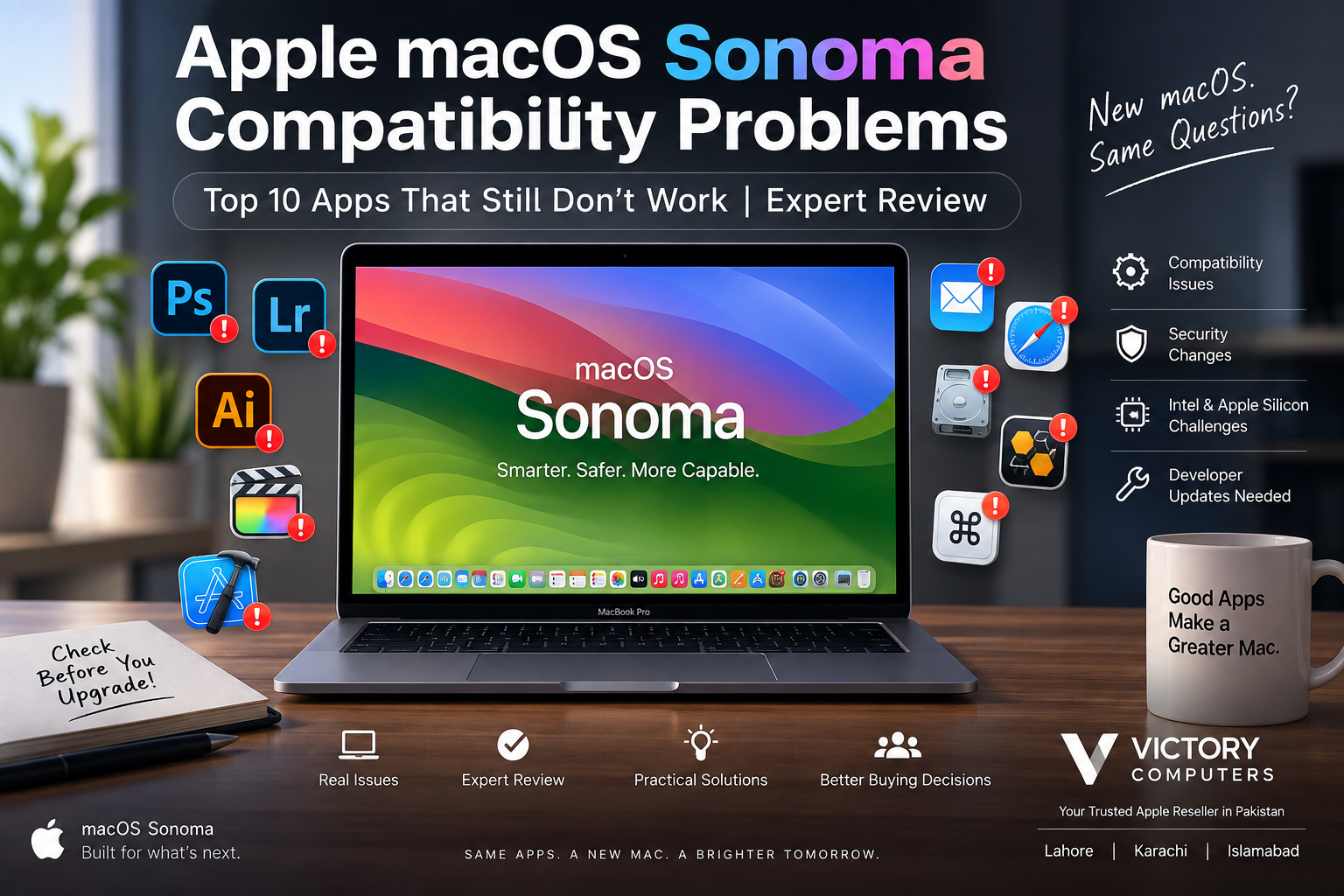
Apple macOS Sonoma Compatibility Problems
macOS Sonoma compatibility problems still matter for Mac users who depend on older applications, plug-ins, drivers, system utilities, or specialized professional workflows. However, saying that major apps such as Photoshop, Lightroom, Xcode, or Little Snitch simply “do not work” on Sonoma is no longer accurate. Current supported versions of many popular applications are compatible with macOS 14.
The bigger risk is version-specific compatibility. An application may support Sonoma today while an older release of the same application, a legacy plug-in, peripheral driver, or system extension does not. That distinction is especially important before upgrading a production Mac.
Why Do macOS Sonoma Compatibility Problems Happen?
macOS updates can change APIs, security requirements, permissions, drivers, frameworks, and the way software interacts with the operating system. Applications that depend on older components may therefore require updates from their developers.
Kernel-level software deserves particular attention. Apple has been moving developers away from legacy kernel extensions toward newer system extensions for years. This transition predates Sonoma, but it remains relevant to older networking, security, storage, and hardware utilities.
Apple Silicon adds another consideration. Modern applications increasingly provide native support for Apple silicon, while older software may depend on Intel code, Rosetta, outdated installers, or components that are no longer maintained.
For another look at the issue, read our guide to why some apps have problems on macOS Sonoma.
Top 10 Apps and Workflows to Check on macOS Sonoma
| App / Workflow | Current Situation | What to Check |
|---|---|---|
| Adobe Lightroom | Supported versions are available for Sonoma | Older Lightroom releases and legacy components |
| Adobe Lightroom Classic | Supported versions work on Sonoma | Old releases, camera workflows and plug-ins |
| Adobe Photoshop | Supported Sonoma-compatible releases exist | Photoshop version and third-party plug-ins |
| Adobe Illustrator | Modern releases support Sonoma | Old versions, extensions and workflow-specific issues |
| Xcode | Compatible releases are available | Xcode version, SDK and simulator requirements |
| Mail Extensions / Legacy Plug-ins | Compatibility depends on implementation | Whether the developer provides a current supported extension |
| SoftRAID / Storage Utilities | Version-dependent | Exact utility version and storage-driver support |
| Little Snitch | Current compatible versions support Sonoma | Avoid assuming an old Little Snitch build is compatible |
| PopChar / Character Utilities | Version-dependent | Check the developer’s support information for your exact release |
| Legacy Intel Apps and Plug-ins | Varies significantly | Apple Silicon support, Rosetta requirements and developer status |
Adobe Lightroom and Lightroom Classic on Sonoma
Adobe provides Sonoma-compatible versions of Lightroom, so Lightroom should not be described broadly as incompatible with macOS Sonoma. The important distinction is the version being installed.
Adobe previously documented that Lightroom 7.x was compatible with Sonoma while Lightroom 6.x and earlier had not been tested for Sonoma compatibility. Lightroom Classic followed a similar version-dependent pattern. This demonstrates why checking the exact application version matters more than simply checking the application name.
Photographers should also verify camera import, tethering, plug-ins, catalog backups and external storage before upgrading a Mac used for paid production work.
Photoshop and Illustrator: Are They Broken on Sonoma?
No. Current compatible versions of Adobe Photoshop and Illustrator can run on macOS Sonoma. Adobe maintains compatibility information showing which application releases support macOS 14.
The risk is greater with older Adobe installations and third-party plug-ins. A photographer or designer may have a compatible Photoshop installation but still encounter trouble because a plug-in, font manager, scanner driver or other workflow component has not been updated.
Therefore, checking only “Does Photoshop support Sonoma?” is not enough. Check the entire workflow.
Xcode Compatibility on macOS Sonoma
Xcode compatibility is closely tied to the exact Xcode and macOS releases. Apple has released Xcode versions specifically supporting Sonoma-era SDKs, and newer Xcode releases may also specify a minimum Sonoma point release.
Developers should confirm three things before changing macOS versions: the required Xcode release, the SDK needed for the project, and simulator or device support. A development machine should not be upgraded based solely on the assumption that every Xcode version works on every Sonoma release.
Little Snitch and Network Utilities
Little Snitch is another example where older articles can become misleading. Current compatibility information from its developer lists versions that support macOS Sonoma. Therefore, Little Snitch itself should not be classified as universally broken on Sonoma.
Network and security utilities can nevertheless be more sensitive to operating-system changes because they interact closely with macOS security and networking architecture. Always install a version explicitly supported by the developer for your operating system.
Kernel Extensions and Older System Utilities
Some of the most difficult macOS Sonoma compatibility problems involve older system-level utilities rather than normal applications. Apple has deprecated traditional kernel extensions and encourages developers to use newer system-extension technologies.
This can affect older storage tools, network utilities, security applications, hardware drivers and other software that expects deeper access to macOS. Importantly, this transition did not begin with Sonoma, so it is inaccurate to claim that Sonoma suddenly removed all kernel-extension support.
If an essential utility has not been maintained for modern macOS releases, replacing the software may be safer than trying to force an outdated version to run.
macOS Sonoma Pros and Cons
Pros
- Strong support from major developers: Current versions of many mainstream creative and productivity applications support Sonoma.
- Modern security architecture: Apple’s newer extension and permission models reduce dependence on software running directly inside the kernel.
- Good Apple Silicon environment: Modern applications increasingly provide native support for Apple silicon Macs.
- Mature operating system: Sonoma has received multiple point releases since its original launch, allowing Apple and third-party developers to address many early compatibility problems.
Cons
- Legacy software remains risky: Older applications, installers and plug-ins may no longer be tested or supported.
- Professional workflows can have hidden dependencies: One incompatible plug-in or driver can disrupt an otherwise supported application.
- Older system utilities require extra checking: Storage, networking and security tools can depend on low-level macOS technologies.
- Upgrading without checking versions can cause downtime: Production Macs should be evaluated before an operating-system upgrade.
Why We Recommend a Compatibility Check Before Upgrading
Sonoma itself is not a poor choice simply because some older applications have compatibility issues. For users running current, supported software, it can provide a stable modern macOS environment. Users who depend on legacy creative tools, specialist hardware, old plug-ins, RAID systems or business-critical utilities should verify every essential component before upgrading.
What Should You Check Before Upgrading to macOS Sonoma?
- List your essential applications. Focus first on software you need for work, study or business.
- Check exact version numbers. “Photoshop supports Sonoma” does not mean every historical Photoshop version does.
- Check plug-ins and extensions separately. They may have different compatibility requirements from the main application.
- Verify hardware drivers. Printers, audio interfaces, storage systems and specialist peripherals may require updated drivers.
- Check Apple Silicon requirements. Confirm whether older Intel software needs Rosetta or a newer native version.
- Create a reliable backup. Protect important documents and project files before a major operating-system change.
- Avoid upgrading a production machine blindly. If an application is critical to your income or business, confirm compatibility first.
What About Safari, Notes and Final Cut Pro?
These applications should not be presented as permanently incompatible with Sonoma. Safari and Notes are Apple applications distributed as part of the macOS ecosystem, while Final Cut Pro has continued to receive updates from Apple.
A crash reported on a particular Sonoma or application version is evidence of a specific bug or configuration problem, not proof that the entire application “doesn’t work on Sonoma.” That distinction matters when diagnosing compatibility problems.
Apple Silicon vs Intel: Does It Affect Sonoma Compatibility?
Yes, but not in the simplistic sense that every Intel application is broken. Apple Silicon Macs can use Rosetta to run many Intel-based applications, while developers increasingly distribute native Apple Silicon versions.
The greater concern is software that has been abandoned or relies on obsolete components. Before moving an old workflow to a newer MacBook, verify the application itself, its plug-ins, drivers, licensing software and connected hardware.
You can also review our related guide covering Mac apps with Sonoma compatibility issues for additional troubleshooting context.
Buying a MacBook in Pakistan for Professional Software
If you are buying a MacBook for Adobe Creative Cloud, software development, video editing or business use, compatibility should be considered alongside processor performance, memory and storage.
Before choosing a machine, make a list of the applications and peripherals you actually use. Check their macOS and Apple Silicon requirements first, then select hardware that fits those workloads. This is particularly useful for professionals moving from an older Intel Mac to Apple Silicon.
Visit Victory Computer to explore available computers and contact the team about current product options in Pakistan.
Frequently Asked Questions
Why do some apps have macOS Sonoma compatibility problems?
Problems usually involve an outdated application version, unsupported plug-in, old driver, legacy system component or a version-specific bug rather than Sonoma being incompatible with all software.
Does Adobe Photoshop work on macOS Sonoma?
Yes. Adobe lists Sonoma-compatible Photoshop releases. Users of older Photoshop versions or third-party plug-ins should verify those components separately.
Does Lightroom work on macOS Sonoma?
Yes, supported Lightroom and Lightroom Classic versions are available for Sonoma. Older versions may be untested or unsupported, so check the exact release before upgrading.
Does Little Snitch work with macOS Sonoma?
Yes. The developer lists Sonoma-compatible Little Snitch versions. Users should install a version explicitly supported for macOS 14 rather than relying on an old release.
Should I upgrade a work Mac to Sonoma without checking my apps?
No. Check business-critical applications, plug-ins, storage tools, drivers and peripherals first, and maintain a reliable backup before changing the operating system.
Are all Intel Mac apps incompatible with Apple Silicon?
No. Many Intel applications can run through Rosetta, while others have native Apple Silicon releases. Compatibility depends on the specific application and its supporting components.

About Victory Computer Editorial Team
Victory Computer Editorial Team The Victory Computer Editorial Team publishes informative, research-based content about laptops, computers, monitors, printers, hardware, and technology trends in Pakistan. Our goal is to help readers understand product specifications, compare available options, and make informed purchasing decisions.
View all posts by Victory Computer Editorial Team
2 thoughts on “Apple macOS Sonoma Compatibility Problems: Top 10 Apps That Still Don’t Work | Expert Review”