
Top 10 Apps That Still Don’t Work Properly on macOS in 2025 | Expert Review

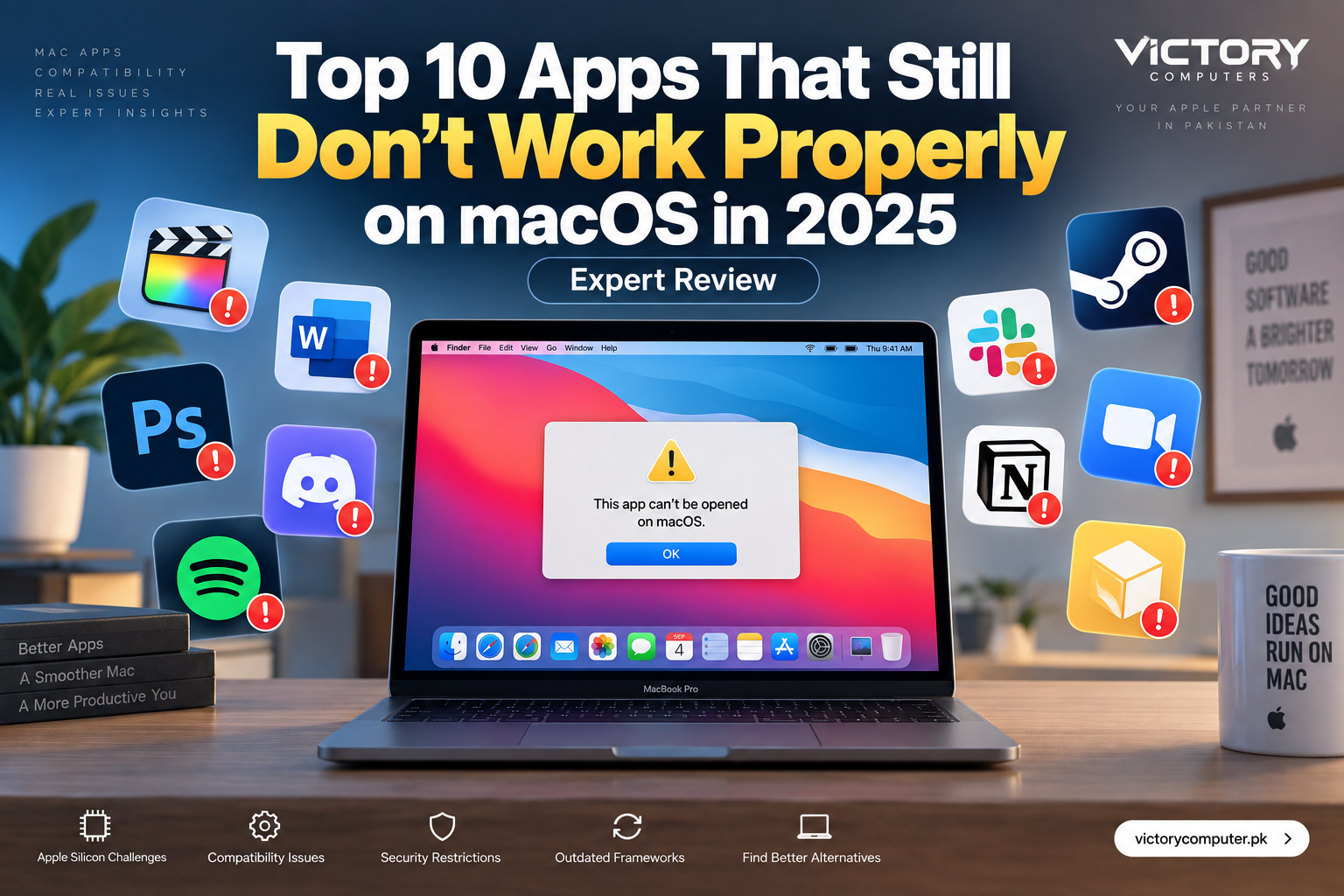
Top 10 Apps That Still Don’t Work Properly on macOS in 2025
Some apps that still don’t work properly on macOS are actually older versions rather than the latest releases. Compatibility problems can appear after a major macOS update because of outdated frameworks, legacy system extensions, Intel-only components, plug-ins, drivers or changed security requirements. Before blaming macOS or replacing an app, check the exact app version first.
Why Do Mac Apps Stop Working After macOS Updates?
Major macOS updates can change APIs, security permissions, drivers and low-level extension support. Apple has progressively moved developers away from legacy kernel extensions toward newer system-extension technologies. Software that depends on older components therefore requires developer updates to remain reliable.
This is particularly relevant to security utilities, storage tools, audio applications and other software that interacts closely with macOS. Apple’s guidance on legacy system extensions explains why older components can eventually become incompatible or require additional approval.
Apple Silicon creates another consideration. Intel applications can run through Rosetta on supported macOS versions, but native Apple Silicon software is generally the safer long-term choice. Users depending on old plug-ins or extensions should therefore check every critical component, not just the main application.
For more background, see Victory Computer’s guide explaining why third-party Mac apps break after macOS updates.
Top 10 Apps and Versions With macOS Compatibility Concerns
The important distinction is version-specific compatibility. Several apps criticized during the 2025 macOS transition have since received updates. Current releases should not automatically be described as broken simply because an older release had problems.
| App | Compatibility Concern | What Users Should Do |
|---|---|---|
| Audio Hijack | Early macOS 26 releases exposed audio-capture issues in some configurations. | Use a current release and verify the developer’s macOS support notes. |
| CrossOver | Compatibility depends on both the CrossOver version and individual Windows application. | Check the exact Windows application in CodeWeavers’ compatibility resources. |
| FOLX | Older releases may encounter download or integration problems after operating-system changes. | Update the application and test important downloads before relying on an old workflow. |
| Lickable Menu Bar | Interface customization utilities can be sensitive to changes in macOS UI behaviour. | Confirm support for your exact macOS release before installation. |
| Little Snitch | Old releases may not support newer macOS versions even though current releases do. | Match the Little Snitch release to your installed macOS version. |
| PopChar | Menu-bar behaviour and permissions can change between macOS versions. | Update PopChar and check macOS menu-bar permissions before assuming the app is incompatible. |
| QuarkXPress | Older QuarkXPress releases should not be assumed compatible with newer macOS versions. | Use a release officially listed for your macOS version. |
| Reunion | Older genealogy software releases can depend on frameworks or behaviours changed by macOS. | Verify your specific Reunion version before upgrading macOS. |
| SABnzbd | Background processes, permissions and dependencies can cause problems with old installations. | Use the current supported build and verify required permissions. |
| SoftRAID | Storage and RAID utilities require particular caution because OS-level compatibility can affect mounted volumes. | Confirm official compatibility and maintain a verified backup before upgrading macOS. |
This corrected approach is more useful than declaring all ten applications permanently broken. For another compatibility-focused guide, see Mac apps broken on macOS Sonoma and what you can do.
Pros and Cons of Updating macOS When You Depend on Third-Party Apps
Pros
- Security improvements: Current macOS releases receive newer security protections and fixes.
- Better Apple Silicon support: Modern applications increasingly target Apple’s current hardware and software architecture.
- New features: macOS upgrades can add productivity, privacy and system capabilities.
- Current app support: Developers increasingly focus testing on newer supported macOS releases.
Cons
- Legacy software risk: Older apps, plug-ins and drivers may stop working.
- Workflow disruption: Professional audio, storage or design setups can depend on multiple third-party components.
- Older peripherals: Hardware may depend on drivers that are no longer maintained.
- Early-release bugs: A newly released macOS version may need app or OS updates before specialist workflows become fully reliable.
Why We Recommend Checking Before Upgrading
Update macOS when your essential applications, plug-ins and peripherals are confirmed compatible. If one critical business application depends on an unsupported version, delaying a major upgrade can be more practical than disrupting the entire workflow. Victory Computer’s guide to unsupported Mac apps before upgrading macOS covers this decision in more detail.
How Can You Avoid Mac App Compatibility Problems?
The safest approach is to audit your essential software before installing a major macOS release.
- Check the developer’s website for your exact app version and supported macOS releases.
- Update plug-ins separately. A compatible main application can still fail because of an outdated extension or plug-in.
- Check Apple Silicon support. Prefer Universal or native Apple Silicon versions where available.
- Back up important data before a major operating-system upgrade.
- Verify specialist hardware. RAID storage, audio interfaces and other peripherals may require updated software or drivers.
- Avoid assuming an old forum report is current. Compatibility can change after application and macOS updates.
If you are specifically troubleshooting Sonoma, also review the guide to macOS Sonoma app compatibility problems.
Choosing a MacBook for Software Compatibility in Pakistan
For buyers in Pakistan, software requirements should be checked before choosing a MacBook—not after purchase. Creative professionals, developers, engineers and business users may depend on specialist applications, Windows-only software, plug-ins or peripherals that require a particular macOS environment.
Before buying, identify your essential applications and confirm Apple Silicon support. You can explore computers and current options through Victory Computer in Lahore and discuss your required software workflow before selecting a machine.
For Windows-dependent professional software, remember that compatibility layers do not guarantee support for every application. CodeWeavers, for example, maintains application-specific compatibility information for CrossOver rather than claiming every Windows program will work identically on macOS.
Frequently Asked Questions
Why do some apps stop working after a macOS update?
Apps can fail because macOS changes APIs, permissions, security requirements, drivers or support for older system components. Older versions are generally at greater risk.
Are these 10 apps permanently broken on macOS?
No. Several apps that experienced compatibility problems have received newer versions. Always check the current developer documentation for your exact app and macOS release.
Do Intel Mac apps work on Apple Silicon?
Many Intel applications can run through Apple’s Rosetta technology on supported macOS releases, but plug-ins, extensions and other components may have separate compatibility requirements.
Should I update macOS immediately?
Not if your work depends on specialist software that has not yet been confirmed compatible. Check essential applications, plug-ins and hardware first and keep a backup.
Can CrossOver run every Windows app on a Mac?
No. Compatibility varies by Windows application and CrossOver version, so application-specific support should be checked before relying on it for an important workflow.
What is the safest Mac software setup?
Use actively maintained applications that officially support your macOS release and Apple Silicon hardware, and keep important data backed up before major system updates.
Final Verdict
The biggest lesson from apps that still don’t work properly on macOS is that compatibility is rarely permanent or universal. An application that failed on an early macOS release may work correctly after updates, while an old version of the same app may remain unsupported.
Before updating a production Mac, verify the exact application version, plug-ins, drivers and peripherals you rely on. That simple compatibility check is more reliable than assuming every reported 2025 problem still applies today.

About Victory Computer Editorial Team
Victory Computer Editorial Team The Victory Computer Editorial Team publishes informative, research-based content about laptops, computers, monitors, printers, hardware, and technology trends in Pakistan. Our goal is to help readers understand product specifications, compare available options, and make informed purchasing decisions.
View all posts by Victory Computer Editorial Team