
How Apple’s Shift to M-Series Chips Broke Compatibility for Many Apps | Full Guide

How Apple’s Shift to M-Series Chips Broke Compatibility for Many Apps
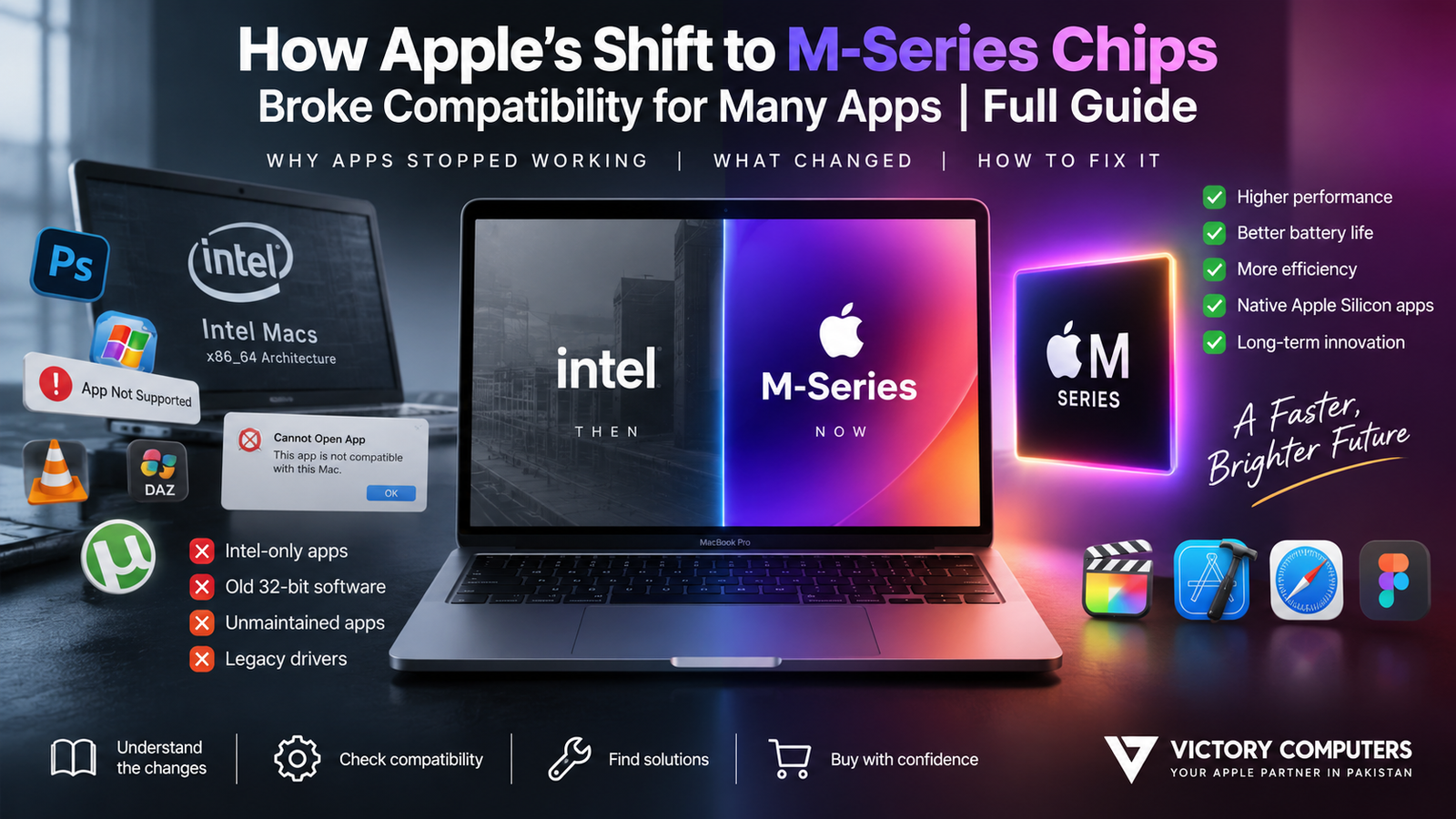
Apple’s shift to M-Series chips changed Macs from Intel’s x86_64 architecture to Apple Silicon based on ARM64, so older Intel software could no longer run natively. Rosetta kept many Intel applications working during the transition, but legacy components, unsupported software, and architecture-dependent tools can still create compatibility problems.
Why Did Apple’s M-Series Transition Break App Compatibility?
The main reason is a fundamental processor architecture change. Intel-based Macs were designed around the x86_64 instruction set, while Apple Silicon Macs use ARM64. Software compiled only for Intel therefore cannot execute natively on an M-series processor.
Apple began moving the Mac away from Intel in 2020. The transition brought major architectural changes across applications, plug-ins, frameworks, drivers, development tools, and other software components.
Modern developers can create a Universal binary containing both ARM64 and x86_64 code. macOS can then choose the appropriate version for the Mac being used. Applications built specifically for Apple Silicon can instead run natively using ARM64 code.
| Software Type | How It Runs on Apple Silicon | Compatibility Outlook |
|---|---|---|
| Apple Silicon / ARM64 app | Runs natively | Best option |
| Universal app | Contains Intel and Apple Silicon code | Excellent |
| Intel-only x86_64 app | Requires translation on current supported systems | Increasing compatibility risk |
| 32-bit Mac app | Not supported by modern macOS | Requires replacement or older environment |
Intel x86_64 vs Apple Silicon ARM64: What Actually Changed?
Intel and Apple Silicon processors understand different native machine-code instruction sets. An application compiled only for an Intel Mac contains x86_64 instructions, while native software for an M-series Mac contains ARM64 instructions.
This distinction matters beyond the main application. An older program may depend on Intel-only plug-ins, extensions, libraries, background processes, or other components. Updating the main application therefore does not always solve every compatibility issue.
Apple recommends developers build Universal applications when supporting both architectures. A Universal macOS binary contains executable code for both ARM64 and x86_64, allowing it to run natively on Apple Silicon and Intel Macs.
This is why an updated version of an application can behave differently from an old installer for the same software. The newer release may contain native Apple Silicon support while the legacy release remains Intel-only.
How Does Rosetta Help Intel Apps Run on Apple Silicon?
Rosetta translates Intel x86_64 instructions so compatible Intel applications can run on Apple Silicon. For users, much of the translation process happens automatically in the background.
Rosetta solved a major transition problem because developers did not have to convert every Mac application to ARM64 before the first Apple Silicon Macs reached customers.
However, Rosetta was always a transition technology rather than a permanent substitute for native application development. Apple documents limitations including certain kernel extensions and applications that virtualize x86_64 computer platforms.
A Major Rosetta Change Is Now Approaching
In September 2026, Apple announced an important deadline for users still depending on Intel-only Mac applications. macOS 27 is the final macOS release with general-purpose Rosetta support for Intel-only Mac apps. Apple says that after this transition, a subset of Rosetta functionality will remain for certain older, unmaintained games that depend on Intel frameworks.
This makes native Apple Silicon support much more important. Anyone relying on an Intel-only professional, educational, business, or creative application should check for a Universal or Apple Silicon version before future macOS upgrades.
Apple’s current guidance is available in its Intel application compatibility documentation and its Rosetta transition announcement.
Did Apple Silicon Kill 32-Bit Mac Apps?
No. The end of 32-bit Mac application support happened before Apple Silicon. This distinction is important because the two compatibility changes are frequently confused.
Apple states that macOS Mojave 10.14 was the last macOS release capable of running 32-bit applications. Starting with macOS Catalina 10.15, 32-bit applications became incompatible with macOS.
Therefore, an old 32-bit application may fail on a modern M-series Mac because modern macOS no longer supports 32-bit applications—not simply because the computer uses an Apple Silicon processor.
Users who depend on very old software should check both the application’s processor architecture and its compatibility with their macOS version. Apple provides additional details in its 32-bit application compatibility guidance.
Which Apps Are Most at Risk on M-Series Macs?
Most actively maintained mainstream Mac applications have had years to adopt Apple Silicon. The greater risk now comes from older, abandoned, Intel-only, or architecture-dependent software and components.
- Intel-only applications: These depend on translation rather than native ARM64 execution.
- Old plug-ins and extensions: A modern application can still have problems if a required add-on remains Intel-only.
- Legacy drivers: Hardware that depends on outdated system-level software may require newer drivers or replacement hardware.
- Old virtualization workflows: Software designed around virtualizing an x86_64 computer can face architectural limitations on Apple Silicon.
- 32-bit applications: These have been incompatible with macOS since Catalina, independently of the M-series transition.
- Abandoned software: Applications whose developers no longer release updates have the highest long-term compatibility risk.
The practical rule is simple: do not assume that an application will work merely because it worked on an older Intel Mac. Check the developer’s current system requirements before replacing an Intel Mac or installing a major macOS upgrade.
Pros and Cons of Apple’s Shift to M-Series Chips
Apple Silicon improved the Mac platform in several important ways, but the architecture transition created a genuine trade-off for users with legacy workflows.
Pros
- Native Apple Silicon optimization: Applications compiled for ARM64 can be optimized directly for the architecture used by modern Macs.
- Universal application support: Developers can distribute one Universal application containing code for both Intel and Apple Silicon Macs.
- Long-term platform consistency: Developers can increasingly focus on Apple Silicon rather than maintaining dependence on the previous Intel architecture.
- Strong modern software ecosystem: Actively maintained Mac applications have had several years to adopt native Apple Silicon support.
- Reduced dependence on translation: Native applications do not require Rosetta to translate Intel instructions.
Cons
- Legacy application compatibility: Intel-only software depends on translation and faces a more limited future.
- Old plug-ins can break workflows: A native application may still depend on an incompatible extension or add-on.
- Specialized hardware can be affected: Older peripherals may depend on drivers that were never updated for newer Macs or macOS releases.
- Software replacement costs: Businesses and professionals may need updated software, subscriptions, plug-ins, or hardware when migrating from an older Intel environment.
Why We Recommend Checking Compatibility Before Upgrading
An M-series Mac is a logical choice when your essential applications and peripherals already support Apple Silicon. Users dependent on specialist legacy software should audit their workflow first, especially now that general-purpose Rosetta support has a defined endpoint.
How Can You Check Whether an App Is Intel or Apple Silicon?
macOS provides a simple way to identify the architecture of installed applications.
- Open Finder.
- Select the application.
- Choose File → Get Info or press Command-I.
- Look at the Kind field.
You may see one of the following:
- Application (Apple silicon): Designed specifically for Apple Silicon.
- Application (Universal): Supports both Intel and Apple Silicon Macs.
- Application (Intel): Built for Intel processors and currently dependent on translation when used on Apple Silicon.
If an essential application shows Application (Intel), check the developer’s website or update system for a Universal or Apple Silicon release.
What Should You Do If an App Does Not Work on an M-Series Mac?
Start by identifying whether the problem is the application itself, an outdated component, or the macOS version. Replacing software should normally be the final step rather than the first.
- Update the application. Install the newest version supported by the developer.
- Check for an Apple Silicon or Universal release. Do not assume an old Intel installer is the latest version.
- Update plug-ins and extensions separately. Add-ons may have different compatibility requirements from the main application.
- Check peripheral drivers. Printers, audio interfaces, storage tools, scanners, and specialist equipment may require updated software.
- Review macOS requirements before upgrading. A newer macOS release can remove support required by older software.
- Find a maintained alternative if necessary. This may be the safest long-term choice for abandoned software.
For professional workflows, make a list of every critical application, plug-in, peripheral, driver, and file format before moving from an Intel Mac to Apple Silicon. One unsupported component can affect an otherwise compatible workflow.
Should You Buy an M-Series Mac in Pakistan If You Use Older Software?
Yes, provided your essential applications support Apple Silicon or have a clear migration path. Compatibility should be checked before purchase if your work depends on older accounting software, specialist development tools, audio plug-ins, engineering applications, legacy peripherals, or other Intel-era software.
For current computers and related options, you can browse Victory Computer’s shop or visit Victory Computer. Buyers who need help selecting hardware around a specific software workflow can also contact Victory Computer before purchasing.
The safest buying decision is based on your actual workflow rather than the processor name alone. Check the software developer’s requirements, your required plug-ins and peripherals, and the macOS versions they support.
Apple Silicon Compatibility: The Bottom Line
Apple’s shift to M-Series chips did not simply make older applications unusable overnight. The transition changed the Mac’s processor architecture from Intel x86_64 to ARM64, while Rosetta provided a bridge for many Intel applications.
The bigger long-term issue is that this bridge is approaching its endpoint. With macOS 27 becoming the final release with general-purpose Rosetta support for Intel-only Mac applications, users who still depend on legacy Intel software should begin moving to native Apple Silicon or Universal versions.
For more practical computer and software information, explore Victory Computer’s technology guides and computer buying and troubleshooting guides.
Frequently Asked Questions
Why don’t some Intel apps run properly on M-series Macs?
M-series Macs use ARM64 rather than Intel’s x86_64 architecture. Intel-only applications therefore require translation, while some architecture-dependent components cannot be translated or need updated versions.
What is Rosetta on an Apple Silicon Mac?
Rosetta translates x86_64 Intel instructions so many Intel Mac applications can run on Apple Silicon. It is a compatibility layer rather than a native Apple Silicon version of the application.
Will Rosetta always support Intel Mac apps?
No. Apple announced in September 2026 that macOS 27 is the final release with general-purpose Rosetta support for Intel-only Mac applications. Limited functionality will remain afterward for certain older games.
Are 32-bit apps incompatible because of Apple Silicon?
Not specifically. Apple ended 32-bit application support starting with macOS Catalina 10.15, before the first Apple Silicon Macs were released.
Should I choose Universal apps on an M-series Mac?
Yes, when available. Universal applications include native code for both Apple Silicon and Intel Macs, while Apple Silicon-only applications can run natively on current M-series hardware.
How do I know whether my Mac app uses Intel or Apple Silicon?
Select the application in Finder, choose Get Info, and check the Kind field. macOS can identify the application as Intel, Universal, or Apple silicon.

About Victory Computer Editorial Team
Victory Computer Editorial Team The Victory Computer Editorial Team publishes informative, research-based content about laptops, computers, monitors, printers, hardware, and technology trends in Pakistan. Our goal is to help readers understand product specifications, compare available options, and make informed purchasing decisions.
View all posts by Victory Computer Editorial Team
One thought on “How Apple’s Shift to M-Series Chips Broke Compatibility for Many Apps | Full Guide”