
Are macOS Security Restrictions Making Your Mac Less Useful? | Expert Review

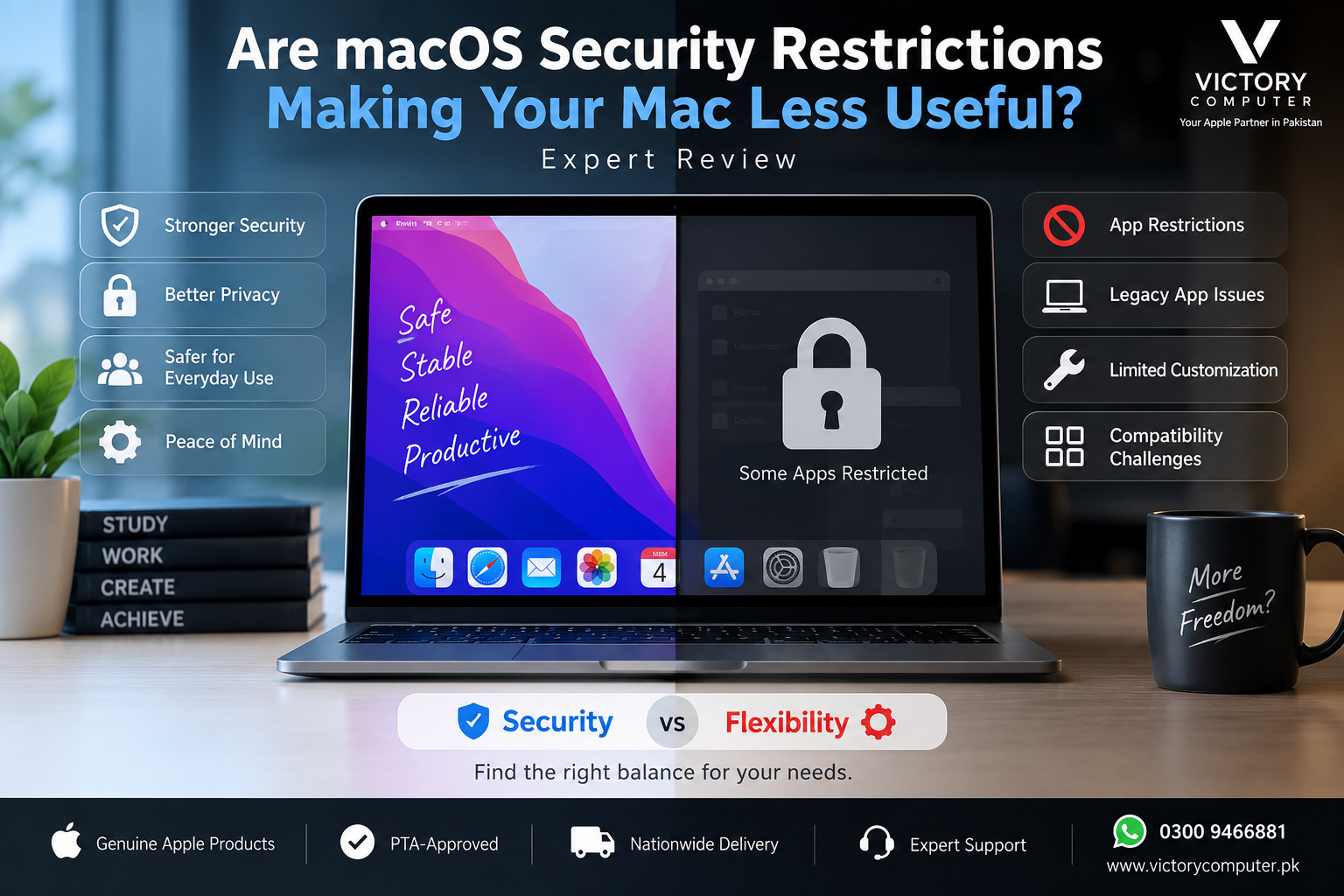
Are macOS Security Restrictions Making Your Mac Less Useful?
macOS security restrictions can make a Mac less flexible for some users, but they do not necessarily make it less useful. Features such as Gatekeeper, app notarization, System Integrity Protection and XProtect reduce security risks, while the trade-off is tighter control over certain software, older applications and system-level modifications.
How macOS Security Restrictions Work
Apple uses several layers of protection rather than relying on a single security feature. Gatekeeper checks downloaded software, including whether an application comes from an identified developer, has been notarized and appears to have been altered.
Apple’s official Gatekeeper and app security guidance also confirms an important point: macOS is not limited to Mac App Store software. Applications can be distributed directly by identified developers, and users can sometimes manually approve trusted software that macOS initially prevents from opening.
Another protection is System Integrity Protection, commonly called SIP. It limits modification of critical parts of macOS, including restrictions that apply even to processes operating with administrator privileges.
These technologies can make malware persistence and unauthorized system modification more difficult, but they also mean users have less freedom to modify protected parts of the operating system.
Where macOS Restrictions Can Become Frustrating
The biggest disadvantage of macOS security restrictions appears when software depends on outdated components, unsupported architectures, deep system access or development practices that no longer satisfy modern macOS requirements.
- Older applications: Legacy software may stop working after major macOS changes.
- Unsigned or unnotarized software: Gatekeeper may warn about or prevent software from opening under default settings.
- System modifications: SIP protects critical operating-system locations from modification.
- Specialized utilities: Some low-level tools may require newer versions or different installation methods.
- Architecture compatibility: Moving from Intel processors to Apple Silicon created another compatibility consideration for older software.
If an important application stops working, our guide to unsupported apps on macOS explains practical options before replacing the application or computer.
Can You Install Third-Party Apps Outside the Mac App Store?
Yes. macOS can run third-party applications downloaded outside the Mac App Store. The idea that modern Macs only allow App Store software is incorrect.
Under the default security configuration, Apple allows applications from the App Store and identified developers. Gatekeeper checks downloaded software, while notarization helps Apple identify known malicious content.
If macOS cannot verify an application, users may sometimes use the Open Anyway option in Privacy & Security after deciding that the application and its source are trustworthy. This should not be treated as a routine way to ignore malware warnings.
Users facing compatibility problems can also review workarounds for unsupported apps on Apple Silicon Macs.
Why Do Older Apps Stop Working on Modern Macs?
Not every compatibility problem is caused by a security restriction. Some applications fail because the underlying technology they require is no longer supported.
A major example is 32-bit software. Apple states that macOS Mojave 10.14 was the last macOS release capable of running 32-bit applications. Starting with macOS Catalina 10.15, 32-bit applications are no longer compatible.
Read our explanation of why 32-bit Mac apps stopped working for more detail.
The move from Intel processors to Apple Silicon created another transition. Modern applications designed for Apple Silicon provide the best compatibility, while some older Intel-era applications or utilities may require updates, translation technologies or alternatives. Our Apple Silicon vs Intel compatibility guide explains the difference.
Pros and Cons of macOS Security Restrictions
Pros
- Better protection against untrusted software: Gatekeeper checks downloaded applications before they run.
- Malware detection: Notarization and XProtect add additional layers against known malicious software.
- Protected system files: SIP prevents ordinary applications and even administrator-level processes from freely changing protected system areas.
- Controlled data access: macOS uses permissions and other protections to limit unnecessary access to sensitive user information.
- Useful for everyday users: People who primarily use mainstream productivity, communication and creative applications may benefit from stronger defaults without needing to manage security manually.
Cons
- Less system-level freedom: Advanced users cannot freely modify every protected part of macOS.
- Legacy compatibility problems: Older software can become unusable as Apple removes obsolete technologies.
- More friction with niche software: Applications from unidentified developers can require additional approval or updated versions.
- Some professional workflows require planning: Developers, technicians and users dependent on specialized utilities should verify compatibility before upgrading macOS or buying a new Mac.
Why We Recommend It
Apple’s security approach works well for users who prioritize reliability, privacy protections and mainstream software compatibility. However, users who depend heavily on legacy applications, unrestricted system customization or specialized Windows software should check their essential applications before choosing macOS.
macOS vs Windows: Security or Flexibility?
The practical choice is not simply that macOS is secure while Windows is flexible. Both operating systems include substantial security technologies, but their software ecosystems, administrative models and compatibility options differ.
| Factor | macOS | Windows |
|---|---|---|
| Third-party software | Supported, with Gatekeeper security checks | Broad third-party software ecosystem |
| Legacy software | Can be limited by major platform transitions | Often stronger legacy compatibility |
| System modification | More protected system areas | Generally more flexibility for advanced configuration |
| Apple ecosystem | Strong integration | Not applicable at the same level |
| Gaming and specialized Windows software | Compatibility should be checked individually | Usually the broader native software choice |
For students, office users, designers and professionals whose applications already support macOS, Apple’s restrictions may have little effect on everyday productivity. Developers, gamers and users with specialized legacy software should perform a compatibility check before switching platforms.
Should macOS Security Restrictions Affect Your MacBook Purchase?
Yes, but software compatibility should matter more than the restrictions themselves. Before purchasing a MacBook, list the applications, peripherals and professional tools you cannot work without and confirm that current versions support your intended Mac and macOS release.
If your workflow uses mainstream browsers, Microsoft Office, communication applications, modern creative software and other actively maintained Mac applications, macOS security restrictions are unlikely to make the computer significantly less useful.
If your workflow depends on old 32-bit applications, specialized Windows programs or deep operating-system modifications, a Windows laptop or another setup may be more practical.
Buyers in Pakistan can browse computers and current listings through Victory Computer. Confirm the exact model, configuration, warranty terms, software compatibility and current availability before purchasing.
Frequently Asked Questions
Are macOS security restrictions too strict?
That depends on your workflow. The restrictions provide meaningful protection, but advanced users who need legacy software or deep system modification may find them limiting.
Can I install applications outside the Mac App Store?
Yes. macOS supports applications distributed outside the App Store, although Gatekeeper checks downloaded software and may warn about applications that cannot be verified.
Can I open an app blocked by Gatekeeper?
In some cases, yes. Apple provides an Open Anyway option for software you trust, but users should not override a warning unless they have verified the application’s source and integrity.
Why don’t 32-bit applications work on modern macOS?
Apple ended 32-bit application compatibility beginning with macOS Catalina 10.15. Applications that remain 32-bit require an updated version, an alternative application or a different compatible environment.
Does Apple completely block third-party applications?
No. Third-party Mac applications can be distributed outside the App Store. Apple’s default security system checks developer identity, notarization and software integrity before allowing downloaded software to run normally.
Is Windows better if I need maximum software flexibility?
Windows may be the better choice when your workflow relies on Windows-only programs, broad gaming compatibility or legacy applications. macOS can be preferable when your software supports the platform and you value Apple’s security model and ecosystem.

About Victory Computer Editorial Team
Victory Computer Editorial Team The Victory Computer Editorial Team publishes informative, research-based content about laptops, computers, monitors, printers, hardware, and technology trends in Pakistan. Our goal is to help readers understand product specifications, compare available options, and make informed purchasing decisions.
View all posts by Victory Computer Editorial Team