
AI to Optimize Mac Battery and System Resource Use | Full Guide

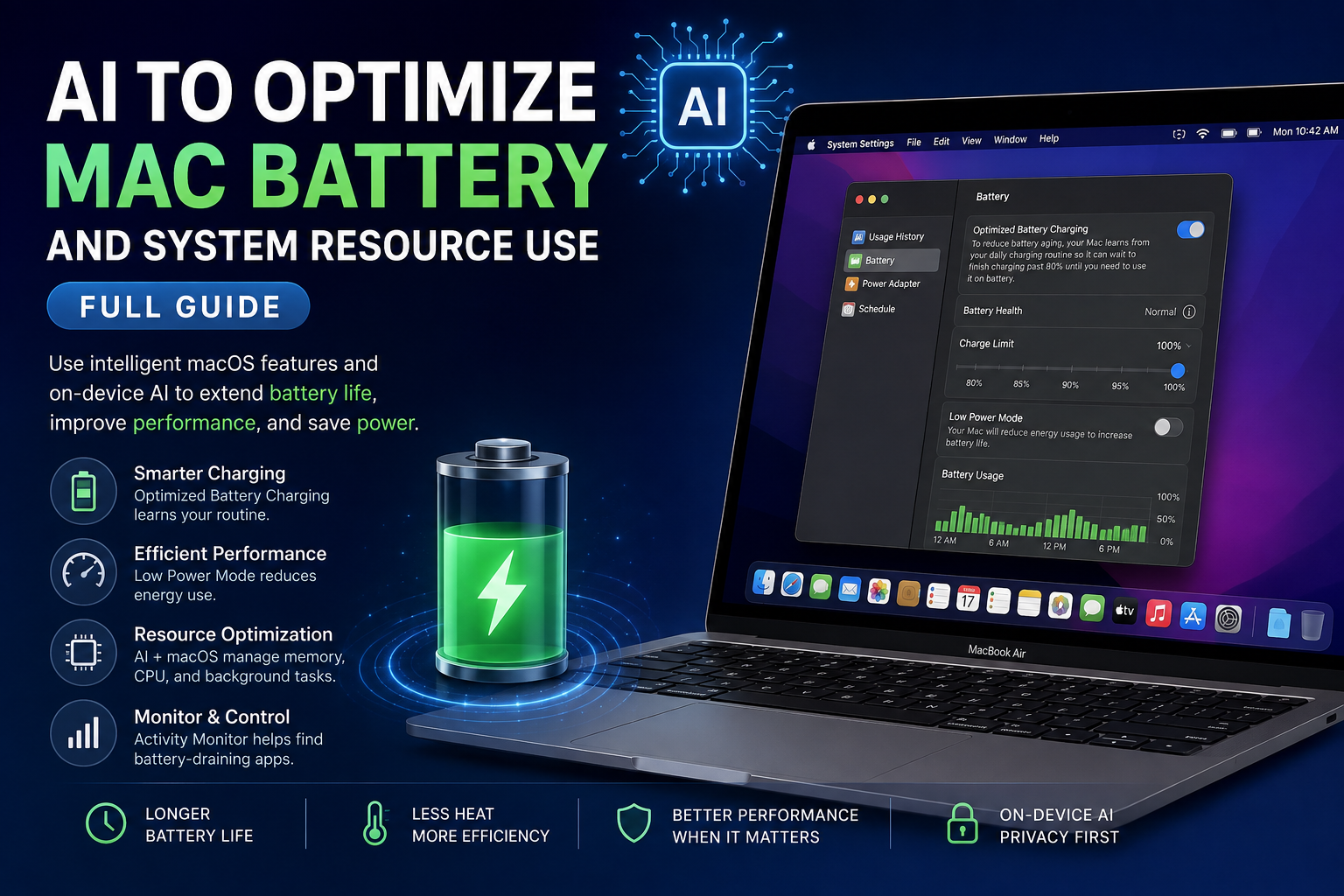
AI to Optimize Mac Battery and System Resource Use
AI to Optimize Mac Battery use is most useful through macOS features that learn charging habits, reduce unnecessary energy consumption, and help users identify resource-heavy applications. Optimized Battery Charging uses on-device machine learning, while Low Power Mode, Energy Mode, App Nap, memory management, and Activity Monitor provide additional ways to improve efficiency.
How Does AI Optimize Mac Battery Use?
Modern macOS battery management combines automated power-management features with machine learning. A clear example is Optimized Battery Charging, which learns your normal charging routine and can delay charging beyond 80% when macOS predicts that the Mac will remain connected to power for an extended period.
This is primarily designed to reduce the time the battery remains fully charged and therefore help reduce long-term battery wear. Users should distinguish this documented feature from broad claims that “AI controls everything” inside a Mac.
Mac users can also combine intelligent charging with Low Power Mode, Energy Mode, App Nap and macOS memory management to reduce unnecessary resource use.
7 Ways to Use AI to Optimize Mac Battery and System Resources
1. Keep Optimized Battery Charging Enabled
Optimized Battery Charging is one of the clearest examples of machine learning being used for Mac battery optimization. macOS learns your charging habits and can postpone charging beyond 80% until it predicts that you will need the battery fully charged.
This feature is particularly useful for MacBook users who frequently leave their computers connected to a charger at a desk.
2. Use a Charge Limit on Compatible Macs
Compatible Apple silicon Macs running supported versions of macOS Tahoe can also use a Charge Limit. This lets users choose a maximum charging target between 80% and 100%.
A charge limit can make sense for users who spend most of the working day connected to external power. You can still choose to charge fully when you expect to work away from a charger.
3. Turn On Low Power Mode When Battery Life Matters
Low Power Mode reduces energy usage to help extend battery life. It can be useful during classes, meetings, travel, presentations or long periods away from a power outlet.
The trade-off is straightforward: maximum performance is not always the priority when Low Power Mode is active. Users performing demanding rendering, compiling or other intensive tasks may prefer a higher-performance configuration when connected to power.
4. Check Which Apps Are Consuming the Most Energy
Open Activity Monitor > Energy to identify applications and processes with a high Energy Impact. Activity Monitor can also show whether an application is preventing sleep and whether App Nap is active.
Before assuming that poor MacBook battery life is caused by the battery itself, check for applications consuming unusually high amounts of energy. Browsers with many active tabs, video applications, games, background synchronization and demanding creative software can all increase power consumption depending on workload.
5. Monitor Memory Pressure Instead of Just Free RAM
Mac users should not assume that unused RAM automatically means better performance. macOS actively manages memory and can compress inactive application data to make more memory available.
Open Activity Monitor > Memory and check Memory Pressure. Green generally indicates efficient memory use, while sustained yellow or red pressure can indicate that your workload is placing greater demands on available memory.
You can learn more about general notebook efficiency in Victory Computer’s laptop battery life comparison.
6. Reduce Display Power Consumption
The display is another major area where users can control energy use. Lower the brightness to a comfortable level and configure the display to turn off sooner when the MacBook is inactive on battery power.
This does not require AI, but combining sensible display settings with macOS battery-management features can produce a more efficient overall configuration.
7. Keep macOS Updated
Keeping macOS updated ensures that your Mac receives current system fixes, compatibility improvements and supported power-management features. Available battery options can differ according to the Mac model and macOS version, so users should check the settings available on their specific device.
Mac Battery Optimization Features at a Glance
| Feature | What It Does | Main Benefit |
|---|---|---|
| Optimized Battery Charging | Learns charging habits and can delay charging past 80% | Helps reduce long-term battery wear |
| Charge Limit | Lets compatible Macs limit their normal maximum charge | Useful for Macs frequently connected to power |
| Low Power Mode | Reduces energy usage | Can extend runtime away from a charger |
| Activity Monitor | Shows application energy and resource usage | Helps identify inefficient apps and processes |
| App Nap | Allows macOS to reduce activity for eligible background apps | Reduces unnecessary resource consumption |
| Memory Management | Uses caching, compression and swap when required | Uses available memory efficiently |
Pros and Cons of Mac Battery and Resource Optimization
Pros
- Better battery efficiency: Low Power Mode can reduce energy use when maximum performance is unnecessary.
- Smarter charging: Optimized Battery Charging adapts to normal charging routines.
- Potentially reduced battery wear: Spending less unnecessary time at full charge can help battery longevity.
- Automatic memory management: macOS uses compression, caching and swap to manage available memory.
- Useful diagnostics: Activity Monitor makes it easier to identify applications consuming excessive energy or memory.
Cons
- Some features depend on hardware and macOS version: Not every Mac supports every battery option.
- Charging may intentionally pause: Optimized Battery Charging can leave the battery below 100% until macOS expects you to need it.
- Low-power settings involve trade-offs: Maximum performance may be less important than efficiency while power-saving modes are enabled.
- Optimization cannot repair battery ageing: Software can manage battery use, but rechargeable batteries still chemically age over time.
Why We Recommend It
MacBook users should generally leave Apple’s automatic battery-health features enabled unless they have a specific reason to change them. Users who spend long periods plugged in can benefit particularly from Optimized Battery Charging and, on compatible systems, Charge Limit. Users who need maximum unplugged runtime should combine these features with Low Power Mode and sensible display settings.
Can These Features Fix Poor MacBook Battery Life?
They can reduce unnecessary energy consumption, but they cannot solve every battery problem. Battery runtime also depends on battery age, workload, display brightness, connected devices, wireless activity, application behavior and the Mac model.
If an older MacBook is losing charge unusually quickly, check battery health and Activity Monitor before assuming that a software setting is responsible. Anyone considering a second-hand machine should also review our used MacBook Pro buying guide for Pakistan for additional buying considerations.
MacBook Battery Optimization for Students and Professionals
Students can prioritize Low Power Mode and display efficiency during long classes. Office users who keep a MacBook connected to power for much of the day can benefit from intelligent charging features. Creators can monitor Energy Impact and Memory Pressure to understand which applications are placing the greatest load on the system.
The best configuration therefore depends on the workload. Battery-saving settings are valuable when mobility matters, while demanding professional workloads may justify prioritizing performance when connected to power.
Buying a MacBook in Pakistan
Battery optimization works best when buyers start with a Mac that suits their workload. Memory capacity, display size, processor class and expected daily use can influence both performance and energy consumption.
For current computer options and buying assistance in Pakistan, visit Victory Computer. You can also explore additional technology guides before choosing your next system.
Frequently Asked Questions
Does Mac use AI to optimize battery charging?
Yes. Apple’s Optimized Battery Charging uses on-device machine learning to learn your normal charging routine and can delay charging beyond 80% when appropriate.
Should I leave Optimized Battery Charging turned on?
For most users, leaving it enabled makes sense because the feature is designed to reduce battery wear caused by spending unnecessary time fully charged.
Does Low Power Mode make a MacBook slower?
Low Power Mode prioritizes lower energy consumption, so users performing demanding workloads may prefer a performance-focused setting when maximum speed is required.
How can I find apps draining my MacBook battery?
Open Activity Monitor and select the Energy tab. Check Energy Impact and related information to identify applications or processes consuming significant power.
Does having low free RAM mean my Mac is slow?
Not necessarily. macOS actively uses available RAM for performance. Memory Pressure in Activity Monitor is generally more useful than looking only at the amount of unused memory.
Can software restore an old MacBook battery?
No. Battery-management software can improve charging behavior and energy efficiency, but it cannot reverse the chemical ageing of a lithium-ion battery.
Lorem ipsum dolor sit amet, consectetur adipiscing elit. Ut elit tellus, luctus nec ullamcorper mattis, pulvinar dapibus leo.

About Victory Computer Editorial Team
Victory Computer Editorial Team The Victory Computer Editorial Team publishes informative, research-based content about laptops, computers, monitors, printers, hardware, and technology trends in Pakistan. Our goal is to help readers understand product specifications, compare available options, and make informed purchasing decisions.
View all posts by Victory Computer Editorial Team