
Samsung Smart Switch Not Working on Mac: How to Transfer Data Without It

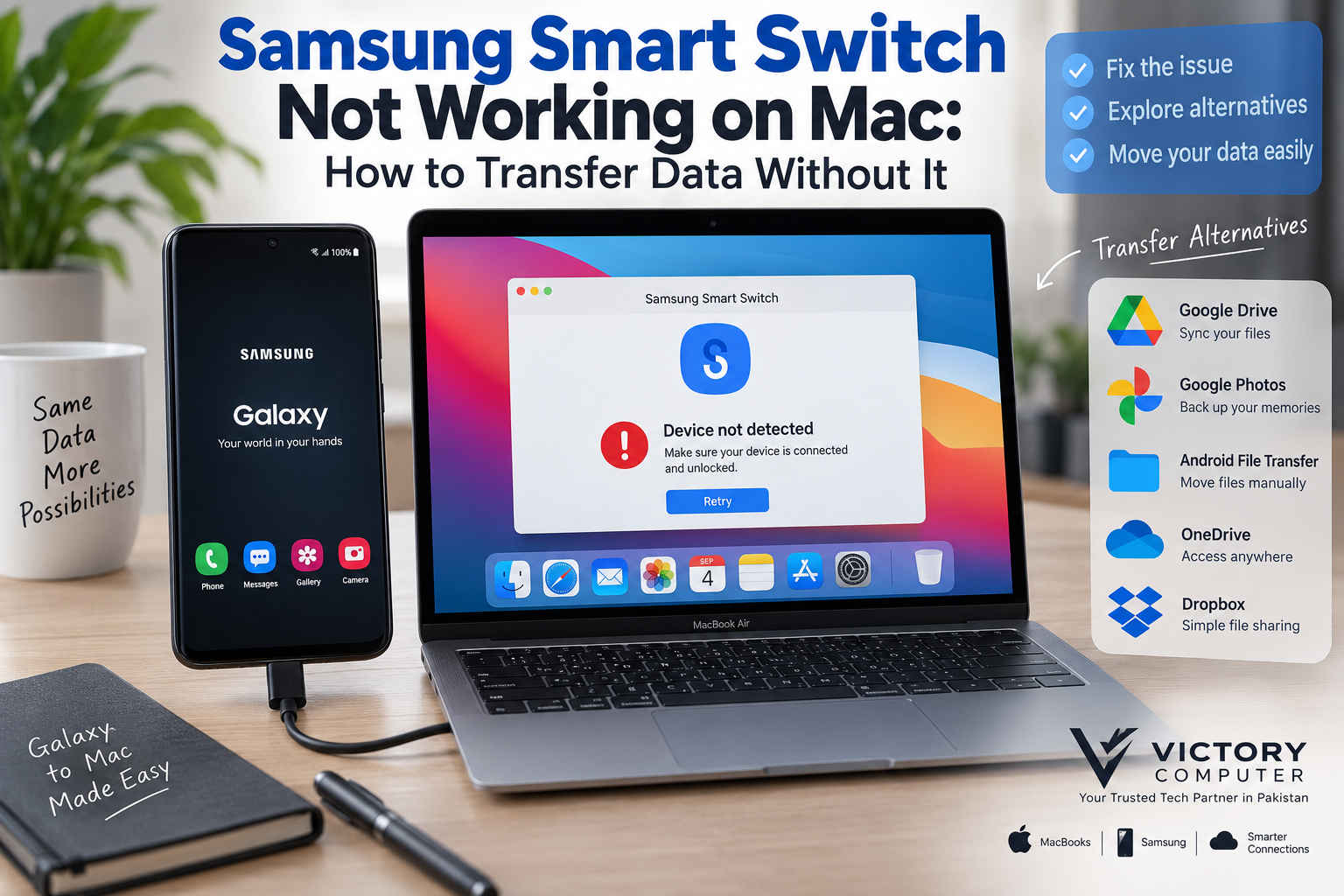
Samsung Smart Switch Not Working on Mac
Samsung Smart Switch still supports Mac, but connection, USB, permission, or software problems can prevent it from working correctly. If Smart Switch cannot detect your Galaxy phone or repeatedly fails during backup, first troubleshoot the connection. If that does not work, cloud storage and browser-based file sharing provide practical alternatives.
Why Is Samsung Smart Switch Not Working on Mac?
If you find Samsung Smart Switch not working on Mac, do not assume that Samsung has discontinued the application. Samsung currently lists Smart Switch support for both Windows PCs and Macs, including computer-based backup and restore functionality.
Smart Switch can nevertheless fail because the Mac cannot communicate properly with the Galaxy device. Common causes include an outdated Smart Switch installation, a charge-only USB cable, macOS permissions, a damaged USB connection, outdated phone software, or a temporary software problem.
Problems can also appear after operating-system or application updates. Mac users experiencing broader compatibility issues can read Victory Computer’s guide to macOS compatibility problems for additional context.
| Possible Problem | What to Check |
|---|---|
| Smart Switch is outdated | Install the latest available version |
| Galaxy phone is not detected | Unlock the phone and reconnect it |
| USB connection fails | Try another data-capable cable or port |
| macOS permission issue | Review relevant Privacy & Security permissions |
| Temporary software problem | Restart both the Mac and Galaxy device |
5 Fixes When Samsung Smart Switch Is Not Working on Mac
1. Update Smart Switch
Start by checking that you have a current version of Samsung Smart Switch. Samsung continues to provide Smart Switch for Mac, so an old installation should be updated or replaced with the current official version when necessary.
2. Check the USB Cable
A cable that successfully charges your Galaxy phone does not necessarily provide reliable data transfer. Try a known data-capable USB cable and, if possible, connect directly to the Mac rather than through an unreliable hub or adapter.
3. Unlock Your Samsung Galaxy Phone
Keep the Galaxy phone unlocked when establishing the connection and respond to any permission prompts that appear. A locked device or rejected connection request can prevent desktop software from accessing the phone correctly.
4. Restart the Mac and Galaxy Device
A restart can clear temporary USB, application, and device-communication problems. Close Smart Switch, restart both devices, reconnect the phone, and then launch Smart Switch again.
5. Reinstall Smart Switch
If Smart Switch launches but crashes, freezes, or consistently fails to recognize the phone, reinstalling the current application can help eliminate a damaged installation. Download software only from Samsung or another source you explicitly trust.
Similar compatibility problems can occur with other third-party Mac software after system updates. Victory Computer has a separate explanation of why third-party Mac apps can break after macOS updates.
How to Transfer Samsung Data to Mac Without Smart Switch
If troubleshooting does not solve the problem, you do not necessarily need Smart Switch for every type of transfer. The right alternative depends on whether you need photos, documents, contacts, or a complete device backup.
Use Google Drive or Google Photos
Cloud services are one of the simplest options when you only need access to selected files. Upload documents to Google Drive or back up photos and videos to Google Photos from the Galaxy phone, then access the same account from the Mac.
This method avoids USB compatibility problems, although upload time and cloud-storage limits can make it less convenient for very large collections.
Use Quick Share Where Supported
Google has expanded Quick Share beyond traditional Android-to-Android transfers. Depending on your Samsung model, software version, and supported sharing method, Quick Share or its QR-code workflow can provide another route for moving selected photos and files.
Compatibility varies, so check the sharing options available on your particular Galaxy device rather than assuming every Galaxy-to-Mac combination supports the same workflow.
Use Other Cloud Storage Services
OneDrive and Dropbox can also move ordinary files between a Galaxy phone and Mac. Upload the required files from Android and open the same cloud account on macOS.
Cloud transfer works particularly well for documents, photos, PDFs, and files that you want available across several devices. It is less suitable if your objective is a complete restorable Samsung device backup.
Use a Trusted Third-Party Transfer Application
Third-party file-management applications can provide additional wired or wireless transfer options. Before installing one, check current macOS compatibility, the developer’s reputation, permissions requested by the application, and whether your Galaxy model is supported.
Avoid giving unknown transfer utilities unnecessary access to personal photos, contacts, messages, or credentials.
Pros and Cons of Transferring Samsung Data Without Smart Switch
Pros
- No dependence on Smart Switch: You can still access important files when the desktop application fails.
- Cloud access across devices: Services such as Google Drive can make documents available on the Galaxy phone, Mac, and other computers.
- Useful for selective transfers: You can move only the photos, videos, or documents you actually need.
- Wireless options: Cloud and supported sharing methods can eliminate USB cable problems.
Cons
- Not always a complete backup: Copying photos and documents is different from creating a structured device backup.
- Internet may be required: Cloud transfers depend on upload and download connectivity.
- Storage limits can apply: Large photo and video libraries may exceed available cloud storage.
- Third-party privacy considerations: Untrusted transfer software may request access to sensitive phone data.
Why We Recommend It
Smart Switch should normally be tried first when you need Samsung’s supported backup-and-restore workflow. Alternative methods make more sense when Smart Switch cannot connect or when you only need specific photos, videos, documents, or cloud-synced information. For sensitive data, prefer established services and avoid unknown transfer utilities.
Which Samsung-to-Mac Transfer Method Should You Use?
| Method | Best For | Main Advantage | Main Trade-off |
|---|---|---|---|
| Samsung Smart Switch | Backup and restore | Samsung-supported workflow | Desktop connection problems can occur |
| Google Drive | Documents and general files | Easy cross-device access | Internet and storage required |
| Google Photos | Photos and videos | Convenient media backup | Not a complete phone backup |
| Quick Share / QR sharing | Selected files on supported devices | Convenient sharing | Compatibility varies |
| Third-party software | Special transfer requirements | Additional transfer options | Compatibility and privacy must be checked |
Choose Smart Switch for Samsung backup and restore. Choose cloud storage when you mainly need files accessible on both devices. Use other transfer software only when its compatibility and trustworthiness have been verified.
Do Apple Silicon Macs Prevent Smart Switch From Working?
Apple Silicon alone should not be treated as proof that Smart Switch cannot run. Samsung’s current support information continues to list Mac compatibility. If Samsung Smart Switch is not working on Mac, troubleshoot the specific installation, macOS version, cable, permissions, and Galaxy connection before concluding that the Mac itself is unsupported.
This distinction matters because older advice claiming that Smart Switch for Mac was permanently discontinued is no longer consistent with Samsung’s current support information.
MacBooks and Technical Support in Pakistan
If you are comparing laptops or need computer-related buying guidance in Pakistan, Victory Computer provides laptops, computers, accessories, and technology information for Pakistani buyers.
For more troubleshooting and computer guidance, you can also browse Victory Computer’s technology guides.
Before purchasing a MacBook specifically for a Samsung or Android workflow, check the software and transfer tools you depend on. Application compatibility can change independently of the MacBook hardware itself.
Frequently Asked Questions
Why is Samsung Smart Switch not working on Mac?
Common causes include an outdated Smart Switch installation, USB cable or port problems, permissions, device connection issues, or temporary software errors. Check these factors before replacing Smart Switch with another transfer method.
Has Samsung discontinued Smart Switch for Mac?
No. Samsung’s current support information still lists Smart Switch for Mac and provides Mac backup-and-restore guidance.
Can I transfer Samsung files to a Mac without Smart Switch?
Yes. For individual photos, videos, and documents, cloud storage and supported sharing methods can provide alternatives. These methods should not automatically be considered equivalent to a complete Smart Switch backup.
Can I back up Samsung photos without Smart Switch?
Yes. Google Photos and other reputable cloud-storage services can back up or synchronize photos and videos without using the Smart Switch desktop application.
Is Smart Switch better than cloud storage?
Smart Switch is more appropriate for Samsung’s backup-and-restore workflow, while cloud storage is generally more convenient for accessing individual files across multiple devices.
Does Smart Switch support modern Macs?
Samsung currently lists Mac support for Smart Switch. Always check Samsung’s current requirements against your specific macOS version before installing or troubleshooting the application.

About Victory Computer Editorial Team
Victory Computer Editorial Team The Victory Computer Editorial Team publishes informative, research-based content about laptops, computers, monitors, printers, hardware, and technology trends in Pakistan. Our goal is to help readers understand product specifications, compare available options, and make informed purchasing decisions.
View all posts by Victory Computer Editorial Team