
The Dark Side of macOS Updates: More Bugs, Less Freedom

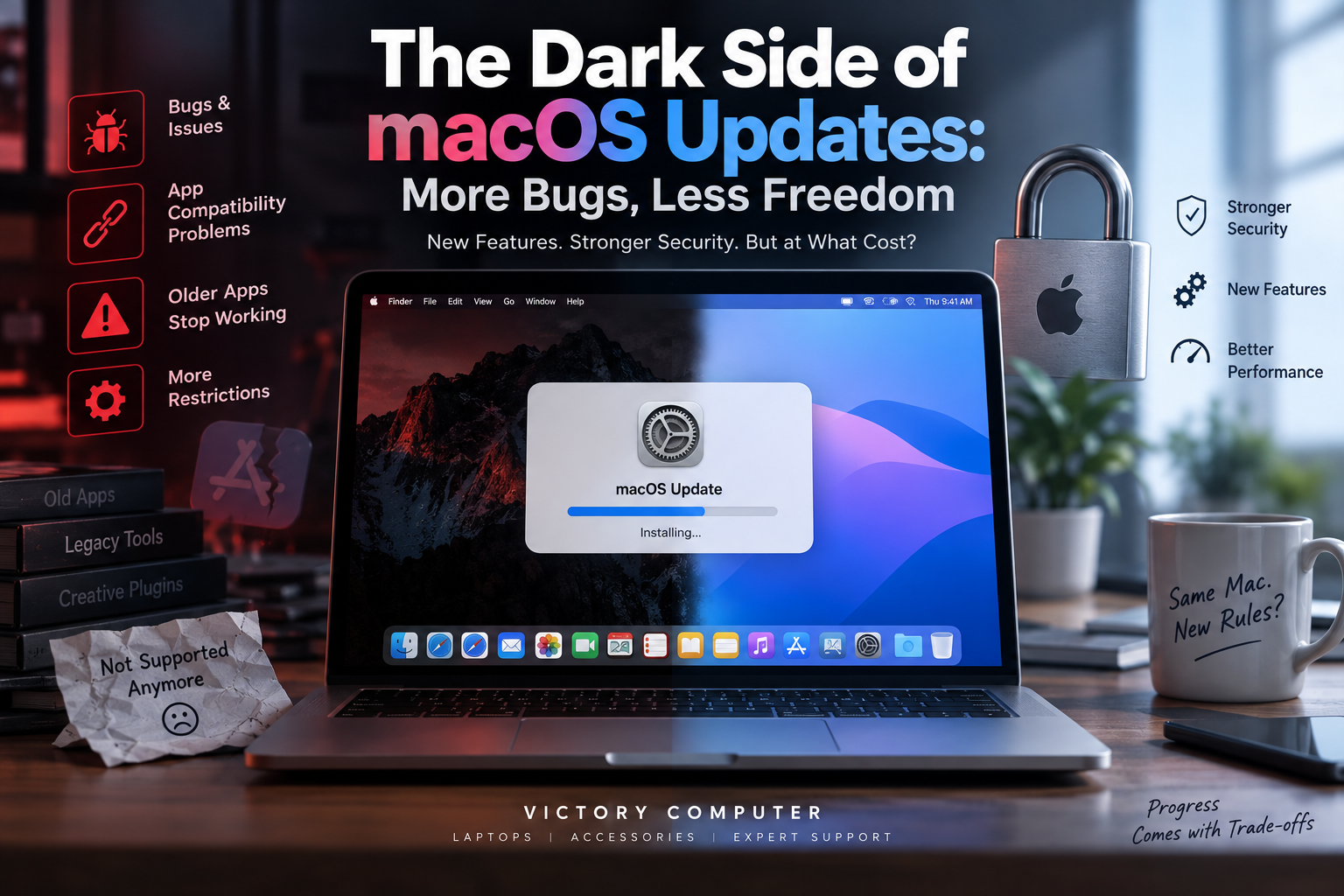
The Dark Side of macOS Updates: More Bugs, Less Freedom
macOS updates are important for security, stability, compatibility, and new Apple features, but major upgrades can also create problems for users who depend on older applications, plug-ins, drivers, or specialized workflows. The real trade-off is simple: newer macOS versions can improve protection while sometimes requiring users and developers to adapt their software.
Why macOS Updates Can Cause Problems
Most Mac users should keep their systems updated, but installing a major operating-system upgrade immediately is not always the right decision for every workflow. Apple recommends using the latest macOS version compatible with a Mac because updates can improve security, stability, compatibility, and built-in applications.
The complication is third-party software. A new operating system can introduce changes that require application developers, plug-in manufacturers, peripheral vendors, or IT teams to update their software. An application that worked perfectly on an older installation may therefore require an update before it works properly with a newer macOS release.
This matters especially to video editors, developers, musicians, designers, and businesses that depend on specialized applications or hardware. Users with critical software should verify compatibility rather than assuming every application and accessory is ready on day one.
Apps Can Stop Working After a macOS Update
macOS compatibility issues are one of the strongest reasons to check before installing a major upgrade. Some compatibility changes are permanent rather than temporary bugs.
A major historical example is 32-bit software. Apple ended support for 32-bit applications beginning with macOS Catalina 10.15. Older applications that were never updated to 64-bit versions consequently cannot run natively on current macOS releases.
Modern compatibility problems can also involve older plug-ins, drivers, utilities, development tools, security software, or applications that have not been maintained for current system requirements.
Users who depend on specialized software should therefore check the developer’s compatibility information first. Our guide to third-party apps breaking after macOS updates explains why the operating system and application developer can both play a role in compatibility problems.
Security Can Mean More Restrictions
Modern macOS security controls create a genuine trade-off between protection and flexibility. Apple uses technologies such as Gatekeeper, Developer ID signing, hardened runtime requirements, and software notarization to reduce the risk of users running malicious or tampered software.
These protections do not mean that macOS only allows applications from Apple’s App Store. Developers can still distribute Mac applications independently. However, Apple encourages developers distributing software outside the Mac App Store to use Developer ID signing and notarization so Gatekeeper can verify the software.
For most users, stronger verification is beneficial. For power users relying on old, unsigned, abandoned, or deeply integrated software, additional security requirements can make some workflows more complicated.
That tension is explored further in our analysis of macOS security restrictions: improved protection can sometimes come with additional compatibility requirements and fewer practical options for legacy software.
Pros and Cons of macOS Updates
| Pros | Cons |
|---|---|
| Important security improvements | Some older apps may become incompatible |
| Bug fixes and stability improvements | Major releases can introduce new bugs |
| New macOS and Apple ecosystem features | Older plug-ins or drivers may require updates |
| Better support for current applications | Legacy workflows can become harder to maintain |
| Continued compatibility with Apple’s current services | More security controls can affect unsupported software |
Pros of macOS Updates
- Security: Current updates can patch vulnerabilities and improve system protection.
- Compatibility: New applications increasingly target current operating-system versions.
- Bug fixes: Updates can resolve existing macOS problems rather than only introduce changes.
- New features: Major releases can add new system and built-in application capabilities.
- Long-term support: Staying reasonably current reduces dependence on increasingly outdated software.
Cons of macOS Updates
- Application compatibility: Older or abandoned software may stop working.
- Early-release problems: A major operating-system release can have bugs that are corrected in later updates.
- Peripheral compatibility: Specialized hardware can depend on updated drivers or vendor support.
- Workflow disruption: Professional users may need to update applications, plug-ins, or tools alongside macOS.
Why We Recommend Updating Carefully
For ordinary users running current applications, staying updated is generally the sensible approach because security and compatibility improvements matter. Professionals with business-critical software should be more cautious with major version upgrades: confirm application, plug-in, and peripheral compatibility first, create a backup, and then upgrade.
Should You Install macOS Updates Immediately?
Security updates and major macOS upgrades should not necessarily be treated the same way. Security fixes are important, while a major operating-system upgrade can involve wider compatibility changes.
| User | Recommended Approach |
|---|---|
| General home user | Keep macOS current after confirming basic app compatibility |
| Student | Check required university or specialist software first |
| Video editor / designer | Verify creative applications and plug-ins before a major upgrade |
| Developer | Check development tools, runtimes, dependencies, and testing requirements |
| Business user | Validate critical applications before deployment |
The safest approach is not to avoid macOS updates indefinitely. Instead, understand whether the release is a routine update or a major upgrade and evaluate the software your work depends on.
How to Prepare Before Updating macOS
A few checks can significantly reduce the risk of MacBook update issues:
- Back up important data. Apple itself recommends backing up before installing new software.
- Check application compatibility. Pay particular attention to older or specialist software.
- Check plug-ins and peripherals. Audio equipment, printers, specialist accessories, and professional tools may depend on vendor software.
- Update important applications. Developers may release compatibility updates around a new macOS version.
- Check available storage. Make sure the Mac has sufficient space for the upgrade and normal operation.
- Avoid disrupting critical work. Do not install a major upgrade immediately before an important project unless compatibility has already been validated.
If an old application is essential to your workflow, also read our guide about the hidden cost of macOS updates and losing access to older apps.
Does macOS Really Give Users Less Freedom?
The answer depends on what “freedom” means. macOS still supports software distributed outside the Mac App Store, so describing modern Macs as completely locked to Apple’s store would be inaccurate.
However, macOS now applies substantial security checks to downloaded software, and older applications can lose compatibility as Apple moves the platform forward. Users who value running legacy or unsupported software may therefore perceive modern macOS as more restrictive.
For mainstream users, those same restrictions can reduce exposure to malicious or tampered applications. For advanced users, developers, and professionals with legacy workflows, the restrictions can create additional friction.
The result is not simply “security versus freedom.” It is a continuing balance between protecting mainstream users and preserving compatibility with software built around older system requirements.
What MacBook Buyers in Pakistan Should Consider
MacBook buyers in Pakistan should consider software requirements before choosing between macOS and Windows. A MacBook can be an excellent choice for users whose required applications are well supported on macOS, but buyers dependent on Windows-only business software, specialist engineering applications, or particular gaming libraries should verify compatibility before purchasing.
Gaming-focused buyers can compare current gaming laptops in Pakistan, while users specifically interested in Apple’s ecosystem should base the decision on their actual applications and workflow rather than hardware specifications alone.
Victory Computer provides laptops and computing products for buyers comparing different platforms and use cases. Before buying, verify the exact model, warranty terms, software requirements, and current product information relevant to your purchase.
Frequently Asked Questions
Do macOS updates cause bugs?
They can. Software updates may fix existing problems while occasionally introducing new ones, particularly around major operating-system transitions.
Why do some apps stop working after macOS updates?
Applications may depend on older APIs, drivers, plug-ins, architectures, or security requirements that are no longer supported. Developers may need to release compatible versions.
Should I update my Mac immediately?
Keep security in mind, but check compatibility before a major macOS upgrade if you rely on specialist applications, plug-ins, or hardware.
Can macOS run applications downloaded outside the App Store?
Yes. macOS supports independently distributed applications, although Gatekeeper and related security technologies verify downloaded software and can warn or block software that does not meet applicable security requirements.
Do 32-bit apps still work on modern macOS?
No. Apple ended 32-bit application compatibility beginning with macOS Catalina 10.15.
Are macOS updates worth installing?
For most users, yes. The security, compatibility, and stability benefits are important, but users with critical legacy software should check compatibility before installing a major upgrade.
Final Recommendation
macOS updates are neither automatically bad nor risk-free. They provide important security fixes, compatibility improvements, bug fixes, and new features, but major upgrades can disrupt applications and workflows that depend on older technology.
The best approach is to stay reasonably current without upgrading blindly. Back up your Mac, check the software and hardware you depend on, and distinguish routine security updates from major operating-system upgrades.
For buyers comparing MacBooks with Windows laptops, choose the platform that supports the applications you actually need. Victory Computer can help buyers in Pakistan compare laptops according to work, study, creative, and gaming requirements.

About Victory Computer Editorial Team
Victory Computer Editorial Team The Victory Computer Editorial Team publishes informative, research-based content about laptops, computers, monitors, printers, hardware, and technology trends in Pakistan. Our goal is to help readers understand product specifications, compare available options, and make informed purchasing decisions.
View all posts by Victory Computer Editorial Team
One thought on “The Dark Side of macOS Updates: More Bugs, Less Freedom”