
How to Fix Common Laptop Charging Problems | Expert review

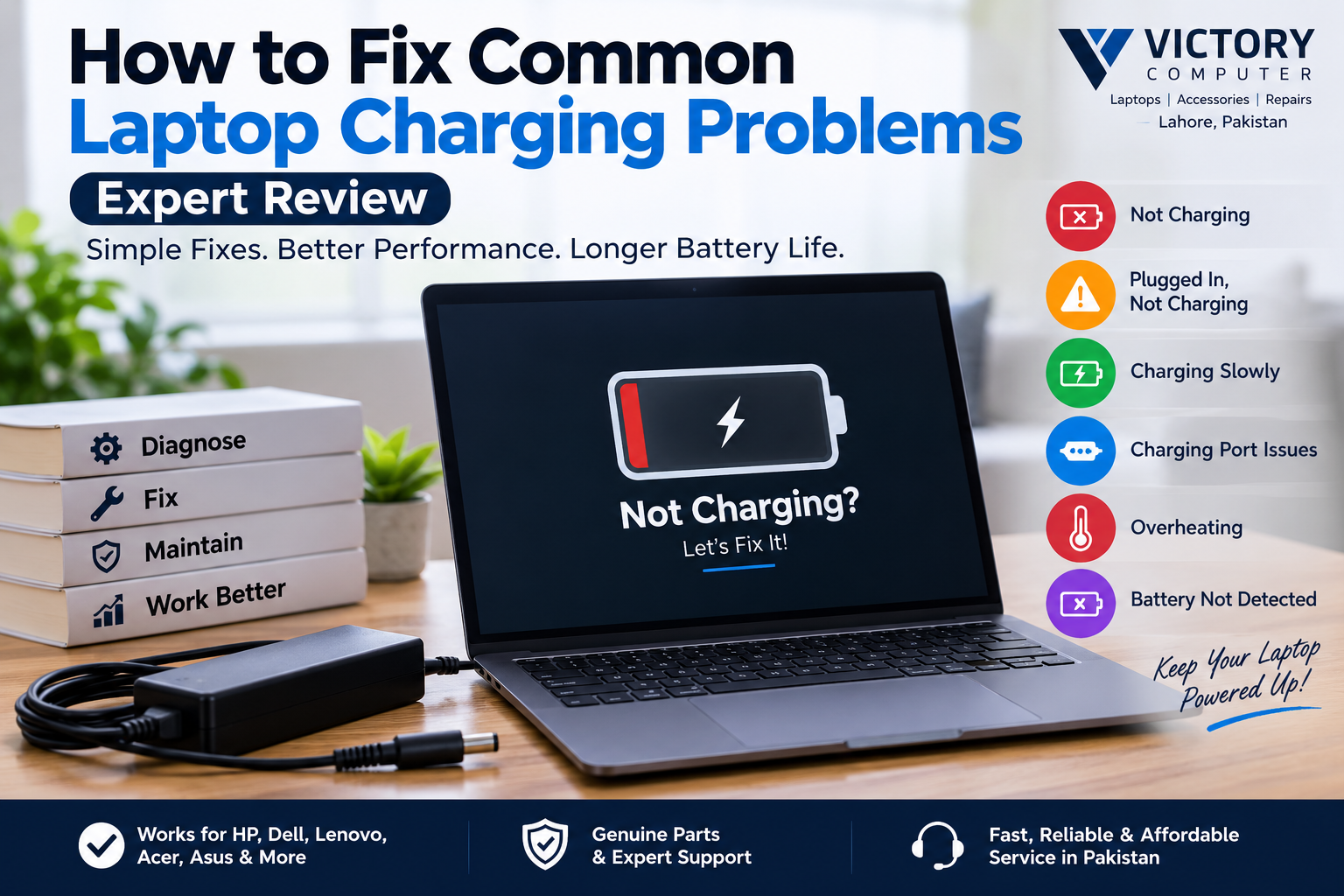
How to Fix Common Laptop Charging Problems
Laptop charging problems can come from something as simple as a loose cable or as serious as a damaged battery, charging port, or internal power circuit. If your laptop is not charging, says “plugged in, not charging,” charges unusually slowly, or only works when the cable is held at an angle, the key is to identify the cause before replacing parts.
Start with the charger, wall outlet and charging connection. Then check battery health and software settings. If the problem points to a damaged port, swollen battery, overheating component or motherboard fault, stop DIY troubleshooting and have the laptop inspected professionally.
Quick Diagnosis: Why Is Your Laptop Not Charging?
| Problem | Possible Cause | First Step |
|---|---|---|
| Laptop not charging at all | Adapter, cable, outlet or charging port | Check the outlet and compatible charger |
| Plugged in but not charging | Battery protection setting, battery health or adapter issue | Check battery status and manufacturer charging settings |
| Charging very slowly | Insufficient charger wattage or incompatible USB-C charger | Use the charger specified for the laptop |
| Charges only at an angle | Damaged connector or DC-in port | Stop moving the connector and inspect the port |
| Battery not detected | Battery connection, battery failure or system issue | Run manufacturer battery diagnostics |
| Gets very hot while charging | Cooling problem, workload, adapter or battery issue | Stop charging if heat becomes abnormal |
7 Common Laptop Charging Problems and How to Fix Them
1. Laptop Does Not Charge at All
Start with the simplest possibilities. Check whether the wall outlet works, inspect the charger cable for visible damage and make sure the connector is fully inserted. If your adapter has a power indicator, check whether it behaves normally.
If you have access to a known-good charger that is specifically compatible with your laptop, it can help determine whether the original adapter is the problem. Do not substitute a random charger merely because the connector fits.
2. Laptop Says “Plugged In, Not Charging”
This message does not automatically mean the battery has failed. Some laptops intentionally limit charging to protect long-term battery health. Smart-charging or battery-protection features can therefore leave the battery below 100% while AC power remains connected.
If the battery remains unusually low or continues dropping, check the manufacturer’s battery-management software or BIOS settings and run a battery-health test before purchasing a replacement.
3. Laptop Is Charging Very Slowly
One common cause is an adapter that cannot provide enough power. This is particularly relevant to USB-C laptops because a USB-C connector alone does not guarantee that a charger and cable can provide the wattage required by the computer.
Gaming laptops and high-performance notebooks can require considerably more power than phones, tablets and thin laptops. Use a charger and cable that meet the manufacturer’s requirements.
4. Laptop Charges Only When the Cable Is at a Certain Angle
If charging repeatedly starts and stops when you move the connector, the cable, connector or laptop charging port may be damaged.
Avoid repeatedly twisting or forcing the cable to make it charge. Continued movement can worsen a loose connector or port. If another compatible charger produces the same behavior, the laptop should be inspected for charging-port damage.
5. Laptop Battery Is Not Detected
A missing-battery warning can indicate a battery, connection, firmware or hardware problem. Restart the laptop and use the manufacturer’s built-in diagnostics where available.
If your battery has also developed very short runtime, unexpected shutdowns or other signs of deterioration, see our guide to signs your laptop battery is failing.
6. Laptop Gets Too Hot While Charging
Some warmth during charging and demanding workloads can be normal, but unusually high heat deserves attention. Blocked vents, dust, heavy workloads and cooling problems can increase temperatures, while a failing battery can present a more serious concern.
If overheating is the main symptom, follow our guide on how to fix laptop overheating problems.
If the battery appears swollen or has pushed against the chassis, keyboard or touchpad, stop using the laptop and arrange professional service. Do not press, puncture or attempt to flatten a swollen lithium-ion battery.
7. Laptop Stops Charging Before Reaching 100%
This can actually be normal. Modern battery-management systems may deliberately limit charging to reduce the time a lithium-ion battery spends at a very high state of charge.
If your laptop consistently stops at a particular percentage, check whether a battery conservation, smart-charging or battery-health feature is enabled before treating it as a fault.
How to Check Laptop Battery Health in Windows
Windows users can generate a battery report without installing third-party software.
- Open Command Prompt as administrator.
- Enter powercfg /batteryreport.
- Press Enter.
- Windows will display the location of the generated HTML report.
- Open the report and review the installed battery, usage history and available capacity information.
Comparing the battery’s current full-charge capacity with its original design capacity can help you understand how much capacity has been lost over time. Battery capacity naturally declines as lithium-ion cells age.
For more practical advice, read our guide on how to increase laptop battery life.
Pros and Cons of Fixing Laptop Charging Problems Yourself
Pros
- Quick diagnosis: You can rule out a bad wall outlet, loose connector or incorrect charger without waiting for repair.
- Potentially saves money: Simple software or connection problems may not require replacement parts.
- Helps identify the real fault: Battery reports and manufacturer diagnostics can distinguish battery problems from adapter problems.
- Prevents unnecessary replacement: A laptop that stops at 80% or 95% may simply have a battery-protection feature enabled.
Cons
- Hardware damage is possible: Forcing connectors or opening the laptop without the correct procedure can cause additional damage.
- Electrical faults require expertise: DC-in circuits and motherboard charging faults should not be treated as basic DIY repairs.
- Incorrect chargers can create problems: Matching the plug alone does not prove voltage, wattage and charging compatibility.
- Battery damage can be hazardous: Swollen or physically damaged lithium-ion batteries require careful handling.
Why We Recommend Basic Diagnosis First
Checking the outlet, charger, cable, battery status and manufacturer diagnostics is reasonable for most users. Physical battery replacement, charging-port repair and motherboard-level work should be left to a qualified technician unless you have the appropriate repair experience and equipment.
Is It Safe to Keep Using a Laptop While Charging?
Normally, yes. Modern laptops are designed to operate from external power while managing the battery through their charging system. However, heat and long periods at a very high state of charge can affect battery ageing.
For a more detailed explanation, read is it safe to use a laptop while charging?
How to Prevent Laptop Charging Problems
- Use the manufacturer-specified or properly compatible charger and wattage.
- Do not pull or bend the charging cable sharply near the connector.
- Keep the charging port free from debris.
- Avoid blocking laptop ventilation while charging.
- Use battery-health or smart-charging features when appropriate.
- Do not leave a laptop exposed to excessive heat.
- Investigate sudden changes in charging behavior rather than repeatedly forcing the connector.
Power instability can also matter in the local environment. If voltage interruptions and outages are common where you use your laptop, our guide to load shedding and laptop battery health explains the issue in more detail.
When Should You Get Professional Laptop Repair?
Basic troubleshooting should stop when there are signs of physical or electrical damage. Get the laptop inspected if the charging port is loose, the adapter or connector becomes abnormally hot, the battery is swollen, the laptop repeatedly loses power despite a known-good compatible charger, or the system cannot recognize a correct adapter.
Motherboard charging-circuit diagnosis also requires proper tools and technical experience. Replacing random components without confirming the failed part can increase the repair cost rather than solve the problem.
Fixing Laptop Charging Problems in Pakistan
For users in Pakistan, charger quality and compatibility deserve particular attention. Avoid choosing an adapter based only on connector shape. Check the laptop manufacturer’s required voltage, wattage and connector or USB-C Power Delivery requirements.
Victory Computer in Lahore can help customers identify suitable laptop accessories and discuss laptop-related requirements. Visit Victory Computer for current information and contact options.
Frequently Asked Questions
Why is my laptop plugged in but not charging?
The cause may be a battery-protection setting, deteriorated battery, incompatible adapter or charging-system fault. Check the laptop’s battery settings and run manufacturer diagnostics before replacing parts.
Why is my laptop charging so slowly?
The charger or USB-C cable may not provide enough power for the laptop. Using the correct charger and cable is especially important on high-performance and USB-C-powered notebooks.
How do I know if my laptop charger is faulty?
Inspect the cable and connector and check whether the laptop recognizes external power. Where possible, test with a known-good compatible adapter or use the manufacturer’s AC-adapter diagnostics.
Can a bad charging port stop a laptop from charging?
Yes. A damaged or loose charging port can cause intermittent charging or prevent power from reaching the laptop correctly.
Should I replace a laptop battery that does not charge to 100%?
Not automatically. Smart-charging and battery-health features can intentionally stop charging below 100%. Check your laptop’s battery-management settings and battery health first.
What should I do if my laptop battery is swollen?
Stop using the device and arrange professional service. Do not puncture, squeeze or attempt to flatten a swollen lithium-ion battery.

About Victory Computer Editorial Team
Victory Computer Editorial Team The Victory Computer Editorial Team publishes informative, research-based content about laptops, computers, monitors, printers, hardware, and technology trends in Pakistan. Our goal is to help readers understand product specifications, compare available options, and make informed purchasing decisions.
View all posts by Victory Computer Editorial Team