
Why macOS Isn’t as User-Friendly as Apple Wants You to Believe | Expert Review

Why macOS Isn’t as User-Friendly as Apple Wants You to Believe
Is macOS user-friendly? For everyday tasks, often yes. Apple provides a clean interface, consistent controls and strong integration between Macs and other Apple devices. However, macOS can become less convenient when users need unsupported software, greater customization, unfamiliar shortcuts or fewer security restrictions. The experience depends heavily on how you use your computer.
Why macOS Isn’t Always as User-Friendly as It Looks
macOS is easy to understand for many basic tasks, but Apple’s approach prioritizes consistency and security over unrestricted control. That trade-off becomes more noticeable for Windows switchers, gamers, developers and people who depend on specialized applications.
1. Security Can Add Extra Steps
macOS includes Gatekeeper to help prevent untrusted software from running. Apps downloaded outside the Mac App Store can be checked for an identified developer, notarization and modification before macOS allows them to run.
These protections are useful, but experienced users installing specialist software may occasionally encounter additional security prompts. Apple does allow users to override certain warnings when they trust the application, so macOS is not limited exclusively to App Store software.
2. Switching From Windows Requires Relearning Shortcuts
Windows users usually face a learning curve. Common actions frequently replace the Windows Control key with the Mac Command key. Copy and paste, for example, normally use Command-C and Command-V.
Right-click behavior, application management, Finder navigation and window controls can also feel unfamiliar during the first few days. This does not necessarily make macOS difficult, but it challenges the idea that the operating system is immediately intuitive for everyone.
3. Software Compatibility Depends on Your Workload
Software availability should be checked before switching to a MacBook. Most mainstream productivity and creative applications offer Mac versions, but some Windows-only programs, specialist business tools, games and legacy applications may require an alternative, virtualization or another workaround.
The transition to Apple Silicon also changed the Mac software environment significantly. Modern applications increasingly support Apple Silicon natively, but buyers using older or specialist software should verify compatibility before purchasing.
4. Customization Is More Controlled
macOS offers considerably more customization than the stereotype suggests. Users can modify keyboard shortcuts, widgets, Control Centre, desktop settings and window behavior.
However, people accustomed to deeply modifying Windows or Linux may still find Apple’s approach restrictive. macOS generally gives users a curated set of customization options instead of unrestricted control over every part of the desktop environment.
5. Window Management Has Improved, but Habits Matter
Modern macOS versions include native window tiling controls, including options for dragging windows to screen edges. This addresses one long-standing criticism of Mac window management.
Even so, users moving from Windows may initially find multitasking behavior different because macOS handles applications, windows, full-screen spaces and keyboard navigation differently.
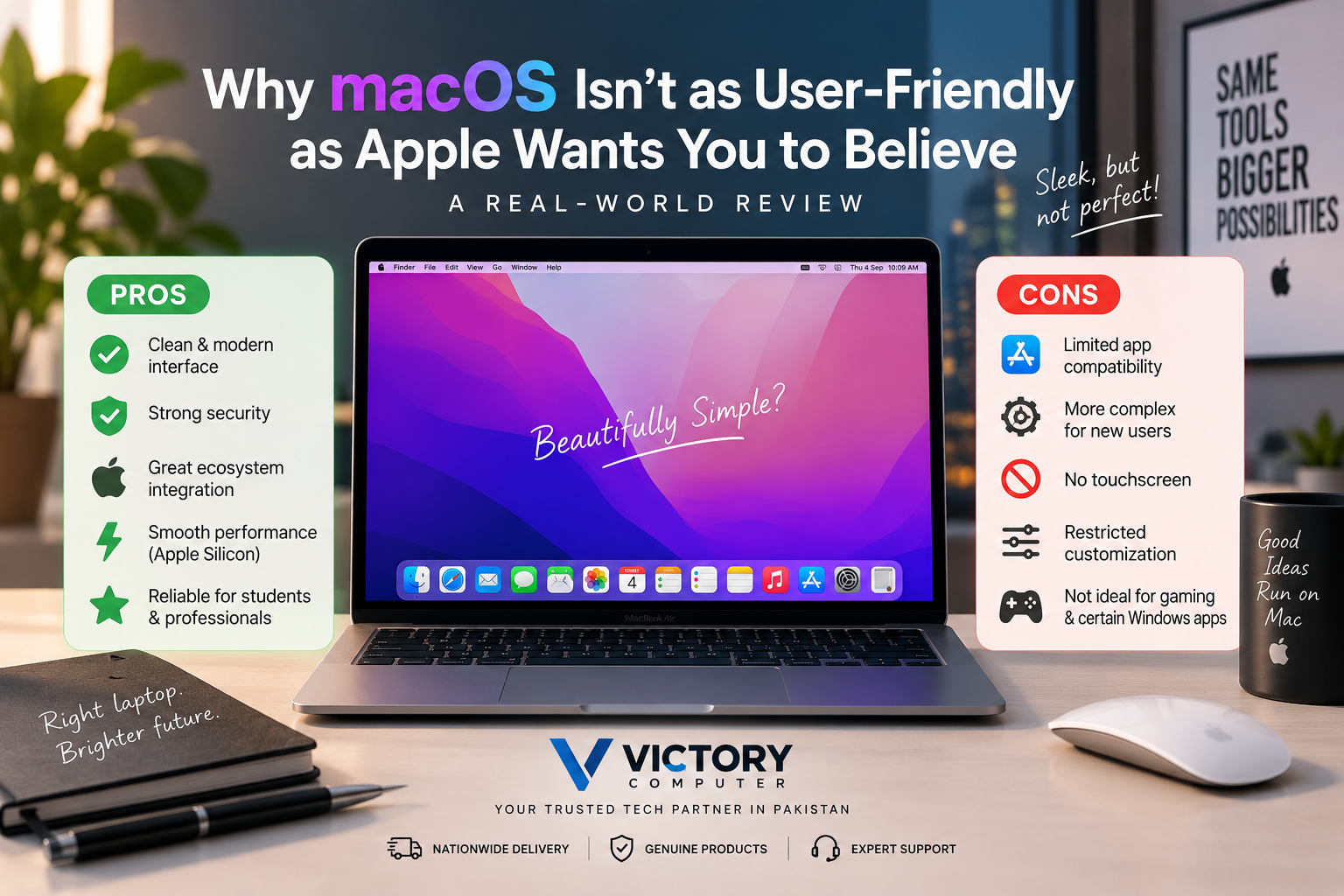
macOS Pros and Cons
The strongest argument for macOS is not that it is universally easier than Windows. Its advantage is a consistent environment that works particularly well for people already comfortable with Apple’s ecosystem.
Pros of macOS
- Clean interface: Core controls and applications follow a relatively consistent design.
- Strong security: Gatekeeper and other built-in protections help reduce the risk of running untrusted software.
- Apple ecosystem integration: Mac users can benefit from integration with compatible iPhones and other Apple devices.
- Useful productivity features: Spotlight, trackpad gestures, Quick Look and system-wide shortcuts can make everyday workflows fast once learned.
- Growing customization: Modern macOS versions provide widgets, Control Centre customization and native window-management options.
Cons of macOS
- Learning curve for Windows users: Keyboard shortcuts, Finder and window management work differently.
- Software compatibility: Some Windows-specific applications and games are unavailable natively.
- More controlled environment: Advanced users may prefer the greater customization available with Windows or Linux.
- Security prompts: Installing less common third-party software can require additional approval steps.
Why We Recommend It
macOS makes sense for users who value a consistent interface, Apple’s ecosystem and a controlled computing environment. Buyers who rely heavily on Windows-only applications, extensive system customization or PC gaming should investigate software compatibility before choosing a MacBook.
macOS vs Windows: Which Is More User-Friendly?
Neither operating system is automatically more user-friendly for every person. macOS can be easier for users who want consistency and already use Apple devices, while Windows often gives users broader hardware, software and customization choices.
| Area | macOS | Windows |
|---|---|---|
| Basic everyday use | Simple and consistent | Familiar to a very large PC user base |
| Customization | More controlled | More flexible |
| Apple ecosystem | Major advantage | Limited Apple integration |
| PC gaming | More limited | Broader game support |
| Specialist software | Depends on application | Often broader compatibility |
| Learning curve | Easy after adjustment | Often easier for existing Windows users |
Professionals deciding between the two should compare their actual applications and workflows rather than choosing based on operating-system reputation alone. Our MacBook vs Windows laptop comparison covers this decision in more detail.
Who Should Choose macOS?
macOS is particularly suitable for users whose required applications already support Mac and who value Apple’s hardware-software integration.
- Students: Good for research, documents, presentations, browsing and compatible educational applications.
- Office users: Suitable when required business software supports macOS or works through browser-based platforms.
- Creative professionals: Strong option when workflows are based around Mac-compatible creative software.
- Apple ecosystem users: A logical choice for people who already use compatible Apple devices and services.
Windows may be the more practical choice for users whose work depends on Windows-only software, broad PC gaming support or extensive hardware and operating-system customization.
What Should Pakistani Buyers Check Before Buying a MacBook?
Pakistani buyers should focus on the exact MacBook model, memory, storage, keyboard layout, warranty terms and software requirements rather than assuming every MacBook will suit every workload.
Compatibility is particularly important. List the applications you use for work, university, gaming or content creation and confirm that suitable macOS versions are available before changing platforms.
You can explore available computers and additional technology guides through Victory Computer. Buyers can also contact Victory Computer on WhatsApp at 0300 9466881 for current product information.
Frequently Asked Questions
Is macOS really user-friendly?
Yes for many everyday users, but the answer depends on previous experience and software requirements. Windows users may need time to adjust to different shortcuts, Finder and application behavior.
Is macOS easier to use than Windows?
Not universally. macOS prioritizes consistency, while Windows provides broader customization and software choices. Familiarity often determines which operating system feels easier.
What is the biggest disadvantage of macOS?
Software compatibility can be the biggest limitation for users who require Windows-only applications or games. Compatibility should therefore be checked before buying a MacBook.
Can you install apps outside the Mac App Store?
Yes. macOS can run applications distributed outside the Mac App Store, although Gatekeeper may check the developer, notarization and integrity of downloaded software before allowing it to run.
Is a MacBook good for students?
A MacBook can be a good student laptop when required educational software supports macOS. Students using Windows-specific engineering, laboratory or specialist applications should verify compatibility first.
Should a Windows user switch to macOS?
Switch if your essential applications support macOS and you value Apple’s ecosystem and interface. Stay with Windows if Windows-only software, PC gaming or extensive customization is central to your workflow.
Final Verdict: Is macOS as User-Friendly as Apple Suggests?
macOS user-friendly design is real, but it is not universal. The operating system is polished and consistent, yet simplicity sometimes comes with additional security controls, different workflows and less flexibility than some Windows or Linux users expect.
The best operating system is therefore the one that supports your applications and normal workflow with the fewest compromises. Before buying a MacBook, check software compatibility first and choose the hardware only after confirming macOS fits the way you actually work.

About Victory Computer Editorial Team
Victory Computer Editorial Team The Victory Computer Editorial Team publishes informative, research-based content about laptops, computers, monitors, printers, hardware, and technology trends in Pakistan. Our goal is to help readers understand product specifications, compare available options, and make informed purchasing decisions.
View all posts by Victory Computer Editorial Team